
Why You Must Turn Off These 10 Hidden iPhone Settings to Avoid Annoyances and Better Privacy?
iPhones come with features, but not all of them are worth to keep on. Some settings can compromise your privacy, drain your battery, or simply create unnecessary hassle.

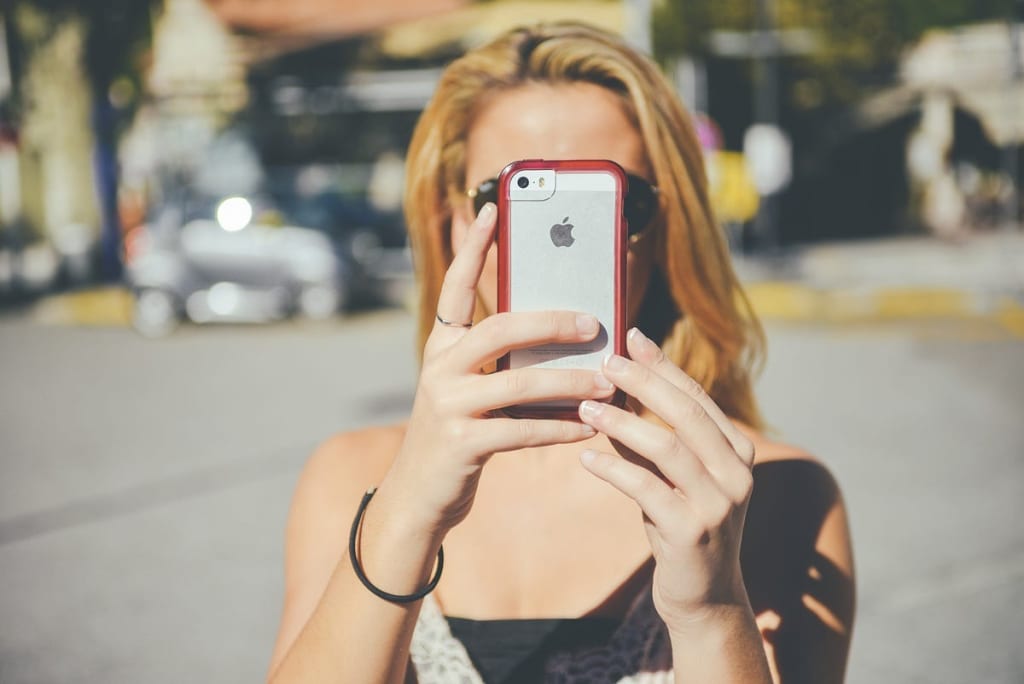
Here’s a breakdown of 10 hidden iPhone settings I always turn off and why you might want to as well.
Significant Locations
Your iPhone tracks where you go, how often, and even your routes through the "Significant Locations" feature. It’s designed to offer personalized suggestions, but the idea of my phone logging every move feels invasive. Apple claims this data is encrypted, but do you really need your phone knowing your favorite coffee shop or commute times? I don’t, so I keep it off.
How to disable Significant Locations: Go to Settings > Privacy & Security > Location Services > System Services > Significant Locations and toggle it off.
App Tracking
When apps track you across other apps and websites, they build a profile of your habits for targeted ads. It might mean seeing ads for things you like, but it’s also a major privacy concern. I value control over my data more than personalized ads.
How to disable App Tracking: Navigate to Settings > Privacy & Security > Tracking and turn off "Allow Apps to Request to Track."
NameDrop
NameDrop lets you share contact info by bringing two iPhones close together. It activates unintentionally when phones are nearby during meetings or casual hangouts. I prefer sticking to AirDrop for intentional sharing.
How to disable NameDrop: Go to Settings > General > AirDrop and toggle off Bringing Devices Together.
Learn From This App
Siri learns from how you use apps to make smarter suggestions. Sounds helpful until you realize it’s analyzing sensitive apps like banking or messaging platforms. I’d rather Siri stay out of my private business.
How to disable iLearn From This App: Open Settings > Siri & Search, scroll down to individual apps, and toggle off "Learn from this App."
Notifications While Sharing Screen
Imagine sharing your screen during a presentation, only for a personal message to pop up for everyone to see. This setting is a disaster waiting to happen if left on.
How to disable Notifications While Sharing Screen: Head over to Settings > Notifications > Screen Sharing then toggle off Allow Notifications.
StandBy Mode
StandBy Mode turns your phone into a clock or widget hub when charging horizontally. While neat, I find it more annoying than useful as it’s hard to exit without picking up the phone or unplugging the charger.
How to disable StandBy Mode: Go to Settings > StandBy and toggle it off.
Audio Playback While Recording Video
If you play music while recording video, the audio gets mixed into the recording, but at the cost of sound quality. The iPhone switches from stereo to mono recording, making everything sound flat and unclear. Not worth it unless absolutely necessary.
How to disable Audio Playback While Recording Video: Open Settings > Camera > Record Sound and turn off "Allow Audio Playback."
Attention Awareness
This feature uses Face ID sensors to detect if you’re looking at your phone and adjusts brightness or alert volume accordingly. While clever, false detections can mess things up, like alarms staying quiet when they shouldn’t.
How to disable Attention Awareness Features: Navigate to Settings > Face ID & Passcode and toggle off "Attention Aware Features."
Automatic App Updates
iOS updates apps automatically by default, which sounds convenient until an update changes an app’s layout or features unexpectedly. I prefer updating manually so I stay in control.
How to disable Automatic App Updates: Go to Settings > App Store and turn off "App Updates."
Offload Unused Apps
This feature removes unused apps while keeping their data intact. It’s supposed to save storage space but often deletes apps I need occasionally—like travel or banking appsf orcing me to redownload them at inconvenient times.
How to disable Offload Unused Apps: Open Settings > Apps > App Store and toggle off "Offload Unused Apps."
Why These Settings Matter
Disabling these features isn’t just about convenience, it’s about taking control of your device:
- Protect your privacy by limiting unnecessary tracking.
- Avoid embarrassing moments during presentations.
- Maintain better sound quality in recordings.
- Stay in charge of app updates and storage management.
By turning these 10 hidden settings off on iPhone, you can streamline how your iPhone works while avoiding potential headaches down the road.
About the Creator
Alex Lim
Writing about data and emerging technologies topic, Solution Consultant, Technology (pupuweb.com) and Marketing/Business (paminy.com) Blogger, Photographer (pimodi.com), Husband, and Father of 2
Silver Screen Magic with Mae West
American actress and singer Mae West became a popular film actress during the Great Depression. She started entertaining in vaudeville, then performed on Broadway, and finally went to Hollywood. She signed up with Paramount Pictures and made her debut in the 1932 film “Night After Night.” She also starred in musicals, comedies, and crime dramas. The American Film Institute named her one of the best classic Hollywood actresses.
By Rasma Raisters4 days ago in Geeks




Comments
There are no comments for this story
Be the first to respond and start the conversation.