
Top 5 Free APPs to Add Image To PDF Mac In 2022
Which one do you like to download?

I know what you're thinking — "Why would I need an app to add images to PDFs with? It's so simple; just do it in Word". This is true, and there are lots of reasons why people still use Word.
However, if you're working with large files, especially those that take up a lot of space (like the images), then it doesn't make sense to sit in Word all day.
Moreover, inserting images into PDF files is one of the best ways to make your presentation more interesting and vivid. To be able to insert images easily, there are certain apps and programs that can help you do that.
Here are the top 5 free apps which help you create amazing presentations with just a click of your mouse.
1. UPDF:
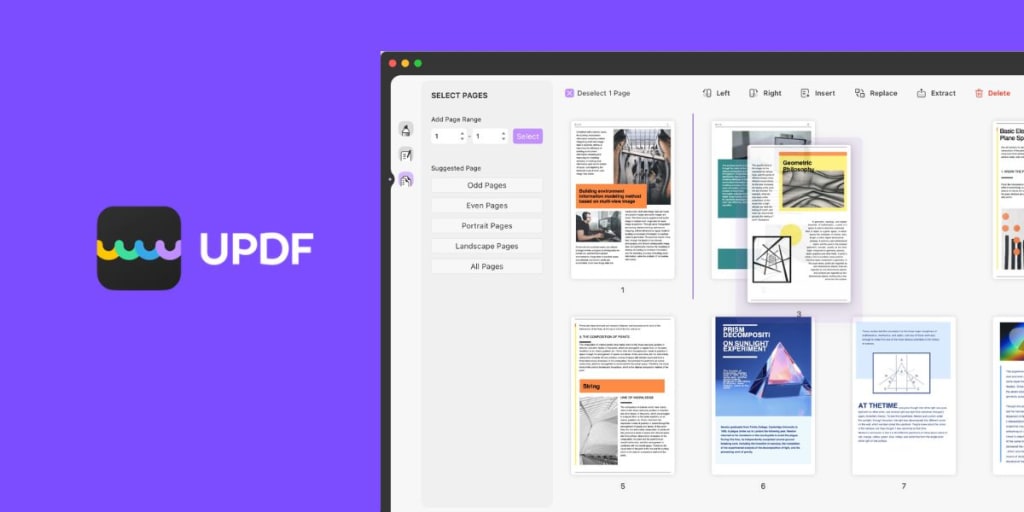
UPDF is a free PDF editor that allows you to manage, safely share and access all of your documents in one place. You can edit PDF, add images or remove images in UPDF across all platforms.
Alongside Mac, you can also download it to your iPhone in order to edit PDF. Here are some of its notable features;
●Add or Delete PDF Text: Inserting new content into a PDF is easy. Also, you can copy, paste and even delete pages from PDF!
●Add or remove Images: UPDF is awesome for adding a picture that you've taken with your smartphone or tablet. Also, if you have any individual images or PDF files that need to be removed from the rest of the project, it's very simple and straightforward to do so, thanks to UPDF uploader software.
●Edit Image On PDF: You can extract images or objects from your PDF and replace them with your own versions.
●Support replacing files: It allows you to replace certain unnecessary pages from PDF.
●Email To Share, Print: UPDF is a free resource to share your files with colleagues and even print at your office without any hassle via your Mac.
Click on the link to know more about UPDF, and download the application from here.
2. Apple Preview:
The macOS Preview app is part of the default Mac installation. The app has a built-in PDF reader that can display most common document types, but it also provides basic editing capabilities, so you don't necessarily have to download additional software to view PDFs or work with simple images.
Here are some of the notable features of Apple Preview:
●Text Selection: Select the text to copy or delete.
●Add images: Add images from your drive or iCloud to your PDF.
●Combine PDF documents: With Apple Preview, you can easily combine two PDF documents in order to print them. It’s best for portfolios and businesses.
●Import and export: Preview can directly access image scanners supported by macOS and import images from the scanner.
●Convert Images: It can convert images to other formats (all the formats supported by Apple).
3. Google Docs:
Google Docs is a free product by Google Drive. You can edit, open and create PDFs in Google Docs easily, and they will be directly saved to your Google Drive. Conveniently, you can download these PDFs anywhere.
To use Google Docs as your primary PDF editor, first you will need to convert the PDF to Google Docs in your drive. All in all, here are some of the notable features:
●Editing and Formatting Text: You can edit or format text according to the whole text in Google Docs.
●Set Column Style: Set a preliminary column text to increase the engagement of your PDF.
●Adding Text And Paragraph: Google Docs allows us to add or remove text from a PDF.
●Inserting Images: After converting the PDF to Google Docs, you can easily insert new images.
●Editing Images: Edit the newly imported images or edit already attached images to match the style.
●Adding a Footnote: Add your signatures or logo.
●Downloading Document: Easily create a sharing link or download the document as a PDF.
4. WPS Office:
WPS Office is a powerful office suite that allows professionals such as Design, Sales and Education to effectively deal with the different requirements of their work. It is subsidiary of Kingsoft Corp. In fact, it's used as a free alternative to Microsoft Office and has become popular among these types of businesses.
●Edit Text and Images with PDF Editor: WPS Office allows you to edit text, and images to your PDFs. However, these are limited in the free edition.
●Amazing Presentations: Create stunning presentations in WPS Office to showcase your talent in business meets.
●Password Protection: Protect your document and encrypt it with a password.
●PDF To Word Converter: Easily convert PDF to word in order to edit it more precisely.
●Fill and Sign Efficiently: Sign your documents to add authenticity and trust.
●Add Special Notes: Add end notes or special notes for your clients, like a discount offer or extra service.
5. Sejda:
Sejda is a freemium PDF editor and file converter tool available online. Although, it's free to add or extract images from PDF in Sejda, some of its features are paid.
Here are some of the notable features:
●PDF Editor: The full-fledged PDF editor enables you to edit PDFs, add images or extract images. You can also resize and edit images inside a PDF with this tool.
●Compress: Compress PDF file to send it to your colleagues effortlessly.
●Merge: Merge multiple pages to create a single assignment or presentation.
●Extract Pages: It allows you to extract specific pages from PDF. It's the best feature for CV editing where you want to remove a certain certificate page.
Sejda also has some other notable features, which you can see by clicking here.
Conclusion: Which One Is the Best PDF Image Editor For you?
The choices for PDF image editing for Mac are numerous, but only one will be truly valuable to you. So, the number of all we recommend is UPDF editor.
It seems to offer the most useful features, ranging from text edits to embedded file support. Also, it’s completely free, which means you don’t have to subscribe to any plans after hitting a certain limit of use in many of the above free editors.
But the choice is ultimately yours. Take your time to determine which of these PDF image editors is the best for you, and in no time at all, you'll be enhancing your PDF files like never before!
About the Creator
UPDF
UPDF is a PDF editor software developed by startup company Superace Software Technology Co., Ltd. It provides all-in-one PDF solution that lets you edit, annotate and convert PDF easily and enjoyfully. Visit: https://updf.com/
Marvel Zombie
The last entry into our 2025 superhero projects catalogue is Marvel Zombies. This was a show that was anticipated by absolutely no one and it disappeared from the public consciousness as quickly as it was released. There was nothing special about the project that made it a must see, or a must remember. In fact if anything it's a must forget.
By Alexandrea Callaghan20 days ago in Geeks
Silver Screen Magic with Mae West
American actress and singer Mae West became a popular film actress during the Great Depression. She started entertaining in vaudeville, then performed on Broadway, and finally went to Hollywood. She signed up with Paramount Pictures and made her debut in the 1932 film “Night After Night.” She also starred in musicals, comedies, and crime dramas. The American Film Institute named her one of the best classic Hollywood actresses.
By Rasma Raisters3 days ago in Geeks
Center Stage with Paul Stewart
*** I'm keen to republish the interviews I did for my series with Vocal creators. It's been a few years and I thought it might be nice to revisit these wonderful conversations. I'll be releasing them one at a time for a few weeks/months.
By Heather Hublerabout 17 hours ago in Interview



Comments
There are no comments for this story
Be the first to respond and start the conversation.