
How to Edit Text in PDF on Mac For Free: Complete Guide
In this guide, we'll explore the most effective methods to edit text in PDF files on your Mac, from utilizing specialized tools to leveraging built-in features, ensuring you can tackle any PDF editing task with confidence.
Working with PDFs on your Mac should be simple, but when you need to edit text in these PDF files, frustration can quickly set in.
Whether there are outdated information that needs updating, typos that require correction, or small errors that need fixing, the limited built-in PDF editing capabilities of macOS can leave you frustrated.
Fortunately, there are powerful solutions available that make editing PDF text on your Mac both straightforward and efficient, You can use it to editing existing text in a PDF file, add text or links or even do scanned document modifications.
Does Mac Come with a Native PDF Text Editor?
Mac's built-in Preview app serves as the default PDF viewer and offers some basic editing capabilities, but it comes with significant limitations. While Preview excels at viewing and annotating PDFs, it wasn't designed to be a comprehensive PDF editor.
You can use it to perform basic tasks like:
- Adding annotations and highlights
- Inserting signatures
- Filling out PDF forms
- Adding basic shapes and comments
- Removing or adding pages
However, when it comes to actually editing existing text within PDF documents, Preview falls short.
What Preview can’t do:
- Modifying existing text content
- Change font styles or sizes
- Correcting typos or errors
- Adding new text that matches the original formatting
This is precisely why many Mac users are searching for solutions to edit existing text on PDF. In the following sections, we'll explore free alternatives that provide the full range of PDF text editing capabilities which Preview lacks.
How to Edit PDF Text on Mac With Cisdem PDFMaster
Cisdem PDFMaster is an AI-integrated PDF editor that comes with powerful text editing capabilities. It can read, edit, convert, OCR, translate, compress, sign, protect, and annotate PDFs on Mac.
With the build in PDF editing tools, you can edit existing text, images, and links as you like. You can control the individual properties of the text, meaning you can modify the text size, font, color, and more.
As an AI-powered PDF editor, PDFMaster can also help you summarize, translate, proofread, and rewrite PDFs to improve your workflow. Below are a few simple steps to help you edit PDF documents in macOS.
Step 1. Download Cisdem PDFMaster on your Mac. Then click on "Open File" to import your PDF document.
Step 2. Once your PDF is open, click "Edit PDF" on the toolbar. Click anywhere to edit the texts or images in the PDF.
- Move PDF text: Select the text you want to move and drag the text block to a desired part.
- Edit PDF text: Search and find the text you need to edit, double-click the text so the cursor is inside the text box. The you can edit, add, or delete existing text as needed.
- Add new text to PDF: click the "Add Text" button in the blue bar, and click on anywhere you want to add text. A text box will show and you can start typing new text.
- If you want to change the font size and text color, drag your cursor to select the text and adjust them from right-click menu.
- If your PDF file is a scanned file or image-based file, you'll need to perform OCR before editing it. Here are more details about how to edit scanned PDFs on Mac.
How to Edit Text in PDF Using Mac Preview
Preview is the default PDF reader that comes pre-installed on every Mac. It offers basic PDF editing capabilities, with it you can add text, annotations or images to a PDF file, However, Preview doesn't allow you to select and edit existing text within PDFs directly.
Adding New Text to PDF in Preview
Step 1. Open your PDF file in Preview
Step 2. Click "View" in the menu bar and select "Show Markup Toolbar"
Step 3. Click on the "Text" button (T icon) in the toolbar.
Step 4. Click anywhere on the PDF where you want to add text
Step 5. Now you can add text to the PDF file
- Customize the text using the format options:
- Change font style and size
- Adjust text color
- Modify text alignment
Adding Annotations in Preview
Preview offers several annotation tools to enhance your PDF:
Notes
- Click the "Note" icon in the toolbar
- Click where you want to add the note
- Type your comment in the yellow note box
Highlights and Markups
- Select the text you want to highlight
- Choose your preferred markup option from the toolbar:
- Highlight text
- Draw on PDF
- Add text boxes to PDF
- Underline
- Strikethrough
- Add shapes or arrows
How to Edit Text in PDF Using Adobe Acrobat on Mac
As the creator of the PDF format, Adobe Acrobat is the go-to choice for PDF editing, it offers the most reliable and complete function for editing PDF text. The only downside is that you have to pay a monthly subscription for this text editing function which starts at $19.99/month.
Step 1. Download and install Adobe Acrobat from the official website
Step 2. Sign in to your Adobe account.
Step 3. Click on the "Tools" tab at the top.
Step 4. Select "Edit PDF" from the Create & Edit section.
Step 5. Open your PDF file.
Step 6. Click on the text you want to edit.
Step 7. Modify the content directly as you would in a word processor, you can Delete, add, or replace text as needed.
Step 8. With the right sidebar you can modify font or text colors, change font type and size and adjust line spacing.
Step 9. Lastly, Click File > Save and choose a location to save your edited PDF.
How to Edit PDF Text on Mac Using LibreOffice (Free)
LibreOffice is a free office suite which used by users on a daily basis. It offers a free, open-source solution also comes with PDF editing functions like editing existing text on PDF files, inserting fillable text boxes, changing text color, etc.
Now follow the tutorials below to edit PDF text on your Mac with LibreOffice.
Step 1. Visit the official LibreOffice website and download the software.
Step 2. Install and launch LibreOffice on your Mac.
Step 3. Click the "Open File" button in the top-left corner and select your PDF document. (If the PDF have many photos or the size is large it may take sometime to load.)
Step 4. Select the text you want to edit in the PDF file and make changes the same way you do with Word documents. (See that, some images will show as black in LibreOffice)
You can use LibreOffice to
- Edit existing text
- Change font styles
- Change font sizes
- Modify text formatting
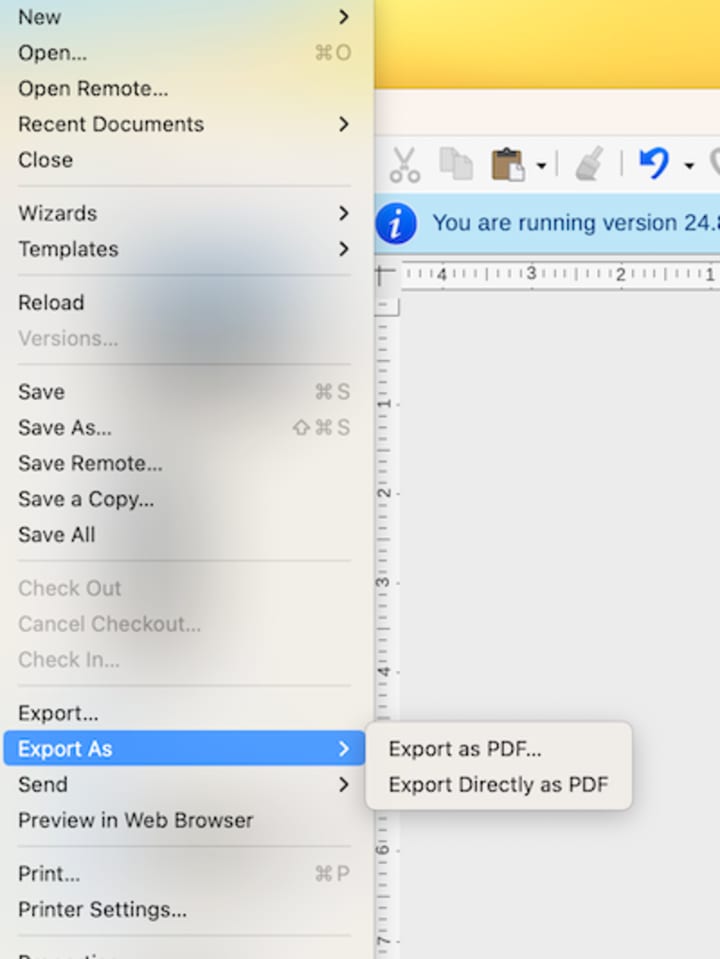
Step 5. After the editing, go to File > Export as PDF and choose a location to save the edited PDF file.
How to Edit PDF Text Online Using Sejda (Free)
For Mac users seeking to edit text in PDF file without software, we can use online PDF editors to edit PDF text directly in the browser. I personally recommend Sejda, the well-received web-based PDF editing tool. With Sejda, you can change existing text in PDF online without software installation, and without cost.
Here's a how to edit PDF text with Sejda
Step 1. Open Sejda website in your web browser, Click Upload PDF file to add PDF to Sejda.
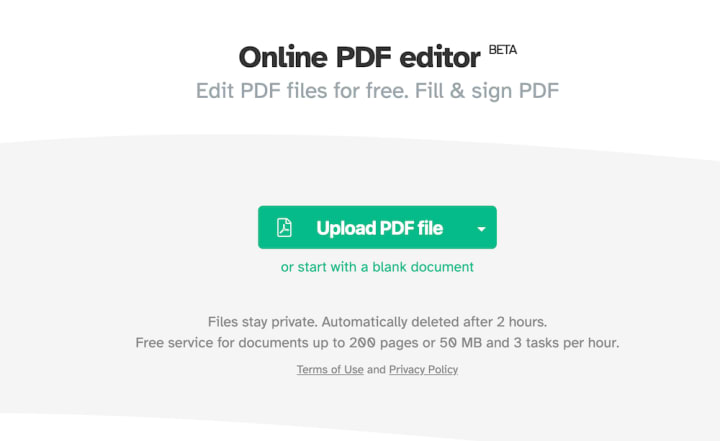
Step 2. Scroll to find the text you need to edit and click on the text you want to edit
- Direct text editing
- Font adjustments
- Text size modification
- Add new text
- Delete existing text
- Basic formatting options
Step 3. Preview your changes, click Apply changes and click download to saved the edited PDF file.
FAQs About Edit PDF Text on Mac
Can You Edit PDF Text on Mac Without Adobe?
Yes, you can edit PDF text on Mac without Adobe, all the other software or online site we introduced above can edit text in PDF. While Preview only supports adding new text to PDF, tools like LibreOffice provide free PDF text editing capabilities. For online editing, Sejda offers a no-installation solution. And PDFMaster offers almost the same function as Adobe Acrobat while at a cheaper price.
What's the Best Free Way to Edit PDF Text on Mac?
For free PDF text editing on Mac, you have several options:
- Preview: Built-in and free, but limited to adding new text and annotations.
- LibreOffice: Free open-source solution with full text editing capabilities.
- Sejda (Free Version): Online PDF editor with basic text editing features.
About the Creator
Keep reading
More stories from Bianca McIntosh and writers in Geeks and other communities.
Silver Screen Magic with Mae West
American actress and singer Mae West became a popular film actress during the Great Depression. She started entertaining in vaudeville, then performed on Broadway, and finally went to Hollywood. She signed up with Paramount Pictures and made her debut in the 1932 film “Night After Night.” She also starred in musicals, comedies, and crime dramas. The American Film Institute named her one of the best classic Hollywood actresses.
By Rasma Raisters8 days ago in Geeks
Kangana Ranaut Hints At Hrithik Roshan's ‘Controversial Legal Notice’ From 2016: Life Became A Living Hell
Summary of this article Kangana Ranaut has joined the ‘2026 Is The New 2016’ trend and recalled the 'miserable' phase of her life. Without naming Hrithik Roshan directly, Ranaut referred to receiving a controversial legal notice from a "colleague". She also called 2016 the best phase of her career.
By Dena Falken Esq3 days ago in Geeks
The Devil's Cut
“Comrade, finally you’re awake.” The voice was smooth, sensual. A flickering incandescent bar was all that lit the white, sterile room. All Vladimir remembered was everything going black. He tried to move his arms and found them strapped to the gurney.
By Matthew J. Fromm7 days ago in Fiction


Comments
There are no comments for this story
Be the first to respond and start the conversation.