
OpenAI ChatGPT Parental Controls: Step-by-step guide
What exactly are ChatGPT parental controls? How to set it up? It is enough? How to make sure children are using it safely and responsibly?
ChatGPT is quickly becoming part of everyday life for kids and teens. They use it to ask personal questions, get advice, complete assignments, prepare projects, etc.
However, Recent headlines about children using chatgpt to cheat on homework and family claimed that ChatGPT became their child's "suicide coach." have raised concerns about safety and misuse.
In September 2025, OpenAI introduced the ChatGPT Parental Control feature. By pairing an adult account with a child account, parents can manage chat history, restrict access to certain features, and monitor ChatGPT use on shared devices.
What exactly are ChatGPT parental controls? How to set it up? It is enough? How to make sure children are using it safely and responsibly?
What is ChatGPT Parental Control?
OpenAI rolling out the ChatGPT parental control feature to allow parents linking their ChatGPT accounts with child’s account and gain controls cover content, functionality, usage time, and which features are allowed.
Features of ChatGPT Parental Control
- Reduce sensitive content: You can set to block discussions involving graphic content, sexual or violent role play, viral challenges, and extreme beauty ideals.
- Model training: decide whether your teen’s conversations with ChatGPT can be used for training its AI models.
- Memory: When off, ChatGPT won’t save or use memories in responses.
- Turn off certain modes: Restrict access to voice control and image generation functions
- Quiet hours: Establish quiet hours when ChatGPT can’t be used.
- Manage ChatGPT Atlas: Set to reference key details from your child’s browsing history in Atlas
- Manage Sora: Opt out of a personalized feed, limiting infinite scroll, turn off the ability for your teens to send and receive direct messages.
However, parents can’t see the linked account’s chat history, preserving the privacy of the children and their activities.
Why ChatGPT Safety Matters for Kids
Kids turned to ChatGPT for homework help, using it like an assignment assistant and virtual friends. In 2024, almost a quarter of US teens stated they used ChatGPT for schoolwork – more than double the share of the previous year. Children and teens find AI chatbots fascinating for several reasons:
- Instant responses – AI chatbots are available 24/7 and can give instant response to questions.
- No judgment – Kids can ask anything to AI and it will answer friendly with no judgement.
- Detailed and tailored answer – AI will give answers to questions kids ask, but it will also explain its reasoning in detail.
- Educational support – Answering homework questions and providing explanations.
- Entertainment – Generating jokes, stories, and engaging conversations.
- Companionship – Acting as virtual friends, which some children find comforting.
However, despite their usefulness, ChatGPT do not always provide accurate information. Since it generate responses based on existing data base, it will sometimes give misleading or incorrect answers. A 2023 Stanford University study found that AI-generated text contains factual errors 27% of the time.
Risks and Challenges of AI Chatbots
Dr. Kate Darling, a leading AI researcher at MIT, states,
Children form attachments to technology differently than adults. Parents should be aware of how AI chatbots can influence emotional and cognitive development.
How to Set Up ChatGPT Parental Controls
To set up ChatGPT parental controls, you first need to link your own ChatGPT account to your teen’s. (If you don’t have an account, you can set up one for free.)
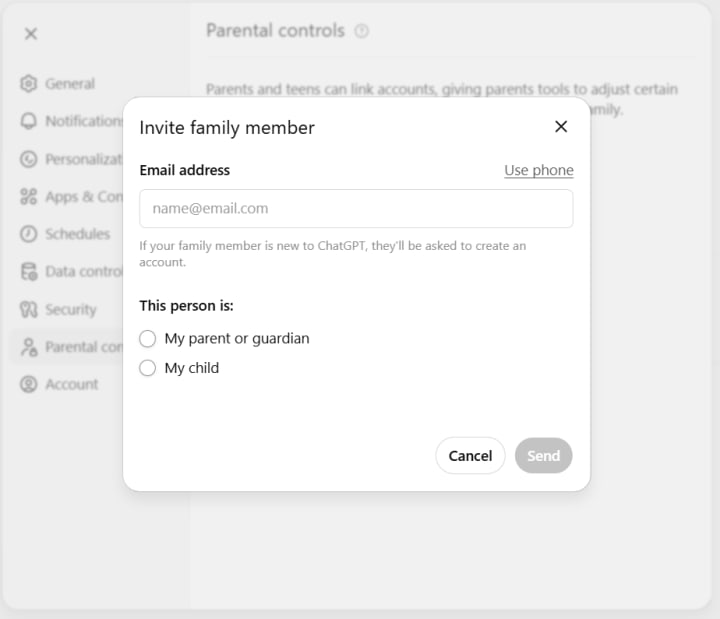
- Open ChatGPT and click on the round profile icon in the bottom left.
- Go to Settings > Parental controls > Add family member.
- Enter your child’s email address or phone number and select "My child."
- This will sends an email invitation for linking accounts.
- Your teen must accept the invite.
- Once the request is accepted, you’ll see the child’s account listed under Family members.
What parents can control
Once your teen’s account is linked, you can go to ChatGPT's Settings > Parental controls, Select the child's name, and access the following settings:
- Reduce sensitive content: Limit sensitive content and reduce the account’s exposure to sensitive content like graphic content, viral challenges, sexual, romantic or violent roleplay, and extreme beauty ideals, etc.
- Quiet hours: Set times when the teen cannot use ChatGPT.
- Image generation: Disable the ability for the chatbot to generate images.
- Voice mode: Disable voice mode if you don’t want spoken replies.
- Data usage: Opt out of using your teen's data for training OpenAI's models.
- Notifications: Receive alerts if a conversation suggests a significant risk of self-harm.
- Set limit for ChatGPT Atlas or Sora: like no infinite scroll, or personalized algorithmic feeds.
The Limitations of ChatGPT’s Parental Controls
Even though ChatGPT offers features for parental supervision, these built-in features have some limitations. One major drawback is that Kids can unlink their account at any moment. However, the app does attempt to promote transparency by notifying parents about teens who decide to unlink the parental controls.
Another limitation is that parents don’t have direct access to full log of conversations. This means parents cannot see direct messages, search or conversation history made by kids. But the system may send you an alert if it detects what it describes as “acute distress,” including suicidal intent. In the most extreme cases, OpenAI says it may escalate beyond the parent and contact emergency services.
How to talk to your child about ChatGPT Parental Controls
Even the best technical setup won’t matter if your child just borrows someone else’s phone. Effective parent control isn't about restrictions – it's about preparation and communication.
Start with judgment-free conversations
We recommend sitting down with your kid to explore ChatGPT Parental Controls together. Here are few ways to get a conversation started:
Ask a question like what is the #1 best candy? ChatGPT will return answers like I’m a AI model, and as such, and then list some of the most popular selling candies. Ask your kid “do you like the answer, have you asked this question to your friends?” and “Why humans give better answers when it comes to things they love?”
See real-Life news and examples
Discuss real news that calls the importance of online safety.
Be an Active Listener
Encourage your child to express their thoughts and concerns about ChatGPT. Don’t judge just show genuine interest and listen actively to their experiences without interrupting.
Set Clear Rules and Boundaries
Work together to create rules for ChatGPT use. Discuss setting time limits, the importance of privacy, and the types of content that are appropriate to talk or share.
Sleep matters
Quiet Hours exist for a reason. Explain that staying up until 3am talking to AI will not actually fix how they feel tomorrow.
Behavioral guidelines:
- Clear expectations about sharing personal information
- Guidelines for interacting with strangers online
- Rules about appropriate content consumption
- Consequences for bypassing safety measures
Other technical safeguards:
- Antivirus software for device protection
- Scam detection tools
- Secure browsers for safer browsing
- Age-appropriate content filters
A Tool, Not a Lifeline
At the end of the day, technology is a tool which facilitate our life, but it’s just that — a tool, not a lifeline. Think of how we use calculators to do advanced math calculation problems, kids still need to learn how to count, add, subtract, multiply, and divide. Once we mastered those, we practiced enough, then calculators can be used. The same goes with ChatGPT.
About the Creator
Keep reading
More stories from Bianca McIntosh and writers in 01 and other communities.
Musk wants up to $134B in OpenAI lawsuit, despite $700B fortune
Elon Musk wants a jaw-dropping $79 billion to $134 billion in damages from OpenAI and Microsoft, claiming the AI company defrauded him by jettisoning its nonprofit mission, Bloomberg first reported. The figure comes from expert witness C. Paul Wazzan, a financial economist whose bio says he has been deposed nearly 100 times and testified at trial more than a dozen times in complex commercial litigation cases.
By Dena Falken Esq4 days ago in 01
Personal Tax Accountants: A Practical Guide for Individuals in the UK
Personal Tax Accountants are no longer seen as a luxury reserved for high earners or business owners. Across the UK, more individuals are choosing professional tax support simply because the tax system has become harder to navigate alone. With frequent rule changes, stricter HMRC checks, and more people earning income in different ways, personal tax accountants offer clarity, reassurance, and practical help that many now consider essential rather than optional.
By Outsourced Bookkeeping Solutions5 days ago in 01
Smart phones, Humans and Aliens.
WARNING. I will be tapping into one of your favorite creative tensions: The absurdity of humans worshipping their glowing rectangles as if they were tiny oracles. There’s something deliciously poetic about that contradiction, and it lends itself beautifully to an instructive proviso.
By Novel Allen5 days ago in Poets




Comments
There are no comments for this story
Be the first to respond and start the conversation.