
How to Make a Billboard Mockup in Photoshop: A Step-by-Step Guide
How to Make a Billboard Mockup in Photoshop

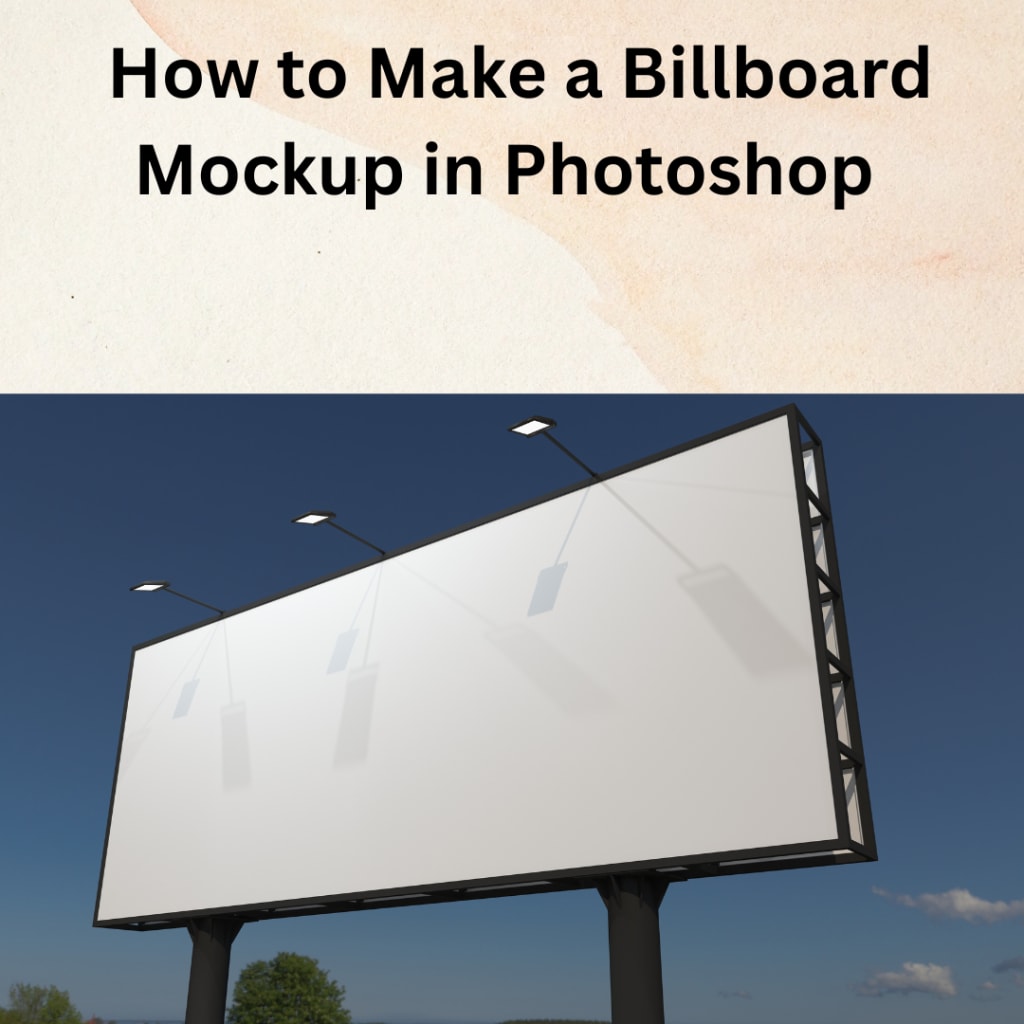
Creating a billboard mockup in Photoshop is a great way to visualize how your design will look in a real-world setting. Photoshop offers a lot of flexibility, allowing you to create realistic and eye-catching mockups that can impress clients and help you refine your final design. Here’s a simple step-by-step guide to creating a billboard mockup in Photoshop.
Step 1: Gather Your Design Assets
Before you start, make sure you have everything you need for your mockup:
- Your billboard design (high-resolution file)
- A suitable photo of a billboard to use as a base (or you can download a pre-made billboard mockup template)
- Photoshop installed on your computer
You can find billboard images for free on stock photo websites or invest in premium, high-quality templates. There are also several billboard mockup generators available online if you prefer ready-made templates.
Step 2: Open Photoshop and Set Up Your File
Open Photoshop and create a new project. If you’re starting from scratch, set your canvas size to match the dimensions of your billboard design. However, if you’re using a pre-made template, just open the file in Photoshop.
Pro Tip: If you use a pre-made PSD (Photoshop) file, look for one that includes smart objects. Smart objects make it easy to place your design and ensure it fits perfectly.
Step 3: Place Your Billboard Image
If you have a blank canvas, import your billboard image by going to File > Place Embedded and choosing the photo you want to use. Adjust the image size to fit the canvas. This image will be the background on which you’ll overlay your design.
If you’re using a pre-made template, skip this step, as the template will already have the billboard image ready to use.
Step 4: Create a Smart Object for Your Design
Smart objects are key to making your mockup look professional. They allow you to add your design in a way that’s easy to edit later. Here’s how to create one:
- Open your billboard design file.
- Select the entire design (Ctrl + A or Cmd + A on Mac), then copy it (Ctrl + C or Cmd + C).
- Go back to your main file (the mockup project).
- Create a new layer by clicking the “New Layer” icon at the bottom of the Layers panel.
- Paste your design (Ctrl + V or Cmd + V) into this new layer.
- Right-click on the new layer and choose “Convert to Smart Object.”
Step 5: Adjust the Perspective
To make your design look like it’s part of the billboard, you need to adjust its perspective. Here’s how:
- Make sure your design layer (now a smart object) is selected.
- Go to Edit > Transform > Perspective. Use the corners of the bounding box to adjust the angles until it matches the billboard’s shape in your background image.
- You can also use Edit > Transform > Distort for more control over the corners and make it fit perfectly.
Step 6: Add Realism with Blending Modes
- To make your mockup look more realistic, you may need to adjust the blending modes and opacity:
- Experiment with blending modes like Multiply, Overlay, or Soft Light to make your design blend naturally with the billboard background.
- Adjust the layer’s opacity to ensure your design matches the lighting and shadows of the background.
- You can also create a mask to gently erase edges if needed, blending your design smoothly into the photo.
Step 7: Apply Shadow and Lighting Effects
For added realism, consider adding some shadow or lighting effects:
- Create a new layer above your design.
- Use a soft brush with low opacity to add shadows or highlights where needed. This step can help mimic natural lighting and make your mockup look more convincing.
- If the billboard background photo has specific light directions, ensure your design’s lighting matches that.
Step 8: Save Your Mockup
Once you’re happy with the results, save your file:
- Go to File > Save As and choose the format you need (PSD for editable files or JPEG/PNG for presentations).
- Keep a PSD copy with all the layers intact in case you need to make changes later.
Tips for a Great Billboard Mockup in Photoshop
- Use High-Resolution Images: Always start with high-quality images to make your mockup look professional.
- Keep It Simple: Billboards are meant to be viewed from a distance, so use bold fonts and minimal text for clarity.
- Check Alignment: Make sure all elements are aligned correctly, and there’s no distortion in your design.
- Experiment: Play around with different styles and adjustments to find what makes your billboard mockup stand out.
Why Use a Billboard Mockup Generator?
If you’re not comfortable using Photoshop or you’re looking for a faster solution, billboard mockup generators are a great alternative. These online tools come with pre-made templates that you can customize by simply uploading your design. Platforms like Mockey, Placeit, and Smartmockups offer a range of billboard styles that are ready to use, allowing you to create professional mockups in minutes. They are perfect for those who need a quick and straightforward way to visualize their ad without going into Photoshop.
Common Mistakes to Avoid When Making a Billboard Mockup
- Ignoring the Perspective: Always adjust the perspective to match the angle of the billboard in your background. A skewed design looks unprofessional.
- Overusing Effects: While shadows and lighting can enhance realism, too many effects can make the mockup look fake. Use subtle adjustments.
- Using Low-Quality Images: Poor-quality images can ruin the professionalism of your mockup. Stick to high-resolution assets for the best results.
Conclusion
Creating a billboard mockup in Photoshop is a fantastic way to bring your design to life and see how it will appear in a real-world environment. By following these steps, you can create a professional-looking mockup that’s perfect for presentations, client approvals, or simply visualizing your creative ideas. Photoshop gives you complete control over the process, allowing you to fine-tune every detail for the best result.
If you’re looking for a faster or simpler option, remember that billboard mockup generators are always available to provide an easy solution. Whether you choose Photoshop or a generator, the goal remains the same: to create a stunning, impactful billboard that captures attention and communicates your message clearly. Happy designing!
also read:
About the Creator
ladali official
I am a content creator with a love for storytelling and turning ideas into visuals that captivate and connect. I focus on creating engaging, high-quality content that speaks to audiences across platforms
Keep reading
More stories from ladali official and writers in Art and other communities.
How to Create a Book Mockup in Canva: A Step-by-Step Guide
Creating a stunning book mockup is essential if you want to showcase your book design in a professional way. Canva, a popular and user-friendly graphic design tool, makes this process incredibly simple. Whether you’re a self-published author, a graphic designer, or someone who just wants to visualize a book cover, Canva has everything you need. Here’s a detailed, easy-to-follow guide on how to create a book mockup in Canva.
By ladali officialabout a year ago in Art
The Best Philosophy in the World Is the One You Can Live
Ask ten philosophers what the best philosophy in the world is, and you will receive at least ten different answers—possibly delivered with footnotes, counterarguments, and mild contempt for the other nine. This disagreement is not a flaw of philosophy; it is its essence. Philosophy was never meant to be a universal prescription handed down like a rulebook. It exists to help human beings live better lives. By that standard, the best philosophy in the world is not the most elegant or complex—it is the one that can be lived.
By Fred Bradford6 days ago in Art


Comments (1)
Oh amazing! These are new topics for me. Appreciate your work. I can gain a lot of knowledge. If you wish you can subscribe me as well as I did to you 🥰