
I changed 10 Samsung phone settings to instantly improve the user experience
10 Samsung Phone Settings That Will Instantly Enhance Your User
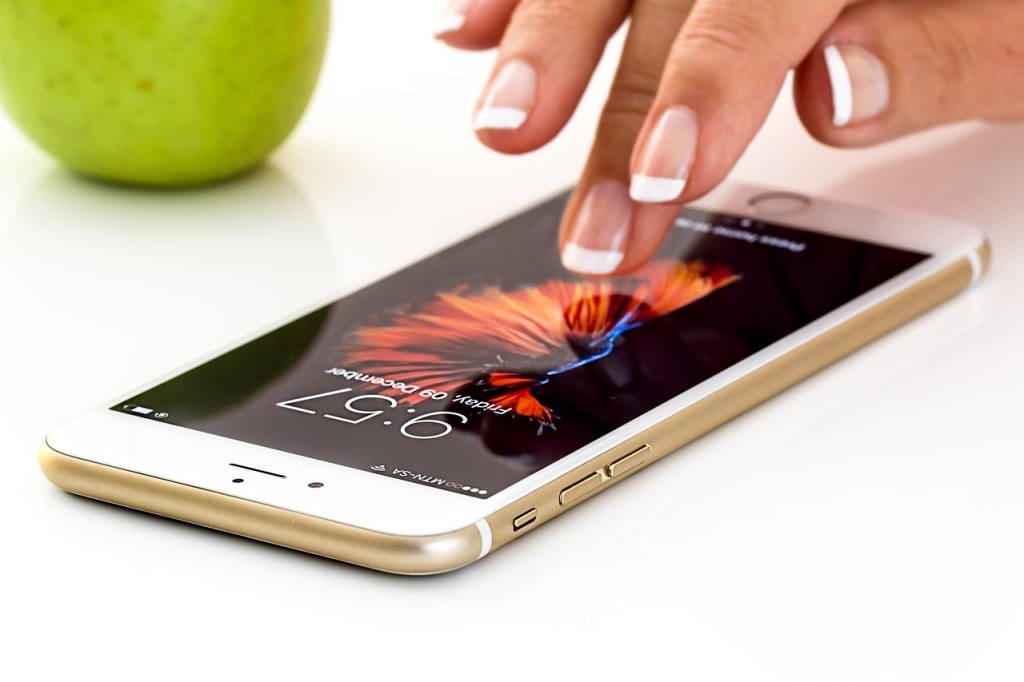
#10 Samsung Phone Settings That Will Instantly Enhance Your User Experience Although Samsung smartphones have a lot of powerful features, some of the default settings can make your experience slower or less enjoyable. You can speed up, optimize, and personalize your device by adjusting a few key settings. The following are the ten settings on your Samsung phone that you should immediately alter to enhance your user experience. ---
## **1. Enable Dark Mode for Better Battery Life & Comfort**
**Why? ** Dark Mode reduces eye strain and saves battery on AMOLED screens.
**How to enable:**
- Go to **Settings > Display > Dark Mode** (or **Quick Settings** panel).
- Set to **"Turn on as scheduled"** for automatic switching.
---
## **2. Disable Bloatware & Unused Apps**
**Why? ** Apps that come preinstalled (bloatware) use up RAM and storage space. **What to do to disable:** - Go to **Settings > Apps**.
- Select unwanted apps > **Disable** or **Uninstall**.
- Use **ADB commands** (advanced) for system applications. ---
## **3. Turn On Adaptive Battery for Longer Usage**
**Why? ** Prevents apps that are rarely used from draining the battery. **How to activate:** - **Settings > Battery and device care > Battery > Adaptive battery**.
---
## **4. Adjust Screen Resolution for Better Performance or Battery**
**Why? ** Lower resolution saves battery; higher improves clarity.
**How to change:**
- Go to Display > Settings > Screen resolution. - For a more balanced picture, select either **FHD+ (1080p)** or **WQHD+ (1440p)**. ---
## **5. Enable One-Handed Mode for Easier Navigation**
**Why? ** Makes it easier to reach large screens. **How to enable:**
- **Settings > Advanced features > One-handed mode**.
- Swipe down from the bottom corner to activate.
---
## **6. Customize Always-On Display (AOD) for Quick Info**
**Why? ** Displays battery life, notifications, and time without unlocking. **How to set up:**
- Always On Display can be found under Settings > Lock screen. - Select a clock design and timetable. ---
## **7. For faster navigation**, disable animations. **Why? ** Reduces lag and speeds up transitions.
**What to do to disable:** - Enable **Developer Options** (tap **Build Number** in **About phone** 7 times).
- Go to **Developer Options > Window/Transition/Animator scale > 0.5x or Off**.
---
## **8. Turn on Edge Panels for Quick Application Access** **Why? ** Faster multitasking with favorite apps and tools.
**How to enable:**
- **Settings > Display > Edge panels**.
- Choose panels like **Apps, Clipboard, or Smart Select**.
---
## **9. Turn Off Nearby Device Scanning to Save Battery**
**Why? ** Prevents background Wi-Fi/Bluetooth scanning.
**How to disable:**
- **Settings > Connections > More connection settings > Nearby device scanning > Off**.
---
## **10. Enable Secure Folder for Private Files & Apps**
**Why? ** Encrypts and conceals sensitive data. [How to set it up:] - **Settings > Security and privacy > Secure Folder**.
- Log in with Samsung account and add files/apps.
---
### [Last Thoughts] By adjusting these **10 Samsung phone settings**, you can optimize performance, battery life, and usability in minutes. Whether you want a smoother experience, better privacy, or just a more personalized device, these tweaks make a big difference.
**Which setting helped you the most? Comment below with your thoughts! **
---
Would you like me to add any other settings or details? 😊
About the Creator
Taskia Jannat
Jast Play
Keep reading
More stories from writers in Motivation and other communities.
A Dart at Dusk
Seconds ago, the sullen sun set on the two of us… my exuberant furry companion and me. A fresh breeze embraces us, delivering welcome relief from the day’s oppressive heat. His typical stumbling and staggering along — apace with a sloth — has turned into trip-trapping, high-stepping, almost skipping along.
By Angie the Archivist 📚🪶5 days ago in Petlife


Comments
There are no comments for this story
Be the first to respond and start the conversation.