
How to Fix Frozen Mac without Losing Work - (Step-by-Step Instructions)
Unfreeze your Mac computer and get it working again

If you're reading this post, you're probably dealing with a frustrating issue: your Mac or MacBook Air is frozen and you're not sure how to unfreeze it. In this article, we'll go through the steps you can take to unfreeze your Mac and get it working again. Whether you're dealing with a spinning beach ball, a frozen cursor, or a Mac that won't start up, we've got you covered. Just follow the steps we outline below and you'll be back to work.
Part I. Try the eight methods to unfreeze your Mac/MacBook Air
If you're dealing with a frozen Mac or M1 Mac, you've probably tried waiting a while to see if the issue resolves itself. But if that hasn't worked, it's time to try some other methods. In this article, we'll outline eight different ways you can unfreeze your Mac or MacBook Air. These methods are effective for troubleshooting a MacBook Air that's frozen on a specific app with a spinning wheel, or any other type of freeze you may be experiencing. Follow the steps we outline below and you should be able to get your Mac running smoothly again.
1.1 Force quit the frozen app
If you find that your Mac is freezing when using a specific app, but it is still responsive on other programs, the app itself is likely causing the freezing issue. To fix this, you can try force-quitting the app.
- Go to the Apple menu at the top of your screen.
- Select "Force Quit" from the menu.
- Choose the app that is causing the freezing issue from the list.
- Click "Force Quit" to close the app.
Alternatively, you can also use the keyboard shortcut Command + Option + Esc to open the Force Quit menu. Then, select the app causing the issue and press Enter to close it. This should end the unresponsive process and allow you to continue using your Mac.
1.2 Force restart your Mac
If force-quitting the app that is causing the freezing issue does not resolve the problem, or if the entire Mac is freezing, you can try force restarting the device.
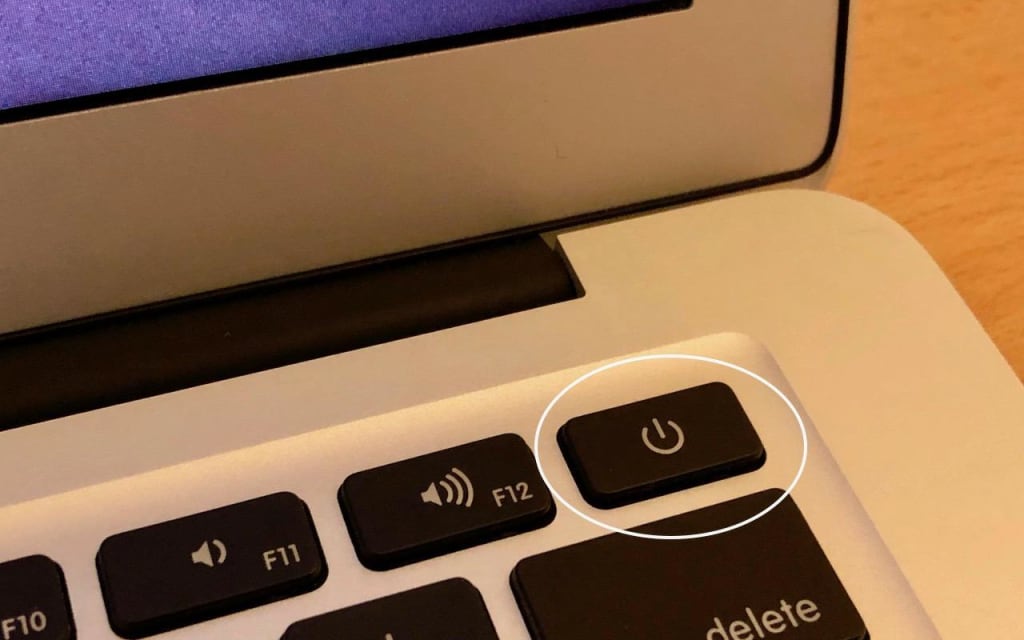
- Press and hold the power button on your Mac for a few seconds until it shuts down.
- Wait about 10 seconds and then press the power button again to turn your Mac back on.
If the cursor is responsive, you can also click the Apple menu at the top of the screen and select "Restart" to reboot your Mac.
After restarting your Mac, see if the freezing issue persists.
1.3 Unplug the external devices
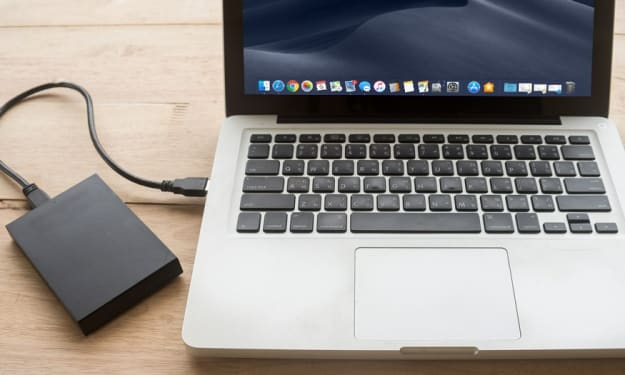
The Mac freezing issue may be caused by a corrupted or incompatible peripheral device that is connected to the device. If you have recently plugged in some external devices to your computer, you can unplug them and then plug them in one by one. This process can help you determine if a specific device is the cause of the Mac freezing and allow you to take steps to resolve the issue.
1.4 Update your Mac
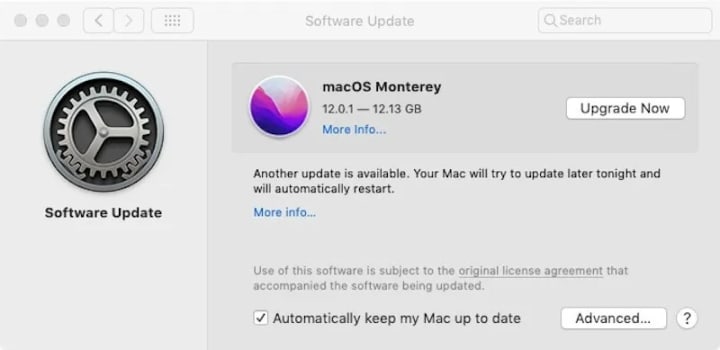
An outdated system that is incompatible with newer software may result in a slowdown or freezing of the Mac. This issue is more common on newer M1 Macs due to a lack of third-party software updates for Apple Silicon and macOS Monterey. Alternatively, system bugs may also cause freezing on a MacBook. To resolve this problem, you can take the steps below to update the Mac to the latest version of macOS:
Step 1: Open the Apple menu > choose “System Preferences” > select “Software Update”.
Step 2: Click Update Now or Upgrade Now to update the Mac to the latest version of macOS.
1.5 Remove recently installed apps
If you've installed apps recently and you notice freezing on your MacBook Air when trying to open these apps, they may be causing the issue. Some third-party programs may contain viruses or be incompatible with your Mac, leading to performance issues such as freezing. To resolve this problem, you can uninstall these apps one by one to help return your frozen Mac to a normal state.
1.6 Boot your Mac in Safe Mode
If all the previous methods failed and haven't been able to fix a frozen Mac or MacBook Air, you might want to try booting into Safe Mode. This can potentially repair hard drive issues. Additionally, it allows you to uninstall any recently installed third-party software that may have caused the freezing. To boot into Safe Mode:
If you are using Intel-based Mac, shut down the Mac and then restart it while holding the Shift key until the Apple logo appears.

If you are using the M1 Mac, shut down the Mac and wait approximately 10 seconds. Then, press and hold the power button until the startup disks and Options appear on the screen. At last, press and hold the Shift key and then click "Continue in Safe Mode".
It's worth noting that forced quitting an unsaved document, restarting, or shutting down the Mac typically won't result in the loss of unsaved files. If necessary, you can jump to Part 3 to know how to recover the unsaved documents on Mac.
1.7 Free up more memory
If you are experiencing frequent freezing on your MacBook Air, your RAM may be almost full. When this happens, there may not be enough space for cache files that are generated by running the system and programs. Try the following to free up memory on your Mac and solve the issue of frequent freezing:
- Installers and apps that are no longer in use should be removed.
- Delete the Library folder's cache files.
- Eliminate unused downloads
- Take out the trash
1.8 Check and repair your startup disk in macOS Recovery
If there are some errors in the startup disk, it can lead to frequent crashes or freezes on your Mac. One solution to this problem is to use the built-in Disk Utility First Aid tool in macOS Recovery mode to check and repair any errors on the startup disk. To do this:
Step 1. Restart your Mac and immediately press the Command + R keys until the Apple logo appears. If you are using the M1 Mac, hold down the power button until the startup options appear, then choose “Options” and click “Continue”.
Step 2. Select Disk Utility from the list of utilities in macOS Recovery mode.
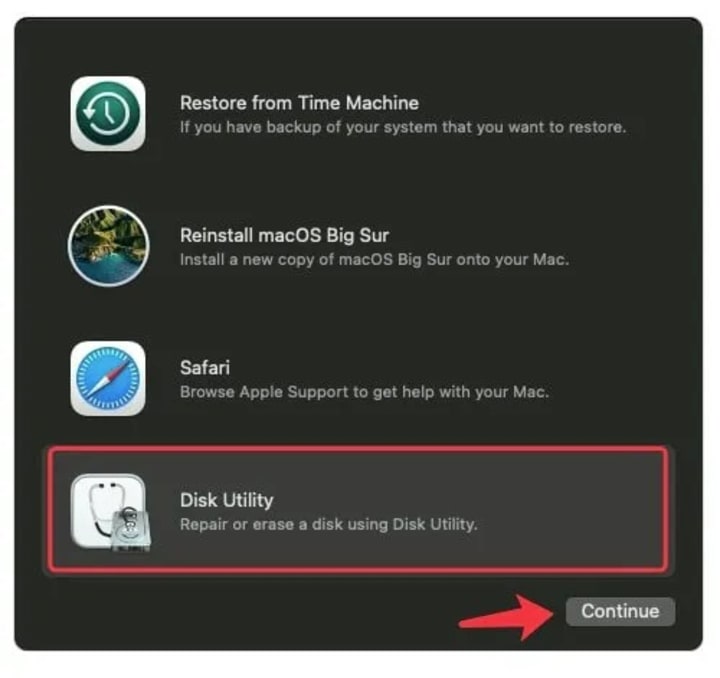
Step 3. In the Disk Utility window, select the startup disk from the sidebar and click “First Aid”, then, click “Run”.
Wait for First Aid to complete the error check and repair process on the startup disk. Keep in mind that First Aid can only repair minor errors on the disk. If your Mac is still freezing, you may need to consider a factory reset or seeking assistance from an Apple-authorized service provider.
Part II. Troubleshooting - MacBook freezes when opening the lid to wake it up
If your MacBook goes into sleep mode as usual, but upon waking it up, it becomes frozen on the login screen, it could be due to the CPU being powered off suddenly during sleep. This can prevent the CPU from completing its work and cause the Mac to freeze. Another possibility is that the Mac is unable to return to the system state it was in prior to sleep, as the RAM is the only component that remains powered during sleep. If a power failure occurs, the data stored in the RAM (which holds the state of the system before it went to sleep) may be lost.
If your Mac becomes frozen after waking from sleep, wait a few minutes. If this doesn't work, you may need to force restart the Mac by pressing and holding the power button for a few seconds, then pressing it again to boot the system. If this doesn't work, try booting the Mac into Safe Mode and then restarting it by clicking the Apple icon and selecting "Restart". In most cases, booting into Safe Mode can resolve the issue. If the problem persists, it may be necessary to reinstall the macOS as the system may have become corrupted.
Part III. Steps to recover the unsaved documents from the frozen Mac
You do not need to worry that forcing apps to quit or restarting your Mac will cause you to lose unsaved documents; this typically won't happen. Mac has a feature that automatically saves files, so any unsaved documents will be saved in a folder called TemporaryItems. You can try recover these documents when your Mac computer is working normally.
Step 1. Open the Mac Launchpad and select Terminal.
Step 2. Type the following command in Terminal and press Enter to open the TMP folder (which is automatically created to save temporary files).
open $TMPDIR
Step 3. Find the TemporaryItems folder, then right-click the desired unsaved document. (Note: If your Mac froze during a system update, data loss may have occurred if the system was corrupted.)
If your Mac continues to freeze and won't turn on, you can try using data recovery software like iBoysoft Data Recovery for Mac in macOS Recovery mode to recover files from your unbootable Mac.
About the Creator
Autonomy Is The Real Privilege
Good morning, freedom-seekers! Today we’re gonna be looking at autonomy. A strange word, I know; one many would probably look at blankly and run away from on sight. We’re gonna figure out what it actually means, consider how it’s achieved, and decipher just how deeply most of us are tangled up in dependence without realising it.
By That ‘Freedom’ Guy3 days ago in Humans



Comments
There are no comments for this story
Be the first to respond and start the conversation.