
Can't Copy from Mac to External Hard Drive - How to Fix
Solve the problem that you can't copy, move or transfer files to external hard drives


If you're facing difficulty in moving or transferring files to an external hard drive on your Mac, don't worry you're not the only one. This is a common issue among Mac users, and it can be caused by a variety of factors. In this guide, we'll dive into the potential causes of this problem and provide step-by-step solutions to get you back on track.
I. What will Stop You from Copying Files from Mac to an External Hard Drive?
There are several reasons why you may be unable to copy files from Mac to an external hard drive. These include:
- The cable connecting the Mac and the external hard drive may be loose or damaged, preventing proper communication.
- The external hard drive may be set to read-only, meaning that you cannot add new files to it.
- There may be an issue with Mac's drag-and-drop or copy-and-paste feature.
- The external hard drive may be full and does not have enough storage space.
- The external hard drive may have a file format that is incompatible with the Mac.
- The external hard drive may be corrupted or damaged.
- There may be bugs in Mac's operating system that are preventing proper communication with the external hard drive.
To fix the problem, it's important to identify what is causing it. Once you know that, you can take appropriate steps to resolve it and successfully copy files from your Mac to the external hard drive.
II. Try These Methods if You are Unable to Copy from Mac to an External Hard Drive
First, ensure proper connection by checking the port on your Mac and the USB cable of the external hard drive. If that's not the issue, you can try the following methods to make sure you could copy, move, or transfer files from Mac to WD, Seagate, or other external hard drives.
Method 1: Check the format of your external hard drive
The external hard drive may be formatted with NTFS, a file system commonly used for Windows. However, NTFS is read-only in macOS by default, which means you cannot move files from your Mac to the NTFS external drive.
- To determine the file system of your external hard drive, you can use the Disk Utility tool. To access this tool, go to Finder > Applications > Utilities > Disk Utility. Once it is open, select the drive from the left sidebar and you will be able to see its format on the right pane.
If the external hard drive is indeed formatted with NTFS, there are a few ways to make it readable and writable on a Mac. One option is to use NTFS for Mac software such as iBoysoft NTFS for Mac.

This software is Apple-approved and automatically mounts NTFS drives in read-write mode once they are connected to a Mac. Additionally, it provides an easy way to move files from your Mac to the NTFS drive, as if you were operating on a native HFS+ or APFS drive. Another option is formatting NTFS drive to FAT32 or exFAT, or running Terminal on Mac.
Method 2: Check the permission settings of the external hard drive
If the formatting of the external hard drive is compatible with macOS but you are still unable to add folders to the drive, it could be due to the permission settings of the drive. The external drive may be set to read-only for the account you are currently logged into. To check the permission settings of the external hard drive, follow these steps:
Step 1. Right-click on the external hard drive and select "Get Info" from the menu.
Step 2. In the "Sharing & Permissions" section at the bottom of the info window, you will be able to see the privileges of each user for the drive.
If you don't have read-write privileges for the external hard drive, you can change the permissions:
a. Click on the bottom padlock and enter your admin password to unlock it.
b. Under the "Sharing & Permissions" section, select the user name of the account you are currently logged into on your Mac computer.
c. Expand the privileges of this user and change it to "Read & Write" (check out the image below).

By resetting the permissions of the external hard drive, you should be able to store new files on it freely.
Method 3: Ensure adequate free space on the external hard drive
Another potential reason that you can't copy files from your Mac to an external hard drive that does not have enough available storage space. You can check the storage usage of your external hard drive by opening the Apple menu, selecting “About This Mac”, and then navigating to the “Storage” tab.

This will give you an overview of the total capacity of the external drive and the amount of space that is currently being used. If the external drive is full and doesn't have enough free space, it will not be able to accommodate any additional files. In this case, you can free up space on the external drive by removing unnecessary or redundant files. Once you have freed up some space on the drive, you should be able to copy new files to it without any issues.
Method 4: Try other ways to copy files to the external drive
If you're having trouble copying files to an external hard drive, one solution is to try a different method of transferring the files. For example, if you're currently using the copy-and-paste method and it's not working, you can try using the drag-and-drop method instead.
To check if the copy-and-paste function is not working on your Mac, you can try copying and pasting a file from one location on your Mac to another. If this does not work, you can try dragging and dropping the files from your Mac to the external hard drive instead.
If the drag-and-drop method is also not working on your Mac, you can use the keyboard shortcuts "Ctrl + C" to copy the files and "Ctrl + V" to paste them to your external drive.
It might be the case that the functionality of Mac not allowing certain files or folders to be copied, and you can still copy files by using a different method or software, instead of copying and pasting or dragging and dropping.
Method 5: Run First Aid to check and repair the drive errors
Another potential reason you may be unable to add folders to an external hard drive on your Mac is if the drive has errors. In this case, you can use the Disk Utility's First Aid feature to check and repair the errors on the drive. To run First Aid on the external hard drive:
Step 1. Open Launchpad on the dock and navigate to Other > Disk Utility.
Step2. Select the external hard drive from the left sidebar in the Disk Utility window.
Step 3. Click the First Aid button on the top toolbar, and then confirm the action by clicking “Run” and wait for the process to complete (check out the image below).
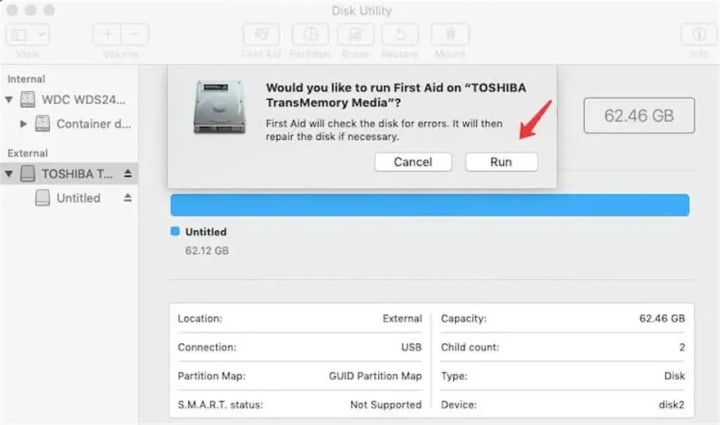
This will check and repair the errors on the external hard drive, allowing you to add folders to the drive on your Mac.
If you've tried the previous methods but are still unable to copy files from your Mac to an external hard drive, there are a few additional things you can try. First, restarting your Mac may resolve temporary bugs that may be causing the issue. Additionally, you can try updating your Mac to the latest operating system, as new updates often include bug fixes and performance enhancements. As a last resort, you can try connecting a different external hard drive, formatted with HFS+, FAT32, or APFS, to your Mac and see if you are able to copy files to it.
About the Creator
Lessons Learned in a Wheel Chair, Singing in the Sunshine 🥀
It starts with love. . . and life . . . Motivational Mantra: Living with Disabilities “To think in terms of either pessimism or optimism oversimplifies the truth. The problem is to see reality as it is.” — Thich Nhat Hạnh
By WILD WAYNE : The Dragon Kingabout 14 hours ago in Lifehack


Comments
There are no comments for this story
Be the first to respond and start the conversation.