
How To Use Laptop As Monitor For Ps4?
Find out how to use your laptop as a monitor for your PS4, including the best methods, tools, and step-by-step instructions for seamless gameplay.

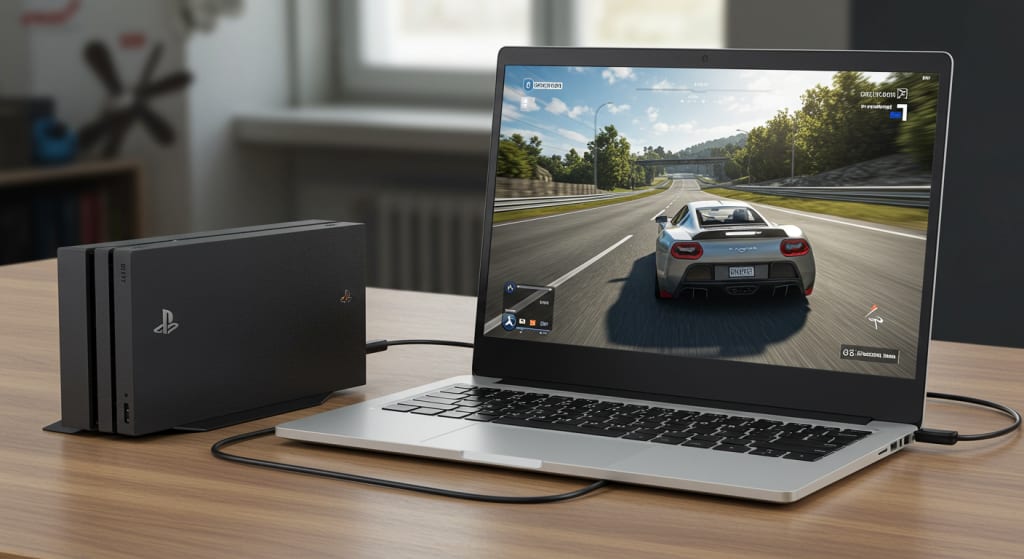
The PlayStation 4 (PS4) is one of the most played gaming systems worldwide and offers a large selection of games and entertainment choices. But sometimes you might not have access to a television or an external monitor, in which case you might be curious if you can utilize your laptop as a PS4 monitor.
Though it's not as easy as plugging in an HDMI cable, the two can be connected with the right setup and additional gear. Giving you another way to enjoy gaming, this guide will lead you through the process of using your laptop as a PS4 monitor.
Why Would You Pick a Laptop Over a PS4 Monitor?
A laptop could be preferable than a PS4 monitor for a few reasons.
Mobility: If you're on the road or don't have access to a TV, using your laptop can be a practical choice.
Space-saving: If you are pressed for space, using a laptop can be more practical than putting up a separate TV or monitor.
Flexibility: Playing your PS4 games at different locations without the requirement for a large monitor or TV can be made possible by using your laptop.
Contents You Will Need
Using your laptop as a PS4 monitor will require the following:
The PlayStation 4 video game console
A laptop has a USB port—ideally 3.0
A DualShock 4 controller and USB cable for remote play; an HDMI cable; OBS Studio or another video capturing software; and an optional HDMI capture card
Using a Laptop as a PS4 Display
Connect the HDMI capturing card to the laptop.
An HDMI capturing card is the key to converting the PS4's HDMI output into a signal that your laptop can understand. Do this, please:
Reconnect the HDMI capture card to a USB port on your laptop. Use a USB 3.0 port whenever at all feasible for best performance. Driver or other software installation may be required depending on the capture card model.
Fasten the PS4's HDMI capture card.
Following is how the PS4 will be connected to the capture card:
Connect one HDMI output port on the PS4 to one end of the cable.
Attach the HDMI input on the capture card to the other end of the cable.
Launch OBS Studio or some Other Video Capture Software
OBS Studio is one popular choice for video recording and sharing; it may also be used to view the HDMI input from the capture card:
If you haven't already, download OBS Studio.
Launch OBS Studio and then create a fresh scene.
Get a new source for your scene. Go with "Video Capture Device."
Your HDMI capturing card will be shown in the device list. Pick that. There should be a PS4 output displayed in OBS.
Adjust the parameters as needed for a smooth experience. The capabilities of your laptop and capture card may need you to adjust the resolution, frame rate, and other parameters.
Review the Setup
Having connected and configured everything, let's test the configuration:
After turning on your PS4, make sure it appears in OBS Studio.
Check the PS4 dashboard or a game for any lag or audio/video synchronization issues. Should problems arise, you might need to change the OBS settings or the capture card's configuration.
Ajust the window size in OBS Studio to fit the screen resolution of your laptop.
If you'd like, use Remote Play
Sony's Remote Play and a network connection let you broadcast PS4 games to other devices, including laptops. As a wireless alternative to a capture card, this does require a steady, fast internet connection.
Get and set up the PS4 Remote Play software on your laptop.
Your laptop and DualShock 4 controller can be linked by USB cable or Bluetooth.
Launch the Remote Play app and follow the on-screen instructions to link to your PS4.
Verify that your PlayStation 4 is either in rest mode or turned on, and then use your PlayStation Network (PSN) account to log in.
Test the connection to ensure a smooth game play.
Suggestions to Enhance the Experience
Improve OBS Configuration Edit the resolution, frame rate, and other settings in OBS Studio to ensure a fluid display.
Analyse How Your Laptop Performs One can need a lot of resources to use a laptop as a PS4 monitor. To increase efficiency, close any programs you're not using.
Utilise Coaxial Connections For best performance, connect your laptop to your router via an Ethernet wire, and make sure your PS4 is connected consistently.
Updating drivers and software To avoid incompatibilities, update OBS Studio and your HDMI capture card's driver.
Overview
A laptop can be a practical alternative to a TV or an external monitor when you don't have access to either. With this approach, you may play your PS4 games in various settings, but it does need some setup and other equipment, such as an HDMI capture card.
With this tutorial, you ought to be able to play games on the move with your laptop acting as a PS4 monitor. Test and edit your setup to guarantee a smooth and enjoyable gaming experience.
About the Creator
Laptopflora
Welcome to Laptopflora, where laptops meet expertise and your tech decisions are made easier. Our journey began with a single mission: to create a trusted platform that provides clear, actionable, and insightful information about laptop.
Keep reading
More stories from Laptopflora and writers in Education and other communities.
How To Use Laptop As Monitor For Switch?
Flexible gaming system, the Nintendo Switch may be utilized portable or on a larger screen when connected to a TV. What may happen, though, if you tried to utilize your laptop as a Switch monitor? This arrangement is useful when you're out and about or without access to a TV.
By Laptopflora8 months ago in Education
SEO Education: 5 Steps to Start a Career in SEO
Is SEO still worth learning? Where should you start? It’s a fair question. And it comes up almost daily. Google updates feel constant. AI shows up directly in search results. Advice from three years ago already looks shaky. For someone new, SEO can feel unstable, maybe even risky as a career bet.
By Iryna Podliesna4 days ago in Education
Invisible Radiation in Everyday Life
We live in a world powered by invisible signals. From the moment you wake up and check your phone, to working on a laptop, connecting to WiFi, using Bluetooth earbuds, or scrolling before bed—your body is constantly surrounded by electromagnetic fields (EMFs). They’re an unavoidable part of modern life, yet most people rarely stop to think about how continuous exposure may affect their energy, sleep, focus, and overall well-being.
By Inamullah Momand 3 days ago in Education


Comments
There are no comments for this story
Be the first to respond and start the conversation.