
How To Use Laptop As Monitor For Switch?
Learn how to use your laptop as a monitor for your Nintendo Switch, with detailed steps and the necessary tools to enjoy gaming on the go.

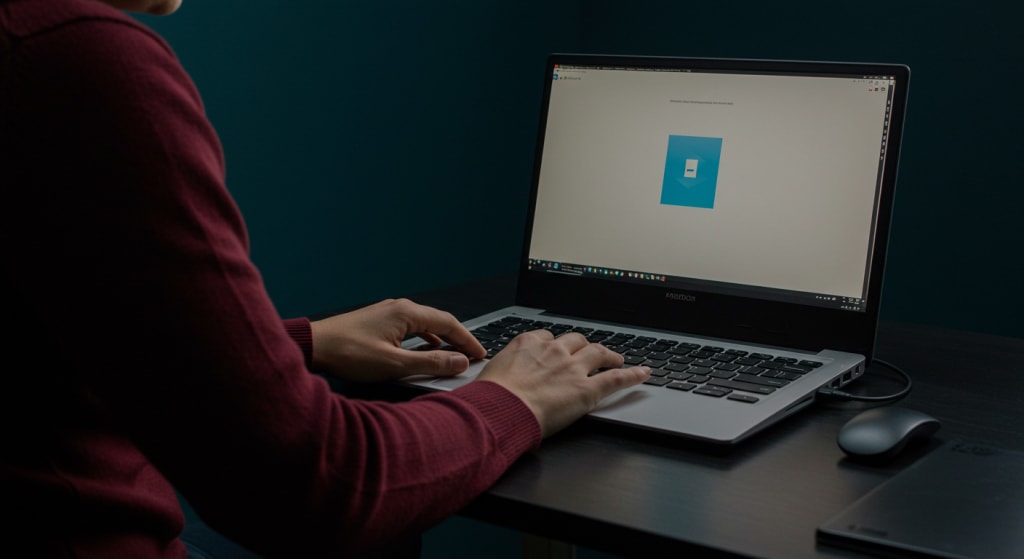
Flexible gaming system, the Nintendo Switch may be utilized portable or on a larger screen when connected to a TV. What may happen, though, if you tried to utilize your laptop as a Switch monitor? This arrangement is useful when you're out and about or without access to a TV.
With the right hardware and configuration, it is still possible, albeit not as simple as attaching the Switch to the laptop. Use this blog post to get instructions on configuring a laptop to use as a Nintendo Switch monitor.
For What Reason Would You View the Nintendo Switch Screen on a Laptop?
There are a couple reasons you might prefer to utilize a laptop over a Nintendo Switch screen:
Portability: If you're not near a TV or are on the go, using your laptop can be a practical choice.
Space-saving: If you are pressed for space, installing a laptop instead of a TV can be a terrific choice.
Flexibility: If you have only a laptop but require a larger screen, this approach allows you to play Switch games without a TV.
Contents You Will Need
You will require the following to use your laptop as a Nintendo Switch monitor:
Nintendo Switch and dock
This configuration requires a laptop with HDMI input; most laptops just have HDMI output.
an HDMI capture card, an HDMI cable, and OBS Studio or another video capturing software
Comprehensive Guide for Use of a Laptop as a Nintendo Switch Monitor
Connect the HDMI Capture Card on Your Laptop
This setup's HDMI capture card is its most crucial component. It converts the HDMI signal from your Switch into a laptop-processable format. What you have to do is this:
Plug the HDMI capture card into a USB port on your laptop. Check that the capture card is recognised by your laptop. You could have to install drivers or other software, depending on the card model.
Snap the HDMI Capture Card onto the Nintendo Switch
After then, your Nintendo Switch and the capture card will be linked:
Fit the Nintendo Switch into the dock.
Connect one HDMI cable end to the HDMI output on the Switch dock.
Attach the other end of the HDMI cable to the input of the HDMI capture card.
Launch OBS Studio or some Other Video Capture Software
OBS Studio is one popular choice for video recording and sharing; it may also be used to view the HDMI input from the capture card:
If you haven't already, download OBS Studio.
Launch OBS Studio and then create a fresh scene.
Get a new source for your scene. Go with "Video Capture Device."
Your HDMI capturing card will be shown in the device list. Pick that. Your Nintendo Switch should be visible in OBS as an output.
Adjust the parameters as needed for a smooth experience. The capabilities of your laptop and capture card may need you to adjust the resolution, frame rate, and other parameters.
Review the Setup
Having connected and configured everything, let's test the configuration:
After enabling your Nintendo Switch, make sure OBS Studio can see it.
Play a game to look for latency or audio/video synchronization issues. Should problems arise, you might need to change the OBS settings or the capture card's configuration.
Ajust the window size in OBS Studio to fit the screen resolution of your laptop.
More playability of the game
Consider the subsequent to ensure the best possible game experience:
Switch to OBS Studio's full-screen mode to maximize your gameplay time.
To find out whether the Switch is recording audio, check the audio options. Sometimes you have to adjust the OBS audio settings or listen to the audio output from the capture card.
To optimise system resources for gaming, turn on "Game Mode" or a comparable option on your laptop.
Overview
You need an HDMI capture card and the appropriate setup with programs like OBS Studio to use your laptop as a Nintendo Switch monitor. Though not as easy as connecting to a TV, this approach provides flexibility and convenience, particularly when you're on the go or have little space.
With the help of this technique, you ought to be able to use your laptop as a Nintendo Switch monitor, expanding your gaming possibilities. Play games, and don't forget to test and adjust the settings for the best possible experience!
About the Creator
Laptopflora
Welcome to Laptopflora, where laptops meet expertise and your tech decisions are made easier. Our journey began with a single mission: to create a trusted platform that provides clear, actionable, and insightful information about laptop.
Keep reading
More stories from Laptopflora and writers in Education and other communities.
How To Use Xbox One Controller As Mouse?
Among the most well-liked game controllers on the market is the Xbox One controller because of its ergonomic design and extensive interoperability with various gaming systems. Unbeknownst to many, it can also be used as a computer mouse.
By Laptopflora8 months ago in Education
How GPS Tracking for Tools and Equipment Can Save Your Business
Tool theft is a growing problem for construction companies, contractors and tradespeople. At kynekt.id we provide best GPS tracking for tools and equipment, Whether it’s a jobsite break-in or equipment walking off during work hours, losing tools can cost thousands of dollars and delay projects. Fortunately, We offer a practical solution that’s becoming more affordable and easier to use every day.
By Kynekt Limited3 days ago in Education
Your phones camera isn't as good as you think
When the Visualphone VP210 hit the market in 1999, it advertised a never-before-seen feature: a camera. With only 0.11 megapixels and storage for 20 photos, the Visualphone is a relic compared to modern devices sporting three distinct cameras, each with up to 100 times more resolution. But while this technology has improved dramatically in the 21st century, engineers are rapidly approaching a hard limit on phone camera quality. To understand this limit, we first need to know how phone cameras work.
By Munesh Yadavabout 20 hours ago in Education



Comments
There are no comments for this story
Be the first to respond and start the conversation.