
How to Combine Multiple vCard into One?
Combine vCard into One

In today’s digital age, managing contact information efficiently is key to maintaining smooth communication, especially for professionals who need to stay organized and accessible. One widely used format for storing contact details is the vCard (Virtual Contact File), which is commonly used by email clients, smartphones, and other digital devices.
However, over time, we may accumulate multiple vCard, either from business interactions, online sign-ups, or from various devices. Managing these files individually can become cumbersome. This post will walk you through various methods to combine multiple vCard into one, consolidating all your contact details in a neat, accessible format.
What is a vCard?
Before diving into how to merge VCF files into one, let’s first establish what a vCard is. A vCard is a standard format for electronic business cards, containing details such as name, phone number, email address, physical address, company, title, and other information. vCard typically come with a .vcf file extension and are commonly shared via email, messaging apps, or file transfers.
vCard have become a popular choice for transferring contacts because they’re cross-platform, easy to use, and can contain a lot of information. If you’ve received or downloaded multiple vCard over time, they may be scattered across different devices or applications, making it harder to keep your contacts in one unified file. That’s where the need to combine them arises.
Why Combine Multiple vCard into One?
Merge VCF files into single file is useful for several reasons:
- Organization: If you’ve accumulated contacts from various sources, merging them into one file makes it easier to manage and import them into a single address book.
- Convenience: Consolidating contacts into one file helps streamline the sharing process—whether it’s for personal, professional, or business use. Instead of sending several vCard separately, you can send a single file.
- Preventing Duplicates: Manually merging vCard allows you to identify and remove duplicate entries, reducing clutter in your contacts list.
- Backup and Portability: Having all your contacts in one vCard file allows for easier backup and ensures that all your information is portable and can be transferred between different devices and platforms.
Top 2 Methods to Merge VCF Files into One
Now that we’ve covered the reasons to combine VCF files into one, let's look at several ways to do it, including manual and automated approaches, using tools like vCard editors, programming scripts, and more.
1. Manually Combine Multiple vCard into One (Basic Text Editing)
If you only have a small number of vCard and you’re comfortable with a little manual editing, you can combine them using a text editor. This method is fairly simple, but it requires attention to detail to avoid corrupting the files.
Step to Combine VCF Files into One
- Begin by opening the individual vCard using any text editor like Notepad (Windows) or TextEdit (Mac).
- Select the contents of each vCard (including the BEGIN:VCARD and END:VCARD tags), and copy them.
- Open a new file in your text editor, and paste the copied content from all vCard into this file. Be sure to add the contents of each vCard consecutively without any extra spaces or breaks between the files.
- Once you've pasted all the contacts into the new file, save it with the .vcf extension. This file now contains all the contacts from your original vCard.
Considerations
This method works well for a small number of vCard, but you need to be cautious to avoid formatting errors or duplicating contact details.
The vCard format is strict, so make sure you don’t miss any essential parts, like BEGIN:VCARD or END:VCARD.
2. Combine Multiple vCard into One - Using vCard Contacts Merge Tool
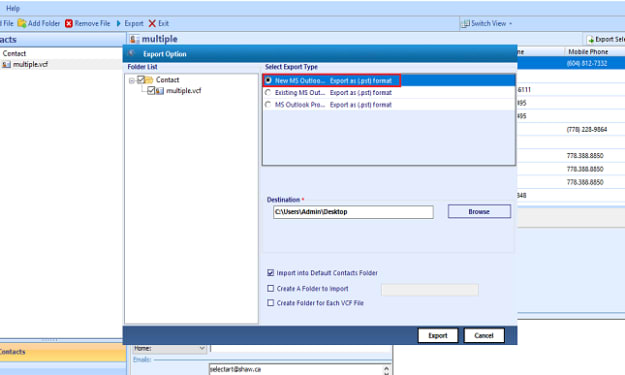
If you are working with a large number of vCard or prefer a more automated solution than the SysTools VCF Merger Software that help you merge multiple vCard, this software allows users to combine VCF files into single vCard file.
After merging, all contacts from all VCF files will be available in a single VCF file, making it easy to manage all contacts. These tools usually allow you to upload multiple files and then merge them into a single vCard file.
Few Clicks to Merge VCF Files into one
- Download the vCard Contacts Merge Tool.
- Upload the vCard files you wish to combine. You may be able to select several files at once, depending on the tool.
- Click the merge button to begin the process.
- Once the process is complete, the tool will provide you with a single vCard file that contains all the contacts from your uploaded files.
Benefits of using this Automatic Tool
- No need for technical skills or manual editing.
- They’re often free or have a low-cost option.
- They save time when dealing with a large number of contacts.
Conclusion
Merging vCard into a single file doesn’t have to be a challenging task. Whether you choose to do it manually, use an expert suggested solution, rely on specialized software, or there are numerous ways to streamline your contacts and make them easier to manage. The right method for you will depend on your preferences, technical skills, and the number of vCard you need to combine multiple vCard into one.
About the Creator
Keep reading
More stories from Elle Stephen and writers in Education and other communities.
How to Convert VCF to PST Format? Quick Guide
In today’s digital world, managing and organizing contacts efficiently is vital. One of the most popular formats for storing contact information is VCF (vCard), and for users of Microsoft Outlook, PST (Personal Storage Table) is the go-to format for managing emails, contacts, and calendars. However, users may find themselves needing to convert VCF to PST format to transfer contacts into Outlook, allowing them to take full advantage of Outlook’s organizational capabilities.
By Elle Stephenabout a year ago in Education
The One Lighting Move That Instantly Makes Your Photos Look Better
Photography advice often focuses on complex settings, advanced editing, or buying better equipment. While those things can help, they often distract from something far more powerful and immediate. One simple lighting habit can dramatically improve almost every photo you take, whether you’re shooting with a phone or a professional camera.
By Kelln Small6 days ago in Education
Managing Anxiety During Exams: A Student’s Guide
Exams are one of the most common sources of stress for students at every level. Even the most prepared individuals often feel nervous before or during a test. Exam anxiety is natural — it’s the body’s way of preparing for a challenge — but excessive stress can interfere with focus, memory recall, and overall performance. Understanding the causes of anxiety and learning effective coping strategies can make a significant difference. This guide provides practical, evidence-based techniques to manage stress before, during, and after exams.
By Games Mode On7 days ago in Education
Affection and Healing for Yourself
During the night of the last quarter moon, I gathered my ritual supplies. I carefully handled the chunk of black tourmaline that would protect me from your overall negative and narcissistic energy. I carefully walked the house with my stick of selenite in hand, asking the universe to cleanse our working space.
By Alisha Wilkins ✒️🦋🖋️6 days ago in Fiction



Comments
There are no comments for this story
Be the first to respond and start the conversation.