
How to Convert VCF to PST Format? Quick Guide
Convert VCF to PST
In today’s digital world, managing and organizing contacts efficiently is vital. One of the most popular formats for storing contact information is VCF (vCard), and for users of Microsoft Outlook, PST (Personal Storage Table) is the go-to format for managing emails, contacts, and calendars. However, users may find themselves needing to convert VCF to PST format to transfer contacts into Outlook, allowing them to take full advantage of Outlook’s organizational capabilities.
In this blog post, we’ll explore the step-by-step process to convert vCard to PST format, ensuring you can seamlessly transfer your contact information into Outlook.
Why Convert vCard to PST?
There are several reasons why a user might need to convert VCF file to PST, including:
- Centralized Management: Outlook is a powerful tool for managing emails, calendars, and contacts. Converting vCard files to PST allows all contact information to be centrally managed within Outlook.
- Ease of Access: Outlook provides an easy-to-navigate interface for searching, organizing, and managing contacts, which may not be as straightforward with a VCF file.
- Backup and Syncing: PST files can be backed up and synchronized across devices, which makes data recovery and access more efficient.
Method 1: Convert VCF to PST Format Using Manual Method
Microsoft Outlook allows you to directly import VCF files into your Outlook Contacts folder. This is the simplest method, though it may require multiple steps if you have several VCF files to import.
Step 1: Open Microsoft Outlook
- Ensure that you have Outlook installed and configured on your computer. Launch Outlook.
- Go to the File menu and click Open & Export.
- Select Import/Export.
- In the Import & Export Wizard, select Import a VCARD file (.vcf).
- Click Next.
- Browse and select the VCF file from your computer that contains the contact information you want to import. Click Open to proceed.
- Once you select the VCF file, Outlook will import the contacts and add them to your Contacts folder. This allows you to view and manage the contacts within Outlook.
Step 2: Save as PST File
To convert the imported contacts into a PST file, follow these steps:
- Click File and then choose Account Settings > Account Settings again.
- In the Account Settings window, select Data Files and click Add to create a new PST file.
- After the PST file is created, move the imported contacts to the PST file by simply dragging them from the Contacts section to the new PST folder.
- While this method is simple for importing individual VCF files, it may not be the most efficient if you have multiple VCF files or need to automate the process.
Method 2: Convert VCF File to PST Using Windows Contacts and Outlook
If you don’t want to use first method to convert vCard to PST, you can export your contacts from Windows Contacts to a PST file by following these steps:
Step 1: Import VCF to Windows Contacts
- Open Windows Contacts (you can search for it in the Start menu).
- Drag and drop your VCF file(s) into Windows Contacts.
Step 2: Export Contacts from Windows Contacts to Outlook
After importing the VCF file into Windows Contacts, open Microsoft Outlook.
- Navigate to the File menu, choose Open & Export, and then select Import/Export.
- Select the Import from another program or file, and tick the Next.
- Select Microsoft Excel or Comma Separated Values (CSV) as the file type, and click Next.
- Browse to the location of your Windows Contacts and follow the prompts to complete the import.
- Once the contacts are imported into Outlook, you can manually create a PST file if needed.
Method 3: Convert VCF to PST Format Using Expert Solution
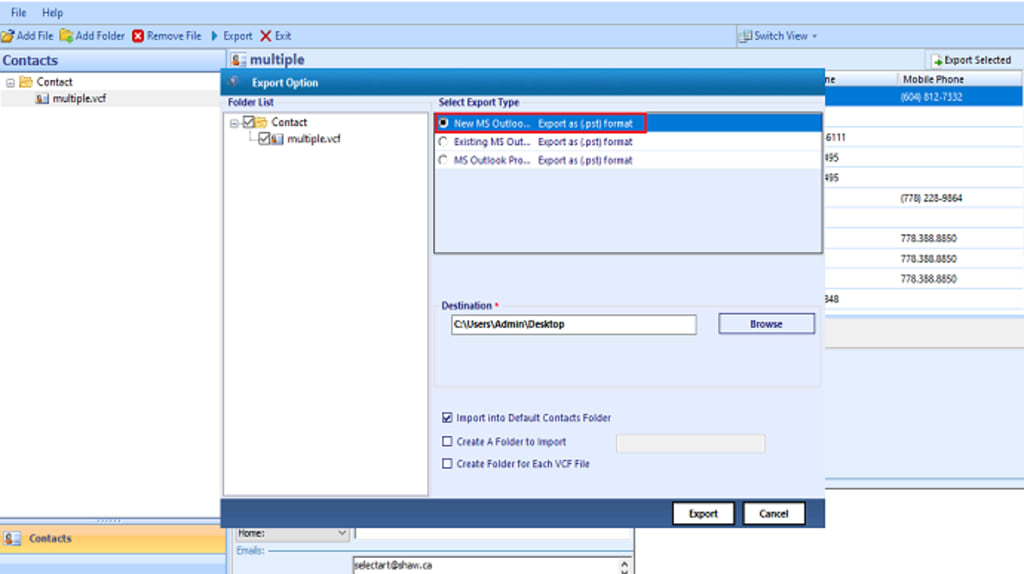
For users with large numbers of VCF files or those seeking more automated solutions, FreeViewer vCard to PST Converter Tool can facilitate the conversion of VCF files into PST format in bulk. Many tools available online can help convert multiple VCF to PST without having to import each file manually. These tools allow you to:
- Convert VCF file to PST in bulk at once.
- Map the contact fields from VCF to Outlook fields correctly.
- Avoid errors during the conversion process.
Steps to Convert Multiple VCF to PST in a Few Clicks
- Download and Install Software.
- Select Add the VCF files that you want to convert.
- Choose the PST format as the output.
- Click the Export button.
- The tool will process the VCF files and create a PST file with the contact data.
- Once the conversion is complete, you can import the generated PST file into Microsoft Outlook. Click the File > Open & Export > Open Outlook Data File, and choose the PST file you just created.
Conclusion
Converting multiple VCF to PST format can be essential for users looking to centralize their contacts within Microsoft Outlook. Whether you choose to manually import the contacts or use third-party software for a bulk conversion, the process can be completed efficiently with a little effort. Microsoft Outlook is an excellent platform for managing contacts, and with the right tools and steps, you can seamlessly transition your contact information from VCF file to PST.
By following this guide, you should now have a clear understanding of how to convert VCF to PST format, ensuring your contact information is organized and easily accessible within Outlook.
About the Creator
Keep reading
More stories from Elle Stephen and writers in Education and other communities.
Moving Outlook Contacts to Mobile Devices- Why vCard Format is Essential
In today’s digital age, managing contacts has become an essential part of both personal and professional lives. Whether it's a list of colleagues, clients, friends, or family members, having access to up-to-date contact information at your fingertips is crucial. Outlook, one of the most popular email clients, stores contacts that users often need to access on their mobile devices for convenience. However, transferring contacts from Outlook to your mobile can be a bit tricky if you don’t know the best method to go about it.
By Elle Stephenabout a year ago in Education
Managing Anxiety During Exams: A Student’s Guide
Exams are one of the most common sources of stress for students at every level. Even the most prepared individuals often feel nervous before or during a test. Exam anxiety is natural — it’s the body’s way of preparing for a challenge — but excessive stress can interfere with focus, memory recall, and overall performance. Understanding the causes of anxiety and learning effective coping strategies can make a significant difference. This guide provides practical, evidence-based techniques to manage stress before, during, and after exams.
By Games Mode On7 days ago in Education
Portable Thickness Gauge Explained: Accurate Measurements Anywhere, Anytime
In modern industries, precision is not a luxury—it is a necessity. From ensuring product quality to maintaining structural safety, accurate thickness measurement plays a vital role. This is where portable thickness gauges come into focus. As the demand for on-site inspections grows, Portable Thickness Gauge Explained: Accurate Measurements Anywhere, Anytime becomes a topic every engineer, inspector, and technician should understand.
By Abdul Alim3 days ago in Education
Book Review: "The Queen" by Andrew Morton
You're probably wondering why on earth I would read this book. It was free and it was a fair length. That was basically it at first. But another reason is because I enjoyed the show The Crown and so, it only makes sense to read a book that goes through separating facts from fictions - and to be fair, there aren't a lot of fictions about the show it seems. From the birth of the little princess and the way in which her father was reluctantly to become the king, all the way to meeting and marrying the veteran prince, Duke of Edinburgh and even down to the death of her father, queendom and beyond, this book actually gives us a lot about a woman who basically embodied the greatness and modernisation of the British 20th Century.
By Annie Kapur7 days ago in Geeks




Comments (2)
If you are looking for a solution to convert VCF to PST format, I recommend DataVare VCF to PST Converter. This application offers many features that make the conversion process simple and hassle-free. The software ensures that all of your information like name, office address, home address, area code, location, email ID, phone number, photo, website and other are preserved Whether you are using Outlook 2019, 2016 or a later version, this tool works well with all of them as well as Windows OS 11, 10, 8, 7, Vista and XP. Know More: https://www.datavare.com/software/address-book-converter.html
You can convert VCF to PST format using several methods but there is no guarantee that your file will remain safe. I would recommend you use a professional tool, as I have also encountered this problem. It provides a 100% guarantee that the file will be safe. This conversion can be completed with GainTools Address Book Manager. It successfully converts the VCF file to Outlook PST format. This application is compatible with all versions of Windows including 11, 10, 8.1, 8, 7, Vista and XP. You do not need to install MS Outlook on your system to use it. If you want to check the tool, you can use the free demo version. Visit Here: https://www.gaintools.com/address-book-manager/