
WooCommerce 2024: How to Create a Stunning User Dashboard
Customized WooCommerce My Account Page

Introduction
Creating a great WooCommerce My Account page is key to keeping your customers engaged. With the new tools and plugins available in 2024, customizing your user dashboard has never been easier. This guide will show you how to make your WooCommerce dashboard stand out and ensure your customers have a smooth and enjoyable experience on your site.
Why Customize Your WooCommerce My Account Page?
Your WooCommerce My Account page is where customers manage their orders, downloads, wish lists, and more. Customizing this page helps make their experience better and more engaging. It’s not just about making it look good—it's also about making it functional and easy to use.
Steps to Create a Stunning WooCommerce User Dashboard
Let’s walk through the steps to make your WooCommerce dashboard truly shine:
Step 1 - Choose the Right Plugin
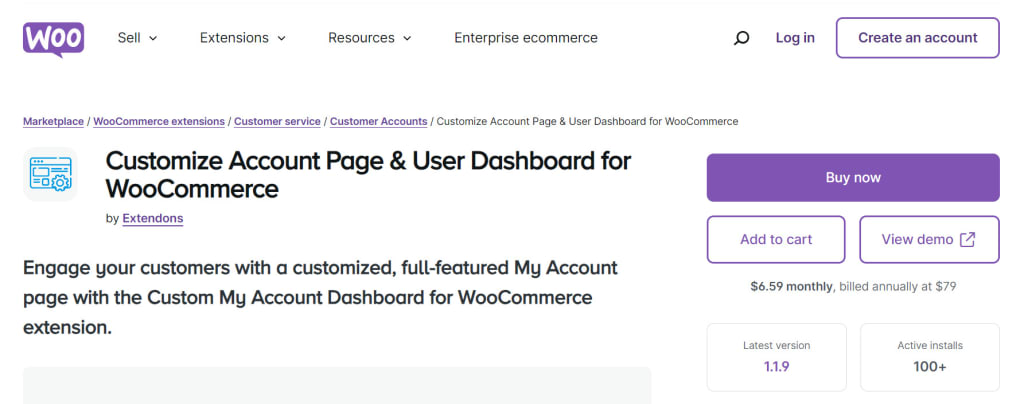
Start by picking a WooCommerce Dashboard Plugin. A top choice is the "Customize Account Page & User Dashboard for WooCommerce" by Extendons. This plugin offers plenty of templates and customization options to fit your needs.
Step 2 - Customize Your Dashboard Layout
Use the plugin to choose between a Custom Dashboard or a Prebuilt Dashboard. Decide if you want the account menu on the left or right and pick color schemes that match your brand.
Step 3 - Add Custom Endpoints
Set up custom endpoints to show specific information like recent orders or reward points. You can also tweak the default endpoints to better fit your site’s theme.
Step 4 - Include Visual Elements
Add icons, avatars, and banners to make your dashboard look appealing. These visual elements not only enhance the design but also make navigation easier for your customers.
WooCommerce Account Page Documentation
For detailed guidance on customizing your WooCommerce My Account page, check out the WooCommerce documentation. It provides in-depth information on the available settings, customization options, and troubleshooting tips for the WooCommerce dashboard plugin. This documentation is an essential resource for anyone looking to get the most out of their WooCommerce account page.
Features and Benefits of Customizing Your WooCommerce My Account Page
Customizing your WooCommerce My Account page with the right tools and plugins can significantly enhance the user experience. Here are some key features and benefits of a well-customized WooCommerce dashboard:
Features:
Flexible Layout Options: With customization plugins, you can choose between custom and prebuilt dashboard layouts. This flexibility allows you to select a design that best fits your brand's aesthetic and functional needs.
Custom Endpoints: Create and manage custom endpoints to display specific information such as recent orders, reward points, or user account details. This feature ensures that users can easily access the information most relevant to them.
Visual Enhancements: Add icons, avatars, banners, and other visual elements to make your dashboard more engaging. These elements not only improve the visual appeal but also help users navigate more intuitively.
Advanced User Management: Some plugins offer advanced user management features, allowing you to control access to different parts of the account page based on user roles or membership levels.
Responsive Design: Modern plugins ensure that your customized dashboard is mobile-friendly and looks great on any device. This responsiveness is crucial for providing a seamless user experience across all platforms.
Benefits:
Improved User Experience: A customized My Account page provides a more intuitive and enjoyable experience for users. By tailoring the dashboard to their needs and preferences, you enhance their overall satisfaction with your site.
Increased Engagement: An engaging and well-organized dashboard encourages users to interact more with their accounts. This can lead to higher retention rates and more frequent visits.
Brand Consistency: Customizing the layout and design of the dashboard helps maintain brand consistency across your site. It ensures that the user experience aligns with your brand’s identity and messaging.
Enhanced Functionality: With custom endpoints and visual elements, users can quickly find and access the information they need. This streamlined functionality helps reduce frustration and improves the efficiency of their interactions.
Higher Customer Loyalty: A personalized and user-friendly dashboard can build trust and loyalty among customers. When users have a positive experience, they are more likely to return and recommend your site to others.
By leveraging these features and benefits, you can create a WooCommerce My Account page that not only looks great but also provides exceptional functionality and user satisfaction.
FAQs
Q: What is a WooCommerce dashboard plugin?
A: A WooCommerce dashboard plugin enhances the functionality and appearance of the My Account page. It offers customization options like layout changes, additional features, and visual elements to improve user experience.
Q: How do I install a WooCommerce dashboard plugin?
A: To install a WooCommerce dashboard plugin, go to your WordPress admin panel, navigate to Plugins > Add New, search for the desired plugin, and click "Install Now." After installation, activate the plugin and configure it according to your needs.
Q: Can I use multiple plugins to customize my WooCommerce My Account page?
A: Yes, you can use multiple plugins, but be cautious as compatibility issues might arise. Ensure that the plugins you choose work well together and do not conflict with each other.
Q: How do I choose the right plugin for customizing my WooCommerce dashboard?
A: Look for a plugin that offers the features you need, such as layout customization, endpoint management, and visual enhancements. Check user reviews, ratings, and support options to ensure you select a reliable and well-supported plugin.
Q: What if I encounter issues with my WooCommerce dashboard customization?
A: Consult the plugin’s documentation or support forums for troubleshooting tips. You can also reach out to the plugin’s support team for assistance. Additionally, reviewing the WooCommerce documentation can provide further guidance on resolving issues.
About the Creator
Alan Joe
I love finding better ways to do things, especially using technology. As a writer, I enjoy sharing helpful tips for making work and life easier.
Keep reading
More stories from writers in Art and other communities.
Dog Shoes for Small Dogs and Puppy Shoes A Practical, Paw-Friendly Guide
Small dogs and puppies may look tough, but their paws often need more protection than people realize. Their bodies are lighter, their paws are smaller, and many of them spend a lot of time on surfaces that were never designed for delicate paw pads. Add cold sidewalks, hot pavement, rough gravel, wet grass, or even slippery indoor floors, and you start to see why dog footwear has become more than just a cute trend.
By aliyashahzadi4 days ago in Art
Every Brushstroke Was a Wish
In the small, quiet town of Avelar, there was a woman named Lena who painted with the kind of passion that only the truly lost could understand. Her cottage was perched at the edge of a vast forest, the kind of place where the whispers of the trees seemed to reach through the windowpanes, mingling with the rhythm of her brush against canvas. People in the town would pass by and sometimes glance at the paintings displayed in her window. But few, if any, understood the soul of her work.
By Jhon smith3 days ago in Art
How, Too
Many people wonder how, too. You are not alone, and I am an expert. I will teach you how, too! First, you need to remit a small application fee and fill out an application describing the nature of your financial situation and how often payments will be made, as this will have great bearing on how well I teach you how, too.
By Harper Lewis4 days ago in Fiction



Comments
There are no comments for this story
Be the first to respond and start the conversation.