
Troubleshoot QuickBooks Database Server Manager Errors
QuickBooks Database Server Manager Errors


Like any software, QuickBooks can likely have bugs. This is especially the case with the QuickBooks Database Server Manager (QBDSM), despite being a powerful tool for financial management. This is essential for multi-user configurations as it controls the network-based QuickBooks company files. When QuickBooks Desktop is installed on the server, every company file has a network data file (.ND) created for it. This file makes access to the company file possible on other computers connected to the network. Problems can seriously interrupt your workflow and lead to much frustration. In this guide, we will examine how to promptly resolve QBDSM errors to maintain the smooth operation of your business.
Usual QuickBooks Database Server Manager Errors and Their Systematic Solutions
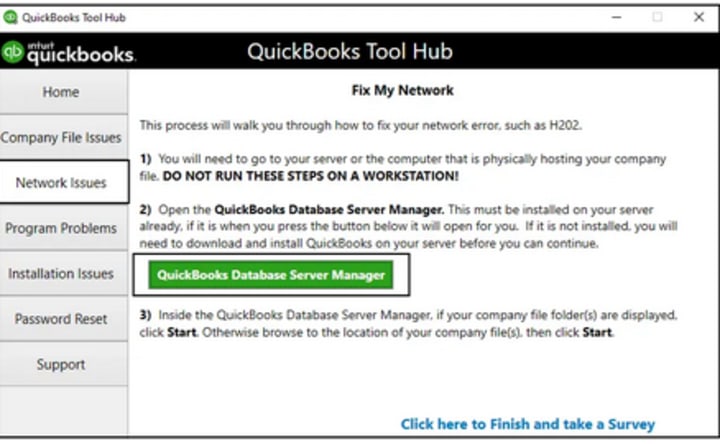
Resolving the error message "QBDSM Not Running on Server."
Resolving the “QBDSM Not Running on Server” error ensures multi-user access, data protection, and optimal performance. This prevents potential data loss and business disruption.
Verify the Status of the Server:
- Launch the Control Panel.
- Go to Services > Administrative Tools.
- Find the QuickBooksDBXX service.
- Ensure that the service is operational.
- If not, choose Start with a right-click.
Configure the Windows firewall:
- Launch the Windows firewall.
- Choose Advanced Settings.
- Permit QuickBooks and its ports.
Restart the server manager for QuickBooks Database:
- Go to the Start menu,
- Select QuickBooks Database Server Manager.
- Click Scan Folders.
- Restart the service.
- Try accessing the company file once more.
Resolving H202 Error
Resolving the H202 error is essential to maintain uninterrupted access to QuickBooks data.
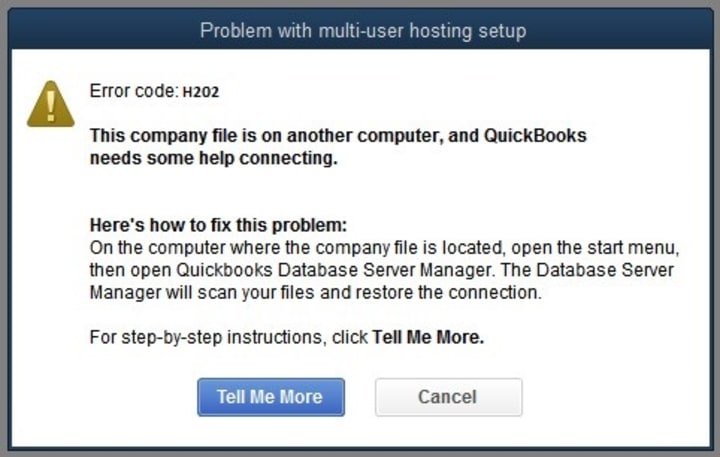
Check the Hosting Preferences:
- Launch QuickBooks on every workstation.
- Select Utilities from File.
- Ensure that workstations have Host Multi-User Access disabled but enabled on the server.
Check the connectivity of your network:
- Use the workstation to ping the server.
- Investigate and troubleshoot the network connections and settings if there is a problem with connectivity.
Set Up Firewall Preferences:
- Launch Windows Firewall to check if QuickBooks is obstructed by it.
- Create exceptions for (usually 8019, 56728, 55378–55382) QuickBooks ports.
Employ File Doctor for QuickBooks:
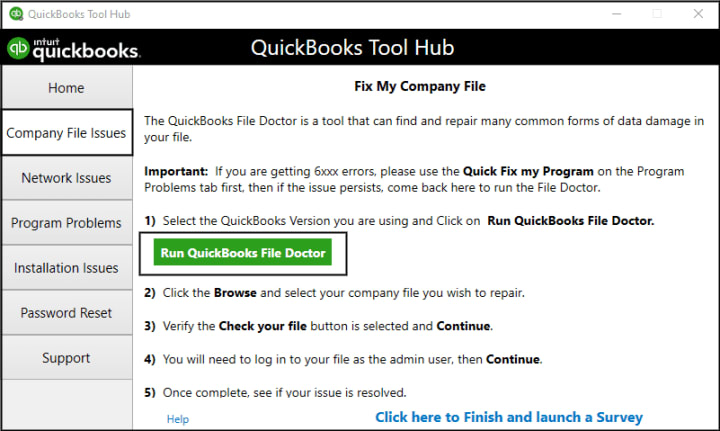
- Download and launch the QuickBooks File Doctor tool from the official QuickBooks website.
- The program will identify and fix any network-related problems.
Rectifying the Error "Failed to Restart the Database Server Manager"
“Failed to restart the database server manager” has to be rectified to ensure automatic backup and data protection.
Restart the server:
Rebooting the server might sometimes fix the problem.
Fix the installation of QuickBooks:
- Open the Control Panel
- Navigate to the Programs and Features section.
- Find QuickBooks, give it a right-click
- Choose Repair.
Update QuickBooks Database Server Manager and QuickBooks:
You must update QuickBooks Database Server Manager to ensure compatibility, fix bugs, improve performance, and maintain data integrity. This ultimately keeps your business running smoothly and efficiently.
- Verify that the Database Server Manager and QuickBooks are both current.
- Visit the QuickBooks website and download the recent updates if they have not been updated.
- QBCFMonitorService is not running on this computer. Please ensure the service is started to enable QuickBooks functionalities. Restart the service if necessary to resolve
Resolving Install Errors in Database Server Management
This is crucial to ensure the successful installation of QuickBooks updates and features and maintain the database's optimal performance.
Use the Administrator to Launch the Installation:
- Right-click the installer
- Choose Run as Administrator to install or update QBDSM.
- Verify the system requirements.
- Ensure your server satisfies the minimal system requirements for the QuickBooks version you're using.
Reinstall QuickBooks:
- Using the Control Panel, completely uninstall QuickBooks.
- Download QuickBooks Clean Install Tool.
- Reinstall Database Server Manager and QuickBooks.
Conclusion
various factors, such as improper server configuration, incorrectly configured firewalls or security settings, problems with Windows permissions, corrupted files, and out-of-date software, can result in errors in QuickBooks Database Server Manager (QBDSM). Taking proactive steps to avoid future problems and guarantee error-free financial management operations is crucial. These steps include updating QuickBooks and QBDSM to the most recent version regularly, backing up your QuickBooks data regularly, ensuring your firewall is configured correctly, granting the right user permissions, and doing routine system maintenance. You can reduce the possibility of mistakes and guarantee that your financial data is correct and
About the Creator
jenifer kate
Jenifer Kate has worked with various companies, utilizing her expertise to streamline financial processes, ensure compliance with regulations, and provide valuable insights to support strategic decision-making.
Keep reading
More stories from jenifer kate and writers in Art and other communities.
How to use QuickBooks to Write Off an Invoice for Bad Debt?
For many businesses, uncollectible invoices are an unfortunate reality. While most clients approach a business relationship to pay in full and on schedule, there are instances when this is not possible. Occasionally, they are unable to make any payments at all.
By jenifer kateabout a year ago in Confessions
Dog Shoes for Small Dogs and Puppy Shoes A Practical, Paw-Friendly Guide
Small dogs and puppies may look tough, but their paws often need more protection than people realize. Their bodies are lighter, their paws are smaller, and many of them spend a lot of time on surfaces that were never designed for delicate paw pads. Add cold sidewalks, hot pavement, rough gravel, wet grass, or even slippery indoor floors, and you start to see why dog footwear has become more than just a cute trend.
By aliyashahzadi4 days ago in Art




Comments
There are no comments for this story
Be the first to respond and start the conversation.