
The Ultimate Guide to Converting Your Epson EcoTank Printer to Sublimation
Epson EcoTank Printer

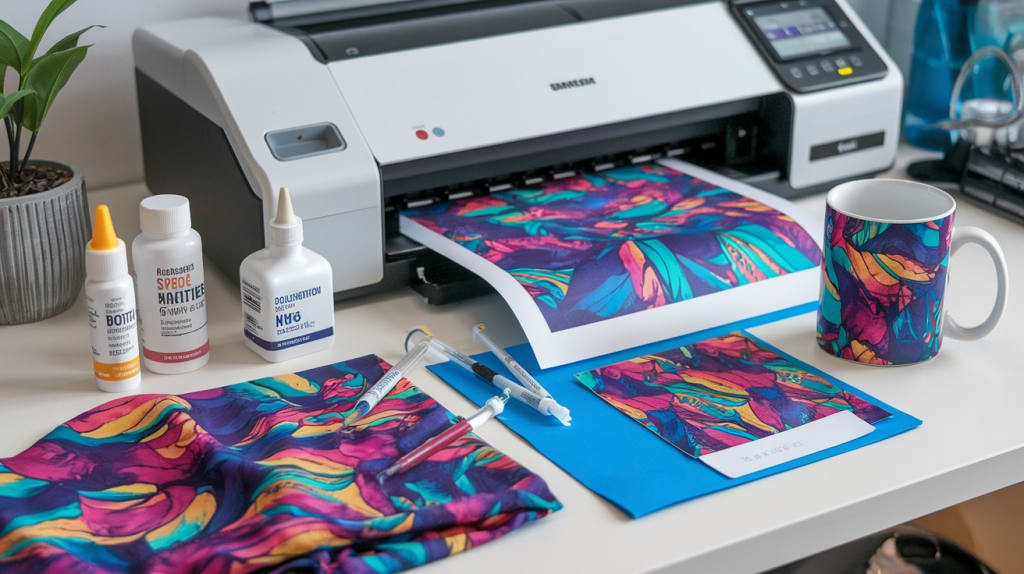
Are you wondering about how to convert your Epson EcoTank printer to sublimation printing? The Epson EcoTank printer series is particularly suitable for sublimation due to its refillable ink tank system, which can be easily adapted for sublimation inks. In this guide, we’ll walk through the process of converting an Epson EcoTank printer for sublimation, ensuring you’re equipped with everything you need to start your sublimation printing journey.
Understanding Sublimation Printing
Sublimation is a printing process where heat transforms sublimation ink into gas, allowing it to bond with polyester-based fabrics or specially coated surfaces. Unlike traditional printing methods, sublimation ink fuses into the material’s fibers, resulting in a smooth, fade-resistant finish. This makes it ideal for creating custom t-shirts, mugs, and other items where durability and vibrancy are essential.
Epson EcoTank printers, with their unique refillable ink tanks, are a budget-friendly choice for sublimation. Since they don’t require proprietary cartridges, they’re versatile and can be used with third-party sublimation inks. This guide will help you prepare and convert your EcoTank printer for sublimation.
Preparing for the Conversion
Before diving into the conversion process, it’s essential to gather the right materials and tools to ensure a smooth setup.
1. Choose the Right Model:
While most Epson EcoTank models can be converted, models like the Epson ET-2800, ET-2400, and ET-1500 among others are popular for their reliability in sublimation. Choose a model based on your print volume needs and available features, as advanced models often have larger tanks and additional settings that improve print output.
2. Gather Supplies:
For a successful conversion, you’ll need a few key materials:
Sublimation Ink: Opt for high-quality sublimation ink compatible with your EcoTank model. Avoid using non-sublimation inks, as they won’t bond to materials correctly.
Sublimation Paper: This specialty paper is essential for transferring the design effectively onto your substrate.
Heat Press Machine: A heat press is vital for transferring sublimation ink to your chosen material with the right temperature and pressure.
Syringes or Refill Bottles: These tools allow for easy and mess-free ink refilling.
With your printer and supplies ready, you can now begin the conversion process.
Step-by-Step Conversion Process
The following steps will guide you through converting your Epson EcoTank printer to a sublimation printer.
Step 1: Emptying Regular Ink
If your EcoTank printer comes pre-filled with regular ink, you’ll need to carefully empty it to avoid mixing it with sublimation ink. Begin by turning on your printer and running a test page to check the ink levels. If necessary, you can use a syringe to extract the remaining ink from each tank. Be careful during this step to prevent spills and avoid contaminating the sublimation ink.
Step 2: Filling with Sublimation Ink
Once the tanks are empty, it’s time to introduce the sublimation ink. Using syringes or direct refill bottles, carefully inject sublimation ink into each tank, ensuring no air bubbles form, as this can impact print quality. Fill each color tank according to its designated color slot—black, cyan, magenta, and yellow—being mindful of the correct placement. Keep the bottles and syringes close by in case you need to top up or perform maintenance in the future.
Step 3: Adjusting Printer Settings
After loading the ink, it’s essential to adjust your printer’s settings for optimal sublimation printing. Access your printer’s driver settings through the connected device, ensuring you select the highest print quality and choose sublimation paper as the preferred paper type if available. Be sure to mirror your design before printing, as sublimation prints in reverse to transfer correctly onto the final surface. Regularly run test prints to confirm settings and ink flow.
Tips for a Successful Sublimation Experience
Converting an EcoTank printer to sublimation opens up creative possibilities, but it’s essential to keep up with regular maintenance and troubleshooting to get the best results.
Routine Maintenance
Sublimation ink has different properties than regular ink, so occasional printhead cleaning may be necessary to prevent clogs. Run the printer’s cleaning cycle if you notice any lines or imperfections in your prints. If issues persist, manually clean the printhead following the manufacturer’s instructions.
Avoiding Common Pitfalls
To ensure the longevity of your printer and the quality of your prints, avoid mixing sublimation ink with any other ink type, as this can clog the printheads and damage your printer. Keep a dedicated printer for sublimation use only and regularly check for any ink levels that may require refilling to avoid drying out.
Managing Quality and Ink Flow
For best results, store sublimation inks in a stable, room-temperature environment, as exposure to extreme temperatures can impact ink flow. Regularly check for any blockages in the nozzles, and always keep extra sublimation paper and ink refills on hand to avoid disruptions in your printing workflow.
Conclusion
Converting an Epson EcoTank printer for sublimation is a rewarding way to expand your printing capabilities, offering vibrant, high-quality prints that are perfect for custom apparel, home decor, and personalized gifts. With the right setup, maintenance, and attention to detail, your converted EcoTank printer will become a powerful tool for creating durable, fade-resistant designs. For beginners and pros alike, this conversion process opens up new creative possibilities in sublimation printing.
About the Creator
Hicks Crawford
Hicks Crawford is an Outreach Media Editor for the past 10 years, He's worked closely with clients from all over the world to help them get more results from inbound marketing and blogging at 9listed.com.
Keep reading
More stories from Hicks Crawford and writers in Art and other communities.
TRANSFORM YOUR HOME WITH A STUNNING CHRISTMAS TREE
Although it may be a little chilly, it's a beautiful season with love, kindness, and cheer warming our bones because of the Christmas celebration. You may still wonder what to give your loved ones or what to cook for the perfect Christmas meal, but don't let your home take a back seat. Most importantly, the main purpose of Christmas is to cherish precious moments with loved ones and friends at home. This holiday season, you may easily turn the interior of your home into a beautiful fantasy land with a bit of creativity.
By Hicks Crawfordabout a year ago in Journal
'Till Death We Do Art
There would be nothing divine in this world without art. Nature may surpass the divine to all intents and purposes, but like everything it absorbs and is absorbed by, it remains here, stuck on the surface of this world, ever-present, physically bound to the universe.
By Avocado Nunzella BSc (Psych) -- M.A.P 27 days ago in Art
Popularity Versus Art and The Shrouds We Cover Them With
The best artists are those who look at things as they are, not as they want them to be. However, sometimes they need to deal with shrouds that obscure judgment. The first type of shroud surrounds popular media, as popularity creates a shroud for the item that is popular, a shroud that both attracts fanaticism (so that anyone criticizing is wrong) and the wrong kind of criticism (if it's popular, well, art can not be popular, and there are those that wish to prove their artistic integrity by bringing down anything popular). The second type of shroud surrounds art, sometimes making something seem more artistic than it really is.
By Jamais Jochim2 days ago in Art




Comments
There are no comments for this story
Be the first to respond and start the conversation.