
How to make Sticker Mockups: A Detailed Guide
How to Create Sticker Mockups

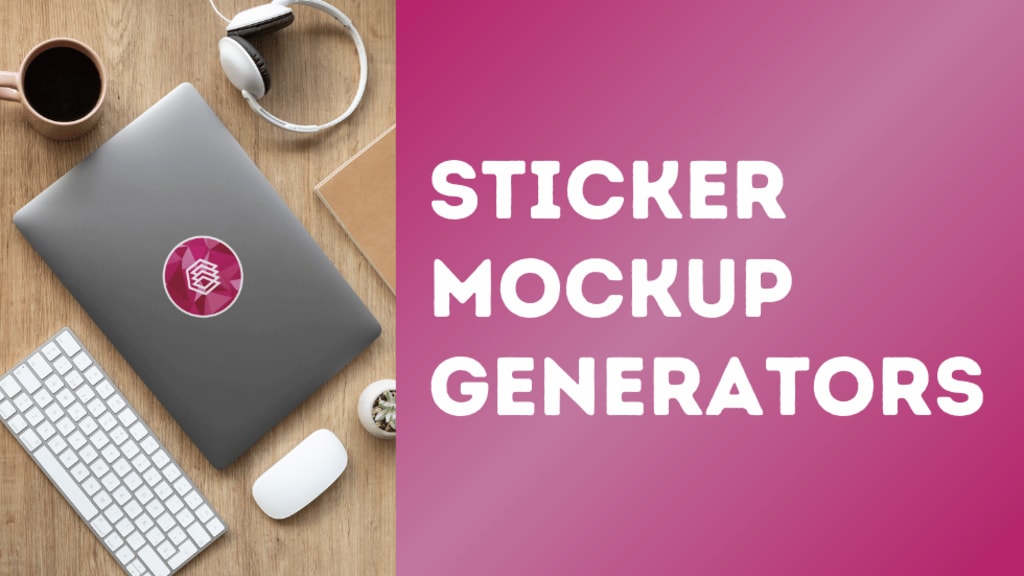
Creating sticker mockups is an excellent way to showcase your designs in a professional manner. Whether you’re an artist, a small business owner, or a designer, a good mockup can enhance your presentation and help clients visualize the final product. In this guide, we’ll explore different methods for creating stunning sticker mockups using various tools and platforms.
1. Using Mockey for Sticker Mockups
Mockey is a specialized platform designed to simplify the mockup creation process. It allows users to create beautiful sticker mockups with minimal effort.
Steps to Create a Sticker Mockup with Mockey:
Visit Mockey.ai: Head over to the Mockey website and browse their extensive library of sticker mockup templates.
Select a Template: Choose a template that suits your design. Mockey offers various backgrounds and styles, from realistic surfaces to creative settings.
Upload Your Design: Drag and drop your sticker design into the chosen template. The platform supports multiple file formats, making it easy to work with your designs.
Customize Your Mockup: Adjust the positioning, scaling, and orientation of your sticker. You can also customize backgrounds to enhance the overall look.
Download Your Mockup: Once satisfied with your design, download the mockup in high resolution, ready for sharing or presentation.
2. Free Online Mockup Generators
If you’re looking for Sticker Mockup Free options, several online tools can help you create mockups without spending a penny.
Steps to Create Sticker Mockups for Free:
Choose a Free sticker Mockup Generator: Platforms like Placeit and Smartmockups offer free mockup creation services.
Pick a Template: Browse through the available sticker mockup templates and select one that resonates with your design.
Upload Your Artwork: Simply drag your design file onto the template.
Adjust the Design: Customize the mockup by changing backgrounds, shadows, and other elements.
Export Your Mockup: Download your finished product without watermarks, making it perfect for marketing or social media.
3. Using Photoshop for Advanced Users
For those comfortable with design software, Adobe Photoshop allows for greater customization in creating sticker mockups.
Steps to Create a Sticker Mockup in Photoshop:
Download a PSD Template: Find a free or premium sticker mockup PSD template from sites like Freepik or GraphicBurger.
Open the Template in Photoshop: Load the template into Photoshop to begin your project.
Edit the Smart Object: Double-click on the smart object layer to insert your sticker design easily.
Customize Elements: Adjust the background, lighting, and shadows for a realistic look.
Save and Export: Once you’re satisfied with the mockup, save it in the desired format (JPEG, PNG) for distribution.
Conclusion
Creating sticker mockups is an essential skill for effectively showcasing your designs. Whether you opt for a user-friendly tool like Mockey, explore online free sticker mockup generators, or dive into Photoshop for a more customized approach, the right method depends on your needs and preferences. With these techniques, you can present your stickers in a visually appealing way, helping you stand out in a competitive market.
By following these steps, you can confidently create professional-looking sticker mockups that enhance your creative projects.
also read:
How to Put Your Design on a Mockup in Canva: A Step-by-Step Guide
About the Creator
ladali official
I am a content creator with a love for storytelling and turning ideas into visuals that captivate and connect. I focus on creating engaging, high-quality content that speaks to audiences across platforms
Keep reading
More stories from ladali official and writers in Art and other communities.
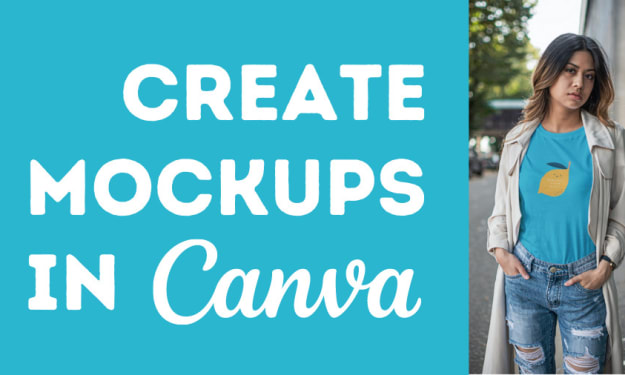
How to Put Your Design on a Mockup in Canva: A Step-by-Step Guide
If you're a designer, print-on-demand seller, or entrepreneur in the apparel industry, using mockups is a must for showcasing your work. Mockups allow you to see how your design would look on physical products without actually printing them. In this guide, we'll walk through how to easily create a clothing mockup using Canva, a user-friendly design platform, with secondary keywords like clothing mockup, mockup generator, and apparel mockup to enhance your blog’s SEO.
By ladali officialabout a year ago in Art
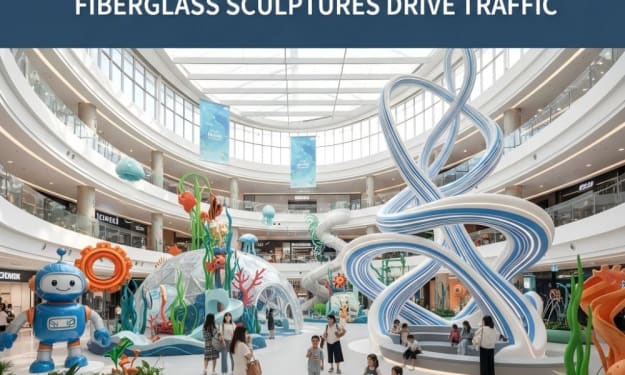
2026 Commercial Space Design:How Fbierglass Sculpture Drives Traffic
Today, offline commercial spaces are facing continuous pressure. With e-commerce offering convenient and fast services, physical stores must showcase unique features to attract customers. In this context, fiberglass sculptures are no longer merely decorative items; they have become visual focal points in shopping malls, brand stores, pop-up shops, and mixed-use commercial projects, playing a crucial role in increasing foot traffic.
By Shenzhen Ruiheng Crafts5 days ago in Art
Why Strategic Branding Is Essential for Long-Term Business Growth
In today’s fast-paced digital environment, businesses face constant pressure to stand out. Consumers are exposed to endless choices every day, making attention harder to earn and trust harder to keep. While quality products and services are important, they are no longer the only factors that determine success. Strategic branding plays a key role in helping businesses grow steadily and remain relevant over time.
By Ayush Bagwari5 days ago in Art


Comments
There are no comments for this story
Be the first to respond and start the conversation.