
Creating Retro Pixel Art with AI: A Guide to Generating Nostalgic Creations
modern digital art projects

Pixel art, a form of digital art that embraces the simplicity and charm of early computer graphics, has made a huge comeback in recent years. Often associated with retro video games and 8-bit graphics, pixel art has become a beloved style for artists, game developers, and enthusiasts alike. The pixelated aesthetic evokes a sense of nostalgia and creativity, making it a great medium for modern digital art projects.
In this guide, we’ll explore how you can create your own retro-inspired pixel art using the AI-powered platform a1.art. With its AI image generator and customizable photo filters, creating pixel art has never been easier. Whether you're looking to design characters, environments, or even entire game worlds, AI can help bring your retro pixel art visions to life with ease.
Why Use AI for Pixel Art?
Creating pixel art traditionally involves a lot of manual work, pixel by pixel. While this can be a fun and rewarding experience for some, it can also be time-consuming. Fortunately, AI tools like a1.art make the process of generating pixel art faster and more accessible.
Here are a few reasons why using AI for pixel art is a game-changer:
Time Efficiency: AI can generate pixel art in just minutes, freeing up time for other creative endeavors.
No Artistic Experience Required: With AI, even beginners can create high-quality pixel art without needing to master complex drawing techniques.
Customizability: Once the AI generates your image, you can easily tweak colors, details, and more to suit your style.
Let’s dive into the steps for creating retro pixel art using the a1.art platform.
Step-by-Step Guide to Creating Pixel Art Using AI
1. Getting Started with a1.art
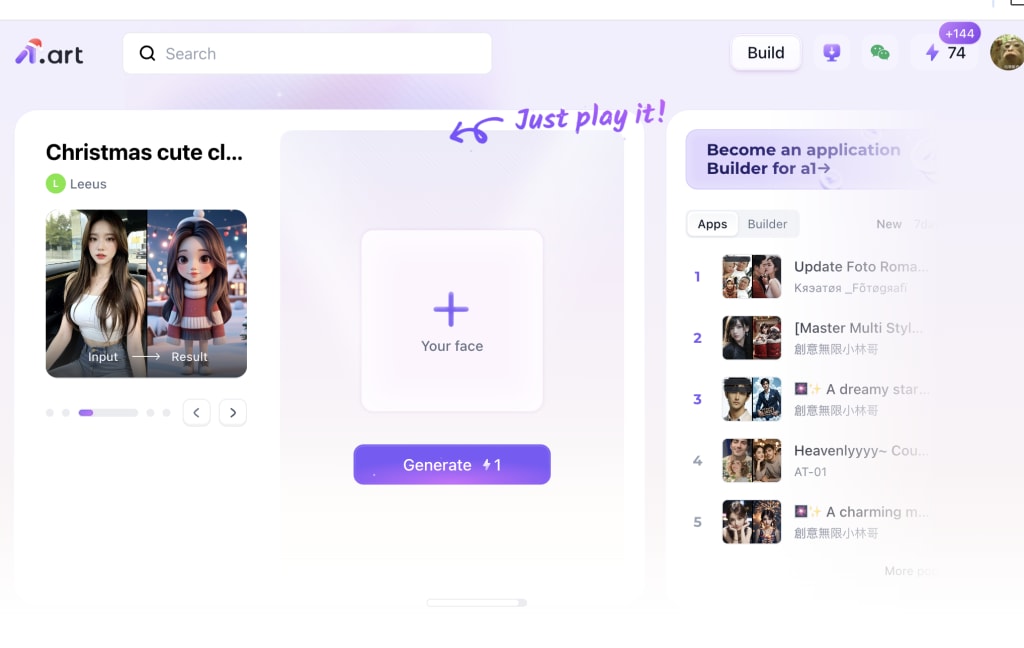
The first step is to visit a1.art and sign up for an account. After signing up, you’ll have access to all the tools and features, including the AI image generator and the photo filters.
2. Generating Your Pixel Art Image
Once you're signed in, you can start by using the AI image generator. The process is simple: type a description of the pixel art you want to create. Here are a few examples of prompts that work well for generating retro pixel art:
“A pixel art character with a red shirt and blue pants, holding a sword.”
“Retro-style pixelated spaceship flying through a pixelated starry sky.”
“8-bit pixel art of a cute cat with big eyes and a small bow on its head.”
The AI will analyze your prompt and generate a pixel art image based on your description. You’ll receive multiple variations to choose from, each offering different interpretations of your idea.
3. Customizing Your Pixel Art Creation
Once the AI generates the initial pixel art, it’s time to customize it. You can adjust the following elements to perfect your retro pixel art:
Color Palette: Choose from a variety of color options to give your artwork the perfect 8-bit look. You can opt for a limited color palette to maintain the authentic retro style or go for brighter, more vibrant tones.
Details and Features: You can adjust specific elements of the image, such as adding extra details to characters or backgrounds. Want more contrast? You can tweak the shading to make your design pop.
Pixel Size: For that true retro feel, consider playing with the pixel size. Smaller pixels will give your art a smoother, more detailed look, while larger pixels will provide a blockier, more old-school aesthetic.
4. Enhance Your Pixel Art with Photo Filters
After generating and customizing your pixel art, you can use photo filters to give your creation the perfect finish. Filters can help adjust the overall mood or style of your artwork, adding depth and texture to the pixels.
Here are some filter options that can enhance your pixel art:
Retro Filter: This filter will give your image an aged look, adding grain, pixel distortion, and fading to make it feel like it’s straight out of an old-school video game.
Vibrant Filter: Want your pixel art to stand out? A vibrant filter can make your colors pop, creating a more striking and dynamic retro design.
Grayscale Filter: If you want to give your pixel art a classic black-and-white feel, a grayscale filter will strip away all the colors while maintaining the sharp pixel edges.
By experimenting with different filters, you can achieve the ideal finish for your retro pixel artwork.
Tips for Perfecting Your Retro Pixel Art
Pixel art is all about embracing simplicity, but there are still some key techniques that can help you perfect your creations. Here are a few tips:
1. Master the Art of Limited Color Palettes
One of the most iconic aspects of retro pixel art is the use of limited color palettes. Early video games didn’t have the advanced graphics we enjoy today, so game designers had to be creative with a small number of colors. When creating pixel art, limit your colors to enhance the nostalgic feel. Think about using 8-16 colors for a true retro effect.
2. Embrace Simple Shapes and Symmetry
Retro pixel art often features simple geometric shapes and symmetry. Characters and objects are usually created using basic squares, rectangles, and circles. Don’t be afraid to embrace minimalism and focus on creating clean, easy-to-read designs.
3. Pay Attention to Pixel Density
In retro pixel art, each pixel represents a small piece of information. The density of pixels can significantly affect the visual impact of your creation. If you're looking for a smoother, more detailed design, increase the pixel density. For a more classic 8-bit look, reduce the density to give your artwork a blockier, more pixelated feel.
4. Use Contrasting Colors for Emphasis
One of the tricks to making your pixel art pop is to use contrasting colors to highlight important elements. For example, bright red can be used for a character’s clothing to make them stand out against a darker background. High contrast helps define shapes and makes the artwork visually striking.
How AI Can Inspire Your Retro Pixel Art Ideas
If you're stuck and don’t know where to start, the AI image generator can provide plenty of inspiration. The AI’s ability to interpret your text prompts and generate different variations opens up endless possibilities for retro pixel art designs.
You can experiment with a variety of keywords to see what the AI generates. For example, you could input phrases like "8-bit dragon" or "retro video game character" to get multiple pixelated designs. The AI can also suggest backgrounds, objects, and even color schemes that complement your main design.
Once you see the AI-generated art, you can select your favorite version and further refine it to suit your style.
Why Retro Pixel Art Is Making a Comeback
Retro pixel art isn’t just a thing of the past—it’s enjoying a revival in modern art and design. Many artists and game developers are turning to pixel art to evoke nostalgia while tapping into the charm of simpler, more accessible designs. Pixel art is widely used in indie games, digital illustrations, and even branding for companies that want to stand out with a retro aesthetic.
Creating retro pixel art with AI is the perfect way to participate in this trend, whether you’re a beginner or an experienced artist. With a1.art, you can create professional-quality pixel art in no time, even if you don’t have traditional drawing skills.
Final Thoughts
Creating retro pixel art with AI opens up new creative possibilities, allowing you to generate unique, nostalgic designs without the need for years of artistic training. The a1.art platform offers an easy-to-use AI image generator that brings your ideas to life, while photo filters allow you to customize and perfect your creations. Whether you’re designing characters for a game, creating illustrations, or simply experimenting with pixel art, AI makes the process more accessible and enjoyable than ever before.
Ready to dive into the world of retro pixel art? Visit a1.art and start creating your own nostalgic masterpieces today!
About the Creator
Emma
Passionate about AI art, enjoys using AI tools to explore works in various styles, from cyberpunk to impressionism, always open to experimentation.
Valentino Garavani
In the golden age of couture, when fashion was less about speed and more about soul, one name quietly rose to become synonymous with timeless elegance: Valentino Garavani. To speak of Valentino is to speak of romance, discipline, beauty, and a lifelong devotion to the art of dressing the world’s most admired women.
By S.A Charles4 days ago in Art


Comments
There are no comments for this story
Be the first to respond and start the conversation.