
How to Rip a DVD on Windows and macOS? [2025 Tutorial]
Explore the best free tools for ripping DVDs to high-quality video files on Mac or Windows computers.

Many of us still have a cherished collection of DVDs that we'd love to enjoy on various devices. When I upgraded my laptop and found it no longer included a DVD drive, I realized I needed a reliable method to digitize my favorite discs. Streaming is great, but I wanted control over my personal library. Ripping DVDs to digital formats solved this perfectly, letting me watch anywhere. Here is my detailed guide on how to rip a DVD on both Mac and Windows, drawing from my own trials and discoveries.
Way 1: Rip DVDs Flexibly Using DVDFab DVD Ripper
DVDFab DVD Ripper impressed me with its versatility and ease of use, especially handling copy-protected DVDs that many other tools couldn’t crack. The GPU acceleration made ripping speedy, and its built-in editor means no extra steps after conversion.
Features:
- Cover copy-protected DVDs, whether new or old
- Rip DVDs to popular digital formats, like MP4, WMA, MP3, MKV, and other 1,000+ formats
- Get faster DVD ripping speed with GPU acceleration and batch mode
- Edit a DVD with the internal video editor
How to rip DVD on Windows & Mac using DVDFab DVD Ripper
Step 1: Download and install DVDFab 13 from the official website. After running DVDFab software, switch to the "Ripper" module.
Step 2: Put the DVD into your PC drive and wait till DVDFab automatically analyzes and loads the DVD as the source. By default, you will get the main movie title, if you want to choose other titles, open the "Choose Other Titles" window and select the desired one.
Step 3: Select a video profile and output target. You can use the Filter on the profile panel to easily find the format or preset device, and simply click on the one you prefer.
Step 4: On the main interface, choose the needed subtitles, audio tracks, and chapters. If you want certain audio or subtitles to be shown as the default one for playback, put the tiny little triangel in front of that track.
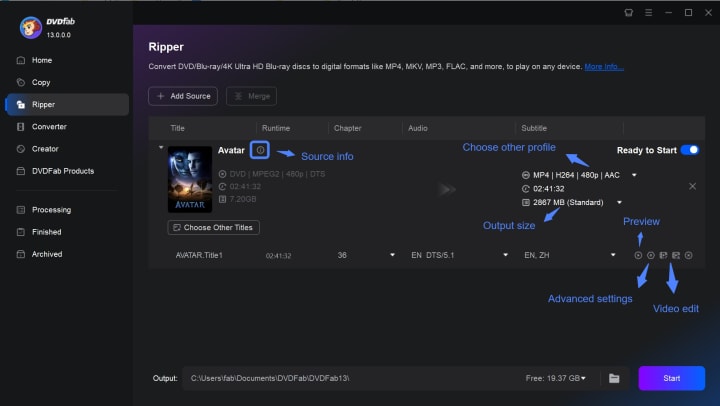
Step 5: Click on the Advanced Settings button to open the panel, adjust the video quality (Fast Speed/Standard/High Quality/Customized), change the Audio parameters as well as set the Subtitle mode per your need.
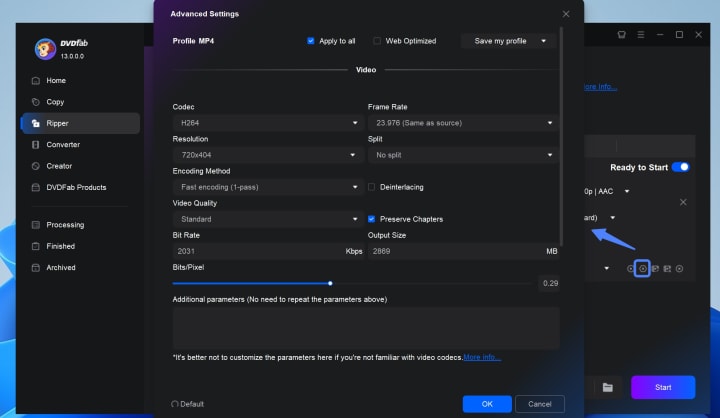
There are four different subtitle modes available, Remux subtitles into a file, Render into video, or Extra to srt or idx/sub files, all up to you.
Step 6: Use the Trim feature to trim the title or click on the PEN button to open the Video Edit window and adjust the Brightness, contrast, and more to change video effects. You can also add a watermark or external subtitles, crop and change the aspect ratio, and change the playback speed.
Step 7: Click the "Start" button to rip DVDs to your computer.
Way 2: Rip a DVD with VLC Media Player (Free Option)
VLC is a free and widely used media player that can handle many input types, including homemade DVDs, Blu-rays, audio CDs, and general video files. Although it’s not primarily designed as a DVD ripping tool, I found that it can rip DVDs into digital formats like MP4 and MKV with some patience.
In my experience, if your discs are unprotected, VLC works well for basic ripping tasks. However, when I tried ripping some commercial DVDs, I realized VLC needs additional components like libdvdcss to decode encrypted discs.
Pros:
- Free and fairly straightforward to use
- Supports various output formats
Cons:
- Requires extra files and setup for copy-protected DVDs
- Ripping speed was noticeably slow in my tests
- Limited options to fine-tune video and audio settings
How to Rip DVDs For Free Using VLC
Step 1: Download and launch VLC, then insert the disc you want to rip.
Step 2: Click "Media" on the top bar and from the drop-down menu, choose "Convert/Save".

Step 3: On the "Open Media" dialog window, switch to the "Disc" tab, click "Browse" to select a disc or a VIDEO_TS folder from your PC. And then click "Convert/Save" at the bottom.
Step 4: Click Profile, and from the drop-down list, select the format you want. Then hit "Browse" to select the destination, rename the ripped file, and set the video format to the one you prefer.
Step 5: Click "Start" to start the ripping process.
Way 3: How to Rip a DVD For Free with HandBrake
HandBrake is a free, open-source software that at first glance felt a bit technical, but after some exploration, it became a powerful ally for ripping DVDs. What I liked most was its batch scanning ability, which helped me rip multiple titles in one session, and the chapter markers let me jump to specific parts easily.
That said, I ran into some limitations when trying to rip copy-protected DVDs—it needs to be paired with other software for encryption bypass, which added a layer of complexity for me.
Pros:
- Open-source software, making it easy to access without cost
- Offers a range of built-in presets for various devices
- Provides video adjustments like rotation, cropping, and resolution settings
Cons:
- Requires additional software to bypass basic DVD encryption
- Limited output formats available—mainly MP4, MKV, and WebM
- Lacks some advanced custom video options compared to dedicated paid rippers
Here’s how I used HandBrake to rip a DVD step-by-step:
Step 1: Download and install HandBrake. Run it upon the installation is completed.
Step 2: Insert the DVD disc into your DVD drive.
Step 3: Click the "Open Source" button in the top-left corner of the HandBrake window, select the DVD drive, and then choose the longest title or other available title from the list as Source.
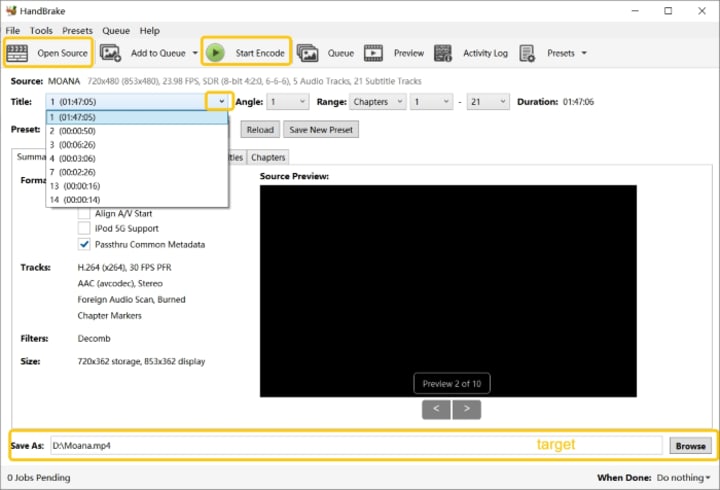
Step 4: Change the Output Format under the "Summary" tab per your need, and then in the SAVE AS field, browse for a destination folder where you want to save the output.
Step 5: Click on the "Start Encode" button in the top menu bar to rip DVD on your Windows computer in digital format. The rip DVD Mac process is similar.
Conclusion
In my experience exploring how to rip a DVD, the right tool can make all the difference between a frustrating process and a smooth one. For those looking to rip DVDs quickly and reliably—including protected discs—I found DVDFab DVD Ripper to be the most effective and user-friendly option. Its speed, flexibility, and ability to bypass encryption set it apart as my go-to choice when ripping DVDs.
If you prefer free solutions and mostly work with unprotected discs, VLC and HandBrake provide solid alternatives. While they may require a bit more patience and extra steps, they can get the job done without any cost.
About the Creator
Diana
I’m a passionate Blu-ray collector who loves preserving the magic of physical media. Every now and then, I enjoy burning precious family videos onto discs, keeping memories alive in a tangible way.
The Role of the Three Way Forklift in Modern Warehouse Efficiency
Efficient material handling is a crucial part of modern warehouse management. As global trade and e‑commerce continue to grow, warehouses must store more products while maintaining fast and accurate operations. One of the most important machines used in logistics and storage facilities is the forklift. A forklift is an industrial vehicle designed to lift, move, and transport heavy materials over short distances, making it a core component of supply chain operations.
By charliesamuel6 days ago in 01
Taxi App Development Cost: Full Breakdown & Guide (2026)
Building a ride-sharing platform is a massive headache. I reckon most founders jump in thinking they can clone Uber for the price of a used sedan. That is a recipe for a quick exit. Software is never a one-and-done purchase.
By Samantha Blake2 days ago in 01



Comments
There are no comments for this story
Be the first to respond and start the conversation.