
Blu-ray Burners for Mac Review: Top Picks for Your Digital Library
This guide offers 3 Blu-ray burning software for Mac to ease your selection process.

The landscape of professional Blu-ray burners for Mac offers multiple options tailored to different needs and preferences. Whether seeking high-speed burning capabilities, extensive format support, or advanced editing features, each contender brings unique strengths to the table. Evaluating these attributes, this blog post ensures finding the ideal Mac Blu-ray burners for personalized disc creation needs.
DVDFab Blu-ray Creator
DVDFab Blu-ray Creator for Mac excels at burning various video formats, including HD camcorder footage to Blu-ray and AVCHD DVDs. It offers an intuitive interface, merging videos, customizable menus, and dual audio support.
- Create Blu-ray discs, ISOs, and folders from over 200 video formats.
- Output BD-R, BD-RE, BD-50, BD-25, BD-5, BD-9 formats
- Burn videos to Blu-ray in a 1:1 ratio
- 20x faster burning speed, support batch processing
- Customize Blu-ray menu, built-in templates
- Display metadata on the Blu-ray menu
How to Burn Blu-ray Using DVDFab Blu-ray Creator for Mac
Step 1: Download and open this Blu-ray Burner for Mac.
Select "Creator"> "Blu-ray Creator" and click "+" to load the video or drag-drop it onto the UI.
Step 2: After loading videos, choose audio tracks and subtitles or add external subtitles.
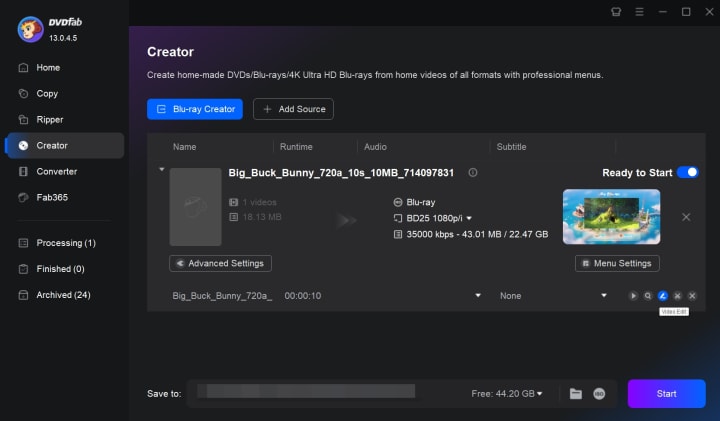
Click "Advanced Settings" to adjust output parameters like volume label, format, quality, and playback mode.
Step 3: Customize and select the output.
In "Menu Setting," select the menu template and customize features for personalized and professional Blu-ray output.
Step 4: Choose the output directory and click "Start" to begin batch burning.
Roxio Toast 20 Pro
Roxio Toast 20 Pro is another Mac burn Blu-ray software that simplifies burning movies to BD discs on Mac with 100+ themed disc menu templates. Its drag-and-drop burning and robust audio/video editing tools enhance high-definition entertainment experiences.
What we like:
- Easily burn photos, videos, audio files, and data onto CDs, DVDs, or Blu-ray discs.
- Customize the menus while burning, allowing for a tailored look and feel for your media.
- Edit photos directly within the software interface.
What we don't like:
- Options for creating customized menus are somewhat restricted.
How to Use Roxio Toast 20 Pro
Step 1: Open Roxio Toast 20, select "Blu-ray Video" under the "Video" section, then drag your video files into the interface.
Step 2: Modify disc settings like the name, auto-play feature, and video quality within the "Options" menu. Customize menu title, style, and aspect ratio in "Menus."
Step 3: Modify movie details using the "Edit" button beside each track. Select the menu button picture frames and set chapter markers in the Video tab.
Step 4: To encode the video, select "Save as Disc Image," specify the storage location, and choose "Image File" under the "Copy" icon. Then, drag the image, insert the disc, and click the red button to start burning.
Express Burn
Express Burn for Mac is a versatile CD/DVD/Blu-ray burner that uses a drag-and-drop method to burn Blu ray Mac. It supports all video formats via a DirectShow codec and allows burning to CDs, DVDs, Blu-ray discs, and ISO images.
What we like:
- Includes 20+ menu and button template screens
- Create and manage chapters on Blu-ray discs
- Supports dual-layer DVDs and Blu-rays
What we don't like:
- Cannot rearrange tracks as desired
How to burn Blu-ray Using Express Burn
Step 1: Install Express Burn Blu-ray Burning Software for Mac, then insert a blank Blu-ray disc and launch the program.
Step 2: Select the "video Blu-ray" disc type. You can import ASF files by clicking "Add File(s)" or "Add Folder," or by dragging and dropping them.
Step 3: Eliminate unwanted files by right-clicking and choosing "Remove" from the menu.
Step 4: Click "Burn video Blu-ray" to start. Adjust settings like drive, speed, and copies. When ready, click "Burn" to begin burning your video files to Blu-ray.
FAQs
1. What is the best Blu-ray burner software for Mac?
DVDFab Blu-ray Creator stands out as the top Blu-ray burner. It offers extensive support for over 200 video formats and versatile output options, including Blu-ray discs, ISO images, and folders, catering to diverse user needs.
2. Does Mac have DVD burning software?
Yes, macOS includes "Burn Folders," but only for burning data CDs/DVDs. iDVD was a built-in DVD burner for Mac but is now discontinued. Consider a professional DVD-burning software solution like DVDFab DVD Creator for Mac for video DVDs.
3. Is there any external Blu-ray burner for Mac?
Several high-quality external Mac Blu-ray burners, such as ASUS, Pioneer, and Verbatim, are available. While these offer versatility, they require physical space and are cheaper than software solutions.
Conclusion
Blu-ray discs maintain relevance for their high-quality video, large storage, and durability. Macs support CD/DVD burning but need third-party software for Blu-ray. With dedicated Bluray burners for Mac, users can create custom discs for professional projects or personal backups, though free options are scarce, making DVDFab Blu-ray Creator a standout choice.
About the Creator
Diana
I’m a passionate Blu-ray collector who loves preserving the magic of physical media. Every now and then, I enjoy burning precious family videos onto discs, keeping memories alive in a tangible way.
These Billionaires Bet Big On GreenLand—After Trump Took Interest
Topline Just months after President Donald Trump first expressed interest in the United States possibly gaining control over Greenland, some of the richest people in the world—including Jeff Bezos, Bill Gates and Michael Bloomberg—began making strategic investments in the mineral-rich island.
By Dena Falken Esq4 days ago in 01
How, Too
Many people wonder how, too. You are not alone, and I am an expert. I will teach you how, too! First, you need to remit a small application fee and fill out an application describing the nature of your financial situation and how often payments will be made, as this will have great bearing on how well I teach you how, too.
By Harper Lewis4 days ago in Fiction



Comments
There are no comments for this story
Be the first to respond and start the conversation.