
Top 2 Video Quality Enhancers with AI Model
How to Enhance Video Quality with AI Model

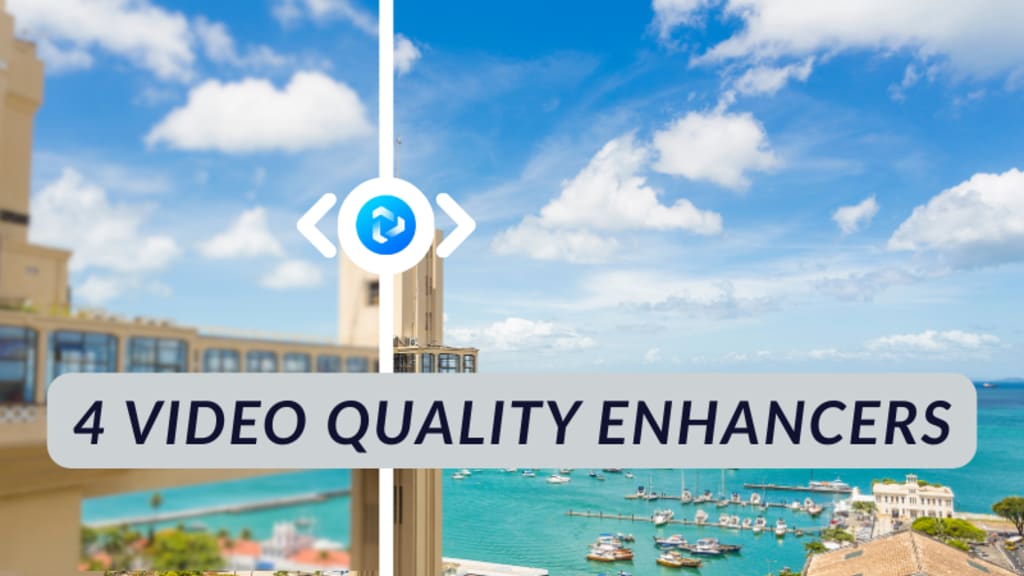
"Can a poor-quality video be improved? Is there any video quality enhancer recommended?" - Tom
Fortunately, the answer is yes. With the proliferation of streaming services, viewers now expect increasingly higher video quality. However, producing high-quality videos is challenging, and not everyone has the skills to manually enhance them. Nowadays, artificial intelligence (AI) technology can automatically enhance video quality, making it easier for content creators to meet audience expectations.
This tutorial will show you how to use AI model to enhance video quality, fix blurry mobile videos, improve anime videos, and stabilize shaky videos, allowing you to easily create stunning video content.
Part 1: How to Enhance Low-Quality Videos Downloaded in Your Early Years
If you have some valuable video files, tutorials, or music videos that you downloaded years ago, but their original resolution is very low, and they appear blurry when played full-screen on modern devices, then Any Video Converter can be a lifesaver.
Using AI Video Enhancer in Any Video Converter, you can upscale low-resolution videos (360p/480p) downloaded from older websites to 1080P or even 4K resolution; this process is commonly known as "super-resolution upscaling". Traditional enlargement only makes video mosaics larger, while AI Video Enhancer uses algorithms to analyze every frame in the footage, sharpening and reconstructing details to make videos appear clearer and more refined.
When early low-quality videos are played on modern large-screen TVs or 4K displays, they often exhibit noticeable flaws such as blurriness, compression artifacts, color banding, and more. After being enhanced to 1080p/4K using AI Video Enhancer, the videos appear significantly clearer and sharper on large screens, greatly improving the viewing experience. If you wish to enhance your cherished home videos or important event recordings captured with a DV camera in your early years, converting them to high definition will better preserve these precious moments for the long term.
How to Enhance Video Quality Using AI Video Enhancer
Step 1 : Upload Your Low-Quality Video
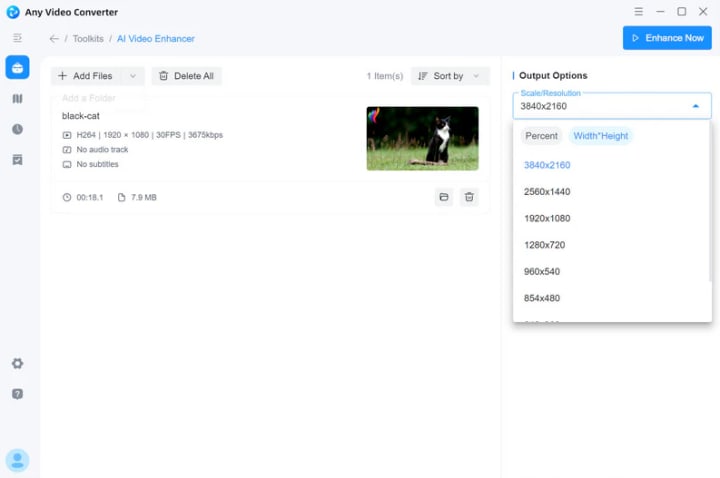
Download and install Any Video Converter, then navigate to AI Video Enhancer and upload your low-quality video.
Step 2 : Choose Video Resolution/Size to Enhance
In Output Options, select the video resolution or size you wish to enhance.
Click "Preview Enhanced Frame" to see the enhanced effect on the left. If you're not satisfied with the enhancement, you can switch to a different video resolution/size and preview again until you're satisfied.

Step 3 : Start Enhancing Low-Quality Video
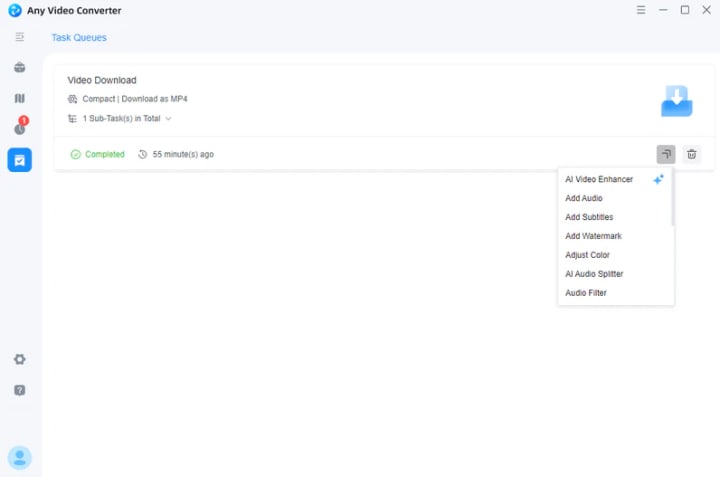
Hit the "Enhance Now" button to start enhancing low-quality video. After completing the task, you can click the "other tools" to perform basic video processing on the enhanced video.
Part 2: How to Fix Classic Anime Video Quality to Modern Video Quality
Is there a video quality enhancer that combines features to increase video resolution, improve mobile videos, and enhance anime videos? Yes, AVCLabs Video Enhancer AI is precisely such a video quality enhancer that meets diverse needs.
AVCLabs Video Enhancer AI is an automated video enhancement solution that can boost your video quality with just a few clicks. It uses AI-powered algorithms to improve the visual quality of your videos and reduce visual noise for crystal-clear results. It effectively eliminates video noise and blur, features deinterlacing capabilities, enhances facial details, and includes a dedicated AI Anime model optimized for anime videos. Enhance your workflow with AI automation, delivering professional-grade video enhancement with simple steps. No advanced video editing skills are needed.
This video quality enhancer offers 6 AI features: AI Enhancement, AI Face Enhancement, AI Colorize, AI Motion Compensation, AI Video Blur, and AI Stabilization. You can select the most suitable model based on the video (portraits, anime, landscapes) to achieve the best enhancement results.
How to Enhance Video Quality Using AVCLabs Video Enhancer AI
Step 1 : Install and Launch AVCLabs Video Enhancer AI
Warm reminder: Before enhancing video quality, simply click here to check the system and hardware requirements of AVCLabs Video Enhancer AI.

Step 2 : Upload Low-Quality Videos and Select the AI Model
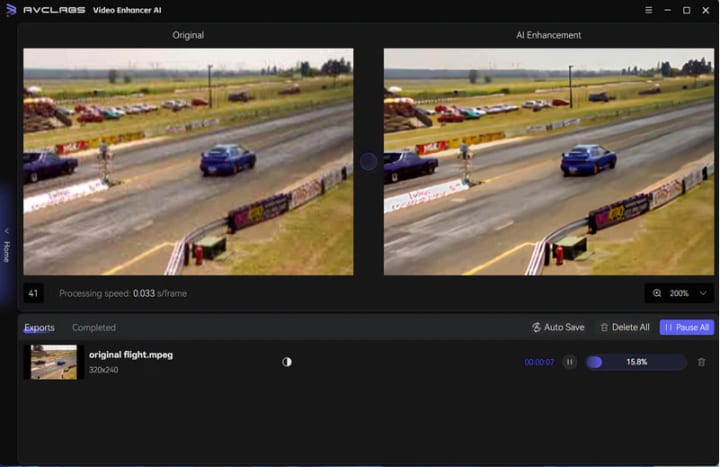
Drop one or multiple low-quality videos in Video Enhancer AI, then you need to modify some critical parameters like processing AI model, output resolution, output format and output path, brightness, contrast, and saturation. If you want to enhance anime videos, you can choose the "Anime" model in "AI Enhancement". If you want to increase the video resolution, you can choose 1080P, 2K, 4K, or even 8K.
If you're unsure about the parameter values, you can click "Preview" to see the effects in real time and make adjustments until you're satisfied.

Step 3 : Start Enhancing Video Quality
Once all the preparation work is done, click on the Start Processing button to enhance video quality automatically.
The final processing time depends on your computer’s system configuration, video size. Please wait patiently.
Conclusion
AI video quality enhancers provide a powerful and convenient solution for improving video quality. Whether you're repairing low-resolution videos downloaded from years past, optimizing short films shot on your phone, enhancing the quality of classic anime, or professionally stabilizing shaky footage, there are dedicated AI tools: Any Video Converter and AVCLabs Video Enhancer AI. These video quality enhancers help you easily upgrade video quality, restore detail, and enhance smoothness.
In short, AI video enhancement is changing the way you process video, making the creation of high-quality video content more accessible and efficient. By choosing the right tools and following the optimization recommendations, everyone can easily create clearer, more vivid videos.
About the Creator
Keep reading
More stories from Joanna Wang and writers in Writers and other communities.
Professional AI Video Enhancer
Improve Videos to 1080P, 2K, and Even 4K Quality Traditional stretching simply enlarges pixels, resulting in blurry and pixelated videos. However, AI intelligently analyzes and reconstructs each frame of the video, recreating every detail to ensure 1080P, 2K, and 4K quality.
By Joanna Wang4 months ago in Writers




Comments
There are no comments for this story
Be the first to respond and start the conversation.