
Professional AI Video Enhancer
Upscale old movies, blurry footage, low-resolution videos, and more to 4K quality frame by frame


Improve Videos to 1080P, 2K, and Even 4K Quality
Traditional stretching simply enlarges pixels, resulting in blurry and pixelated videos. However, AI intelligently analyzes and reconstructs each frame of the video, recreating every detail to ensure 1080P, 2K, and 4K quality.
What you get is AI automating the entire process. No need to manually restore each frame, just upload the source file and select the AI option, and it will take care of it efficiently.
Resize Uploaded Videos to 100%, 200%, and 400%
Upscale to 100%: It's high-quality restoration and optimization. AI identifies and repairs minor flaws (blurriness/graininess) in the original video caused by compression and transmission.
Upscale to 200%: Dramatically upscale videos while maintaining exceptional clarity. AI doubles the number of pixels while accurately reproducing detail, ensuring the video maintains exceptional visual quality when played full-screen or viewed on a large screen.
Upscale to 400%: Meet your needs for extreme upscaling for in-depth analysis or extracting key information from low-resolution footage.
Optimize the Converted and Downloaded Low-Quality YouTube Videos
What should you do if the videos you convert and download have very low resolution? This AI video enhancer can optimize them!
In Any Video Converter Ultimate, you can really enjoy a one-stop service for "downloading videos → converting formats → enhancing video quality".
Restore Precious Home Videos, Wedding Recordings, and Anniversaries
Time passes, but memories last forever. With this cutting-edge AI video enhancer, you can easily restore old, grainy, and faded home videos, wedding recordings, and anniversary videos, bringing them back to memories. You can also convert restored videos to MP4 format for long-term preservation and sharing, allowing family memories to be passed down from generation to generation.
How to Enhance Video Quality Using AI Video Enhancer
Step 1: Open AI Video Enhancer
Launch Any Video Converter and open AI Video Enhancer.
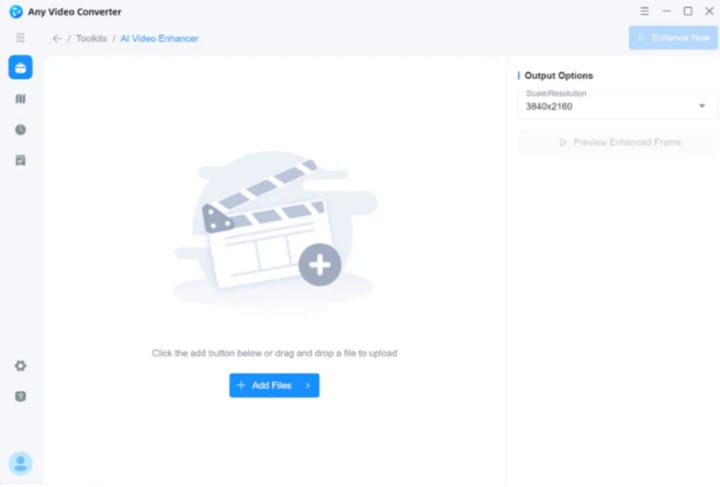
Step 2: Upload Your Low-Quality Video
Click "Add Files" to upload your low-resolution video, and then you can proceed to the next step.

Step 3: Choose Output Options and Preview Effect
In the "Output Options" on the right, you can choose to enhance the video from 100% to 400%, or 1080P to 4K.
If you're not sure which AI option to use, you can click "Preview Enhanced Frame" to see the effect in the program and make adjustments until you're satisfied.

Step 4: Start Enhancing Video Quality
Click the "Enhance Now" button and just wait for the output high-quality file.
About the Creator
Keep reading
More stories from Joanna Wang and writers in Writers and other communities.
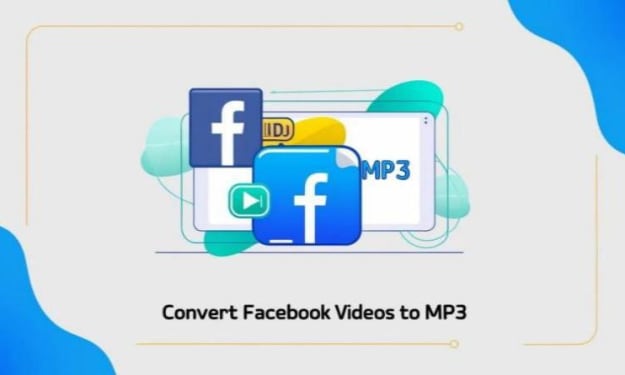
How to Convert Facebook Video to MP3 for Free?
How to Convert Facebook Video to MP3 on PC? Although Facebook Video Downloader can help you convert Facebook video to MP3, such online websites often have pop-up ads and may not be very secure. Therefore, using third-party software like Any Video Converter to convert Facebook video to MP3 format on PC is more reliable.
By Joanna Wang6 months ago in Writers
Difficulties Of Holidays On Vocal
Introduction Last week I had a wonderful week in Alnwick, but tried to keep up on Vocal, although my time was less than I normally have, plus a little more difficult because I was using a ten-year-old laptop with a faulty keyboard (the space bar does not always register, meaning I have to keep going back to separate words).
By Mike Singleton 💜 Mikeydred 3 days ago in Writers
The BAFTA Awards
By now, in a stunning departure from recent years, most of the world is aware of what happened at the BAFTA film awards. Social Media Headlines will tell you the bare bones: that John Davidson, a Tourette's Syndrome advocate, shouted a racial slur at two Actors of Colour, Michael B Jordan and Delroy Lindo.
By Natasja Rose7 days ago in Psyche


Comments
There are no comments for this story
Be the first to respond and start the conversation.