
Resetting Your PC: Troubleshooting When "Remove Everything" Isn't Working
Resetting Your PC: Fixing "Remove Everything" Failures | Troubleshooting Guide

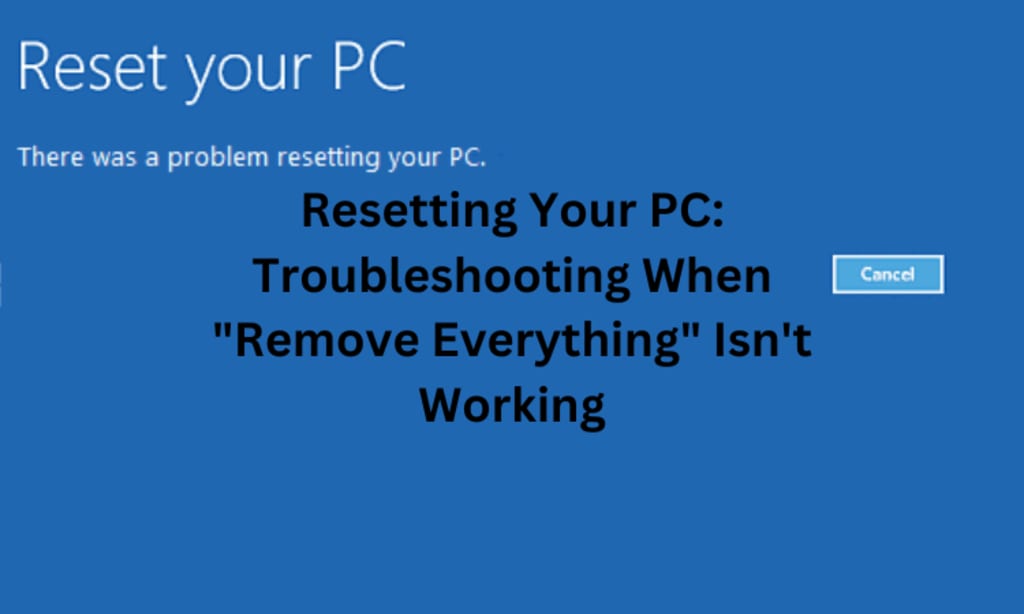
Resetting a PC is done rather frequently when troubleshooting a system to get it working again or when preparing it for use by someone else. Of the reset options available, "Remove Everything" ought to reset the system to a near-virgin state by removing all personal files, apps, and settings. However, at times this feature fails. This paper tries to reason out such failures and gives in-depth solutions to address them.
Understanding the "Remove Everything" Option
When you choose "Reset this PC" with the "Remove Everything" option, Windows attempts to
- Delete All User Data: This includes documents, photos, music, and any other personal files.
- Remove Installed Applications: All applications that were not pre-installed with the PC are removed.
- Reinstall Windows: This reinstalls the operating system from the recovery partition or, if specified, using an external media.
- However, several underlying issues can prevent this process from completing successfully.
Common Reasons for "Remove Everything" Failures
- Corrupted System Files: If system files that are supposed to be reset become corrupted or go missing, it will fail.
- Insufficient Storage Space: Ironically, the resetting process takes up a little free storage space to complete, and the lack of it may render the process unsuccessful.
- Faulty Recovery Partition: Many systems make use of a recovery partition to reset the PC. Provided that this partition is corrupted, the reset process cannot proceed.
- Third-Party Software Interference: Some third-party applications, particularly those related to security, might interfere with the reset process.
- Hardware Malfunctions: Failure of any hardware hosting the computer's hard drive or SSD may freeze up the reset process.
Troubleshooting Steps
Run System File Checker (SFC) and Deployment Imaging Services and Management Tool (DISM):
- Open Command Prompt as an administrator.
- Run sfc/scannow to check and repair corrupted system files.
- Run DISM/Online/Cleanup-Image/RestoreHealth to repair the system image.
Free Up Disk Space:
- Delete unnecessary files and applications to ensure there is sufficient space for the reset process to be completed.
Check the Recovery Partition:
- Use Disk Management or a third-party partition tool to verify the integrity of the recovery partition.
- If the recovery partition is corrupted, consider using a Windows installation media to perform the reset.
Disable or Uninstall Third-Party Software:
- Temporarily disable or uninstall any third-party security software or other applications that might interfere with the reset process.
Test and Replace Faulty Hardware:
- Use diagnostic tools to check the health of your hard drive or SSD.
- Replace the drive if necessary.
Advanced Recovery Methods
If basic troubleshooting does not correct the error, then the following are the advanced recovery methods that can be utilized:
Windows Installation Media:
- Create a bootable USB drive by utilizing the Windows Media Creation Tool.
- Boot up using a USB drive and choose the "Custom Installation" option to install Windows cleanly.
Third-party Disk Management Tools:
- Manage partitions with MiniTool Partition Wizard, EaseUS Partition Master, or any other equivalent utility, and repair the recovery partition if needed.
Professional Data Wipe Solution:
If the security and complete removal of data is of the highest priority, then professional data wipe solutions like SysTools Data Erasure Software should be used. It ensures the data is completely irrecoverable and that the system is going to have a completely fresh start.
Preventing Future Issues
Apply the following precautions to avoid the recurrence of similar problems in the future:
Regular Backups:
To protect yourself, back up your personal files and images of your system periodically on an external storage device or through cloud services.
Maintain Adequate Free Space:
Make sure that there is enough free space to operate and update your system by cleaning the disk regularly.
Keep System Up-to-date:
Keep replacing known bugs and security vulnerabilities by updating the system regularly.
Reliable Security Software:
Use reputable security software that doesn't intervene with operations and system recovery processes.
Hardware Health Monitor:
Be sure to check on your hard drive or SSD regularly regarding its health, and replace failing components in time.
It is also wise to check periodically for any firmware updates available for your PC's hardware components. Often, such updates are issued to improve system stability and overall performance, which will, in turn, indirectly enhance smooth resetting procedures. Keeping a clean and tidy system helps you avoid software conflicts and storage problems that may hamper resetting procedures.
Conclusion
The "Remove Everything" option is an excellent reset feature for any PC running the Windows operating system, but sometimes, due to various reasons such as corrupted system files or hardware issues, it fails. Now that you have steps to troubleshoot and prevent the issues mentioned above, you will be able to fix them and reset your computer without any glitches. Professional data wipe solutions like the above-mentioned software do offer an extra layer of security related to data security.
Also Read: How to Erase on MAC?
About the Creator
Keep reading
More stories from Animesh Srivastava and writers in Writers and other communities.
How to Destroy Data After Research: A Comprehensive Guide
Data handling is prime in the research world itself. Data integrity, confidentiality, and ethical considerations must be retained throughout the research process. However, post-completion of the research, secure destruction of data is imperative to prevent unauthorized access in the future, to protect the information from falling into the wrong hands, and to protect the vulnerable and minimize unethical activities. This paper looks at best practices, ways, and what is taken into consideration while destroying that data once research is done.
By Animesh Srivastavaabout a year ago in Writers
Public Notice
The United States now has a Ministry of Truth, just like the one where Winston Smith worked. Freedom is slavery; ignorance is strength; war is peace. We are here. You are being asked to reject the evidence your eyes and ears have given you for what they tell you. This is not a test.
By Harper Lewis4 days ago in Writers




Comments
There are no comments for this story
Be the first to respond and start the conversation.