
Clear and simple solutions to everyday tech problems.
How to Fix a Restart Loop

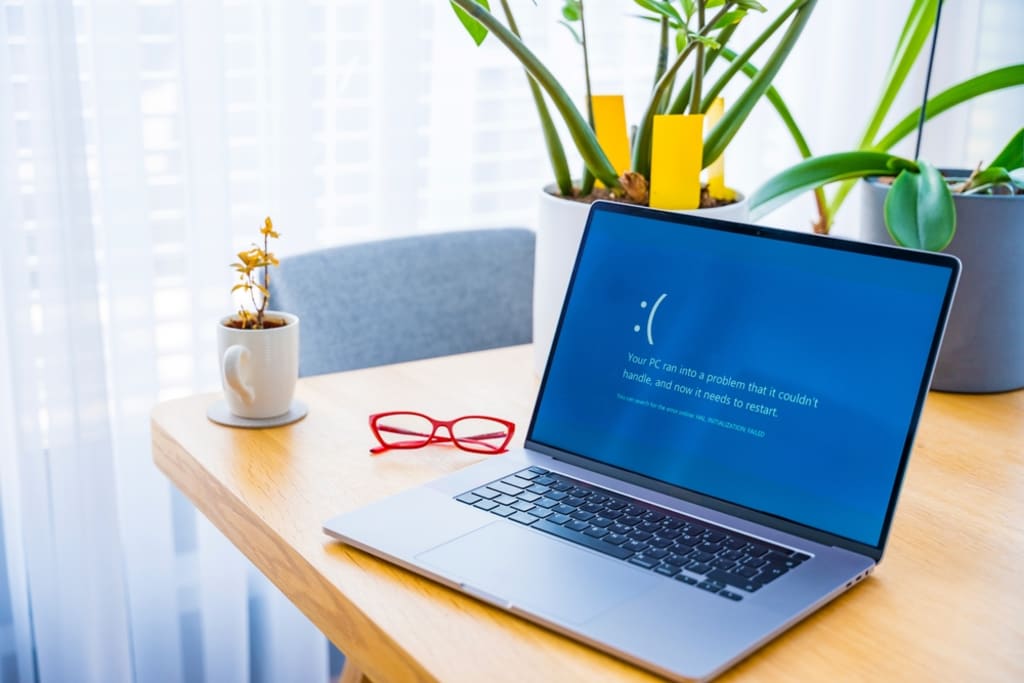
Triggering the Restart Loop
The restart loop is a problem where Windows is unable to properly load and instead loads a set of repair tools. This seems to be caused by a number things but the most common trigger is when Windows does an update. I’ve also seen it happen after uninstalling anti-virus software and in this case the problem was far worse. Although it’s most common with Windows 10 it’s been reported that it can happen in Windows 8 and Windows 7. Fixing the restart loop in all versions is similar.
How do you avoid the loop? Since the major offender is a standard update there seems to be no way to guarantee avoiding it. Knowing how to recover from the restart loop is important for anyone running a recent version of Windows. It can save you time, money and headaches.
Fixing the Restart Loop
If you’re using Windows 8 or Windows 10 then the restart loop is going to load you into a pleasantly shaded blue screen with a few different options. This first screen has an option to continue to Windows as if nothing is wrong but this will simply restart the computer back to this screen. This is the restart loop.
Instead of driving yourself crazy by going through this loop repeatedly you’ll want to dive into the Troubleshoot options. When the blue screen pops up you’ll want to choose the Troubleshoot button to take you to another screen.
The Troubleshoot screen has three options but the first thing to try is ‘Refresh your PC’. This is the simple fix if your system is in a restart loop. A refresh of the PC preserves all your files and doesn’t mess with any programs you have installed. All it does is reset Windows options and settings back to default. This process takes a few minutes and if it works, Windows will then load normally.
If you try a refresh to fix your restart loop but you receive an error during the process then you have bigger problems.
Bigger Problems Than the Restart Loop
If your restart loop is due to a more complex issue then you’ll have to get serious. Instead of choosing ‘Refresh your PC’ you’ll want to do the following:
- Choose ‘Troubleshoot’ then ‘Advanced Options’.
- On this screen you’ll see ‘Startup Repair’. This claims that it will fix problems that prevent Windows from loading but I’ve never seen it work. There’s no harm in trying but if you get an error it will kick you back to the first screen again. Get back to ‘Advanced Options’ and continue on.
- Instead of trying repairs you can also try a ‘System Restore’ or ‘System Image Recovery’ if you’ve set backups for your system. Be warned though that this might simply put you back to the point just before the restart loop and make you fall into it all over again.
- If these options don’t work then you’re in for some work.
Full Reset to Break the Loop
I explain and teach technology, solve tech problems, and help you make the right decisions, so you can easily resolve your tech-related issues.
The worst restart loops happen when none of the traditional fixes work. If this happens then the only option you have left is to do a full reset. You’ll lose all your files and any programs you’ve installed will be erased. This can be a frightening prospect but with a little work you can save your data.
- Pull the Hard Drive: Before doing a full reset you can pull your hard drive and hook it up to another computer to backup your files. If you don’t know how to do this then seek out a tech savvy friend. It’s not that hard and you can backup your data to an external hard drive or jump drive to reload later.
- Command Prompt Backup: If you don’t have access to another computer you can backup your data using the command prompt. Even with your computer stuck in a restart loop you can still get to the command prompt to access your data. This is fairly advanced stuff but if you know what you’re doing it’s a big time saver.
- First you’ll need a second hard drive to use as a backup. You can use an external hard drive or install an internal hard drive. You may need to make some adjustments in your BIOS. Shutdown the computer, hook it up and restart.
- Go to ‘Troubleshoot’ then ‘Advanced Options’ and you’ll see ‘Command Prompt’. this will open a terminal window. From here you can use DOS commands to go through your files.
- At the terminal window you can manually transfer copy files to the new drive. When you’re done, shutdown and disconnect the backup drive.
- Reset: The restart loop can be fixed by resetting the computer back to day one configuration. There are two ways to do this:
- Choose ‘Troubleshoot’ then ‘Reset your PC’. This should wipe your hard drive and reinstall Windows. Sadly I have seen this not work. I know, you’re probably getting tired of hearing about all the things that just don’t work. You’d think with all the tools offered that this would be easier.
- If the built in reset tool doesn’t work then you can see if your computer has a secondary repair tool installed. Many pre-built systems such as HP or Dell have special tools installed for doing resets and recovery. They are tied to the BIOS so you should be able to access them in the moments before Windows launches by pressing escape or another keystroke that will displayed on the screen. When the tools launch, reset your PC and follow the directions. Your PC will hopefully go back to a fresh from the box configuration.
- When Windows resets, setup your computer again and make sure things are working correctly. It’s also important to try any updates now before you reinstall data in case you hit a restart loop again.
- Finally, hook up your backup drive and load your files. You’ll need to redo your settings and reinstall all your programs but the loop should be gone.
Final Thoughts on the Restart Loop
The restart loop can be easy or difficult to fix but for some reason once you recover from one it seems to be gone. Both the computers with restart loops I’ve fixed have worked flawlessly ever since. If you want to help fix restart loops easier then I recommend doing complete backups before installing updates or uninstalling anti-virus software. This way you can avoid a few steps of the repair process if you should run into one again.
About the Creator
Mst. Sumaiya
I’m Mst. Sumaiya, a Digital Marketing Expert with 3+ years of experience in SEO and SMM. I specialize in growing online businesses, solving tech problems, and guiding others to make smart digital decisions.
Keep reading
More stories from Mst. Sumaiya and writers in Writers and other communities.
The Rise and Fall of KIWI International: A Flightless Bird's Journey
KIWI International was born from necessity, much like a flightless bird striving to regain its wings. Following the collapse of several airlines, particularly Eastern Airlines, many former airline employees, mostly Newark-based pilots, found themselves unemployed. Inspired by the flightless kiwi bird from New Zealand, they set out to create a company that would reflect their own quest to regain both their wings and their livelihoods.
By Mst. Sumaiya11 months ago in Writers
Finding Adjectives and Adverbs
Anne Bernays and Pamela Painter — What If? Writing Exercise for Fiction Writers prompts The Exercise — Underline and highlight all adverbs and italicize and highlight adjectives in a published story and decide which ones work. Then, exchange all weak adverbs and adjectives for strong ones of your own. Consider omitting them altogether. The Objective - To be alert to the power - and the weakness - of these verbal spices. To avoid them except when they can add something you really need
By Denise E Lindquist6 days ago in Writers
🅼🅸🅳🅽🅸🅶🅷🆃 🆂🅽🅰🅲🅺🆂
"It's 10 in Tuscon! We all know what that means... It's Time for Midnight Snacks with your man, Gerald Gee! Ready to spend the night together? Me too! I'm full of snacks and can't wait to regurgitate them all back into your hungry ears. Crack a brew! Pop some corn! Anything to get ready for one hell of a show where the talk maybe cheap but the words cut deep...
By Lamar Wiggins3 days ago in Fiction



Comments (1)
No 1 Laptop and Computer Repair in Bradford, providing in-store and at-home Laptop Repair services. Fast, reliable, and top-rated Bradford. Call now at 07768 770600. https://pckey-callout.co.uk/computers-pc-laptop-repairs-in-bradford-php/