
Any Video Converter: Free Audio Extractor
Extract audio from MP4, MKV, AVI, and more.


Any Video Converter is a comprehensive free video conversion tool that can not only efficiently extract audio from various video formats, but also ensure that the extraction process is completely free. The software supports extracting audio from many common video formats such as MP4, MOV, etc. to meet your diverse extraction needs. During the extraction process, Any Video Converter uses advanced technology to separate audio tracks without re-encoding, thus ensuring lossless audio quality during the extraction process, allowing you to enjoy the high-fidelity effect of the original audio.
Key Features of Any Video Converter
1. Extract audio from video completely free of charge
2. Extract audio from MP4, MOV, and many more formats
3. Separate audio track from video without encoding
4. Lossless audio quality during the extraction process
5. Save audio files in MP3, M4A, OGG, FLAC, and more
Free Audio Extractor and Save in Different Audio Formats
Any Video Converter offers completely free audio extraction tools, including a free format converter, audio downloader, and track editor. With these tools, you can effortlessly extract high-quality audio tracks from videos and save them in multiple audio formats such as MP3, AAC, WAV, and FLAC. These tools do not require paid subscriptions and have no hidden watermarks, allowing you to export the extracted audio files to your computer at no cost. This ensures you can enjoy your audio on various devices like mobile phones and tablets, without any hassle.
Extract Audio from Video Formats like MP4, MOV, and AVI
Any Video Converter features a professional and efficient audio extractor that allows for lossless separation of audio tracks from various video formats, including MP4, MOV, and AVI. Whether it is a video downloaded from the Internet or a personally recorded video, you can effortlessly extract high-quality audio without worrying about format compatibility.
For students, this free audio extractor is an invaluable tool for converting lecture videos into portable audio clips, enabling you to make the most of your time by learning through listening.
Extract Original Audio Track from MKV without Encoding
MKV files usually contain multiple audio tracks, including different language options and audio formats. With this free audio track editor, you can extract specific audio tracks directly from MKV files and save them to your computer without re-encoding, perfectly preserving the original sound quality. In addition, the editor also allows you to remove unwanted audio tracks from videos, effectively reducing the source file size and saving valuable device storage space.
Extract Audio-Only Content from Online Videos on Over 1,000 Websites
Any Video Converter provides a comprehensive online video-to-audio extraction solution, supporting 1,000+ website URLs. Whether you need audio from online music videos, educational content, or TV series, it effortlessly extracts pure audio content from online sources and converts it in high-quality formats like FLAC and WAV. The batch processing feature allows simultaneous extraction from multiple video links at once, eliminating repetitive steps and significantly saving your time while maintaining consistent audio quality across all conversions.
One-Stop Audio Process: Trim, Merge, AI Splitter, Add Music, etc
After extracting the audio, you can use Any Video Converter for further editing. For example, you can use the Trimmer tool to split the audio into multiple parts for making ringtones while perfectly preserving the key audio segments. The Merger tool allows you merge multiple audio files into one, making it easy to create a personal podcast. In addition, the AI Audio Splitter can separate vocals from background music and extract instrument tracks (such as piano, guitar, or drums). Finally, the Audio Filter feature enables you add effects, simplifying the process of creating engaging video content.
How to Extract Audio from Video with Any Video Converter
Step 1: Add Video Files/URLs to this Free Audio Extractor
Choose the "Format Convert" or "Track Editor" tool to add your video files.
Choose the “Video Download” tool to add the URLs of your online videos.
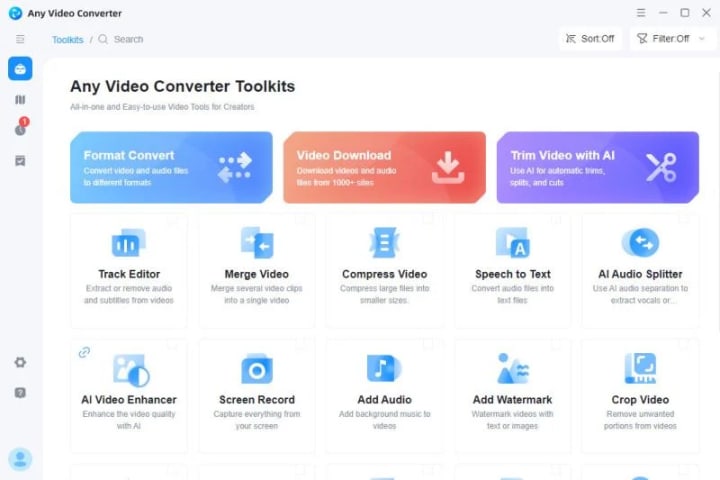
Step 2: Select the Audio Format
In "Format Convert" and "Video Download", you can select the audio format you want to save, such as MP3, M4A, OGG. In "Track Editor", you can directly extract the original audio track from video.
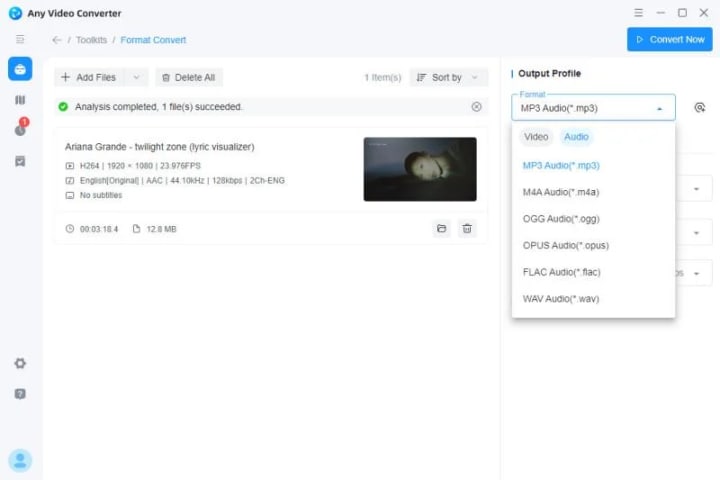
Step 3: Start Extracting
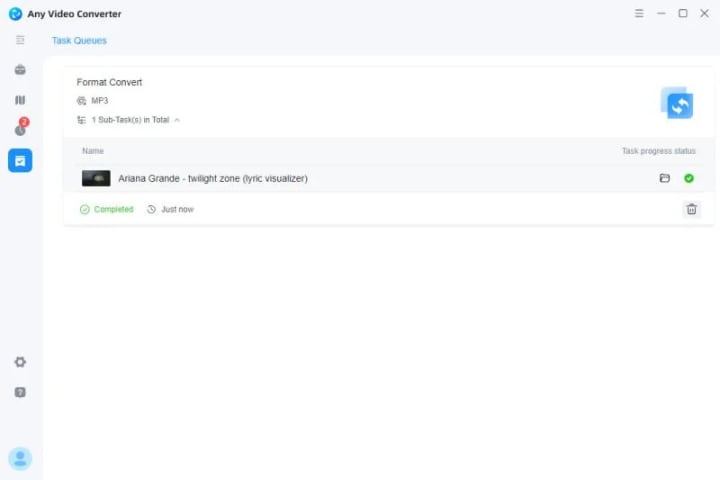
Click the "Convert Now" button and wait for the audio file to be ready.
Conclusion
Whether you are a music lover pursuing sound quality or an ordinary user who needs to extract audio, Any Video Converter can provide a convenient and efficient solution.
About the Creator
Keep reading
More stories from Joanna Wang and writers in Writers and other communities.
Top 2 Video Quality Enhancers with AI Model
"Can a poor-quality video be improved? Is there any video quality enhancer recommended?" - Tom Fortunately, the answer is yes. With the proliferation of streaming services, viewers now expect increasingly higher video quality. However, producing high-quality videos is challenging, and not everyone has the skills to manually enhance them. Nowadays, artificial intelligence (AI) technology can automatically enhance video quality, making it easier for content creators to meet audience expectations.
By Joanna Wang3 months ago in Writers
Ludacris and Nelly draw backlash over bookings at MAGA-coded music festival
Ludacris and Nelly headlining a mostly right-wing event is good for them. It’s also great for the genre of hip hop. The two rap veterans have showcased their talents on other stages. Why can’t they perform for mostly MAGA folks and grab that bag?
By Skyler Saunders2 days ago in Beat




Comments
There are no comments for this story
Be the first to respond and start the conversation.