Producing a Vocal Story With Your Phone Or Tablet
A tutorial

Oh, no! Your PC or Chromebook is on the blitz, and you must get a new one or wait for repairs. Or, instead, you’ve gone on vacation and forgotten to bring your laptop with you. Either way, writing and posting to Vocal is now put on hold until you return to your device or buy a new one.
I have heard the same things from several people concerning using their cell phones or tablets to post a story to Vocal. They can not get the page to save, or they can not get the words to type onto the page. They have said that posting from a handheld device can not be done.
Well, I am here to show a way to get around the “I can not” and how there is a way to write for Vocal using only your phone. Because there is a way around the block, and it’s a reasonably simple bypass. It just requires a few steps, and you will have your story ready to post from your phone or tablet.
Once you read this article, you can quickly post from your phone or tablet. It is such a simple solution you will be like, why did I not think of this before? So, with no more pomp, I give you the answer to a dilemma.
** ** ** ** ** ** ** ** ** ** ** ** ** ** ** ** ** ** ** ** ** ** ** ** ** ** ** **
- The first step is to open up your Chrome app– not your Google, but your Chrome.
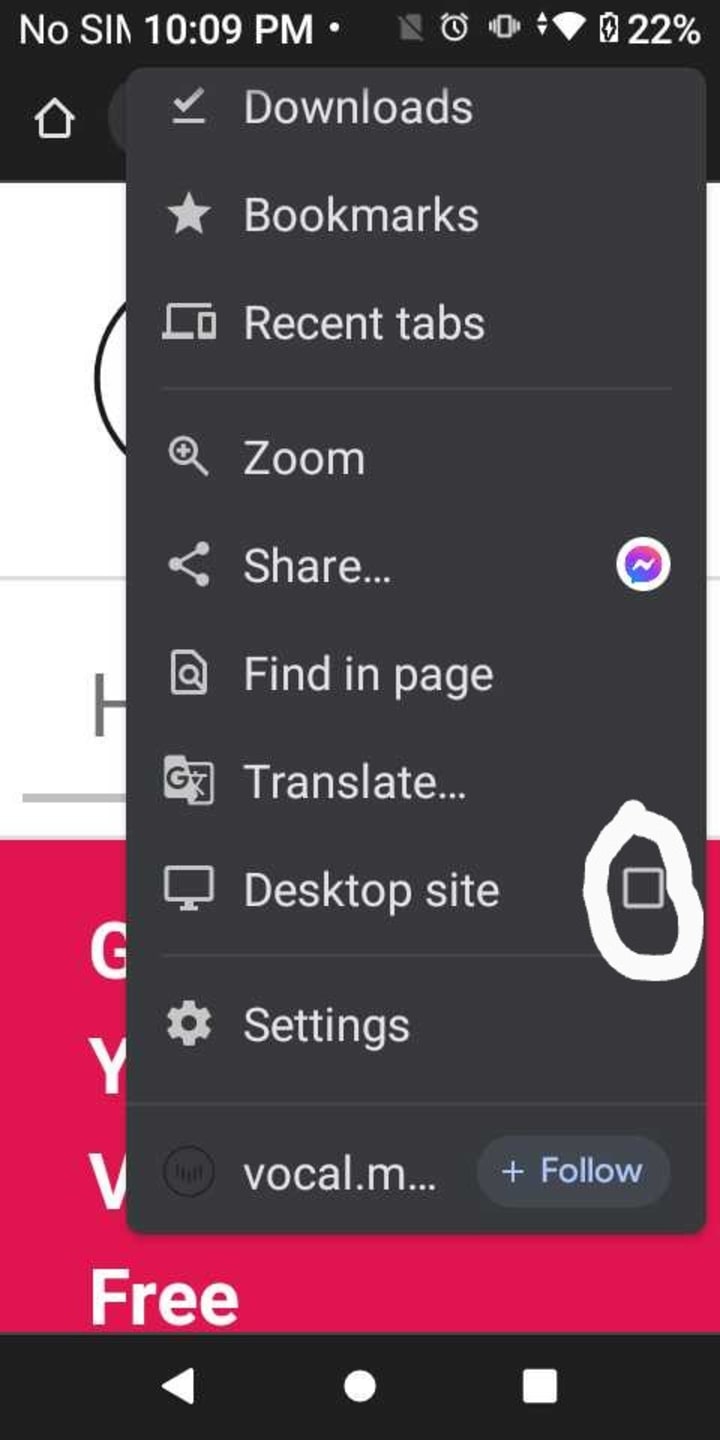
- Once you have opened Chrome, you want to click on the three dots in the top right-hand corner of the screen. Clicking these dots will bring down a drop-down.
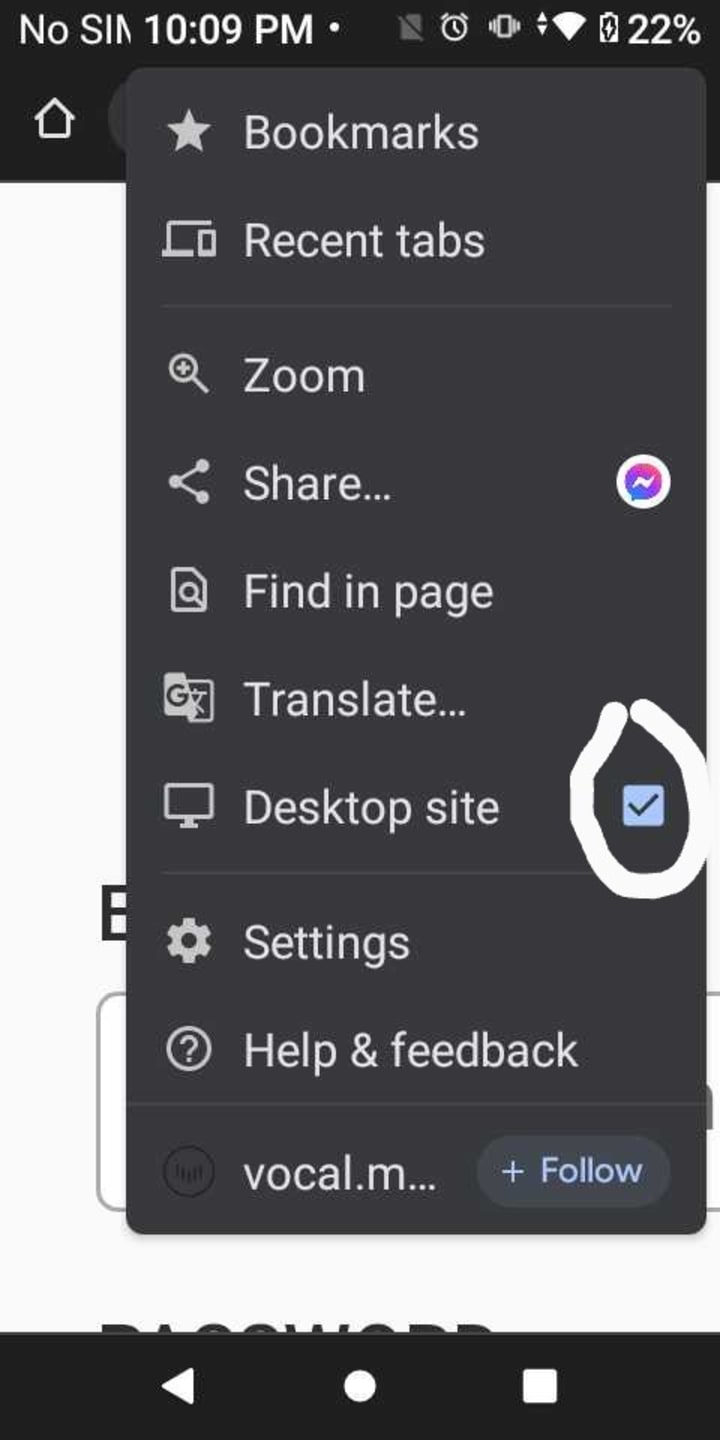
- There will be several things to select from in the drop-down menu. Look for the words Open in Desktop or View in Desktop. Doing this will change the app from a mobile site to a desktop site.
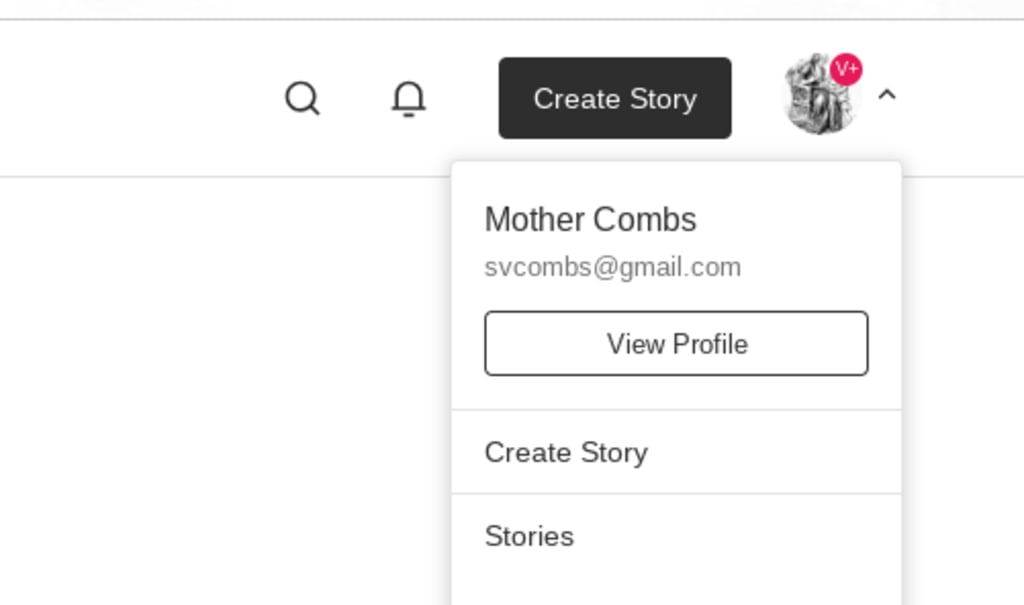
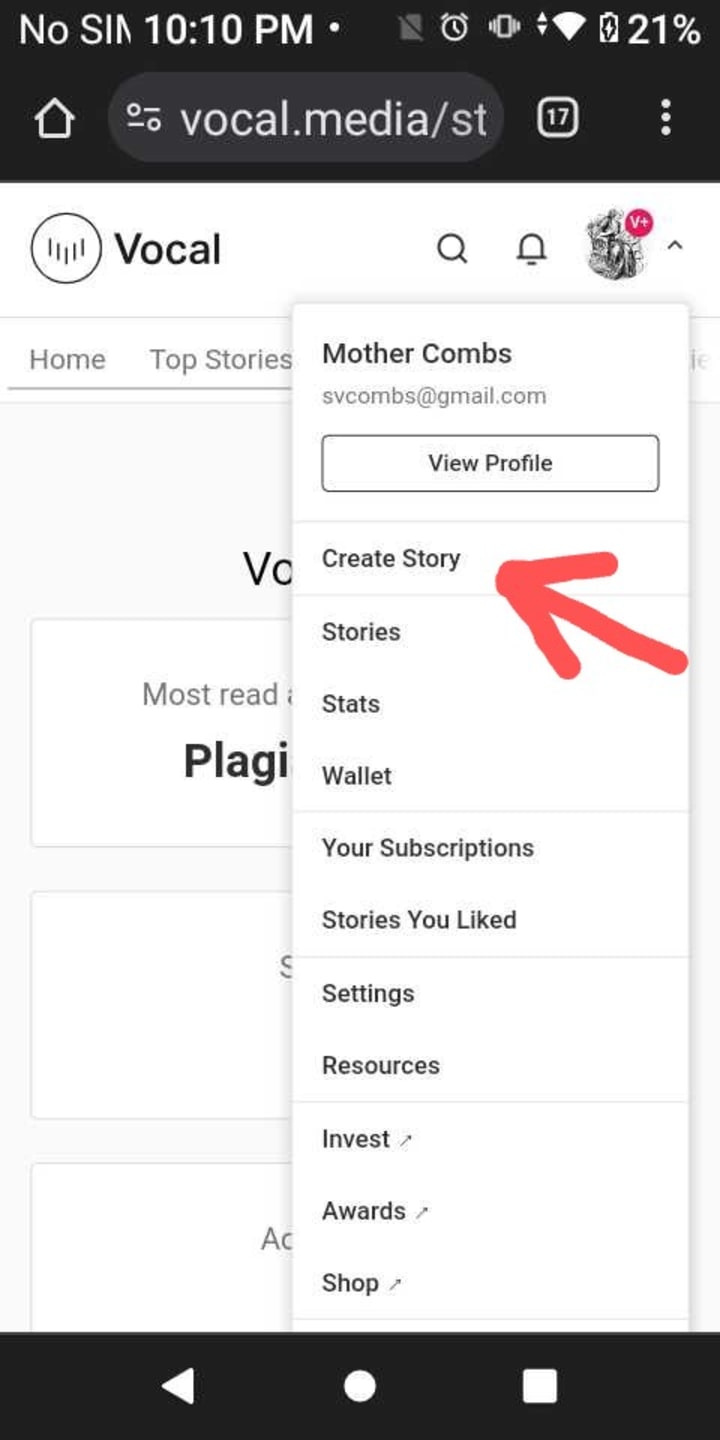
- After you have clicked the desktop site, you are ready to open vocal.media up. So go ahead and open it up, and click on “Create Story.”
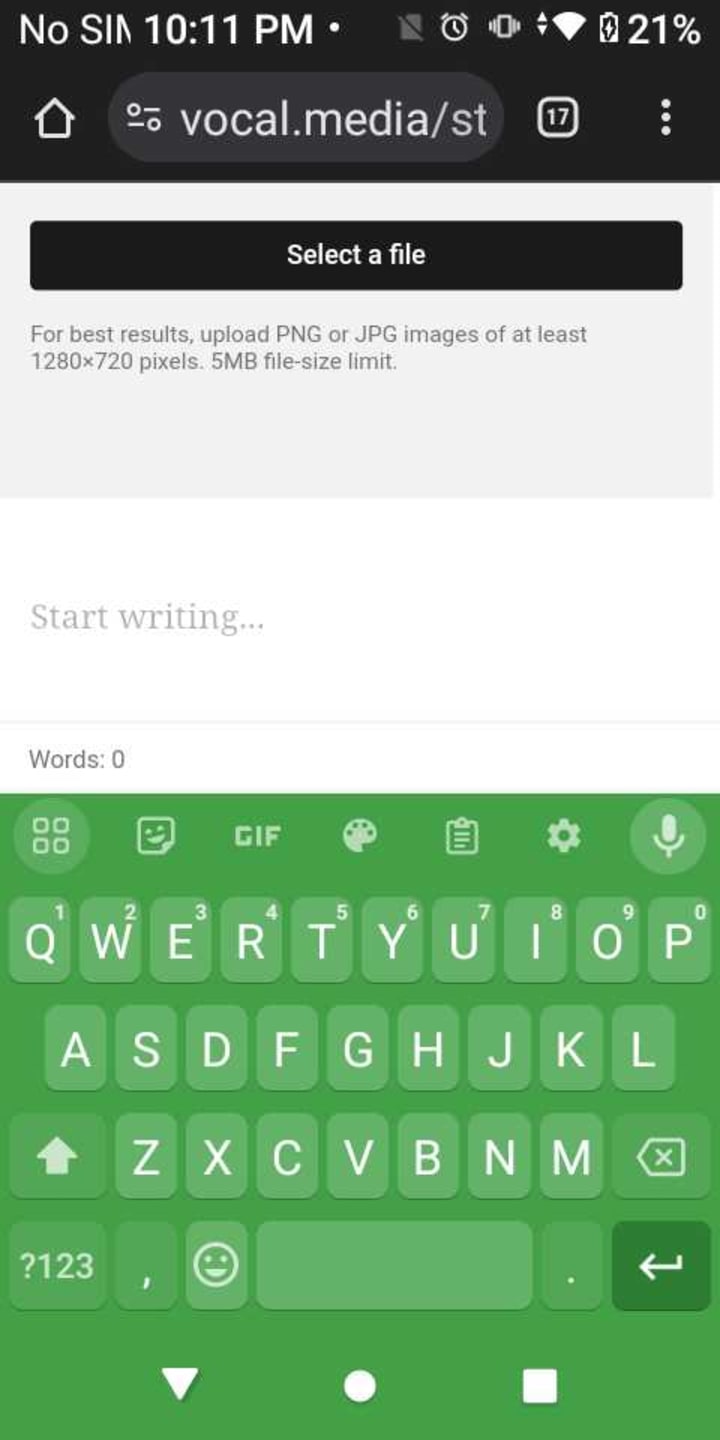
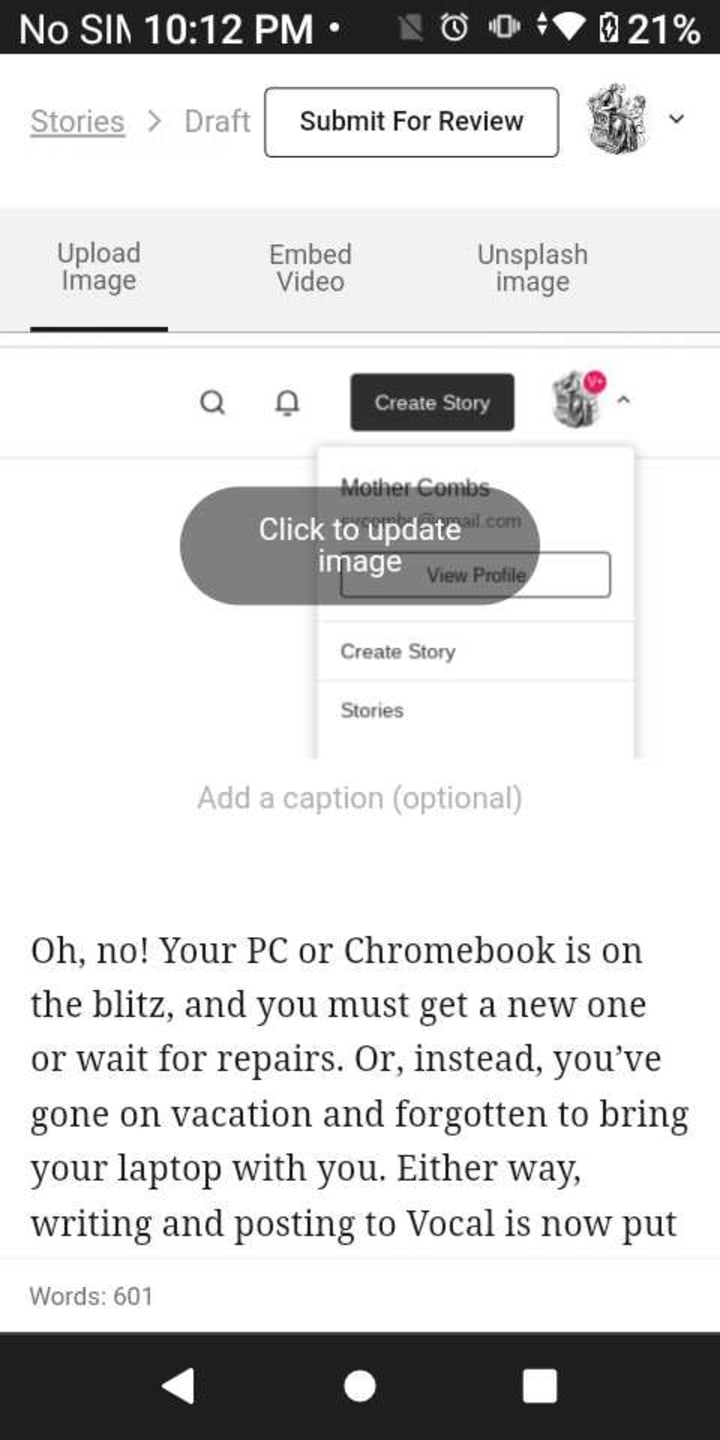
- You can begin writing your article once you have opened up the story editor. First, you must go ahead and Title, Subtitle, and add a picture to your story. When you have completed this, you need to save. Now, you are ready for the next step.
- Now you are ready to write the body of your article. To do this, you must open your writing app: whether Notes, Word, or Google Docs, it does not matter. So go ahead and open up your writing app. Since you are on a smaller device with a tiny keyboard, it is best to do voice dictation first to type out what I want, then edit any mistakes while still in my writing app.
- After editing your draft in your writing app, you can copy and paste the whole article to your copy on vocal.media. Save it immediately once you have copied and pasted it to the post.
- Now comes the touchy part. Very carefully, you can add any formatting or pictures to the body you want; just watch your cursor. Save again when you are satisfied with the layout.
- Submit when you are happy with how it reads and looks.
** ** ** ** ** ** ** ** ** ** ** ** ** ** ** ** ** ** ** ** ** ** ** ** ** ** ** **
That is it. That’s all there is to it. I have included pictures with instructions for those who need them.
Thank you for reading. I hope this helps you.

About the Creator
Reader insights
Nice work
Very well written. Keep up the good work!
Top insights
Expert insights and opinions
Arguments were carefully researched and presented
Masterful proofreading
Zero grammar & spelling mistakes
Easy to read and follow
Well-structured & engaging content
On-point and relevant
Writing reflected the title & theme
Eye opening
Niche topic & fresh perspectives
Compelling and original writing
Creative use of language & vocab
Heartfelt and relatable
The story invoked strong personal emotions
Keep reading
More stories from Mother Combs and writers in Vocal and other communities.
A More Human Vocal
When we launched Vocal nearly a decade ago, the world was a very different place. LLMs did not exist, and stories were created one at a time by people sitting down to write, revise, and share something personal. Many of our assumptions about publishing, trust, and participation were built for a world where effort and output were inseparable.
By Justin @ Vocal7 days ago in Resources
Why Didn't Anyone Tell Us
Men, move along. This is not for you. This is for the women. I was forty-five when I began menopause. It is pretty young for that to be going on in a woman’s life, but I had undiagnosed PCOS, my entire life. Thank you to all the gynecologists I had seen my entire life. That in itself should encourage women to keep seeking second opinions, especially when you are not getting correct answers or any at all.
By Alexandra Granta day ago in Humans



Comments (33)
Very informative about posting from smart phone.
I've been away for more than a week because my PC is fried and l couldn't figure out how to generate text in a draft. I was still having trouble with your instructions at first but your pics made all the difference in the world 🌎!! Thanks, Sweetie. You're a life saver! ⚡💙💙💙💙💙💙⚡
Even in desktop mode, my phone gets glitchy when I try to bold font, or add extra photos. I use android and not iPhone.
I am using an android phone
Hi please help i am stuck with just the copy and paste the article,whenever i paste the article it doesn't count,please help
Well structured thank you so much for knowledge
Please I've been having issues of typing and the words are not counting
Gosh I was stuck with this problem...thank u so much!!
I really appreciate this step by step guide. It's very helpful. Thanks so much. Please what is the acceptable number of words for a story or article?
Great to see this as part of Vocal Resources and Tips now
I have been having issues trying to upload from my phone/tablet! I will definitely try this!
I am terrified of being n this situation yet am saving your sage advice as one of my rabbit's has caused damage to my laptop charger and although salvaged temporarily, apparently it is difficult to secure a new one. This is my worst nightmare.
Of course! For those who wish to use their phone or tablet to post on Vocal, this guide offers a workable method.
This is very helpful. Thank you for sharing.
Thanks for all this great info; most appreciated.
I cannot do anything on my phone. My fingers are too fat! But definitely tablet advice was helpful-Thank you and congrats on TS. Hope this gets put in Resources! 🤍
Thank you for this. I have tried to work on my phone before and it did not go well. I definitely will have to come back to this often.
Mother Combs, thank you for sharing this how to!!! Love it!!!💕❤️❤️
It is a nightmare writing things on my cell, but I will trust you and try this (not even sure I have Chrome on this thing). A valuable TS! 🏅
Great share. Really helpful. Thank you.
I love this Mother Comb!! Another great work around is to just long on with safari on your phone instead of using the app! Safari works just the same as it does on your PC! Also congrats on Top Story!!
Thank you! gzz on TS too
Well done on this, Sharon. I am sure it will be of great use to lots of people! Congrats on it getting Top Story too! :)
Thanks for this heads up!
Very helpful, I did one ages ago when I had problems publishing on my phone, glad Judey has shared yur