
Ultimate Guide to Facebook Photos
Ultimate Guide to Facebook Photos

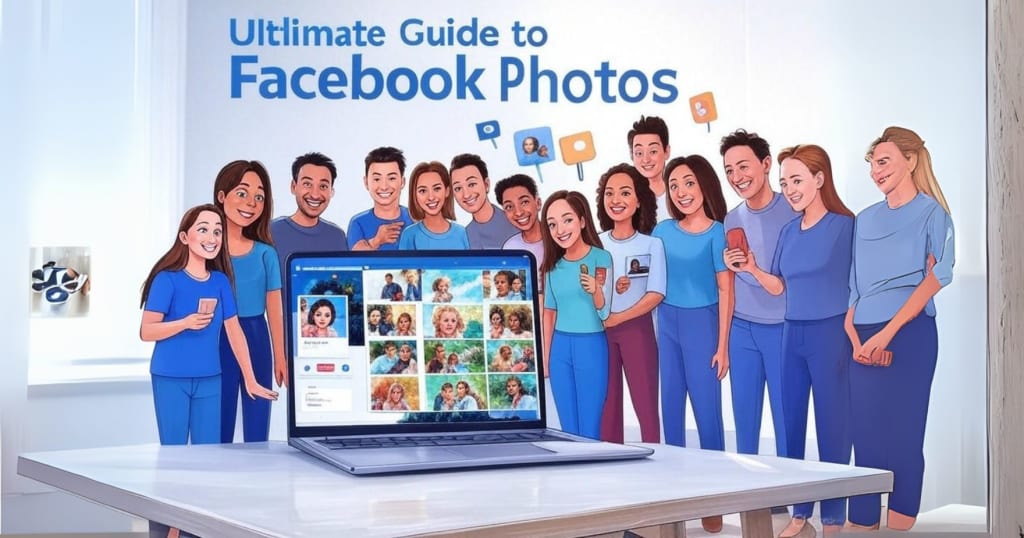
Facebook remains a powerful platform for personal expression and brand presence, and it is a robust platform for various purposes, from personal expression to branding and socialization with other people. With millions of users across the globe, it is important to know how to make your images striking enough to catch people's attention. Be it about creating a profile picture or designing the right cover photo, resizing images for better, stacking up float images for the creation of a clever post, or improving images through upscaling, the process is simplified with PhotoCut.
Further, this guide will take you in detail about how you can create, optimize, or enhance your Facebook photos using PhotoCut so that they appear perfect, interesting, and powerful. So, let's get started on each topic with useful insights, creative suggestions, and step-by-step instructions.
Remove filters from your photos with PhotoCut’s Filter Remover.
Guide to Facebook Profile Pictures

Your Facebook profile picture is the first visual impression you make. Indeed, it keeps everything; it represents you, your reality as a digital identity. It has to mirror your personality or your brand clearly and professionally. With well-chosen profile images, engagement can be most powerful, building trust and giving an impression that lasts.
Tips for a Great Profile Picture
- Clarity is Key: Have an image of high resolution with your visible face.
- Good Lighting: Natural lighting or soft artificial lighting works best for facial features.
- Keep it Simple: Use PhotoCut's remover to edit out distractions beyond yourself.
- Center Yourself: Make sure that your face is centered and takes 60-70% of the frame to be visible, even on mobile.
- Use Branding Elements: For businesses or public personalities, include logos, brand colors, or visual cues to reinforce the identity.
How to Create with PhotoCut
- Upload your chosen photo into the PhotoCut app.
- Use the smart background remover to isolate your face.
- Apply subtle filters to improve brightness, contrast, and warmth.
- Crop the image to make a standard profile (170x170 pixels minimum).
- Save the final image and upload it to your Facebook profile.
Extra Tips
- Smile genuinely, it helps convey approachability and friendliness.
- Update every few months so that the photo is new and fresh.
- If the profile picture is a logo, ensure that it is well-centered and readable in small dimensions for a business page.
Create Stunning Facebook Cover Photos

The great Facebook cover picture is simply a big banner across the top of your profile or page, perfect for creativity and telling a story. It is a fantastic space to make a visual representation of your style, interests, business, or present mood.
Cover Photo Dimensions
- Recommended Size: 820x312 pixels for desktop display.
- Mobile View: 640x360 pixels, so center your content for cross-platform compatibility.
- File Format: Use JPEG or PNG for optimal quality.
Creative Cover Photo Ideas
- Personal Pages: Use scenic travel photos, collages of loved ones, or seasonal backdrops.
- Business Pages: Highlight promotions, feature staff, showcase testimonials, or promote upcoming events.
- Events: Add guest speakers, countdown timers, or exclusive preview visuals.
Designing with PhotoCut
- Choose or upload a vibrant, high-quality image.
- Use layers to overlay text, logos, or branding details.
- Apply filters or color grading to align with your visual theme.
- PhotoCut might be resized to 820x312 pixels, the original size of a smart resizing tool.
- Frame with additional elements or accents for a polished look.
- Export in high resolution and upload to Facebook.
More Tips
- Avoid placing text or logos on the far corners, as they may be cropped on mobile.
- Consistent with color and typeface, if running a business page.
- Consistently update it according to current events and holidays, or your business milestones.
Explore the simplest methods to shrink your JPEG images.
Resize Your Images for Facebook

When different dimensions resize images, that makes your posts and profile elements sharp and professional across devices. It ensures that the image does not appear blurry at times and is not stretched or awkwardly cropped.
Common Facebook Image Sizes
- Profile Picture: 170x170 px on desktop
- Cover Photo: 820x312 px desktop, 640x360 px mobile
- Shared Image Post: 1200x630 px
- Event Image: 1920x1005 px
- Story Images: 1080x1920 px
- Ad Images: Vary, but typically 1200x628 px for link ads
Why Resize with PhotoCut?
PhotoCut simplifies image resizing with predefined Facebook templates and intelligent cropping tools. No design experience is needed.
Steps to Resize
- Upload your image into PhotoCut.
- Select a template for your desired Facebook format.
- Use the cropping tool to focus on the key visual content.
- Adjust the image within the frame and preview the result.
- Export your resized image at the best resolution.
Pro Tip: For consistent branding, maintain a template for all your recurring Facebook formats. PhotoCut lets you save custom dimensions easily.
Find the best one-word captions and post templates for Instagram.
Combine Your Images for Your Facebook Posts
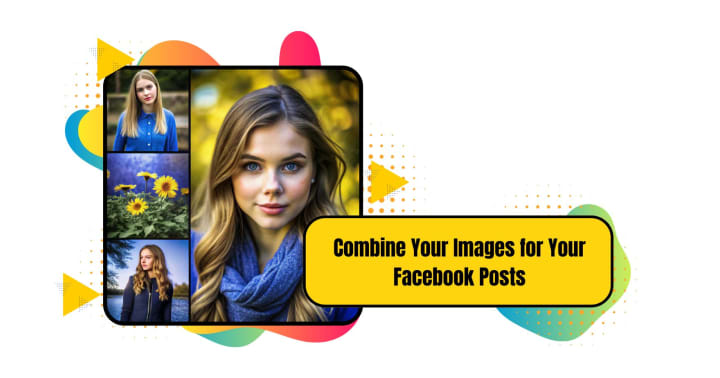
Combine several into one layout to make a beautiful image through inspired storytelling. Whether you want to make a summary, promote a product, or even create a mood board, combined images are far more engaging.
Creative Uses for Combined Images
- Photo Collages for birthdays, weddings, or celebrations.
- Before & After sequences for fitness, home décor, or makeovers.
- Product Showcases for eCommerce and handmade goods.
- DIY Steps or a tutorial series that needs a sequence.
- Mood Boards that reflect inspiration or creative direction.
How to Combine Images with PhotoCut
- Upload all selected images to PhotoCut.
- Use the built-in collage builder or create a custom layout manually.
- Arrange photos side-by-side, in grids, or artistic layouts.
- Apply matching filters for visual consistency.
- Add decorative elements like borders, stickers, or text boxes.
- Resize the final collage to Facebook post dimensions.
- Save and share with a compelling caption.
Tips for Better Combinations
- Keep the layout balanced, avoid overcrowding.
- Use consistent tones and lighting to maintain harmony.
- Add titles or labels to guide the viewer.
- Highlight the focal image by making it slightly larger.
Transform your images by adding angel wings to them.
Upscale Your Facebook Photos Before Posting
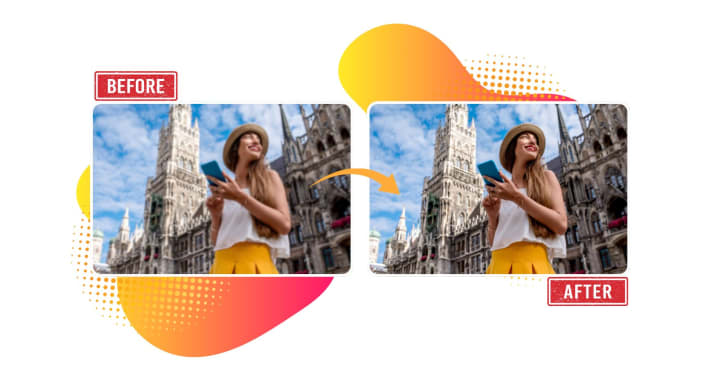
High-resolution images command attention. Upscaling allows you to improve low-quality photos or old images that lack detail, ensuring they remain sharp and visually appealing, even when viewed in large formats.
Why Upscale?
- Improve the clarity of blurry or compressed images.
- Prepare older photos for modern displays.
- Avoid pixelation when posting larger visual assets.
- Enhance details in professional shots.
PhotoCut’s AI Upscaling Features
- AI Enhancement: Detects image patterns and adds missing details.
- No Pixelation: Smooths jagged edges, corrects distortions.
- Face-Friendly: Optimizes facial features for clear portraits.
- Smart Preview: Let's you compare before and after upscaling.
Steps to Upscale with PhotoCut
- Upload low-resolution or older images.
- Choose an upscale option like 2x, 4x, or custom.
- Let PhotoCut’s AI engine enhance sharpness, contrast, and color depth.
- Preview results to ensure the desired quality.
- Download and upload to Facebook with confidence.
Use Cases
- Restoring vintage family photos for sharing.
- Enhancing brand assets for high-quality marketing.
- Improving selfies taken in poor lighting conditions.
- Giving mobile-taken photos a professional look.
Conclusion
Elevating any piece of content for Facebook requires neither expensive software nor formal design training. With PhotoCut, anyone can create attention-grabbing profile pictures, dazzling cover images, posts properly sized for maximum impact, fun photo collages, and high-resolution photos that will pop on every feed.
The keys are consistency, creativity, and quality. From businesses to content creators, PhotoCut offers everything you need to present a polished, professional online presence. Own your visuals, mandate post engagement, style, and the making of every post.
Learn how to remove image backgrounds in Google Slides.
FAQs
Q1. What image would be an appropriate choice for my profile picture?
Ans. Generally, a clear image of you will be advised for a professional profile. For a nonprofessional profile, you may put a headshot, a picture of your pet, a picture of yourself participating in a favorite pastime, or anything else that represents you. Just ensure that the image is pretty and recognizable even on a small scale.
Q2. What file formats are accepted for profile pictures?
Ans. JPG, PNG, and GIF are common formats used in profile pictures on Facebook.
Q3. How does Facebook crop cover photos depending on the type of device used?
Ans. When viewed on mobile devices, Facebook crops the cover photo on the sides to fit the mobile screen. Therefore, some significant areas of your image might get cut out. Design your cover photo with the understanding that the sides might be cropped. A good tip is to keep important elements centered.
Q4. What do you think comprises an excellent Facebook cover photo?
Ans. An excellent cover photo is captivating and relevant to your page (either personal or business) and is of high resolution. Consider how the image will be cropped or printed across various devices. For business pages, the cover photo should convey a pertinent message about the brand.
Q5. How do I resize my images for Facebook?
Ans. There are many online and offline image editing options. Some of them are:
- Online Tools: Canva, PicResize, Fotor, Adobe Express
- Desktop Software: Adobe Photoshop, GIMP (free), Affinity Photo
Q6. Should I keep the ratio of the pictures intact while resizing?
Ans. Yes, the ratio should always be kept intact to avoid distortion of the image. Most of the image editing tools will have an option to maintain the aspect ratio.
Q7. What is the best collage layout for Facebook?
Ans. An optimal layout depends on the number and orientation of your images. The more layouts you try, the more likely you are to find one that looks fantastic and shows off your pictures. Think about a layout that allows for one main image to be showcased.
Q8. Does Facebook have specific image size recommendations for collages?
Ans. Not exactly specified. Facebook will handle it, but it's recommended to have all images in the collage in similar sizes for best results. Aim for at least 1200 pixels on the longest side.
Q9. What benefits will I have from upscaling my pictures on Facebook?
Ans. Upscaling your photographs increases the sharpness and detail of the picture, especially with images that were not taken in high resolution or have undergone compression. This makes the visibility more worthwhile for the people looking at it.
Q10. Which methods are available for photos getting upscaled from here?
Ans. Upscaling tools include:
- AI Upscaler: There are many such online tools that apply AI algorithms to add detail to images intelligently. VanceAI, Let's Enhance, and Topaz Photo AI (paid) are examples to reckon with.
- Image Editing Software: Traditional upsizing can be done in software like Photoshop and GIMP, but might not result in the best outcomes as in the previous case.
- Mobile Apps: AI-based upscaling apps are now available with cloud processing.
About the Creator
PhotoCut
AI Photo Editing Tool - Remove or Change your Background & Enhance Product Photos
Keep reading
More stories from PhotoCut and writers in Photography and other communities.
Ultimate Guide to Barbie-Themed Photos and Captions with PhotoCut
For decades, Barbie has been an icon, and she has never shone brighter or spoken louder in fashion and makeup than now. Long-time Barbie fans or those who are newly interested will find photos themed with Barbie to be a fab and chic way to perk up an Instagram feed! This guide looks into Barbie filters, Barbie selfies, Barbie captions, Barbie-inspired makeup, and Barbie word collages, all while using PhotoCut to bring amazing enhancements to your images.
By PhotoCut10 months ago in Photography
The Photographer's Code
You decide to visit your local park. You have become a close confidant to the homeless people who gather there most days. While talking to Cleo and Reed, you notice a new face in the crowd. It belongs to a stick-thin, middle-aged woman. She has her hand on her forehead as if taking her temperature.
By Paul Aaron Domenick7 days ago in Photography
Thief In The Night
To the thief in the night that took and replicated what once was mine: Honestly, I feel kind of bad for you. It’s funny, because we hardly know each other. I only know of you through the magazines you’ve written and the broadcasts you have televised in the past — as well as through the public mentions of you from your show business connections there.
By Snarky Lisa8 days ago in Humans



Comments
There are no comments for this story
Be the first to respond and start the conversation.