
The Ultimate Free Online Photo Editor
The Ultimate Free Online Photo Editor

Editing your photos now is fast. It stirs your imagination, letting the story unfold via the most engaging medium available. Whether you’re a social media content creator, small business owner, or someone who loves photography, PhotoCut is a powerful and intuitive editing tool available to everyone. The free online photo editor is equipped with editing features intended for easy enhancement, personalization, and perfection of an image in minutes.
This guide would give you an insight into photo background editing and customizing, applying blur effects to give your photos a professional depth, intelligent adjustments for enhancing the quality of your photo, cropping images to have more suitable compositions according to the platform, and making the most out of PhotoCut. When you want to give your portrait a final glamour or design some artwork for social media channels, these tools will do all the hard work for you.
Learn how to remove unwanted people from photos for free.
Edit Your Photo Background
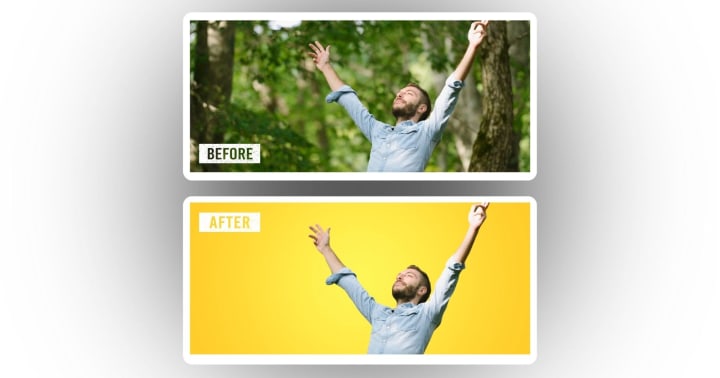
Editing your photo background is one of the most sought-after edits you can do for your photo, and it's also among the most impactful. PhotoCut can enable you to change, remove, or customize the background of any image without having to learn Photoshop skills.
Why Edit Your Background?
- Place your subject in a different setting.
- Remove clutter or distractions.
- Match branding aesthetics.
- Create marketing material with themed backgrounds.
How to Use:
- Upload your photo into the Photcut app or website.
- Make the background transparent using the Background Remover tool.
- Replace background with solid colors, custom textures, or another image.
Popular Uses:
- E-commerce product shots
- Travel images with new destinations
- Business headshots
- Themed social media graphics
Blur Your Photo Background
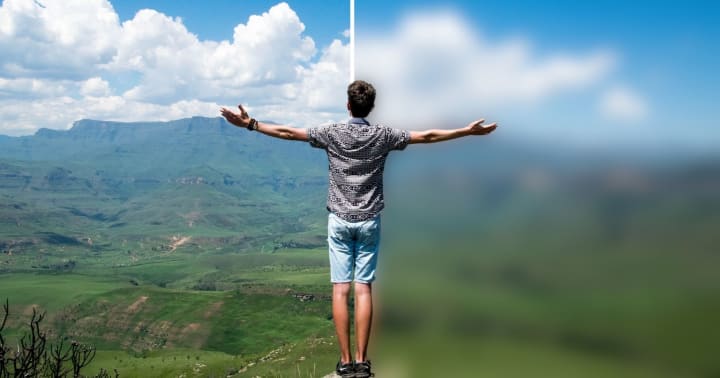
Want to make your subject pop or create a depth-of-field effect? The Blur Background feature in PhotoCut helps you mimic a DSLR-style look with just a few clicks.
Why Blur Your Background?
- Emphasize the subject.
- Soften distracting backgrounds.
- Create a professional, focused aesthetic.
How to Use:
- Upload your photo.
- Select the Blur Background option.
- Adjust the blur intensity to your liking.
Tips:
- Use a stronger blur for busy environments.
- Keep a soft blur for subtle visual separation.
- Combine with text overlays for ad creatives.
Best For:
- Portrait photography
- Event photos
- Artistic photo edits
Learn how to remove a photo background with PhotoCut easily.
Enhance Your Photos
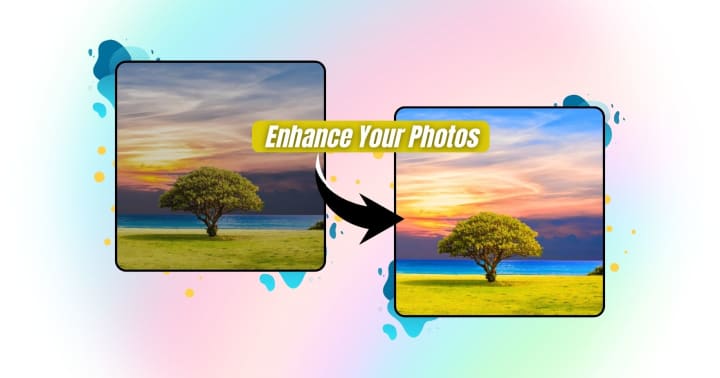
Photo enhancement refers to making minor adjustments that allow your image to shine, such as lighting, color balance, sharpness, and saturation.
Enhancement Features Include:
- Brightness & contrast controls
- Color correction
- Sharpness and clarity enhancement
- Filter presets
How to Use:
- Open your image in PhotoCut.
- Tap on Enhance or manually adjust the sliders.
- Preview before/after for comparison.
Use Cases:
- Low-light photo improvement.
- Fixing underexposed or overexposed shots.
- Making colors pop for social media.
Pro Tip: Try using enhancement tools before applying other effects. It helps lay a polished foundation.
Transform your photos by adding a pink background to them.
Crop Your Photos
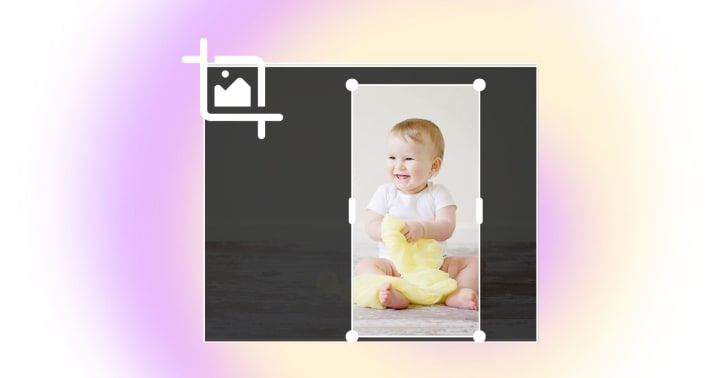
Cropping is one of the most important instruments in photo editing. It will "zoom in" on the most important parts of your image, eliminate unwanted items, or reframe.
Why Crop?
- Improve composition.
- Fit social media dimensions.
- Remove distractions.
Cropping Options in PhotoCut:
- Freeform cropping
- Aspect ratio presets (1:1, 4:5, 16:9, etc.)
- Rotate and flip
Use Cases:
- Square crops for Instagram
- Vertical crops for Pinterest
- Landscape crops for websites and banners
How to Crop in PhotoCut:
- Upload your photo.
- Select Crop from the menu.
- Drag to adjust your frame and save the new version.
Tip: Follow the rule of thirds for more balanced compositions.
Make your product images look professional by adding a white background.
Free Online Photo Editor
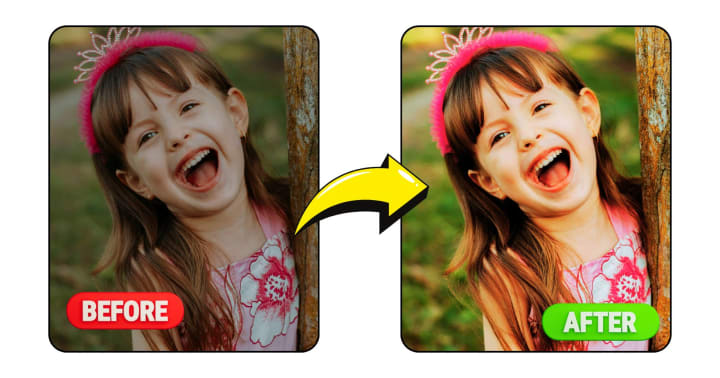
PhotoCut is more than just a simple editing tool. It covers the entire range of full-featured photo editors that enable you to bring your creative vision to life. From mobile devices to desktops, the easy-to-use interface and AI-enabled capabilities of PhotoCut make editing simple and fast for the most complex jobs. Just a few taps or clicks transform photos into polished images ready to be shared on social media, used for marketing, or kept privately.
Key Features:
- Blurring and Enhancement Effects: Give your images a professional appearance by manipulating their depth of field and altering ambient light, contrast, and sharpening effects.
- Rotation, Crop, and Resize: Various editing tools can be employed to bring your image to perfection in terms of proportions and angles.
- Text, Stickers, and Overlays: Insert personal messages, decorative stickers, and branding objects.
- Color and Lighting Controls: Control the brightness, saturation, shadows, and highlights.
- Templates for Collages and Posters: Start with the templates and speed up your design.
Why Choose PhotoCut?
- Completely free and user-friendly, no design experience needed.
- Fast editing powered by AI for smart, one-click enhancements.
- Suitable for everyone, from influencers and small businesses to students and casual users.
Real-World Applications:
- Edit product photos for e-commerce.
- To create a stunning social media post or promotional graphic.
- Make a personalized invitation poster or event flyer.
- Create funny memes, collages, or photo gifts.
Pro Tip: Combine features of enhancing image, applying blur, and cropping all in one go to achieve maximum effect and stand out results.
Conclusion
Editing and improving photos have never been so beneficial, especially in the age of images. With PhotoCut, you don't have to be a professional photographer or designer to make visual content. Make edits to the background, skim effects, boost images, and crop precisely. It contains everything a free online photo editor offers you.
So why wait? Upload your photo, explore the tools, and start turning everyday images into polished works of art with PhotoCut. It’s fast, free, and fun.
Find high-quality black photos online for your design projects.
FAQs
Q1. How can I change the background of a photo?
Ans. Background changes can be planned by using a photo editor whose tools remove the actual background. Subject clipping can be done from within the photo, and using another image or a solid color added as a background. Many online editors offer this feature, often with AI-powered subject selection for easier removal.
Q2. Is it difficult to edit a photo background?
Ans. The complexity of an image and what tools you use will affect how tough this is. Simple images with clear separation are going to be far easier than complex ones, where there might be fine detail differences and where the colours of the foreground object are very similar to those in the background, they require much more accuracy and will be extremely tough without high-end equipment or skills.
Q3. Why would I want to blur a photo background?
Ans. Blurring the Background (or creating a Shallow Depth of Field) will draw attention to the main subject in the picture while also making it feel less cluttered and somewhat more 'professional' or 'artistic'. It is often used in portrait photography so that the individual stands apart from their surroundings.
Q4. How do I blur a photo background?
Ans. There are several ways:
Select the subject using a photo editor, invert the selection to choose the background, and apply the blur filter (Gaussian blur being the most common selection).
Use a photography app or camera model featured with "portrait mode": Many smartphone cameras and photo editing apps have a portrait mode application that automatically detects and blurs the background.
Using a tool: Some editors offer a dedicated tool to blur locally some parts of an image.
Noise Removal: Eliminating grainy or speckled areas from the image.
Q5. How do I know when I've gone too far with enhancements?
Ans. Over-enhanced photos can look unnatural or artificial. Watch out for:
Over-sharpening: Creates halos or jagged edges.
Over-saturation: Colors look neon or unrealistic.
Excessive Brightness: Washes out details.
Unnatural Skin Tones: Makes people look plastic-like.
Q6. What's the "auto-enhance" or "auto-correct" feature?
Ans. Most editing packages offer an auto-enhance facility, which optimizes settings within the camera to improve the quality of the photo automatically. This can be a quick fix for simple improvements, but most of the time, it is better to adjust manually for control.
Q7. Why should I crop a photo?
Ans. Crop the image for better composition, remove anything that is not necessary, change the aspect ratio (landscape to square), and focus on the main subject.
Q8. What is aspect ratio, and why is it important?
Ans. Aspect ratios are the width-to-height ratios of images. The most popular aspect ratios are 16:9 (wide screen), 4:3 (conventional TV and computer screens), 1:1 (square), and 3:2 (used in photography). The precise aspect ratio is important for showing a picture (social media, print, or web) since this is media-dependent.
Q9. What free online photo editors are any good?
Ans. A few of the many popular options are:
Fotor: It has a superb UI with strong editing tools and a variety of templates.
Canva: Primarily a graphic design site, Canva also offers an excellent set of image-editing abilities.
Pixlr X: Good balance of functions and user experience with AI technologies in tow.
Photopea: A powerful editor, with many of the features that are found in Photoshop, somewhat more advanced, but excellent if one requires more complex editing features.
Google Photos: Basic but handy, particularly for making quick adjustments.
Q10. What are the advantages of the free online photo editor?
Ans. This is one of the following advantages:
Accessible - use on any device with a web browser;
No installation - no need to download or install software.
Cost-effective - free to use, but may have some premium features requiring subscriptions.
About the Creator
PhotoCut
AI Photo Editing Tool - Remove or Change your Background & Enhance Product Photos
Keep reading
More stories from PhotoCut and writers in Photography and other communities.
Enhance Your Photos with Custom Background Colors
In an era of creative content and social media storytelling, visual customization has stood out as the catch. While removing the background from an image could be a great way of focusing on your subject, it may also happen that the reverse is the case, as the addition of a background would completely transform an image. PhotoCut makes this easy with its intuitive and versatile Background Color Addition tools. Whether it is for branding, adding memories, or aesthetic design, the right color background will make your photo turn from being ordinary to eye-catching.
By PhotoCut10 months ago in Photography
The Photographer's Code
You decide to visit your local park. You have become a close confidant to the homeless people who gather there most days. While talking to Cleo and Reed, you notice a new face in the crowd. It belongs to a stick-thin, middle-aged woman. She has her hand on her forehead as if taking her temperature.
By Paul Aaron Domenick6 days ago in Photography




Comments
There are no comments for this story
Be the first to respond and start the conversation.