
Enhance Your Photos with Custom Background Colors
Enhance Your Photos with Custom Background Colors


In an era of creative content and social media storytelling, visual customization has stood out as the catch. While removing the background from an image could be a great way of focusing on your subject, it may also happen that the reverse is the case, as the addition of a background would completely transform an image. PhotoCut makes this easy with its intuitive and versatile Background Color Addition tools. Whether it is for branding, adding memories, or aesthetic design, the right color background will make your photo turn from being ordinary to eye-catching.
In this guide, we will explore how to add solid backgrounds through PhotoCut and concentrate on the favored common colors of backgrounds such as green, pink, white, and baby blue. We'll also dive into real-world use cases and tips for achieving the best results.
Remove unwanted objects from your photos with PhotoCut.
Add Background Color to Your Images

Adding a background color isn’t just a stylistic choice, it’s a tool to emphasize the subject, unify a theme, or maintain brand consistency. PhotoCut allows you to replace or insert a background with just a few taps, all without needing any design experience.
Why Add a Background Color?
- Highlight your subject with contrast.
- Maintain brand color palettes in product shots.
- Simplify visuals for cleaner social media content.
- Create ID photos or official documentation.
- Stylize images for invitations, posters, or ads.
How to Add a Background Color in PhotoCut:
- Upload your image and remove the background using the Background Remover.
- Once transparent, select the Add Background option.
- Choose a solid color from the palette or enter a custom HEX code.
- Apply and adjust as needed, then save your final image.
Add a Green Background

A green background is versatile and commonly used in digital media for a variety of purposes. It’s the color for green screen effects in video and photography.
Ideal For:
- Green screen edits
- Nature-inspired themes
- Eco-friendly brand visuals
- Vibrant, energetic designs
How to Use in PhotoCut:
- After removing your background, select a bright green tone from the color wheel.
- Use the color preview to adjust to the right shade (try HEX: #00FF00).
- Save and export your image for video overlays or digital use.
Tips:
- Avoid using green backgrounds if your subject includes green clothing or elements.
- Perfect for temporary backgrounds in graphic design.
Enhance your images online for free with PhotoCut’s AI Image Enhancer.
Add a Pink Background

Pink backgrounds add warmth, playfulness, and a gentle aesthetic touch, and this color is very famous in the fashion, beauty, and lifestyle niches.
Ideal For:
- Social media posts (especially on Instagram)
- Fashion shoots
- Baby and wedding announcements
- Feminine product photography
How to Use in PhotoCut:
- Remove the background and select a pastel or bold pink from the palette.
- Popular pinks include HEX: #FFC0CB (pastel) or #FF69B4 (hot pink).
Tips:
- Combine pink backgrounds with soft filters for a dreamy aesthetic.
- Add white or gold text overlays for elegant invitations or banners.
Add a White Background

A white background is classic, clean, and universally appealing. It’s the go-to choice for product listings and professional profiles.
Ideal For:
- E-commerce listings (Amazon, eBay, Shopify)
- Corporate headshots
- Passport and ID photos
- Minimalist designs
How to Use in PhotoCut:
- After background removal, choose pure white (HEX: #FFFFFF) as your new background.
- Save the image in high resolution for commercial or print use.
Tips:
- Pair with black or bold-colored subjects for strong contrast.
- Best choice for consistent branding and clean layouts.
Shape your images perfectly with PhotoCut’s Photo Cropper.
Add a Baby Blue Background

Baby blue is a soft, calm color perfect for modern designs used in children's content, corporate branding, and artistic storytelling.
Ideal For:
- Baby shower invites
- Soft branding themes
- Relaxed, pastel-inspired layouts
- Wellness and mindfulness content
How to Use in PhotoCut:
- Once you’ve removed the background, select a light blue tone (try HEX: #ADD8E6).
- Adjust the brightness or saturation for your desired look.
Tips:
- Combine with white or light grey text for a harmonious design.
- Great for friendly, calming visuals in healthcare and lifestyle niches.
Creative Tips for Adding Backgrounds in PhotoCut
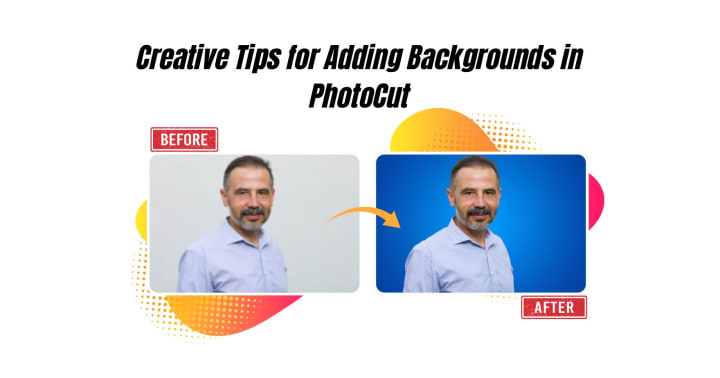
- Use Custom HEX Codes: Match exact brand colors or themes.
- Layer Stickers and Text: Create banners, ads, or invites with additional elements.
- Adjust Shadows and Borders: Make your subject pop against the new background.
- Experiment with Gradients: Although not solid, gradients add depth and flair.
- Test Different Crops: Square for Instagram, vertical for Pinterest, landscape for YouTube.
Remove your photo backgrounds effortlessly using PhotoCut’s AI.
Conclusion
Adding a background color using PhotoCut is one of the simplest yet most effective ways to edit images. Whether your work is professional or personal, the right background color finds its place in storytelling, branding, and visual strength. From the vibrant green screen to soothing soft baby blue hues, PhotoCut leaves the imagination unfettered while keeping it simple. Thrilling, isn't it? And you don't even need design expertise, just your phone and an active imagination. Bring your images to life with colorful backgrounds that speak your style.
Edit your images like a pro with PhotoCut’s AI Photo Editor.
FAQs
Q1. Why would I want to add a background color to an image?
Ans. There are many reasons! Adding a background color can:
- Make an object stand out: a contrasting color can draw attention to the subject of the image.
- Improve consistency: if the image will be used, for example, on marketing materials or on a website, the same background color will enhance the branding.
- Preparing an image for specific uses: some platforms and/or tools require a particular background color, such as chroma key (green screen) effects, which use a green background.
- Fill an image with transparency: if you have a PNG with some truly transparent portions, the background color fills those areas.
- Enhance aesthetics: or sometimes a color just makes an image more appealing to the eyes.
Q2. What kind of images work best for adding background colors?
Ans. Images with a clear subject and a defined edge work best. Transparent PNGs are the best, as one can easily change the background without disturbing the subject of the picture. For more complicated images, isolation of the subject can generally utilize very advanced editing techniques.
Q3. What software or tools can I use to add a background color to an image?
Ans. Many options are available, ranging from simple online tools to professional software:
1. Online Background Removers/Editors:
- Removal.ai
- Clipping Magic
- PhotoScissors
- Many others (search for "remove background online") - these often have background color options after removing the original.
2. Photo Editing Software:
- Adobe Photoshop
- GIMP (free, open-source)
- Affinity Photo
- Pixelmator Pro
3. Mobile Apps:
- Background Eraser
- PicsArt
- Phonto
4. Presentation Software:
- PowerPoint
- Google Slides
- Keynote
Q4. Is it difficult to add a background color to an image?
Ans. The dependability of how difficult it might be depends on the complexity of the image and what tool you are using. Simple images with well-defined subjects or transparent backgrounds can be easy and take seconds. The more complex an image is, the longer and more skilled it might be.
Q5. What are the common methods for adding a background color?
Ans. Here are some common methods:
- Background Removal and Replacement: Remove the existing background entirely, then add a solid color as the new background.
- Layering (in photo editing software): Put the image on one layer and create a new layer underneath with the desired background color.
- Always use Early Transparency: Some tools allow the setting up of a background color that shows through the transparent areas of a PNG at a glance.
- Masking: Masking allows the selective hiding of part(s) of the original image and reveals the underlying background color.
Q6. How do I add a green background to my image?
Ans. It's the same process for applying any background, but you will be choosing a specific shade of green, e.g., #00FF00 would be your bright green if using hex-codes.
- Online Tools: Use an online background remover or editor, and when prompted for the new background color, select green.
- Photoshop or GIMP: Use them to create a new layer behind your image layer and fill it using the paint bucket tool, or use the background fill option.
Q7. How do I add a pink background to my image?
Ans. Just as you added a green background, choose your pink. Commonly, people use #FFC0CB (light pink) and #FF69B4 (hot pink).
- Online Tools/Photoshop/GIMP: Follow the same general steps as with the green background but select your favorite shade of pink.
Q8. How do I add a white background to my image?
Ans. Adding a white background is essentially the same process:
- Online Tools: Select white as the background color.
- Photoshop/GIMP: First set up a new layer behind your image layer. Fill that with white (#FFFFFF). Alternatively, if you are working with an image that has a transparent background, in Photoshop, you can have Layer > New Fill Layer > Solid Color - and choose white.
Q9. How do I add a baby blue background to my image?
Ans. Baby blue, also known as light blue, is a pale tint of blue. A common hex code is #89CFF0
- Online Tools/Photoshop/GIMP: Follow the general steps, selecting or inputting the hex-code for your preferred baby blue.
Q10. How do I make the background color transparent instead of a solid color?
Ans. Here’s how:
- Use a PNG: Save your image as a PNG file; it supports transparency.
- Lower Layer Opacity: In photo editing software, reduce the opacity of the background color layer. This will make the subject transparent to a degree (depending on how the objects are layered on top of each other).
About the Creator
PhotoCut
AI Photo Editing Tool - Remove or Change your Background & Enhance Product Photos
Keep reading
More stories from PhotoCut and writers in Photography and other communities.
A Deep Dive into Background, Text, People, and Object Removal Tools
In this digital era, where visual content creation is gaining ground, having clean images without distractions makes all the difference. Whether you are a creator on social media, a product photographer, or someone who loves to capture moments, the need to remove distracting elements from photos is acute. PhotoCut is a simple but powerful photo editing app that makes this extremely easy. This detailed tutorial highlights the five major editing features in PhotoCut, including Background Remover, Background Color Remover, Text Remover, People Remover, and Object Remover.
By PhotoCut10 months ago in Photography
The Gold Tone (Orotone) Technique
She picked it up from a dusty shelf at an estate sale, thinking it was just an old frame. Then the light caught it. The image glowed, not like a print, not like a painting, but like something that seemed to carry its own inner warmth. That was her first encounter with an Orotone, and she bought it without asking the price.
By CurlsAndCommas4 days ago in Photography
Gold Chrysotype Photography Is Back and the Colours Are Breathtaking
There is a moment when a chrysotype print is lifted from its chemical bath and held up to the light stops people mid-breath. The colours that bloom across the surface — soft dusty pinks fading into deep magenta, rich cyans pooling at the edges, velvety blacks settling into the grain of the paper — look less like a photograph and more like something pulled from a dream.
By CurlsAndCommas4 days ago in Photography



Comments (1)
Thank you so much for being transparent about using AI 😊