
Removing Filters from Your Photos
Removing Filters from Your Photos

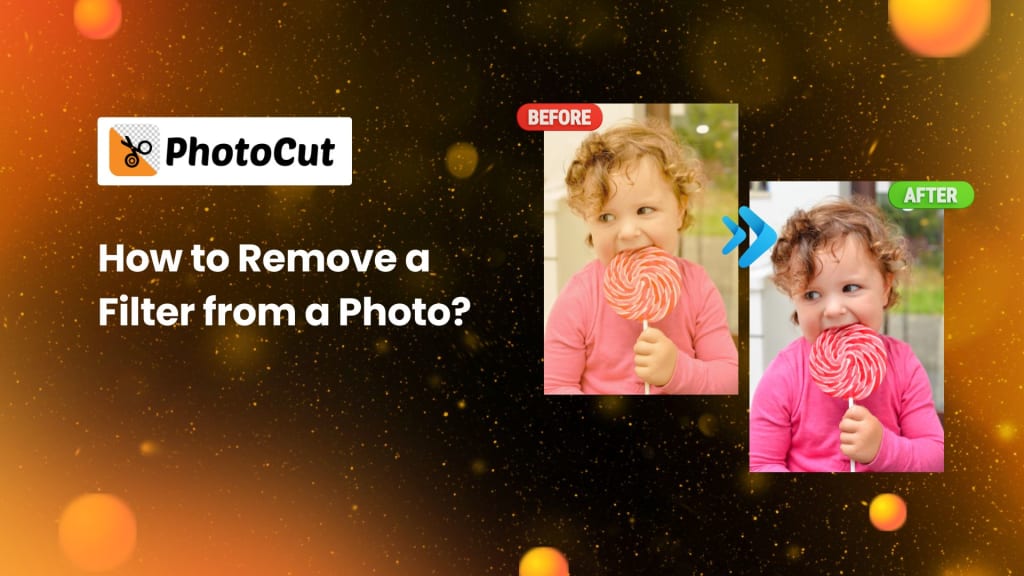
Filters have emerged as one of the most common tools used in social media and digital photography to improve images. While filters range from adding vibrancy and contrast to providing a vintage feel, they can alter a photo dramatically. However, you may need to remove those effects or revisit your original, unfiltered image at some point. Whether the filter is too harsh, you require it for professional usage, or you prefer an unfiltered image, the nice thing is that you can have the filter removed and/or decreased through the appropriate methods.
Let's cover why you would want to remove filters, what those removal challenges were, the best tools for removing filters, and some of the common techniques to get back the original beauty of your photos.
Why You Might Want to Remove a Filter
There are numerous reasons why you may want to remove a filter from a picture:
- Overpowering Filters: At times, the filter can be used too strongly to the point that the image seems over-saturated and unnatural or even distorted. It may be a result of a filter that had extreme color shifts, texture changes, or even effects such as artificial blurring.
- Consistency Across Photos: Let's say one works with a series or project. When you use many images, maybe one image ends up looking like it has applied an unintended, inconsistent filter; removing this removes the inconsistencies found in some shots.
- Future Editing: You could want an unfiltered version of the photo as a backup in case you want to edit it further. A clean, filter-free image will allow you to move around and make adjustments without being bound by the original filter's effects.
- Accidental Filter Application: Filters are sometimes applied unintentionally when trying new apps or software. In these cases, you may just want to revert to the original image.
- Platform Requirements: Certain platforms, communities, or projects may require images to be unfiltered. In such cases, it’s necessary to remove any added filters before sharing your photos.
- Personal Preference: You might prefer the natural appearance of the photograph without any type of enhancement. Filters sometimes distort details that you would want people to see things as texture, color, and composition.
Can Filters Truly Be Removed from Photos?
Once a filter is applied to a photo, it changes the pixel data of the picture. Filters adjust colors, contrast, saturation, brightness, and even sometimes the structure of the photo itself, including blurring or adding some texture to the picture. As the filters permanently change the image, in a technical sense, it cannot be undone entirely in a complete reversal back to the original state.
However, the strength of a filter can often be tamed. Depending on the strength of the filter, you might be able to dial it back and bring the photo closer to its original state. This is a process of undoing as much of the effect as possible, rather than eliminating it.
Learn how to make your photos look cool in Google Slides.
Limitations of Filter Removal
While it’s possible to reduce or reverse the impact of filters, there are limitations:
- Loss of Detail: Filters, especially those that apply heavy contrast or smooth skin, can flatten details in the photo. Once details are lost, it may be impossible to recover them completely.
- Color Shifts: Some filters drastically change the colors in an image. The most common color artifact seen while trying to remove some of these filters is banding, where the colors produce a series of distinct steps instead of a smooth gradient.
- Time-Consuming: Since the process is very time-consuming, especially when the filter is complex, removing it may take hours to manually restore the original appearance of your photo in pictures.
- Image Quality: Every edit you apply to the photo is going to degrade the image quality if it wasn't already of great quality to begin with. Repeated adjustments can introduce noise or reduce sharpness.
Despite these challenges, the right tools and techniques can help you remove or reduce filters and restore your image to a more natural state.
Tools for Removing Filters
There are various tools and apps available that allow you to reduce or eliminate filter effects from your photos:
- PhotoCut: PhotoCut allows the removal of filters from photos very effortlessly. Just upload your image, use the eraser tool to eliminate the unwanted filter, fine-tune results, and voila-the face is free of the unwanted filter and looks very natural and unfiltered. Its convenience lies in restoring the authenticity found both on the desktop and via mobile apps.
- Adobe Photoshop: This is probably the most powerful editing tool in the industry, for filter removal. While it's very good at all the others mentioned above, color balance, exposure, contrast, and so on, more complex tools make it ideal for layer work, especially if you're trying to correct or reduce the effect of a filter.
- Adobe Lightroom: Lightroom boasts a very good set of color correction tools. It is more suitable for eliminating subtle filters impacting the overall color balance. Easy to use, it provides quite a lot of flexibility in retrieving natural colors for an image.
- GIMP: GIMP, GNU Image Manipulation Program is free, open-source software to replace Photoshop. It has equivalent tools and functionalities in photo editing but might have a steeper learning curve.
- Photopea: It is a photo editor that functions directly in a browser, providing a Photoshop-like interface. Free and offering the majority of tools from Photoshop, it is excellent for those requiring advanced editing options without the hefty price tag of Photoshop.
- Mobile Apps: In most cases, many mobile apps will provide tools to lessen the effects of filters. Examples of such popular apps include Snapseed, VSCO, and Remini. These can adjust exposure, contrast, saturation, and sharpness to capture the photo as one wants. They are not as powerful as the software used on the desktop, but they're perfect for fast editing on the run.
Effortlessly enhance your images using PhotoCut’s AI Image Upscaler.
Common Techniques for Reducing Filter Effects
Here are some common ways you can counteract the effects of filters:
- Exposure and Contrast Adjustments: Filters tend to modify the exposure or contrast of an image. You can often reverse the darkening or brightening effect brought about by the filter by making adjustments to its exposure or contrast settings.
- Color Correction: Filters will often alter the color by warming or cooling tones. White balance, saturation, and vibrance tools are available to correct the color change and return the image to its original state.
- Curves and Levels: In the curves or levels of an image, you have complete control over the image's tonal range. These tools can give back some lost highlights or shadows to make a photo look almost like the original.
- Noise Reduction and Sharpening: Filters could add grain and blur photo images. Tools with noise reduction allow the unwanted noises to be completely removed while sharpening restores sharp details that blur or get smoothed out due to the filter.
- Selective Correction: If changes in the filter had a selective effect on different parts of the image, you would apply adjustments to specific parts of the photo by utilizing masking tools, leaving other parts of the photo unchanged.
AI-Powered Tools for Filter Removal
AI-powered tools are becoming more popular for tasks like filter removal. These tools use artificial intelligence to analyze images and reverse filter effects. While the results can vary, AI-powered tools are often quick and easy to use, making them ideal for people who need a fast fix.
Some apps, like Remini, use AI to reduce filter effects and improve image quality. These tools can help with tasks like color correction, enhancing details, and even restoring sharpness.
Discover the easiest ways to reduce the size of your JPEG images.
Conclusion
Removing filters from photos can help restore authenticity, correct unintentional effects, or give you more control over future edits. Although you may not always be able to undo the filter completely, the right tools and techniques can alleviate its effects and bring your picture closer to its original form. While you may spend money on powerful programs like Adobe Photoshop or find affordable alternatives in software like GIMP, you can even use AI-powered applications like Remini to help your images regain their natural look.
Find the best one-word captions for Instagram and post templates.
FAQs
Q1. Is it possible to remove a filter that has already been applied to a photo?
Ans. It depends. Technically, you cannot undo a filter completely because a filter changes the pixel data of the image. However, by using the appropriate tools, it is possible to significantly reduce the impact of a filter and recover the image much closer to the original look.
Q2. Why would I want to remove a filter from a photo?
Ans. There are several reasons you might want to remove a filter:
The filter is too intense, making the photo look unnatural.
You want to apply a different filter or style to the image.
You need an unfiltered version for archiving or future editing.
The filter was applied accidentally.
The photo is required to be unfiltered for sharing on certain platforms.
Q3. What kind of photos are easiest to unfilter?
Ans. Photos with subtly applied filters are typically easier to work with. Images where the filter only adjusted color or contrast are often more straightforward to correct than those with heavy texture changes or artificial effects like bokeh.
Q4. What are the limitations of trying to remove a filter?
Ans. The primary limitation is that once a filter alters an image, the original pixel data is lost. Some details may be irretrievable, and reversing color shifts can introduce artifacts. The process can also be time-consuming, especially for heavily filtered images.
Q5. What software or apps can I use to remove filters from photos?
Ans. Some popular tools include:
Adobe Photoshop for advanced editing.
Adobe Lightroom for color correction.
GIMP for a free, open-source solution.
Photopea for a browser-based option.
Mobile apps like Snapseed and Remini.
Q6. Can AI-powered tools help with filter removal?
Ans. Yes, AI-powered tools can be helpful for quickly reducing the effects of filters. These tools analyze the image and attempt to reconstruct the original look. While results may vary, they can be a convenient and fast solution.
Q7. How do I remove specific filters, like black-and-white or sepia?
Ans. For black-and-white filters, increase the saturation to bring back color. For sepia filters, reduce the warmth by lowering the color temperature, and adjust the color channels to neutralize the brown tones. Use noise reduction to eliminate artificial grain.
Q8. What if the filter has added blur or bokeh effects?
Ans. Removing blur or bokeh effects is challenging. You can try sharpening focused areas to recover some details or use cloning or healing tools to fix blurred sections, though this can be time-consuming.
About the Creator
PhotoCut
AI Photo Editing Tool - Remove or Change your Background & Enhance Product Photos
Keep reading
More stories from PhotoCut and writers in Photography and other communities.
Ways to Make Pictures Look Cool in Google Slides
Visually attractive presentations are necessary to make an effect for personal, professional, or educational purposes. One of the most often used tools for making presentations is Google Slides, which is user-friendly and allows for the integration of text, photos, shapes, and more. Google Slides, like other presentation software, has its limits, nevertheless. Such basic image editing with Google Slides does not advance to background removal or other sorts of advanced options for transparency in images. Yet, there is a way through simple tools as well as resources from third-party sites to present your pictures much more professionally as well as pleasingly.
By PhotoCut11 months ago in Photography
Gold Chrysotype Photography Is Back and the Colours Are Breathtaking
There is a moment when a chrysotype print is lifted from its chemical bath and held up to the light stops people mid-breath. The colours that bloom across the surface — soft dusty pinks fading into deep magenta, rich cyans pooling at the edges, velvety blacks settling into the grain of the paper — look less like a photograph and more like something pulled from a dream.
By CurlsAndCommas4 days ago in Photography
Top tipple tricks
Been thinking a lot about drinking, lately. Not least because of a recent episode of over-indulgence and the inevitable after effects. Some readers may recall the earlier articles I wrote about beating the booze. Here I set out an experiment in techniques for cutting down on my alcohol intake. The experiment was successful, the techniques worked, and I have armed myself with an arsenal of weapons in the war against the demon drink. I have yet to fire the first round however. It's all a question of timing (perhaps procrastination).
By Raymond G. Taylor7 days ago in Psyche



Comments
There are no comments for this story
Be the first to respond and start the conversation.