
Ways to Make Pictures Look Cool in Google Slides
Ways to Make Pictures Look Cool in Google Slides

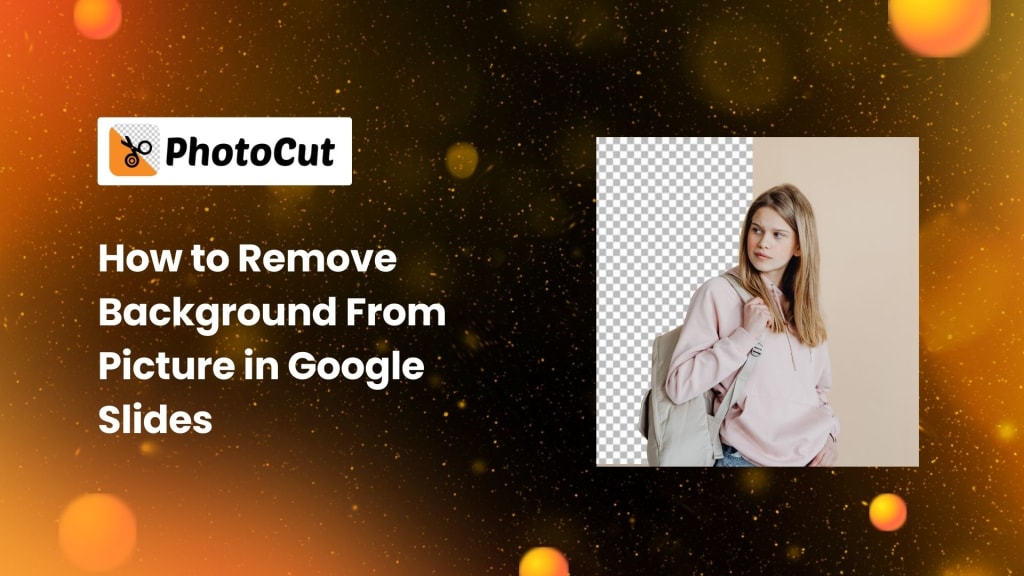
Visually attractive presentations are necessary to make an effect for personal, professional, or educational purposes. One of the most often used tools for making presentations is Google Slides, which is user-friendly and allows for the integration of text, photos, shapes, and more. Google Slides, like other presentation software, has its limits, nevertheless. Such basic image editing with Google Slides does not advance to background removal or other sorts of advanced options for transparency in images. Yet, there is a way through simple tools as well as resources from third-party sites to present your pictures much more professionally as well as pleasingly.
In this article, we will learn how to edit pictures in various ways to make them look cool and polished within Google Slides. We are going to work on transparency settings, remove background images, and add stylish design elements.
What is Google Slides?
Let's first discuss what Google Slides is, and why it is such an indispensable tool for doing presentations before getting into picture editing.
The presentation tool by Google, called Google Slides, allows one to create, edit, and share presentations online. With the option of having a wide variety of text, photographs, shapes, charts, and more, it is easy for users to work on many different projects from corporate presentations, and school project reports, to slideshows for personal use. An outstanding advantage of using Google Slides is its cross-platform nature with any computer device having access through a web browser. It is a convenient and efficient choice to share with others instantly, thus ideal for team collaboration.
But while it is incredibly powerful and versatile, Google Slides doesn't handle image editing well. You may have to use another tool or more creative techniques if you want your presentations to be visually interesting. That's where the tricks include transparency adjustments, background removal, and image manipulation.
Effortlessly enhance your images using PhotoCut’s AI Image Upscaler.
Why Make Pictures Transparent in Google Slides?
Images can add the visual appeal needed to make a presentation in Google Slides truly interesting and exciting for your audience. However, if images are poorly placed or have distracting backgrounds, the slides will look messy and unprofessional. This becomes especially problematic when trying to layer text over a dark or busy background.
You make your images transparent or change the transparency of them to get a cleaner, professional look. That way, you can emphasize specific elements in your photo while the text remains readable and visible. You can also stack transparent images over other design elements to create more complex layouts.
Learn everything you need to know about removing filters from photos.
How to Make Pictures Transparent in PhotoCut?
While Google Slides has some image editing capabilities that allow cropping, resizing, and positioning of an image, more advanced tools are not available within Google Slides. Such activities can be well handled using the third-party application, PhotoCut. PhotoCut is an online application developed specifically to simplify removing the background and applying transparency to images.
This is how one can remove a background and set transparency using PhotoCut:
- Start by uploading your image to the background remover tool in PhotoCut. The background remover automatically detects the image's background and removes it.
- PhotoCut AI automatically processes your image, eliminating its background. This is handy in the case of getting rid of distracting backgrounds that could clash with your design.
- The automatic tool sometimes misses some tiny details or little areas. You can further use the "Retain" or "Erase" tool to adjust your selection manually, thus fine-tuning the image.
- Once you are satisfied with the effect of transparency, save the image in PNG format. PNG files support transparency. That means when uploaded into Google Slides, the image will retain the transparency of its background.
How to Make Image Background Transparent in Google Slides?
Google Slides does not include a built-in tool to take away the backgrounds of images; however, Google Slides makes it possible for you to switch the background that appears behind a slide or introduce transparent images as well. Therefore, having a similar visual effect requires some preparation earlier.
Here's how to remove the background when making it clear for a slide in Google Slides:
- Launch your presentation.
- If you haven't uploaded your slides yet or are working on an existing presentation, the steps below can guide you.
- Select "File" from the menu and choose "Open" to load the document you will be working with. Alternatively, you can access the background settings in Google Slides directly.
- In the toolbar, select “Background” to adjust the slide background color. Choose "Transparent" from the color options to remove any solid background and leave it see-through.
- After selecting transparent, click "Done" to apply the effect.
This method works for making a slide’s background transparent, but it’s limited to the background of the entire slide, not individual images. To make images themselves transparent, you’ll need to use external tools like PhotoCut before uploading them into Google Slides.
How to Remove Backgrounds for Multiple Photos?
If you're preparing a presentation with several images, and all of them have backgrounds that need to be removed, PhotoCut's batch background remover is one fantastic time-saving feature.
This is how to use PhotoCut's batch background removal tool:
- Upload all the images that you'd like to process one after another to PhotoCut's batch remover.
- It removes the backgrounds from all your images one by one with the power of AI tools that PhotoCut has.
- You can add more images you want to process to the queue.
- All your images are downloadable as a zip file once the background removal is done. This way, you don't have to download them one by one.
Find the best one-word captions for Instagram and post templates.
How to Make Shapes Transparent in Google Slides?
Shapes are one important design element for your Google Slide presentations. Ensuring your shape is transparent or semi-transparent often helps achieve a further refined, elegantly clean look for a great presentation design, giving you something that truly works.
Here’s how to make shapes transparent in Google Slides:
- Go to your presentation in Google Slides.
- Insert/ New Shape in shape (Circle etc.)
- Once that shape has been inserted, Click again on that.
- Under the toolbar, choose "Fill color". Select from the options listed "Transparent."
- You can put borders, or you can fade it, depending on your requirement, and overlay it with anything else to be more sophisticated in design.
That is how this method can use transparent shapes with your slides with more creative design control.
Conclusion
Though it lacks some of the more sophisticated options for picture editing, Google Slides is a great tool for making presentations. Fortunately, you can quickly eliminate image backgrounds, change transparency, and enhance the appearance of your photos by using third-party apps like PhotoCut. Whether it's for a business presentation, school project, or even just for personal slideshow presentations, transparency for images and visually enhanced slides could bring out the best for you.
Some of PhotoCut's tools regarding the removal of background and its features for batch image processing are best used in those scenarios that have several images in mind and/or wish to design an entirely coherent slide layout. Meanwhile, Google Slides' basic image-editing options, combined with PhotoCut’s additional functionality, allow you to create impressive and visually appealing presentations.
Discover the easiest ways to reduce the size of your JPEG images.
FAQs
Q1. Can I Remove the Background From Images Directly Within Google Slides?
Ans. No, Google Slides does not have a feature to remove the background of an image. However, you can use third-party background removers such as PhotoCut to upload the transparent images in your Google Slides presentation.
Q2. Are There Any Requirements for Background Images That Need to Be Removed?
Ans. PhotoCut works well with most images, but complex backgrounds or intricate details might need additional editing. Clear images with distinct subjects and backgrounds yield the best results.
Q3. Does Removing the Background of an Image Affect Its Quality?
Ans. No, PhotoCut uses advanced AI technology to ensure that the quality of your image remains intact after background removal. It maintains high-definition output for your transparent images.
Q4. Can I Resize Images Using Google Slides?
Ans. Yes, Google Slides allows you to resize images. You can adjust the image width and height using the "Format options" in the toolbar.
Q5. Can I Adjust the Image Color in Google Slides?
Ans. Yes, you can change the color of images in Google Slides. Format options allow you to alter brightness, contrast, or apply a filter depending on the color you want. The saturation of an image can also be modified for better visual appeal.
About the Creator
PhotoCut
AI Photo Editing Tool - Remove or Change your Background & Enhance Product Photos
Keep reading
More stories from PhotoCut and writers in Photography and other communities.
4 Simple Methods to Shrink Your JPEGs
Reducing the size of JPEG images is crucial for anybody looking to increase website loading speed or conserve storage space. Smaller JPEGs use less bandwidth, load more quickly, and are simpler to share. Whether preparing images for your website, emailing them, or just trying to save storage space on your computer, shrinking your JPEG files can be a highly useful skill. In this extensive tutorial, we'll be going through four easy steps on how to reduce your JPEGs and some answers to questions people have when trying to shrink them.
By PhotoCut11 months ago in Photography
The Photographer's Code
You decide to visit your local park. You have become a close confidant to the homeless people who gather there most days. While talking to Cleo and Reed, you notice a new face in the crowd. It belongs to a stick-thin, middle-aged woman. She has her hand on her forehead as if taking her temperature.
By Paul Aaron Domenick7 days ago in Photography
The Gold Tone (Orotone) Technique
She picked it up from a dusty shelf at an estate sale, thinking it was just an old frame. Then the light caught it. The image glowed, not like a print, not like a painting, but like something that seemed to carry its own inner warmth. That was her first encounter with an Orotone, and she bought it without asking the price.
By CurlsAndCommas3 days ago in Photography


Comments
There are no comments for this story
Be the first to respond and start the conversation.