
Create the Perfect Profile Picture
Create the Perfect Profile Picture

In today's advanced digital world, your profile picture is your identity. Whether it is networking on Facebook, gaming on Discord, showcasing your lifestyle on Instagram, or merely building up your brand, the right profile picture can make a great first impression. A good photo can also show professionalism, creativity, approachability, and style. Thanks to photo editors such as PhotoCut, it is no longer necessary to employ a photographer to get that perfectly shot digital portrait. Let us go deeper.
Learn how to create transparent image backgrounds in Paint and Paint 3D.
Creating the Perfect Facebook Profile Picture
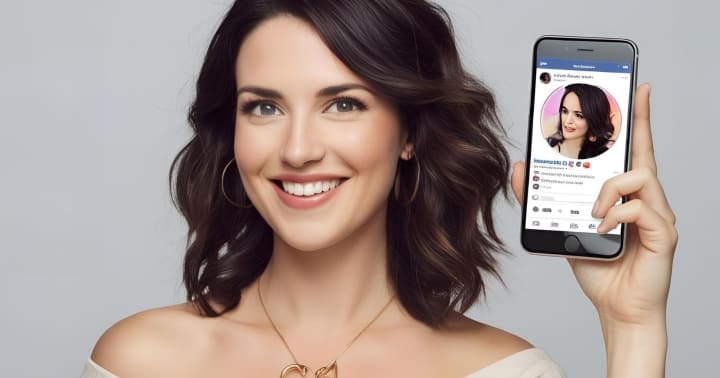
Facebook remains a central hub for both personal and professional connections. Your profile photo appears on everything, like posts, comments, friend suggestions, and search results, so making it count is essential.
Best Practices
- Keep it clean: It's your face, not a busy background.
- Lighting: It's better to take outdoor-natural-lit-photographs for such shots.
- Dress the part: Dress in something that represents either your personality or professional role.
- Smile naturally: A friendly expression builds trust.
Using PhotoCut for Facebook PFP
- Remove Distractions: Use PhotoCut’s background remover to keep the attention on you.
- Enhance Colors: Boost brightness and contrast to ensure your photo pops.
- Crop to Facebook Size: Facebook recommends 170x170 px for profile pictures; use PhotoCut’s preset ratio tool.
- Touch-Up Tools: Smooth out blemishes, whiten teeth, and adjust sharpness with a few clicks.
Pro Tip: Save two versions, one for personal use and one more professional for Facebook business pages.
Designing Your Discord Profile Picture
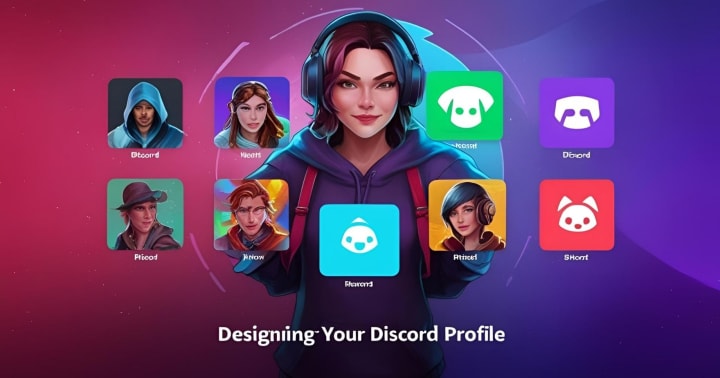
Discord is all about community and creativity. Your profile picture there is smaller but just as impactful, especially in servers and direct chats.
What Works on Discord
- Bold and Minimal Designs: Due to small display sizes.
- Cartoon Avatars or Game Characters: Reflect your personality or interests.
- High Contrast: To stand out in dark mode.
Customizing with PhotoCut
- Cartoonify Yourself: Use PhotoCut filters or AI generators to create fun avatars.
- Make it Transparent: Remove backgrounds and add your PFP to a cool template.
- Circular Cropping: Preview how your PFP will look in Discord’s circle format.
- Color Themes: Adjust hues to match your server roles or aesthetic.
Bonus: Add animated stickers or text in PhotoCut before uploading.
Best Instagram Profile Picture Aesthetic
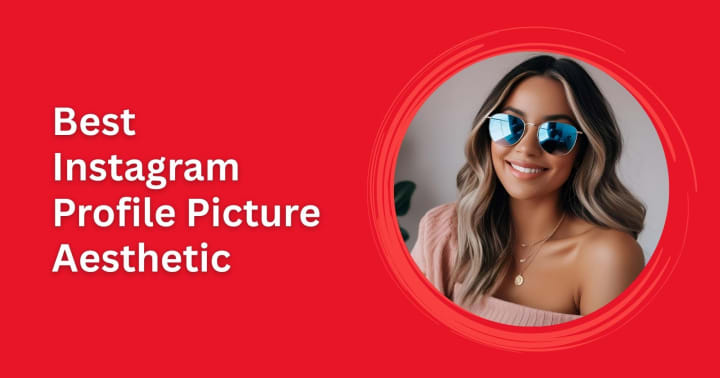
Instagram is a visual-first platform, so your profile photo should be polished, trendy, and on-brand. Since it appears very small, clarity and style are key.
Ideal Instagram PFP Elements
- Symmetry: Your face should be centered.
- Clean Backgrounds: Don’t clutter the frame.
- Branding: For creators or businesses, include subtle color branding or logo overlay.
- High Definition: Use PhotoCut’s upscaling tool to enhance resolution.
Elevating Your IG Look with PhotoCut
- Apply Aesthetic Filters: Match your PFP with your feed’s vibe.
- Use AI Retouching: Subtle skin smoothing and lighting correction.
- Framing Tools: Perfectly center your head using PhotoCut’s AI face detection.
- Consistency is Key: Reuse similar PFP edits across highlight covers, story borders, etc.
Pro Tip: Match your profile photo to your latest story highlights cover for a cohesive look.
Using an AI Profile Picture Generator
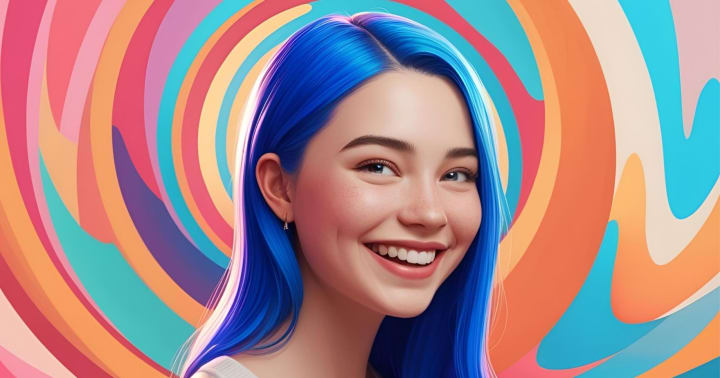
AI profile picture generators are revolutionizing the way we create profile images. You simply upload a few selfies, and in seconds, these tools produce multiple high-quality variations.
Why Use an AI PFP Generator?
- Save Time: Generate dozens of options in minutes.
- Get Creative: Try new styles, poses, and lighting effects.
- Personal Branding: Tailor your image for different platforms.
Integrate with PhotoCut for Even Better Results
- Refine AI Images: Tweak colors, crop, and enhance the output.
- Blend with Templates: Add your AI headshot to social media banners or mockups.
- Try Different Looks: Use PhotoCut’s hairstyle changer or makeup filters to preview looks.
Popular Styles to Generate
- Professional Headshots
- Artistic Portraits
- Cartoon or Anime-Inspired Avatars
- Retro and Aesthetic Looks
Best Profile Picture Ideas
Whether you're trying to look more professional, stand out on a dating app, or build a personal brand, here are some creative ideas for your next profile picture.
Professional PFP Ideas
- Neutral Backgrounds: Clean, white, or gray backdrops.
- Smart Outfit: Think blazer, collared shirt, or smart dress.
- Friendly Expression: Confident and approachable.
- PhotoCut Usage: Retouching, framing, and enhancing lighting.
Creative PFP Ideas
- Add Props: Headphones, books, cameras, flowers.
- Use Color Blocking: Bright backgrounds with simple clothing.
- Pets or Hobbies: Show off what makes you, you.
- PhotoCut Usage: Background swaps, stickers, and filters.
Artistic PFP Ideas
- Black and White: Classic and stylish.
- Silhouette Shots: Backlit portraits.
- AI Art Filters: Turn your selfie into a digital painting.
- PhotoCut Usage: AI filters, cropping, and dramatic effects.
Multi-Platform Consistency
To maintain a strong digital presence, consistency across platforms is important. PhotoCut helps you:
- Create unified themes and color palettes.
- Keep image sizes optimized per platform.
- Maintain consistent lighting and style.
Use the “Save Preset” feature in PhotoCut to apply the same settings across your Facebook, Discord, and Instagram images.
Conclusion
Your profile picture is often your digital handshake. It says who you are before a single word is read or spoken. Whether you want to look professional on LinkedIn or Facebook, casual on Instagram, or playful on Discord, PhotoCut makes it easy to create exactly the image you want to share with the world.
With built-in tools for cropping, enhancing, background removal, AI styling, and artistic edits, PhotoCut gives you everything you need to turn a basic selfie into a standout profile picture.
So what are you waiting for? Start experimenting with your next profile look today using AI and PhotoCut, and elevate your digital identity like never before.
FAQs
Q1. Why is having a profile picture important?
Ans. Profile pictures are crucial for online identity. They help people recognize you, build trust, and make your profile more engaging and memorable. A blank profile picture often looks impersonal or even suspicious.
Q2. What size should my profile picture be?
Ans. It varies by platform. Here's a general guide:
Facebook: 170x170 pixels show on computers, 128x128 pixels on a smartphone, and 36x36 pixels on the avatars of most feature phones. Upload at the maximum resolution, and Facebook will shrink it down.
Discord: Minimum 128x128 pixels. Discord will scale larger images down.
Instagram: Displays at 110x110 pixels, but uploading a larger size (like 320x320 pixels) ensures good quality.
Q3. Can people see my old Facebook profile pictures?
Ans. Yes, unless you've changed the privacy settings on the specific album containing them. By default, your profile pictures are public. If you want, you can change the privacy of the album.
Q4. How do I change my Facebook profile picture privacy?
Ans. Go to your profile and click on Photos and then Albums. Open the album termed Profile Pictures and there click on the three dots menu (...) for the album and then on Edit. You can now change that album's audience from Public to Friends or Only Me.
Q5. How do I clear up my Discord profile picture?
Ans. At least upload your image in 128x128 pixels. Another thing is to check your internet connection because a slow connection might give you temporary blurriness. When using Nitro, animated GIFs will be supported, so just check the resolution of your GIF.
Q6. Can I raise a profile picture on different Discord servers?
Ans. If you have Discord Nitro, yes. Nitro allows you to configure server-specific profile pictures ("Server Avatars").
Q7. Instagram is cropping my profile picture. How can I stop this?
Ans. Instagram circularizes all its profile pictures. In this case, you may want to upload a square picture (same height and width). As you select the image, pinch to zoom out, and that ensures the most critical parts of your image are visible in the circle view.
Q8. Can people see if I've changed my Instagram profile picture?
Ans. Changing profile pictures by followers does not send full-scale notifications to the other followers on Instagram. However, if they interact a lot with your profile, this change might still appear in their feed organically.
Q9. Do those AI profile picture generators charge money?
Ans. Some have free trials or basic features, while others require a subscription or payment for full access and higher-quality results. Make sure to read the pricing and terms of service before using one.
Q10. What kinds of profile picture generators of AI exist?
Ans. These include Lensa AI, Remini, Fotor, YouCam Perfect, and many more. The one that is best for you rests on what you require and also on how much you are willing to part with. It would be great to read reviews and compare features before deciding.
Q11. Should I choose a selfie as my profile picture?
Ans. Selfies can work, but be mindful of how they are taken. Ensure you have proper lighting, a clean background, and a flattering angle. Avoid selfies cluttered with backgrounds taken at an awkward angle.
Q12. How often should I change my profile picture?
Ans. There is no strict answer to such a question. While it can be quite confusing to your followers if you keep changing, a good rule of thumb would be to do it every few months or whenever you happen to get a much better photo. You may end up changing it slightly more often for 'special' occasions or promotions, though.
About the Creator
PhotoCut
AI Photo Editing Tool - Remove or Change your Background & Enhance Product Photos
Keep reading
More stories from PhotoCut and writers in Photography and other communities.
Create Professional Headshots Using AI
In a world where everything is digital-first, you can think of it as your very first impression. Be it on LinkedIn, the company website, your portfolio, or your social media page, a professional-looking headshot talks about your confidence, approachability, and credibility. But high-end cameras or professional photographers are not accessible to everyone. This is where AI and editing tools like PhotoCut step in. From the comfort of your room, you can produce studio-quality headshots with a few clicks.
By PhotoCut10 months ago in Photography
Gold Chrysotype Photography Is Back and the Colours Are Breathtaking
There is a moment when a chrysotype print is lifted from its chemical bath and held up to the light stops people mid-breath. The colours that bloom across the surface — soft dusty pinks fading into deep magenta, rich cyans pooling at the edges, velvety blacks settling into the grain of the paper — look less like a photograph and more like something pulled from a dream.
By CurlsAndCommas3 days ago in Photography




Comments (1)
Thank you so much for being transparent about using AI 😊