
Create Professional Headshots Using AI
Create Professional Headshots Using AI

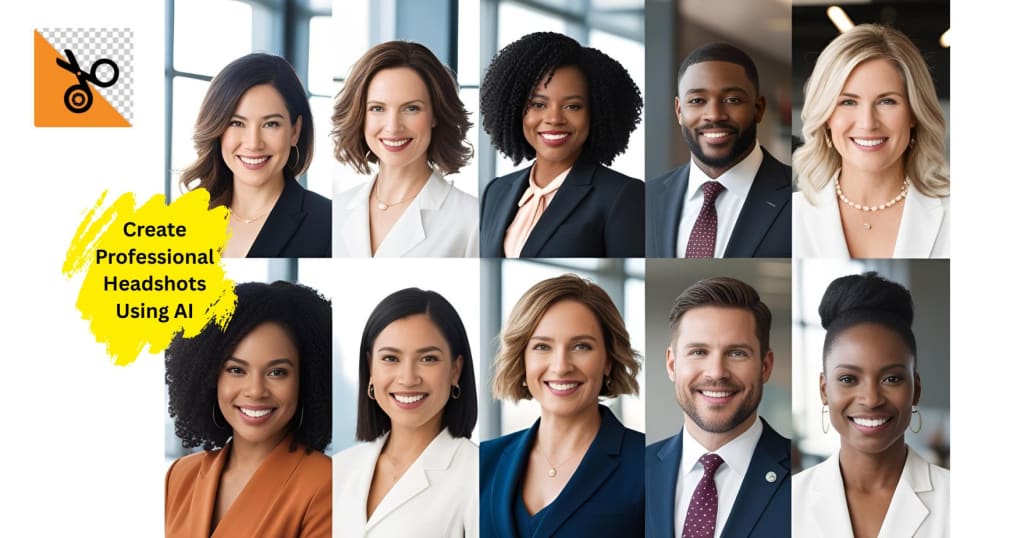
In a world where everything is digital-first, you can think of it as your very first impression. Be it on LinkedIn, the company website, your portfolio, or your social media page, a professional-looking headshot talks about your confidence, approachability, and credibility. But high-end cameras or professional photographers are not accessible to everyone. This is where AI and editing tools like PhotoCut step in. From the comfort of your room, you can produce studio-quality headshots with a few clicks.
Using contemporary techniques, let's see how you might enhance your portraits.
Discover the best tools to remove emojis from your photos.
Create Professional Headshots Using AI
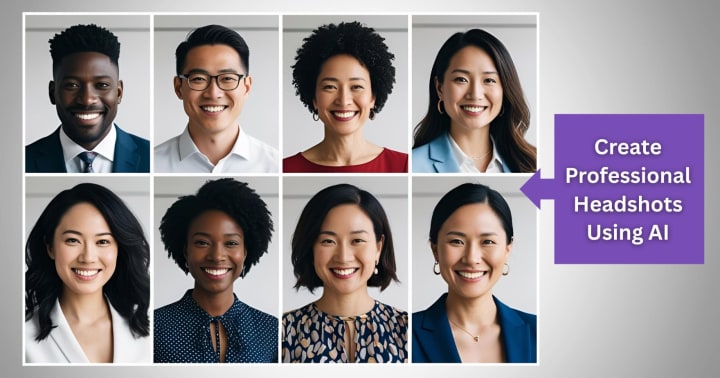
Creating a professional headshot would not necessarily include spending money getting them done professionally with photographers and makeup artists. AI tools will allow you to take such an image by simply uploading a selfie. For example, PhotoCut uses machine learning and face detection to optimize facial structure, lighting, and background for a polished look.
Why Use AI for Headshots?
- Affordability: No hiring of a professional photographer is required.
- Speed: Quick, high-quality results.
- Flexibility: Experiment with different styles and looks.
- Convenience: Create your headshots from anywhere.
Steps to Create AI Headshots with PhotoCut
- Use a front-facing, well-lit image.
- Let PhotoCut detect your face automatically.
- Implement automatic improvements such as backdrop modifications, skin tone correction, and illumination.
- High-quality photos may be downloaded and saved for use on your professional accounts, websites, and résumés.
Tip: A neutral facial expression and simple attire are the ideal choices for your unique photo.
Enhance Your Images with PhotoCut
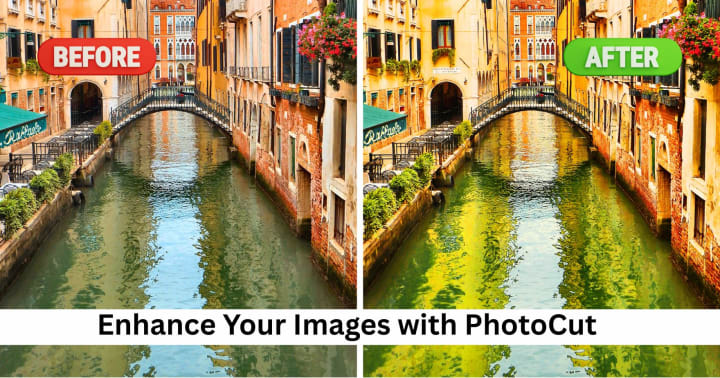
And now that you've produced your AI-generated headshot, it's time to upgrade your image. With powerful PhotoCut editing features, you'll make minute adjustments that will elevate your look without making you appear overly edited in the photo.
Key Enhancement Features
- Brightness & Contrast: Adjust for natural lighting.
- Skin Retouching: Minor blemish removal while still retaining texture.
- Color Correction: Ensure skin tones are right.
- Teeth Whitening & Eye Brightening: Small but significant things.
- Facial Symmetry Enhancements: Slight but effective alterations towards creating facial balance.
Pro Tip: Limited edits are best. The aim is to enhance, not change, your natural characteristics.
Restore the quality of your images using PhotoCut’s online photo editor.
Crop Images for Your Needs
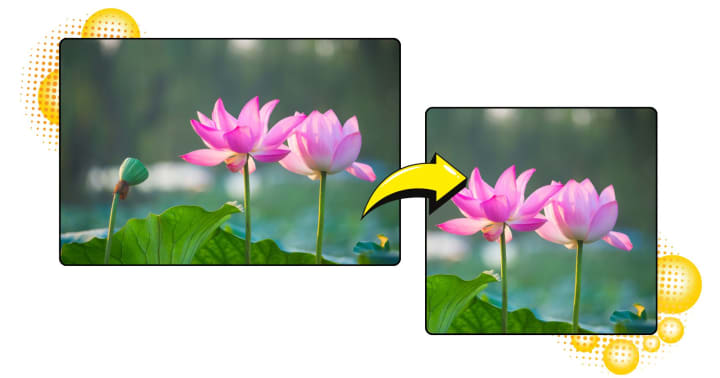
Different platforms require different image dimensions. Whether you're uploading to LinkedIn, a company ID, or a portfolio, cropping your image to the right size is essential.
PhotoCut's Cropping Features
- Preset Ratios: LinkedIn, Facebook, Twitter, Instagram, and more.
- Manual Crop Tool: Custom dimensions for resumes, business cards, etc.
- Face Centering Tools: AI helps you center your head for symmetry.
Best Practices for Cropping
- Leave some headroom above your head.
- Ensure the face is in the center of the image.
- Don’t crop too tightly—your shoulders should be slightly visible.
Suggested Ratios:
- LinkedIn Profile: 400x400 pixels
- Resume/Passport: 2x2 inches
- Web Portfolio: 4:5 or 3:4 ratio
Sharpen Your Blurry Headshots
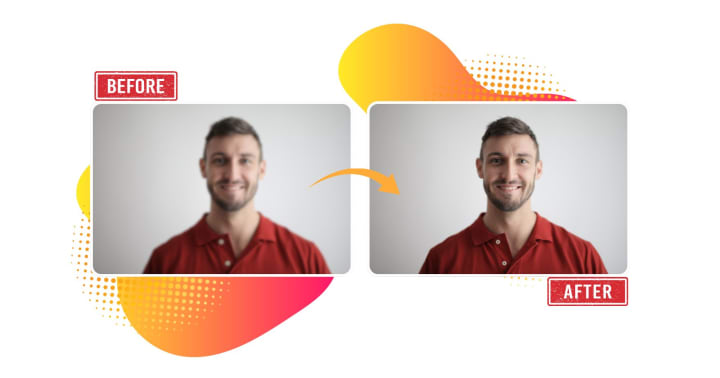
Most times, blurriness can ruin a picture. Luckily, PhotoCut has high-quality tools for sharpening, which would rescue low-resolution or somewhat fuzzy photos.
How to Use AI Sharpening
- Upload your headshot.
- Select the Sharpen Tool.
- Use a slider to control the level of sharpness.
- Preview changes in real time.
- Apply and save your image.
What Sharpening Fixes
- Soft focus
- Motion blur
- Pixelation in low-quality images
Note: Avoid over-sharpening so as not to create objectionable noise or distortions.
Create Transparent Backgrounds for Your Headshots
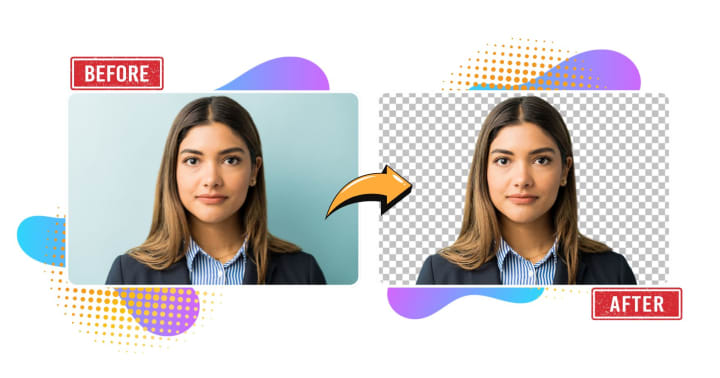
A transparent background gives your headshot more versatility. You can use it in company profiles, presentations, digital business cards, or ID badges. PhotoCut offers seamless background removal with AI precision.
Steps to Remove Backgrounds with PhotoCut
- Upload the image.
- Select the ‘Remove Background’ Tool.
- Let AI detect and remove the background.
- Refine edges manually (optional).
- Download it as a PNG for a transparent background.
Creative Uses for Transparent Headshots
- Place on colored or branded backgrounds.
- Use in video thumbnails or presentations.
- Add to business cards or email signatures.
Pro Tip: Save a version with a white background as well—some platforms don’t support PNG transparency.
Additional Tips for Perfect AI-Enhanced Headshots
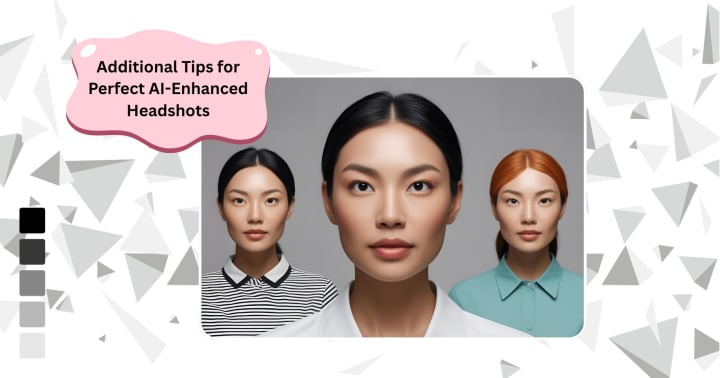
Choosing the Right Photo to Start With
- High resolution
- Natural light (avoid harsh shadows)
- Minimal makeup and accessories
- Neutral expression
- Solid background preferred
What to Avoid
- Group photos or cropped group shots
- Overexposed or underexposed lighting
- Heavy filters or beauty apps before uploading
Change your skin color in images with PhotoCut’s Skin Color Changer.
Why Use PhotoCut for Professional Headshots?
PhotoCut isn’t just another photo editing app, it’s an all-in-one solution tailored for professional portrait transformation. Here's why it stands out:
Key Benefits:
- AI-Powered Automation
- Intuitive Interface for Beginners
- Custom Presets for Business, Creative, and Casual Looks
- Cloud-Based Processing for Fast Results
- No Watermarks in Paid Versions
Be it a job seeker, an entrepreneur, an influence freak, or a corporate professional, PhotoCut helps you show the best version of yourself to the world in quick, cheap, pretty ways.
Learn how to add a signature in your Google Docs.
Conclusion
Professional headshots are no longer luxuries. With tools like PhotoCut, anyone can create a polished, confident portrait using just a smartphone or computer. From generating AI-enhanced images to removing backgrounds and fixing blurry areas, PhotoCut offers everything you need to make your photo profile-ready.
No expensive equipment. No studio sessions. Just the power of AI and your creativity.
Explore the best apps to add text to your images.
FAQs
Q1. Are AI-generated headshots good enough for professional use?
Ans. It depends on the AI tool and the underlying photos you supply. Some AI tools give good results, which can be used for LinkedIn and other company web pages and professional platforms. However, it is very important to review the generated images to ensure that they look natural and true to oneself. Check for artifacts or inconsistencies carefully.
Q2. How much do AI headshot generators cost?
Ans. Pricing varies widely. Some offer free trials or limited free usage. Others charge per headshot generated or offer subscription plans. Usually, a low initial cost conceals a greater overall cost when quality is substandard, and you need more than one shot to get a good image.
Q3. What is PhotoCut, and what can it do?
Ans. PhotoCut is an AI-based photo editing application/tool that lets you enhance and modify your images with ease. It is primarily for background removal, sharpening of blurred photos, cropping of images, and maybe as a tool for professional headshot production.
Q4. How does PhotoCut compare to other AI tools for photo editing?
Ans. Comparisons vary in content depending on specific features and needs. PhotoCut is easy to work with, especially with background removal and sharpening. Some research and reading should tell you how it measures up on accuracy, speed, pricing, and feature sets against other tools.
Q5. Why would I need to crop a headshot?
Ans. Cropping is essential for:
Resizing images to fit specific platform requirements (e.g., LinkedIn profile picture).
Centering your face and removing distracting background elements.
Improving the overall composition of the headshot.
Q6. What is the ideal headshot aspect ratio?
Ans. For headshots, a 1:1 square or 4:5 portrait aspect ratio is used. When utilizing your headshot, make sure to review the platform's standards.
Q7. How can PhotoCut fix blurry headshots?
Ans. PhotoCut most likely uses one or more algorithms to highlight the image's edges and enhance features on those edges, making it look sharper. However, avoid over-sharpening because it will result in artifacts that make the image look strange.
Q8. What is the most effective approach to sharpening a headshot without making it appear unnatural?
Ans. Sharpening headshots should be done this way:
- Sharpening tools should be used only moderately.
- Sharpening should be gradually increased while observing the results for each step.
- Fine details should take precedence, so avoid overdoing textures or skin.
Q9. Why would I want a transparent background for a headshot?
Ans. Transparent backgrounds are useful for:
- Overlaying the headshot on different backgrounds.
- Integrating the headshot seamlessly into website designs or marketing materials.
- Creating a clean and professional look.
Q10. How accurate is PhotoCut's background removal?
Ans. Accuracy may vary depending on how complicated the image is and how well the subject contrasts with the background. In general, PhotoCut is fairly accurate, but with some images, you may need to improve the mask manually to attain a clean edge. Most apps offer manual editing tools for this purpose.
About the Creator
PhotoCut
AI Photo Editing Tool - Remove or Change your Background & Enhance Product Photos
Keep reading
More stories from PhotoCut and writers in Photography and other communities.
Ultimate Guide to Virtual Portrait Editing
Now, in this modern period of digital expression and the social media platform, your portrait speaks obscurely and louder than any spoken word. From profile pictures to professional headshots, every aspect of your self-representation online can determine first impressions, attract opportunities, and even increase self-confidence. Advanced editing tools like PhotoCut make it possible to change one's virtual look now more than ever without going to any salons or makeup sessions. Be it changing hairstyles, playing around with new hair or skin colors, clearing blemishes, or adding an attractive smile, PhotoCut will sort you out.
By PhotoCut10 months ago in Photography
The Photographer's Code
You decide to visit your local park. You have become a close confidant to the homeless people who gather there most days. While talking to Cleo and Reed, you notice a new face in the crowd. It belongs to a stick-thin, middle-aged woman. She has her hand on her forehead as if taking her temperature.
By Paul Aaron Domenick7 days ago in Photography
The Gold Tone (Orotone) Technique
She picked it up from a dusty shelf at an estate sale, thinking it was just an old frame. Then the light caught it. The image glowed, not like a print, not like a painting, but like something that seemed to carry its own inner warmth. That was her first encounter with an Orotone, and she bought it without asking the price.
By CurlsAndCommas3 days ago in Photography


Comments
There are no comments for this story
Be the first to respond and start the conversation.