
Complete Guide for Using Bing Image Creator in 2024
Complete Guide for Using Bing Image Creator in 2024

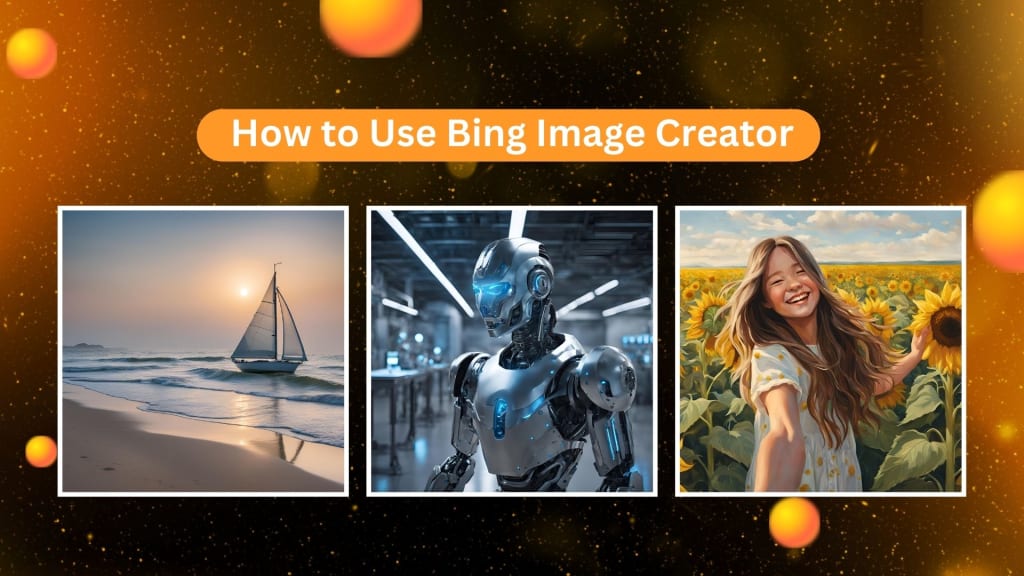
In general, artificial intelligence has transformed so fast in the manner in which people engage with various jobs, and an area that has experienced very significant innovation in this regard is graphic design. Powered by such innovative AI tools like Bing Image Creator, you now can generate very professional images just in a couple of clicks, and anyone should be able to do that irrespective of their designation as a designer, content writer, or somebody who simply wishes to use those creative visual products.
In this article, we will further explore everything you need to know about Bing Image Creator, from how it works, using it, the best tips for better outcomes, and more; even alternatives if you are already considering expanding your creative toolbox. Let's get started!
What is Bing Image Creator and How Does It Work?
The tool is Bing Image Creator, created by Microsoft which will generate images using a textual description or "prompt." It's powered by the DALL-E 3 technology by OpenAI: an advanced AI model that uses the input given to create the images. More specifically, it is the DALL-E 3 version that will be more precise and will come up with even better visuals. It can render highly detailed images with complex ideas and objects - from realistic photography to abstract artwork.
The new platform is one of the other AI offerings part of Bing and allows users to create images directly from Bing search. Thanks to its integration with the powerful DALL-E model, OpenAI is making it extremely easy to get custom visuals without requiring advanced design skills or even expensive software for just a few clicks.
You can now create 3D characters using PhotoCut’s 3D Character Generator.
Is Bing Image Creator Free?
Bing Image Creator is free to use. You don't have to pay to subscribe or a one-time charge to get a few of the features you have in most AI tools. If you have a Microsoft account, then you can just create images, and you would not need to pay anything at all. However, you will notice a small delay when the images are generated.
You can also collect extra credits and rewards through Microsoft Rewards, which could allow you to generate even more images without any restriction.
Transform your color photos into black and white using PhotoCut’s online photo editor.
How to Use Bing Image Creator
Let's get started with creating these amazing images. Here's a step-by-step guide:
Step 1: Go to the Bing AI Image Generator Site
The first step is to access the Bing Image Creator webpage. You don't necessarily have to use Microsoft Edge to view it; just head over to Bing.com/Create in any internet browser. Ensure you have logged in using your Microsoft account, as this will allow you to access everything.
Step 2: Enter Your Prompts to Start Image Generation
Once you're logged in, you will be prompted to enter a description of the image you wish to generate. Now is where the creativity will come into play! For instance, you can write something such as "A futuristic city skyline at sunset" or "A cat wearing a space suit on the moon." Try to describe it as much as possible, and the AI will do the rest.
If you do not know what to write, there is an option called "Surprise Me." You click it, and Bing will surprise you with a prompt. It's a nice feature to experiment with something new and see what the AI can do.
Step 3: Preview AI-Generated Image Results
Once you click the “Create” button, Bing will process your prompt and generate an image based on your description. This typically takes only a few seconds. The results will be displayed in the Creation column, where you can see multiple variations of the image if the system creates more than one option.
Take your time to preview the results and see which one fits your vision best.
Step 4: Download Your AI-generated Image
If you're satisfied with the automatically created image, you can download it at the touch of a "Download" button. Otherwise, the image can be shared directly on social media or saved for use in the future. Afterward, you can edit and customize your image further on the Microsoft Design page, which can provide more nuanced tweaks if necessary.
Tips for Creating Better Images Using Bing Image Creator
To maximize the best output from the Bing Image Creator and achieve the optimum result, one should follow a few tips or best practices described below:
1. Engage with AI Chatbots
There are various ways through which you might make a better suggestion for the prompts. It would be a good idea to test some AI chatbots like ChatGPT or Bing AI Chat to provide more precise and clear descriptions, which might lead to improved results images. Chatbots also can help with creative concept brainstorming and inspire your prompts.
2. Use Clear Language
Be sure to use precise, succinct wording when expressing the image you want. Avoid using terminology that is too complicated or ambiguous as this might confuse the AI. The image will better convey your intention if your prompt is clear.
3. Be Descriptive
Clarity is also crucial, but including detail in your prompts will give the best results. Add as much detail to the AI using adjectives, nouns, and verbs. Instead of just writing "dog", say something like "A small brown poodle sitting on a beach at sunset". The more detailed your descriptions, the better the result.
4. Incorporate Keywords
Be sure to include keywords to fine-tune the type of image you want. If you are looking for a painting-style image, add words like "painting" or "watercolor" in the prompt. The keywords to add might include words like "realistic," "vintage," "3D render," or "minimalistic" which help guide the AI in the right direction you're looking for.
5. Learn from Copied Prompt Examples
A good method to become better at making prompts is through observation of examples. Many users share their prompts on the web, so studying those can be insightful into how the difference between various words and phrases makes the actual outcome of image generation. It's the best way to learn and improve with time.
6. Experiment with Styles
Bing Image Creator can be used as a tool that lets you dabble in anything from 3D renders and photorealism to abstract pieces of art. You can go ahead and tamper with changing the background colors and other elements of the prompt to better understand what your creative needs are.
Best Bing AI Image Generator Alternative
PhotoCut is a great choice if you need a different kind of AI image generator. The service is free and includes a selection of styles such as cartooning and realistic portraits, and the images are yours, allowing you to upload your images and apply any effects you may desire.
This is how to work with PhotoCut's AI Image Generator:
- Go to PhotoCut’s website.
- Be specific in your description, and use relevant keywords to guide the AI.
- Customize Settings: You can experiment with various settings, including different image sizes and styles.
- Hit the "Create" button. The AI then goes to work to create the image.
- Once you are happy with the outcome, download your image to use as you want.
PhotoCut is similar to Bing Image Creator, providing a wide array of options in customization to enable you to have exactly what you want. Learn more about the Amber color to use it in your designs.
Conclusion
Bing Image Creator is a powerful tool that is easy to use and enables anyone to create high-quality images in just a few clicks. Whether you're a professional or just looking to get creative on visuals, pairing DALL-E 3 with Microsoft is a game changer. Tips and tricks for optimal prompts, all the additional cool tools like PhotoCut, as well as freedom to use at no cost of charge, create an invaluable place for anyone's creativity in seeking to produce exquisite AI-generated imagery. So now, what have you got waiting for? Have fun exploring!
Find the best birthday messages and birthday card templates for your mom’s birthday and make her feel special.
FAQs
Q1. Is Bing Image Creator the same as DALL-E?
Ans. Bing Image Creator, though, does rely on the OpenAI model DALL-E 3; however, it is not similar to the DALL-E standalone tool. DALL-E 3 is a further advance in the model than the DALL-E version which offers improved generation of images, high accuracy, and more detailed outputs. While the two are perfect for image creation from text prompts, Bing Image Creator is easily accessed and incorporated with the rest of the Microsoft ecosystem.
Q2. Are Bing Image Creator images copyrighted?
Ans. Pictures, which are artificially created by using Bing Image Creator, are offered for personal non-commercial use only. Because there will be no copyright in the produced images as no work is created under the human entity, it creates a new argument for the changing copyright law about AI-generated artwork. The Copyright Office of the US is considering changing the copyright for AI-generated products.
Q3. How do I use Bing Copilot?
Ans. You can install Bing Copilot to your Microsoft Edge browser, or go directly to the website. Once you install it, you'll see Copilot listed in the sidebar in Edge where you can take advantage of a lot of the tool's features to aid you in image creation through Bing Image Creator and much more.
Q4. What are the benefits of Copilot Pro?
Ans. Copilot Pro is at $20 a month, but comes with lots of benefits: images will generate faster, and better, and it unlocks new features. For boosting, Pro users have 100 daily (while the free users have 25 a week) and receive more tailored suggestions on how to enhance their output.
Q5. What are Boosts in Bing Image Creator?
Ans. Boosts are credits that allow you to generate images in Bing Image Creator. Free users start with 100 boosts, but you can purchase more if you need additional credits. Boosts enable faster image creation and higher-quality results.
Q6. Is there a waitlist to use Bing Image Creator?
Ans. No, there’s no waitlist to access Bing Image Creator. Simply log in with your Microsoft account, and you can start creating images right away!
About the Creator
PhotoCut
AI Photo Editing Tool - Remove or Change your Background & Enhance Product Photos
Keep reading
More stories from PhotoCut and writers in Photography and other communities.
Create Amazing Cartoon Characters with PhotoCut
Ever wanted to come up with a cartoon character of your own but you did not have any idea as to where you could start from? PhotoCut's online cartoon character maker is here to help with that. Now, this marvelous tool will provide you with free and easy quick ways to build and edit cartoons. You can transform your concepts into animated characters at the click of a few mice. In this guide, we will discuss how to use PhotoCut's cartoon maker and go into depth on the various features and edit options.
By PhotoCut12 months ago in Photography
Gold Chrysotype Photography Is Back and the Colours Are Breathtaking
There is a moment when a chrysotype print is lifted from its chemical bath and held up to the light stops people mid-breath. The colours that bloom across the surface — soft dusty pinks fading into deep magenta, rich cyans pooling at the edges, velvety blacks settling into the grain of the paper — look less like a photograph and more like something pulled from a dream.
By CurlsAndCommas4 days ago in Photography


Comments
There are no comments for this story
Be the first to respond and start the conversation.