
A Deep Dive into Background, Text, People, and Object Removal Tools
A Deep Dive into Background, Text, People, and Object Removal Tools

In this digital era, where visual content creation is gaining ground, having clean images without distractions makes all the difference. Whether you are a creator on social media, a product photographer, or someone who loves to capture moments, the need to remove distracting elements from photos is acute. PhotoCut is a simple but powerful photo editing app that makes this extremely easy. This detailed tutorial highlights the five major editing features in PhotoCut, including Background Remover, Background Color Remover, Text Remover, People Remover, and Object Remover.
Create circular profile photos with PhotoCut’s Round PFP Maker.
Background Remover
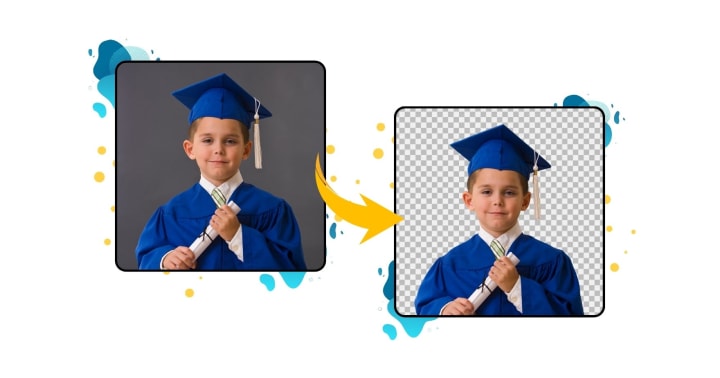
One of the most powerful and popularly used tools in PhotoCut is the Background Remover. It employs advanced AI technology capable of automatically detecting and removing the background from any image with high accuracy. This functionality allows you to focus on the subject, either to put it on a new background, collage, or keep it transparent for your design project. The Background Remover works well for social media graphics and product photography and saves time while ensuring clean and professional-looking results. A couple of taps convert an ordinary photo into one that appears polished and visually appealing.
Key Use Cases:
- Creating profile pictures with clean, minimalist backgrounds.
- Designing product photos for e-commerce.
- Adding subjects to custom backgrounds for marketing or digital art.
How to Use:
- Upload your image into PhotoCut.
- Tap the "Remove Background" option.
- Let the AI process the image. Manually refine edges if needed.
- Save your image with a transparent or custom background.
Background Color Remover

There are times when you don’t need to remove the whole background, just the color. That’s where PhotoCut’s Background Color Remover comes in. This tool is meant for the removal of solid or uniform backdrops, keeping the subject intact. It is useful for product photography, ID photographs, or any other image interrupted by distractions within an austere background. Once users tap the background color, the app takes over. The final product is clean backgrounds left transparent or colored to their liking, emphasizing the subject without complex editing procedures.
Key Use Cases:
- Removing colored backdrops in studio shots.
- Creating transparent backgrounds for logos.
- Preparing images for multi-layered designs.
How to Use:
- Open your image in PhotoCut.
- Choose the "Color Remover" feature.
- Select the background color you wish to remove.
- Adjust the tolerance to refine what is removed.
Text Remover
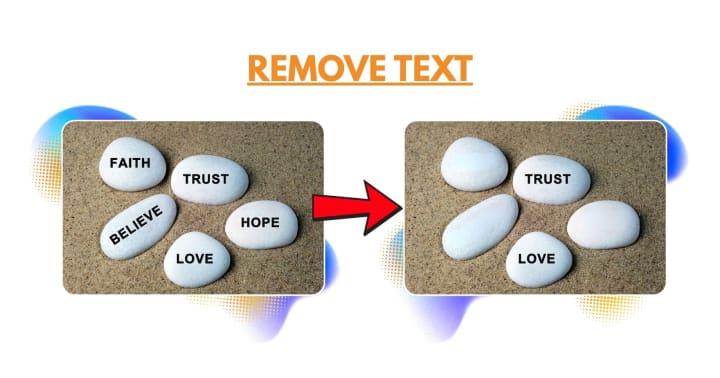
Unwanted watermarks, captions, or text overlays can ruin a perfect picture. Whether it’s a date stamp on a beautiful scenery or unwanted text marring the aesthetic of a reused image, these elements distract from the visual tale being told. With the help of AI-powered editing, PhotoCut’s Text Remover wipes off text, retaining the original quality of the image. Overlaying AI image-editing renders the adjoining area so blended that it becomes virtually impossible to detect the edit. It’s fast and easy to clean up photos, becoming more flexible and aesthetically pleasing without needing complicated editing packages or professional skills.
Key Use Cases:
- Removing watermarks from personal images (when permissible).
- Erasing date stamps from old photos.
- Cleaning up reused stock images for presentations or blogs.
How to Use:
- Import your image.
- Select the "Text Remover" tool.
- Brush over the area containing text.
- Let the AI intelligently fill in the background.
Cleanup your photos for free using PhotoCut’s AI.
People Remover
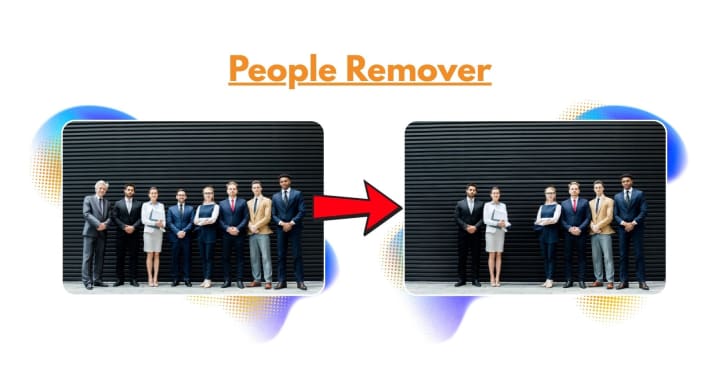
Snapping the perfect photo in a busy place can be tricky, especially when unexpected people appear in the background. People Remover in PhotoCut helps you to easily erase unwanted strangers from your images. In a few taps, the app will identify and remove unwanted people while blending its background to give a natural and seamless look. They are what your travel photos, family portraits, or any instance where you want to keep the focus on your subject need.
Key Use Cases:
- Enhancing travel photos by removing strangers.
- Creating promotional images without distractions.
- Cleaning up family portraits taken in public places.
How to Use:
- Upload your photo to PhotoCut.
- Choose the "People Remover" feature.
- Highlight or tap the people you want to remove.
- Review and refine the edits as needed.
Object Remover
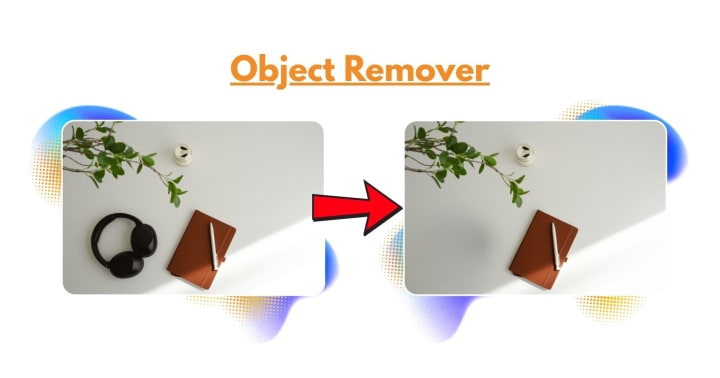
Control your photos with Object Remover from PhotoCut and erase unwanted elements from your pictures. Whether it concerns short wires, poles, trash, signs, or small things that you may see blemished on your images, this tool makes the images have perfect finishes. Highlight the object you want to erase, and let PhotoCut's AI fill the surrounding area in a natural way in that space. It can improve landscapes, product shots, or simple everyday photos. With the Object Remover, you can easily focus on what's important and let the distractions disappear into the background.
Key Use Cases:
- Removing visual clutter in landscape photography.
- Cleaning up indoor scenes for real estate listings.
- Polishing lifestyle photos by deleting distractions.
How to Use:
- Load your image in PhotoCut.
- Select the "Object Remover."
- Mark the object with your finger or stylus.
- PhotoCut processes and blends the area for a natural finish.
Pro Tips for Better Results
- Zoom in: Precision is key. Zoom into tricky areas for accurate editing.
- Use edge refinement tools: Useful for hair and fine details.
- Layer editing: Combine tools for complex edits. For example, use Background Remover followed by Object Remover.
- Save your edits progressively: Use multiple versions if you're doing detailed work, so you can undo or adjust easily.
Add a green background to your photos for free with PhotoCut.
Why Choose PhotoCut?

PhotoCut is awesome because it finds the balance between being simple and complicated. With intuitive control and cutting-edge AI, it delivers pro-level capabilities to the average user. Whether you're touching up a memorable moment or designing something for your business, this app does it all reliably, speedily, and without hindering your creative freedom.
With features like Background Remover, Background Color Remover, Text Remover, People Remover, and Object Remover, PhotoCut turns simple photos into worthy shareable pictures. It is a one-stop shop for all who want to perfect precision without going through the long learning curves.
So the next time you take a nice picture then spot a flaw, simply use PhotoCut. It will give you the tools to fix the picture in seconds.
Edit your photos effortlessly for free with PhotoCut’s Online Photo Editor.
Conclusion
In a visual-first world, it’s important to get clean photos that appear professional. Content creators have a greater need to ensure that their pictures complement their text, including small business owners who see visual inspiration as bringing to life memories for other people or simply for themselves. With ease of use, PhotoCut gives a person the power to take control over their images. Background remover, color remover, text remover, people remover, and object remover allow a person to convert their photos from cluttered to polished with just a few taps. Its intuitive interface, combined with powerfully intelligent AI, puts advanced editing within reach of all. No need for expensive software or complicated workflows, PhotoCut brings precision editing to your phone. So the next time your photo isn’t perfect, remember that with PhotoCut, it can be.
Cut out image backgrounds for free using PhotoCut.
FAQs
Q1. What if the background is very similar in color to the subject?
Ans. This can be challenging. Try manual refinement options, edge detection settings, or AI features to better distinguish the subject.
Q2. What is a transparent background, and why is it useful?
Ans. A transparent background means that the pixels behind the subject will have no color information. This is normally saved in PNG format. Such might be beneficial if you want to put it on another background or inside some other design where the subject needs to be added without showing the border of the background.
Q3. What's the difference between a background remover and a background color remover?
Ans. A background remover aims to remove the entire background, regardless of color variations. A background color remover specifically targets and removes pixels of a particular color (or range of colors) from the background.
Q4. When is a background color remover most useful?
Ans. When you have a background that is primarily a single, consistent color (e.g., a studio backdrop, a product shot on a white background).
Q5. What if the text is on a complex background?
Ans. Removing text from complex backgrounds can be challenging. Content-aware fill or inpainting tools are usually the best option, but manual refinement is often necessary.
Q6. Can I remove text from a scanned document?
Ans. Yes. But depends on the quality of the scan. High-resolution scans will yield better results at times, also with the help of OCR (Optical Character Recognition) software, it can easily identify the text, which makes it possible to select and delete.
Q7. Are the People Remover and Object Remover tools the same?
Ans. Yes, generally. The underlying technology is the same. Removing unwanted objects or deleting undesired persons from an image can be achieved by these tools. The term usually varies with the sale of the tool.
Q8. What are the biggest challenges when removing people or objects?
Ans. The following are the biggest challenges:
- Background complexity: The more detailed or patterned the background, the more difficult it becomes to fill in convincingly.
- Overlapping elements: If the person or object is partially obscuring other important elements, it would become rather challenging to remove without causing damage to the other elements.
- Shadows and reflections: Removing the person/object would leave some unnatural shadows or reflections.
- Perspective: It is vital to stay true to perspective when filling the background to maintain realism.
Q9. What are Background/Color/Text/People/Object Remover tools?
Ans. These are software applications, web-based services, or the features present in editing programs, to isolate and remove certain elements from a given photograph/image. They aim to cleanly remove the background/a certain color from the background/unwanted text/people/other objects, leaving the rest of the image untouched.
Q10. What are the supported file formats?
Ans. Most tools support common image formats such as JPG, PNG, and sometimes TIFF. PNG is often preferred for a transparent background.
About the Creator
PhotoCut
AI Photo Editing Tool - Remove or Change your Background & Enhance Product Photos
Keep reading
More stories from PhotoCut and writers in Photography and other communities.
Create the Perfect Profile Picture
In today's advanced digital world, your profile picture is your identity. Whether it is networking on Facebook, gaming on Discord, showcasing your lifestyle on Instagram, or merely building up your brand, the right profile picture can make a great first impression. A good photo can also show professionalism, creativity, approachability, and style. Thanks to photo editors such as PhotoCut, it is no longer necessary to employ a photographer to get that perfectly shot digital portrait. Let us go deeper.
By PhotoCut10 months ago in Photography
The Photographer's Code
You decide to visit your local park. You have become a close confidant to the homeless people who gather there most days. While talking to Cleo and Reed, you notice a new face in the crowd. It belongs to a stick-thin, middle-aged woman. She has her hand on her forehead as if taking her temperature.
By Paul Aaron Domenick6 days ago in Photography




Comments (1)
Thank you so much for being transparent about using AI 😊