
A Complete Guide to Resizing Images on an iPhone
A Complete Guide to Resizing Images on an iPhone

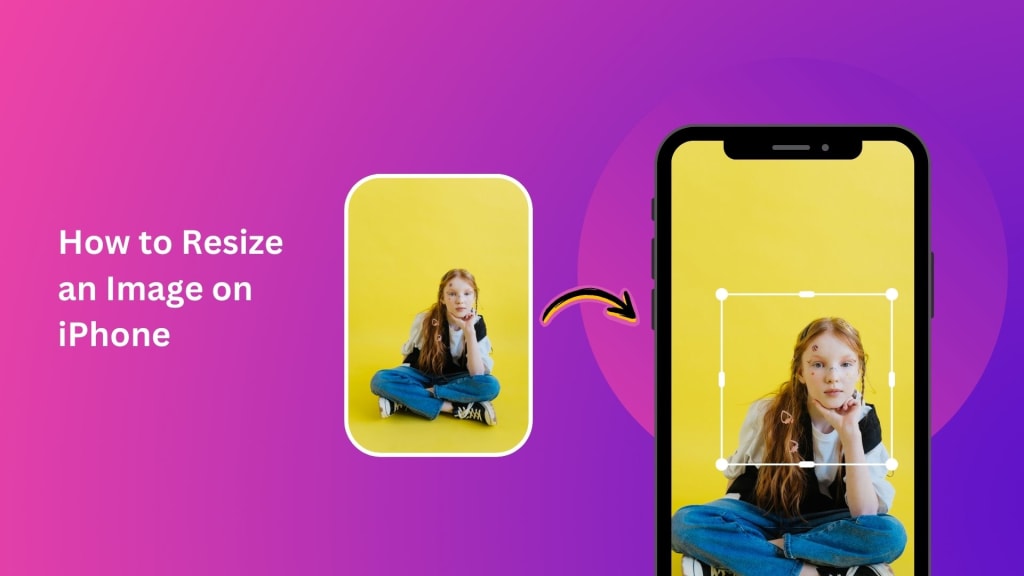
Have you ever used an iPhone or iPad to snap a picture and discovered that it doesn't fit the screen exactly? It may not be the proper size for a particular program or usage, or it may be too big to distribute. One of the most frequent jobs is resizing photos, and thankfully, it's not that hard to accomplish on your iPhone.
There are several choices available to you for resizing a single photo or several at once. This post will walk you through using the built-in Photos app on your iPhone to resize images straight from the device. We'll also show you PhotoCut, a third-party program that will offer you a great deal of control over your photos and make resizing much simpler.
How to Resize an Image Using the Photos App on iPhone
There are some simple picture editing options in the Photos app on your iPhone. Cropping and adjusting the image's size are two of the fundamental features. This is a nice method for resizing images on your iPhone without downloading additional applications.
Using the Photos app on your iPhone, take the following actions to resize a picture:
- On your iPhone, open the Photos app. You may swipe down to find the Photos app if it's not pinned to your home screen.
- To resize an image, go through your gallery and tap on it.
- Once you've picked your photo, you will notice an "Edit" button at the top-right side of your screen. You should click that to start the process of editing your picture. You can also enhance the sharpness of your photos.
- Other choices, such as cropping tools, tweaks, and filters, are accessible under the edit menu. Click the "Crop and Rotate" icon, which resembles a square with arrows surrounding it.
- Above your screen you can see a square icon, it has different size adjustments. That rectangle icon adjusts the aspect ratio on any image
- Under the photos, you have aspect preset ratios for changing the photo orientation to be suitable for one case or another.
- You may pick an aspect ratio of 4:3 or 16:9; the Square is 1:1. By tapping the selected option, you activate the preset and the new picture size.
- After choosing the ratio, the photo will automatically reshape. You can crop it or rotate your photo manually.
- When satisfied with the cropped image, go to the right-bottom corner, and tap "Done" to apply the changes.
At this point, the resized image saves in your Photos app and is available for use. You can then use it as you please whether it be a shareable wallpaper or something in between.
How to Resize Photos Using a Third-Party App
Use the Photos app if you need to, but it doesn't provide quite as much resizing capability as some third-party apps. For better control, or if you desire to resize photos in bulk, PhotoCut might be just what you're after.
PhotoCut is an incredibly popular app to edit your photos on an iPhone or an iPad. You can easily make it resize images using this software. You can also create customized wallpapers with your photos using PhotoCut’s wallpaper maker. Below are steps you can take to do so with professional results:
- Download PhotoCut from the App Store first, then once it is downloaded and installed, launch it and enter if you have already created your account, otherwise create one for a new account.
- From the main app screen, click the "Select Image" to select the image you wish to resize. The option allows selecting a picture from your gallery or using the built-in photo library.
- Tap the "Edit" icon after selecting the image you would resize. This action opens the tools for editing the image.
- Inside the edit menu, search for the "Resize" icon. Tap it to begin to resize your picture.
- You will have several options for resizing your image. You can either enter dimensions manually or use preset sizes. PhotoCut also lets you adjust the aspect ratio, such as 16:9, 4:3, etc., depending on your specific needs for the image.
- If you already know the dimensions you prefer for your picture, you can type in your preferred width and height in pixels. To fasten the resizing, you may choose from available preset aspect ratios.
- Once set, tap the "Save" or "Download" button to save the resized image directly into your iPhone or iPad.
Bulk Resize Multiple Photos at Once
One feature that is most helpful in PhotoCut is that it can resize many images together, saving time when you have multiple images that need resizing. You can also add Santa hats to your photos using PhotoCut.
You can follow these steps to resize multiple images in bulk through PhotoCut:
- Open the PhotoCut application and go to the "Batch Resize" tab. This allows you to resize many images at once.
- Tap on "Select Photos" to select all the photos you want to resize. You can select more than one photo from your gallery.
- Once you have selected your images, tap on the "Resize" icon. You can now input the desired image size or choose a template size, depending on your requirements.
- You can also adjust the border size and color of your images before resizing them if necessary.
- After resizing all your images, tap on "Download" to save the resized images on your device.
Conclusion
Resizing your images on your iPhone or iPad requires little to no effort, whether using the Photos app or an external application like PhotoCut. The Photos app may offer you the usual tools for resizing and cropping your photos according to the given size you wish to make it, so that is good for most daily needs. However, if you need more flexibility in this regard or have a large number of images to resize, use PhotoCut.
In PhotoCut, you can easily shrink and expand any image or adjust the aspect ratio in size according to what you want; that is why you will love resizing multiple images at a go while still saving time. Whether for personal use with your iPhone, social media, or work, you will never find it more hassle-free to resize images. We hope this guide has been of help to you in resizing your images, so you can soon have fun editing them on your iPhone!
Explore the best 18th birthday wishes and birthday card templates available on PhotoCut.
FAQs
Q1. Why would I want to resize an image on my iPhone?
Ans. There are a few scenarios why this might be useful:
- Save space: Compressed images are less costly to send via email, text, or social media and save space in your phone's storage.
- Get ready for specific needs: Some sites or apps might require images to be a certain size.
- Improve loading times: Smaller images load faster on websites and in apps.
- Crop for better framing: Resizing often involves cropping to focus on the best part of the image.
Q2. Can I resize images directly within the Photos app on my iPhone?
Ans. Unfortunately, there is no resizing tool available in the Photos app. It does allow you to crop and make some basic adjustments, but if you want to resize an image based on pixel dimensions, you will need to use other methods.
Q3. What are the typical methods of resizing images on an iPhone?
Ans. You have several options for resizing pictures on your iPhone:
- Third-party applications: You have to download many apps from the App Store that are specifically used to resize pictures.
- Online resizing websites: You can use websites to resize images through your browser.
- Mail app: While not precise, you can reduce file size by sending images through email.
- Shortcuts app: iOS Shortcuts lets you create automated actions, including resizing images.
Q4. What are some popular third-party apps for resizing images on an iPhone?
Ans. Some popular apps other than PhotoCut for resizing images include:
- Image Size: A simple and free app with great resizing options.
- Reduce Photo Size: A free app focused on reducing file size.
- Pixelmator: A powerful photo editing app with advanced resizing features (paid).
- Adobe Photoshop Express: A full-featured photo editor with resizing options (free, with paid features).
- Resize Me!: A popular app that allows you to resize photos with preset or custom sizes.
Q5. Are these third-party apps free?
Ans. Many of these apps offer free versions with basic resizing features. However, some have paid versions or in-app purchases for advanced tools and an ad-free experience.
Q6. How can I resize a picture with a third-party app?
Ans. This is a basic overview of how to use a third-party program to resize an image:
Get the app from the App Store and launch it.
From your Photos collection, pick the picture you wish to enlarge.
You’ll typically have several options for resizing, including:
- Preset sizes: Common sizes like "Small," "Medium," and "Large," or options for social media.
- Custom dimensions: Enter the exact width and height you need (in pixels).
- Percentage scale: Resize based on a percentage of the original size.
Once you've selected the size, save or export the resized image back to your Photos library.
Q7. How do I resize an image using an online website?
Ans. Here’s how to resize an image using an online tool:
- Open Safari (or your preferred browser) on your iPhone.
- Search for “free online image resizer.”
- Select a website from the search results.
- Select the picture from your Photos collection by tapping the "Upload" or "Select Image" buttons.
- You may either choose from predefined sizes or input width and height to change the image's size.
- Click "Resize" to make the changes.
- Once resized, download the image, which will usually be saved in your Downloads folder. From there, you can move it to your Photos library.
Q8. Are online image resizing websites safe?
Ans. Most reputable online resizing websites are safe to use. When choosing to utilize a website, you must exercise caution. Avoid utilizing dubious websites, such as those that ask for needless personal information or have a lot of advertisements.
Q9. How does the Mail app assist with image resizing?
Ans. If you attach photographs to an email, the Mail app will automatically resize them. It reduces the file size to make it easier to distribute, but it doesn't allow you complete control over resizing.
Q10. How does the Mail app compress images?
Ans. If you include an image in the email, Mail offers to resize the attached image by: "Actual size," "Small," "Medium," or "Large." So it automatically scales it down according to what you selected, when it transmits the e-mail.
About the Creator
PhotoCut
AI Photo Editing Tool - Remove or Change your Background & Enhance Product Photos
Keep reading
More stories from PhotoCut and writers in Photography and other communities.
Everything You Need to Know About the Fuchsia Color
Fuchsia is a color of great intensity that is placed right in between pink and purple on the spectrum. Neither purple is too showy nor is pink too light, making this color quite distinct and flexible in use for diverse design purposes. You're reading the correct blog if you want to learn about the characteristics, hues, or sentimental significance of fuchsia. Everything you need to know about fuchsia will be covered in this article, including its description, variances, psychological effects, and usefulness in design.
By PhotoCut12 months ago in Photography
Gold Chrysotype Photography Is Back and the Colours Are Breathtaking
There is a moment when a chrysotype print is lifted from its chemical bath and held up to the light stops people mid-breath. The colours that bloom across the surface — soft dusty pinks fading into deep magenta, rich cyans pooling at the edges, velvety blacks settling into the grain of the paper — look less like a photograph and more like something pulled from a dream.
By CurlsAndCommas4 days ago in Photography




Comments
There are no comments for this story
Be the first to respond and start the conversation.