
Windows 11/10: How to Turn Off Antimalware Service Executable
Running into performance issues on Windows 11/10? Learn how to turn off Antimalware Service Executable and optimize your system in just a few steps.

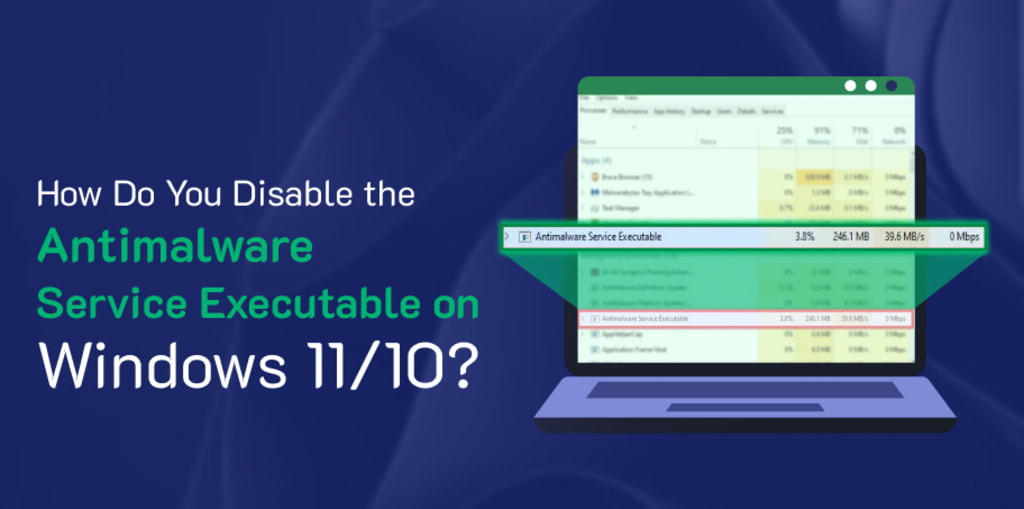
Is your computer slow? Even after trying countless hacks, such as closing background tasks, clearing up the RAM, or running system diagnostics, do you still have a high CPU usage?
If something similar or the exact thing is happening with your PC, then let me tell you, "You are not the only one!" Numerous individuals encounter this problem, and just like you, they cannot figure out its real cause.
But fret not! Because, as, usual, we are here with the solution. All that you need to do is turn off the - "antimalware service executable." But remember, turning this service off can leave your computer vulnerable to malware attacks; hence, proceed with caution.
Before diving deeper, it would be better to know exactly what the antimalware service executable is.
Antimalware Service Executable Meaning
Antimalware service executable, a.k.a. msmpeng.exe, is an integral component of Microsoft's Windows Defender antivirus service. It's fundamental role is to "detect" & "handle" malicious code that can jeopardize the system's security.
But sometimes, despite being an integral component and having a paramount role, it leads to excessive CPU usage, which in turn can slow down your computer or cause other programs to run slowly.
Apart from this, overheating can also happen, ultimately damaging the hardware.
How to Disable It on Windows 11/10?
You can try the methods below to turn off or disable the Antimalware Service Executable on Windows 11/10.
- Turn Off Real-Time Protection
- Add Program to Exclusion List
- End the Process Using Task Manager
- Turn Off Periodic scanning
- Disable Windows Defender via Registry
- Reschedule Windows Defender Scheduled Scan
Let's explore them in depth.
Turn Off Real-Time Protection
Real-time protection continuously scans files in the background, ensuring immediate threat detection. Temporarily turning off this feature can help alleviate CPU usage caused by Windows Defender.
Follow the steps mentioned below to turn off real-time protection:
- Click Search, placed on the taskbar.
- Type Windows Security and press Enter.
- The Windows Security window will open.
- In the Windows Security window, in the left pane, click Virus & threat protection, if applicable.
- In the right pane, under the Virus & threat protection settings section, click Manage settings.
- In the right pane, click the toggle button placed under the Real-time protection section to Off.
- The User Account Control dialog box will appear.
- In the User Account Control dialog box, click Yes.
Follow the steps mentioned below to turn off real-time protection using Local Group Policy Editor:
- Click Search, placed on the taskbar.
- Type RUN and press Enter.
- The Run dialig box will appear.
- In the Run dialog box, in the Open field, type gpedit.msc, and click OK.
- The Local Group Policy Editor window will appear.
- In the Local Group Policy Editor, navigate to Computer Configuration > Administrative Templates > Windows Components > Microsoft Defender Antivirus > Real-time Protection.
- In the left pane, double-click Real-time Protection.
- The Turn off real-time protection window will appear.
- In the Turn off real-time protection window, click the radio button in front of the Enabled option.
- Click OK.
Terminate the Process Using Task Manager
Task Manager offers a straightforward approach to temporarily disable the Antimalware Service Executable in Windows 11/10. Follow the steps mentioned below to terminate or end the process by utilizing Task Manager:
- Click Search, placed on the taskbar.
- Type Task Manager and press Enter.
- The Task Manager window will open.
- In the Task Manager window, under the Processes section, click Antimalware Service Executable.
- At the top, click End task.
Note: After you restart the PC, the Antimalware Service Executable will get activated again.
Turn Off Periodic Scanning
The periodic scanning feature of Windows Defender is another feature that can cause the Antimalware Service Executable to run. Hence, you should turn it off.
But deactivating it can make your PC susceptible to malware and other threats. Hence, this method should only be performed if another antivirus program is installed on the PC to shield it from threats.
Follow the steps mentioned below to turn off the periodic scanning feature:
- Click Search, placed on the taskbar.
- Type Windows Security and press Enter.
- The Windows Security window will open.
Keep Reading - https://signmycode.com/resources/how-to-disable-the-antimalware-service-executable-on-windows-11-10
About the Creator
Anna Shipman
Anna Shipman is a Cyber Security Consultant with a strong technical background and experience with a high analytical skillset. She has been involved in the information security industry for more than a decade.
Keep reading
More stories from Anna Shipman and writers in Lifehack and other communities.
Mastering Key Management to Minimize Cryptographic Risks
The popularity of mobile devices and cloud applications has created unlimited endpoints, leaving data vulnerable to security threats. Cryptographic failures rank no.2 in OWASP's top 10 web application security risks.
By Anna Shipman9 months ago in 01
The Consequence of Greed
Snowfall had turned the lush green trees of the forest completely white. It was the heart of winter, and as soon as the snow began to fall, a deep silence spread through the jungle. The animals who had wisely stored food before the cold arrived were now resting comfortably in their homes, eating and drinking without worry. But those who had made no preparations were shivering in the freezing weather, wandering around in search of food.
By Sudais Zakwana day ago in Lifehack




Comments
There are no comments for this story
Be the first to respond and start the conversation.