
The 2026 Complete Guide to Legitimate Wi-Fi Password Recovery: Methods, Tools & Protection
How to Recover a Forgotten Wi-Fi Password: An Ethical, Step-by-Step Guide


Disclaimer: This article is for educational purposes and legitimate password recovery only. Always obtain proper authorization before accessing any network. Unauthorized network access violates laws in most jurisdictions.
Introduction: When You Need to Recover a Wi-Fi Password
We've all been there—you need to connect a new device to your Wi-Fi but can't remember the password. Or perhaps you're a network administrator managing multiple access points. Legitimate password recovery is a common need for homeowners, IT professionals, and anyone responsible for network management.
This comprehensive guide covers authorized methods for recovering Wi-Fi passwords, the tools professionals use (with official sources), and crucially—how to protect your own network from unauthorized access.
Section 1: Legitimate Methods for Wi-Fi Password Recovery
Method 1: Check the Router Itself
Most routers have the default password printed on a label. Look for:
- SSID: Your network name
- Password/Key: Usually 8-12 characters
- Router Admin Panel: Often 192.168.1.1 or 192.168.0.1
Method 2: Access Through Connected Devices
Windows 10/11:
- Open Command Prompt as Administrator
- Enter:
netsh wlan show profiles
- View password for a specific network:
netsh wlan show profile name="NETWORK_NAME" key=clear
- Look for "Key Content" under Security Settings.
macOS:
- Open Keychain Access
- Search for your Wi-Fi network name
- Double-click the entry
- Check "Show password" and authenticate
Android (Root Required):
Requires terminal access and root permissions:
su
cat /data/misc/wifi/wpa_supplicant.conf
iOS:
No direct method exists due to Apple's security. You'll need to reset the router or check another device.
Method 3: Router Admin Panel Access
- Find your router's IP address (often 192.168.1.1)
- Log in with admin credentials (check router label or manual)
- Navigate to Wireless Settings
- View or reset the Wi-Fi password
Method 4: Physical Reset (Last Resort)
Use the reset button on your router (usually requires a paperclip). Warning: This erases all custom settings.
Section 2: Professional Tools for Network Security Testing
Note: These tools are for authorized penetration testing only. Always have written permission.
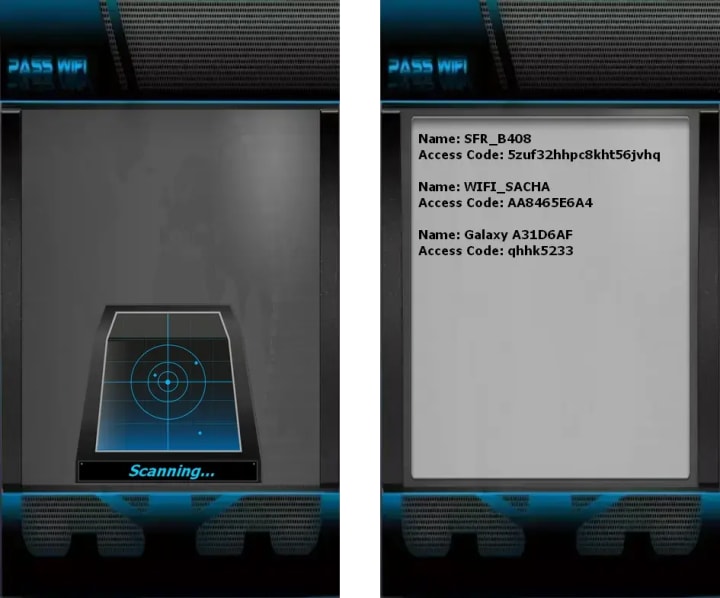
1. PASS WIFI - Find any Wi-Fi password from any network
Official Website: https://www.passwordrevelator.net/en/passwifi
A complete suite for:
- Get access to a wireless network
- Hacking WEP and WPA-PSK keys
- Connecting to a router
2. Kali Linux - The Security Professional's Toolkit
Official Website: https://www.kali.org/
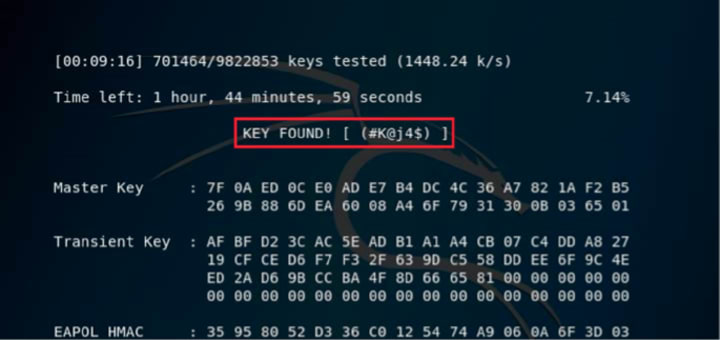
Kali comes pre-loaded with network analysis tools including:
- Aircrack-ng Suite: For WEP/WPA/WPA2 security auditing
- Reaver: For WPS PIN recovery
- Wifite: Automated wireless auditing tool
3. Aircrack-ng - Industry Standard Wireless Tool
Official Website: https://www.aircrack-ng.org/
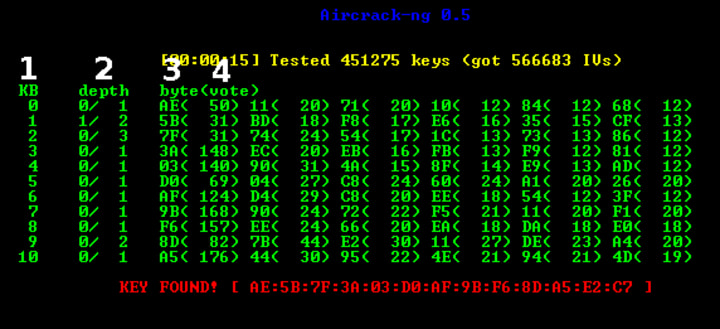
A complete suite for:
- Monitoring wireless traffic
- Testing WEP and WPA-PSK keys
- Capturing handshakes for authorized testing
Example command sequence (for authorized testing):
# Put interface in monitor mode
airmon-ng start wlan0
# Capture handshake
airodump-ng wlan0mon
# Deauthenticate to capture handshake (authorized networks only)
aireplay-ng --deauth 4 -a [BSSID] wlan0mon
Section 3: Critical Protection Techniques for Your Wi-Fi Network
1. Use Strong Encryption
- Avoid: WEP (completely broken)
- Minimum: WPA2 with AES encryption
- Recommended: WPA3 when available
2. Create Strong Passwords
- Minimum 12 characters
- Mix uppercase, lowercase, numbers, symbols
- Avoid dictionary words and personal information
- Use a passphrase: BlueCoffeeMug$OnRedTable!
3. Disable WPS (Wi-Fi Protected Setup)
WPS has known vulnerabilities allowing PIN brute-forcing:
router-config
# In router settings, ensure WPS is disabled
Wireless -> WPS -> Disable
Section 4: Frequently Asked Questions (FAQ)
Q1: Is it legal to recover someone else's Wi-Fi password?
A: No. Accessing networks without explicit authorization violates:
- The Computer Fraud and Abuse Act (USA)
- Similar laws in most countries
- Potentially state/local trespassing laws
Q2: What should I do if I suspect unauthorized access to my network?
1. Immediately change your Wi-Fi password
2. Update router firmware
3. Check connected devices in admin panel
4. Enable MAC address filtering temporarily
5. Consider professional security audit
Q3: How often should I change my Wi-Fi password?
A: Every 3-6 months for home networks, more frequently for business environments or after sharing with guests.
Q4: Are public Wi-Fi networks safe?
A: Generally no. Always use a VPN on public networks. Assume all traffic is being monitored.
Q5: What's the difference between WPA2 and WPA3?
A: WPA3 provides:
- Simultaneous Authentication of Equals (SAE) for better handshake protection
- Stronger encryption for public networks
- 192-bit security suite for enterprise
Q6: Can biometrics replace Wi-Fi passwords?
A: Not currently. Biometrics work for device access but aren't implemented for home Wi-Fi authentication.
Section 5: Ethical Considerations and Professional Standards
As cybersecurity professionals emphasize:
- Always obtain written authorization before testing any network
- Respect privacy - even authorized monitoring should be limited
- Follow responsible disclosure if you find vulnerabilities
- Continuous education - wireless security evolves constantly
Conclusion: Security Through Knowledge
Understanding Wi-Fi password recovery methods empowers you to:
1. Recover your own passwords legitimately
2. Secure networks against unauthorized access
3. Appreciate the importance of strong security practices
The strongest security combines technical measures with user awareness. Regular updates, strong unique passwords, and monitoring create defense-in-depth that protects against most threats.
Remember: With great technical knowledge comes great responsibility. Use these techniques only for authorized, legitimate purposes and contribute to making the digital world more secure for everyone.
About the Creator
Alexander Hoffmann
Passionate cybersecurity expert with 15+ years securing corporate realms. Ethical hacker, password guardian. Committed to fortifying users' digital safety.
Keep reading
More stories from Alexander Hoffmann and writers in Lifehack and other communities.
X Account Hacking: Advanced Protection Against Modern Cracking Threats
The Evolving Battle for Your X (Twitter) Account In the rapidly changing landscape of social media, X (formerly Twitter) has become a central hub for communication, news, and business. This significance makes it a prime target for cybercriminals who continuously refine their attack methods. While understanding these threats is crucial for defense, it is vital to recognize that attempting to hack into an account you do not own is illegal, unethical, and can result in severe legal consequences, including criminal prosecution. This guide, informed by cybersecurity experts, details the modern threat landscape and provides a definitive, actionable blueprint to fortify your X presence against sophisticated attacks in 2026.
By Alexander Hoffmann3 days ago in Lifehack



Comments
There are no comments for this story
Be the first to respond and start the conversation.