
How to Slow Down a Video on iPhone: A Ultimate Guide
Slow Down a Video on iPhone

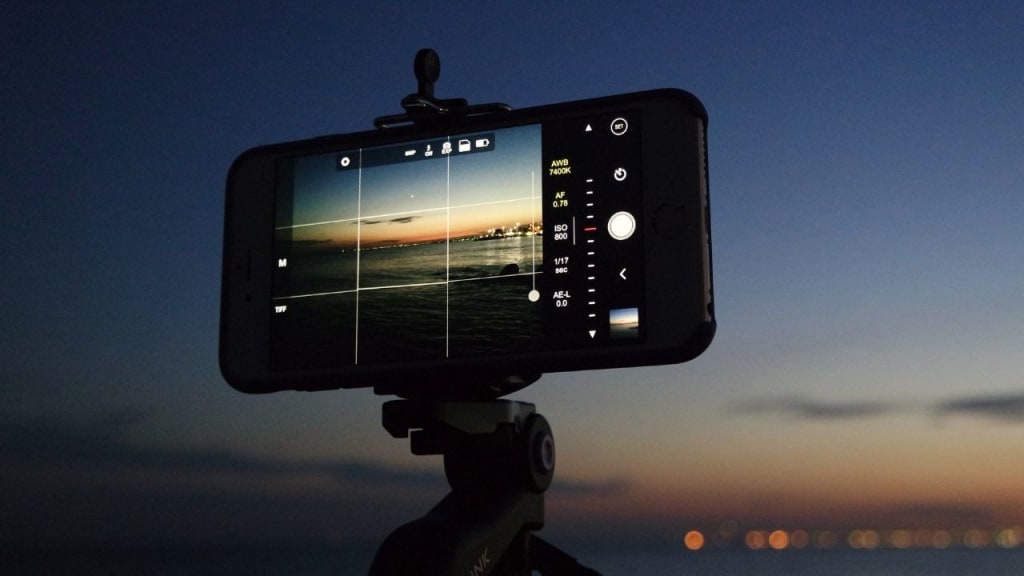
Ever wanted to slow down a video on your iPhone? Maybe you're trying to catch that perfect moment or just create some cool effects. I've been there, and I've got you covered.
Let's dive into the easiest ways to make your videos move in slow-mo, right from your pocket. No fancy equipment needed, just your trusty iPhone.
Slowing Down Videos with the Photos App
This is your go-to for quick and easy edits:
- Open Photos and find your video
- Hit that "Edit" button in the top right
- Look for the speed icon (looks like a speedometer) at the bottom
- Drag the slider left to slow things down
- Hit "Done" to save your masterpiece
Using iMovie for More Control
Want a bit more flexibility? iMovie's got your back:
- Fire up iMovie and start a new project
- Chuck your video in there
- Tap the clip in the timeline
- Hit the speed button up top
- Slide left to slow it down
- When you're happy, export that bad boy
Third-Party Apps for the Win
Sometimes you need the big guns. Try these apps for even more control:
- Videoshop
- SlowMoVideo
- FilmoraGo
They all work pretty similarly - import, find the speed controls, and slow it down. But they might have some extra tricks up their sleeves.
How to Shorten a Video on iPhone
Ever find yourself with a video that's just a bit too long? No worries, I've got you covered. Let's dive into how to trim down those videos right on your iPhone.
Using the Photos App
This is your quickest fix:
- Open Photos and find your video
- Tap "Edit" in the top right corner
- At the bottom, you'll see a timeline. Grab those yellow handles
- Drag them in to cut off the parts you don't want
- Hit "Done" to save your trimmed video
iMovie for More Control
Want to get a bit fancier? iMovie's your friend:
- Open iMovie and start a new project
- Add your video to the timeline
- Tap the clip to select it
- Drag the edges in to trim it down
- When you're happy, export your shortened masterpiece
Third-Party Apps for Extra Features
Sometimes you need more options. Try these:
- InShot
- Videoshop
- Splice
They all work similarly - import your video, trim it down, and export. But they might have some cool extra features to play with.
Pro Tips for Slick Slow-Mo
- Use high frame rate vids for the smoothest slow-mo
- Don't forget about the audio - slow that down too if it sounds weird
- Export in high quality to keep things crisp
Remember, practice makes perfect. Play around with different speeds and see what looks best. Before you know it, you'll be the slow-mo king (or queen) of your friend group.
Got any other video editing questions? Hit me up in the comments. Let's keep creating epic content!
FAQs
Q: Will trimming my video affect its quality?
A: Nope, trimming just removes parts of the video. It doesn't change the quality.
Q: Can I undo a trim if I make a mistake?
A: In the Photos app, you can revert to the original anytime. In other apps, it's best to save a copy before editing.
Q: How short can I make my video?
A: As short as you want! There's no minimum length.
Q: Can I trim multiple sections from one video?
A: Yep! Use the "Split" tool in iMovie or a third-party app to cut out multiple sections.
Q: Will trimming a video save storage space on my iPhone?
A: It can, especially if you trim a lot off. But for major space savings, you might want to compress the video too.
About the Creator
Epic Tech Tips
EpicTechTips makes technology simple with concise guides, tips, and tutorials. Enhance your digital life by optimizing your devices, securing your data, and staying updated on tech trends. Join us at EpicTechTips and master your tech world.
Keep reading
More stories from Epic Tech Tips and writers in Lifehack and other communities.
How to Crop a Video on iPhone: Quick and Easy Methods
Ever shot a video and wished you could zoom in or cut out the edges? You're not alone. Cropping videos on iPhone is a game-changer for creating focused, eye-catching content. Whether you're tidying up your holiday clips or prepping for social media, I've got you covered. Let's dive into the simplest ways to crop your iPhone videos without breaking a sweat.
By Epic Tech Tips2 years ago in Lifehack
“A Father’s Love, Written in Silence”
My father was not a man of many words. In our house, silence often spoke louder than conversation, and most of that silence belonged to him. While other fathers laughed loudly, told stories, or offered advice in long speeches, mine expressed himself through actions so quiet that, for years, I failed to notice them.My father was not a man of many words. In our house, silence often spoke louder than conversation, and most of that silence belonged to him. While
By NAIB REHMAN2 days ago in Lifehack
How Wi-Fi Networks Are Hacked: The 2026 Guide to Wireless Crack & Defense
Wi-Fi Under Siege: Understanding Wireless Network Vulnerabilities and Building a Secure Perimeter PASS WIFI represents a next-generation wireless network hacking solution developed under rigorous quality and security management frameworks. This AI-enhanced application facilitates comprehensive examination of wireless communication protocols through sophisticated algorithmic processing, enabling detailed network security assessment and connectivity analysis capabilities.
By Alexander Hoffmann5 days ago in Lifehack
After the Storm
After the storm of winter snow there sat a small bear by the name Ted, of course. He loves the snow and likes to roll around in it making all sorts of trails and whatever he has a mind to do. He wondered where all the people are, but in a way, he is hoping that they are all snug in the homes maybe drinking hot chocolate-one of his favorite drinks with mini-marshmallows and eating something homemade for he likes this winter wonderland all to himself to romp and play and maybe even catch some fish down by the river.
By Mark Graham6 days ago in Fiction




Comments
There are no comments for this story
Be the first to respond and start the conversation.