
How to Clear App Cache on iPhone
Enhancing iPhone Performance by Clearing App Cache
As iPhone users, we often find our devices slowing down over time or running out of storage space. One of the common causes of these issues is the accumulation of app cache. App cache consists of temporary data stored by applications to improve their performance and speed. While this data can be helpful in the short term, it can build up and consume a significant amount of storage, leading to performance problems and reduced storage capacity.
Clearing app cache is a simple yet effective way to enhance your iPhone's performance and free up valuable storage space. Regularly clearing cache can also resolve various app-related issues, such as crashes or slow responses. This guide will walk you through the steps to clear app cache on your iPhone, ensuring your device runs smoothly and efficiently.
Understanding app cache is crucial for effectively managing your iPhone's performance and storage. App cache consists of temporary data that apps store to enhance their functionality and speed up processes. For instance, web browsers like Safari save website data to load pages faster during subsequent visits, while social media apps store images and videos locally to reduce loading times. Although caching improves the user experience by making apps run more efficiently, it can also lead to storage bloat over time as more data accumulates. This excessive cache can slow down your device and consume significant storage space, leading to potential performance issues.
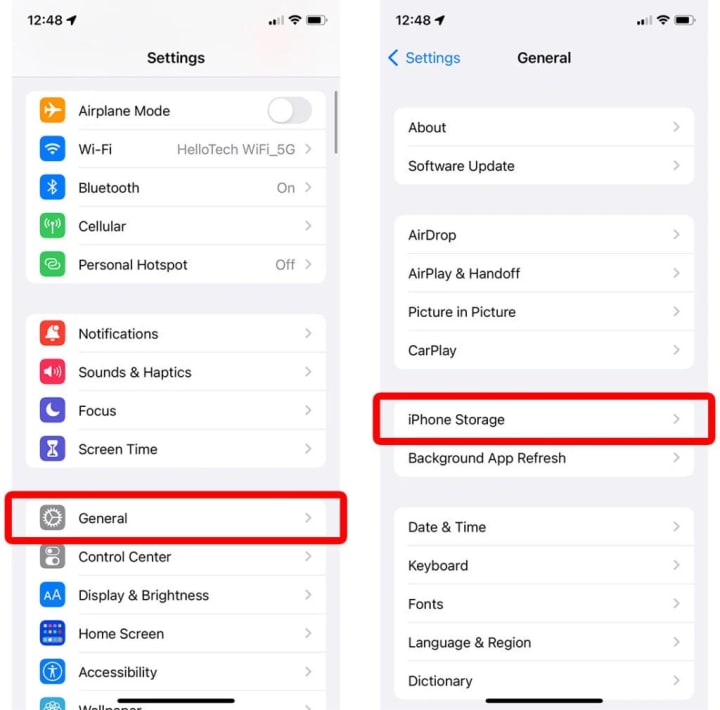
To check storage usage on your iPhone, start by opening the Settings app, which is represented by a gear icon. Once in Settings, scroll down and select "General," then tap on "iPhone Storage." This section provides a comprehensive overview of how your device's storage is being utilized. You'll see a color-coded bar graph at the top, which breaks down the types of data-consuming space, such as apps, photos, media, and system files. Below the graph, there's a list of all installed apps, organized by the amount of storage they occupy. By tapping on an individual app, you can view more detailed information, including the app size, documents and data, and the option to offload or delete the app. This detailed storage breakdown helps you identify which apps are taking up the most space and need their cache cleared or may need to be offloaded or deleted to free up storage.
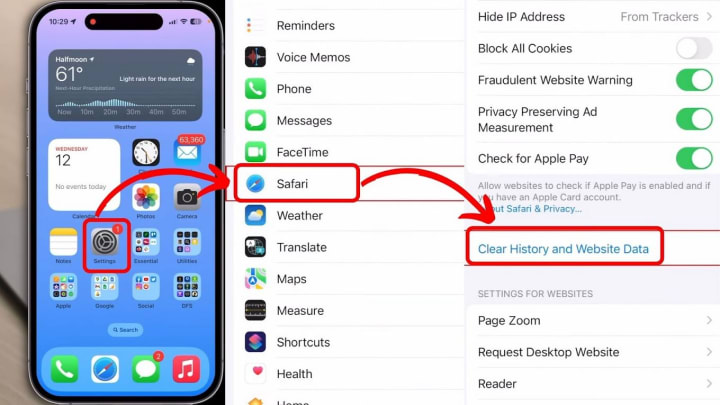
Clearing app cache on an iPhone can be achieved through several effective methods. One straightforward approach is to clear the cache of Safari, the default web browser. To do this, open the Settings app, scroll down to Safari, and tap "Clear History and Website Data." For other apps, you can offload unused apps, which removes the app but retains its data, making it easy to reinstall later without losing your information. This can be done by navigating to Settings > General > iPhone Storage, selecting the app, and tapping "Offload App." Another method involves deleting and reinstalling apps, which completely removes all associated data and cache. To delete an app, press and hold its icon until it jiggles, then tap the "Delete App" option; reinstall the app from the App Store afterward. Additionally, third-party apps are available that can help manage and clear cache more comprehensively, though it's essential to choose trusted ones to ensure security and effectiveness. These methods collectively help maintain optimal performance and free up storage on your iPhone.
While clearing app cache on your iPhone can significantly improve performance and free up storage, there are a few potential issues to be aware of. First, clearing the cache can result in the loss of temporary data that some apps use to operate smoothly. This might include login credentials, game progress, or personalized settings, which means you might have to re-enter information or reconfigure your preferences after the cache is cleared. Additionally, not all apps provide a straightforward way to clear their cache, which can be frustrating and may require deleting and reinstalling the app entirely. Furthermore, if the cache is not cleared properly, some app-related problems might persist, necessitating more drastic measures like a factory reset or contacting Apple Support for assistance. Despite these potential inconveniences, regularly managing app cache is generally beneficial for maintaining your iPhone's overall performance and storage efficiency.
About the Creator
Keep reading
More stories from amaan anderson and writers in Lifehack and other communities.
How to resell tickets on Stubhub or Ticketmaster
Ticket reselling has become a popular way for individuals to sell tickets they can no longer use or to profit from high-demand events. Platforms like StubHub and Ticketmaster offer secure and user-friendly environments for buying and selling tickets, ensuring a safe transaction for both sellers and buyers. This guide aims to provide a detailed overview of how to effectively resell tickets on these platforms, from setting up your account to successfully completing a sale. Whether you're a seasoned reseller or new to the practice, this guide will equip you with the knowledge and tips needed to maximize your success and avoid common pitfalls.
By amaan anderson2 years ago in Trader
Autonomy Is The Real Privilege
Good morning, freedom-seekers! Today we’re gonna be looking at autonomy. A strange word, I know; one many would probably look at blankly and run away from on sight. We’re gonna figure out what it actually means, consider how it’s achieved, and decipher just how deeply most of us are tangled up in dependence without realising it.
By That ‘Freedom’ Guy5 days ago in Humans




Comments
There are no comments for this story
Be the first to respond and start the conversation.