
How to Automate Image Conversion and Save Hours of Work
Here, we will talk about the image conversion and save hours of work with the best automate image converter.
If you work with photos a lot, as for web design, eCommerce, marketing, or photography, you've definitely spent a lot of time changing, resizing, or renaming them by hand. Doing this by hand is boring, makes mistakes, and takes a long time.
The good news? With the correct tools, you can fully automate picture conversion. This can save you hours of labor each week and give you more time to focus on more creative or strategic activities.
You'll Learn in This Guide:
- Why it's important to change images.
- How automation works.
- The greatest tools for quickly converting images.
Why it's Important to Convert Images
Images can be in a lot of different formats, such JPEG, PNG, BMP, TIFF, WebP, and more. Each one has its own strengths:
- JPEG is a small file size, perfect for pictures.
- PNG supports transparency, works well for icons and logos.
- WebP is a new format that balances quality and compression quite well.
- TIFF is a high-quality format for photographers to store their work.
- When you get photos ready for a website (WebP or JPEG for speed), you might need to change the format.
- Sending photos with a lot of detail to print (TIFF or BMP).
- Sharing files between platforms that need certain formats.
- Making files smaller so they can be sent by email or posted on social media.
It's okay to convert a few files by hand, but when you have to do hundreds or thousands, the only way to stay sane is to automate the process.
The Power of Making Images Automatic Automation of conversion means utilizing software to: Process a lot of files at once.
Use the Same Settings on All of Your Images.
Put output files in the right folder and give them the right name.
- You can resize, compress, or add a watermark to photographs while they are being converted.
- This implies you won't have to open files one at a time anymore.
- You don't have to save each file by hand anymore.
- Less formatting or sizing problems.
- Projects will be done faster.
For example, a photographer with 500 RAW photographs can set up a mechanism that automatically converts all of them to JPEG.
Best Tools for Automating Image Conversion
Here are some of the greatest tools for the job, both paid and free open-source ones.
1. XnConvert works on Windows, macOS, and Linux.
The people that made XnView also made this great free batch image converter.
Features:
- It can read more than 500 different types of images.
- Resize, crop, rotate, and add watermarks in bulk.
- Save settings for tasks you do often.
- Works on many different platforms.
Best For:
People who seek a free choice with a lot of features and excellent batch editing options.
2. Adobe Photoshop (Batch Actions) for Windows and macOS
Photoshop is mostly a photo editor, but its Actions and Batch Processing features can automate processes that require converting images over and over.
Pros:
- Very adaptable (you can change the size, colors, and effects during converting).
- Works nicely with design workflows that are already in place.
Cons:
- If you only require simple conversion, it's expensive.
- It takes time to learn how to set up batch actions.
3. Windows IrfanView
A quick, light picture viewer that can also convert a lot of images at once.
Features:
- Works with common formats.
- Rename and resize in bulk.
- There are a lot of plugins that add more features.
Best For:
Windows users who require a compact, quick tool that can accomplish simple tasks automatically.
4. ImageMagick (for Windows, macOS, and Linux)
A command-line tool for advanced users that want the most control.
Features:
- You can change almost any image format.
- Complete automation through script conversions.
- More advanced options, such as color profiles, filters, and more.
Best for: system admins, developers, and anyone who know a lot about computers.
5. Softaken Image Converter for Windows
Softaken Image Converter is a good option for both people and corporations if you want a simple, dependable solution for image conversion. It can change photos from one format to another, such as WEBP, JPEG, PNG, BMP, TIFF, GIF, and more. People can convert hundreds of files at once with the batch conversion. It keeps the quality of the image when it is converted. It has a basic, easy-to-use interface that makes it easy for both technical and non-technical users to utilize it without needing any technical knowledge. This image converter will work with all versions of Windows and comes with a free trial version.
What Makes It Unique:
This Image Converter is only for converting images, therefore there aren't any extra features that get in the way. It's great for people who want to set it up quickly and get the same results every time without having to change anything.
Step-by-Step Guide of Image Conversion
- Get the Image Converter and launch it on Windows OS.
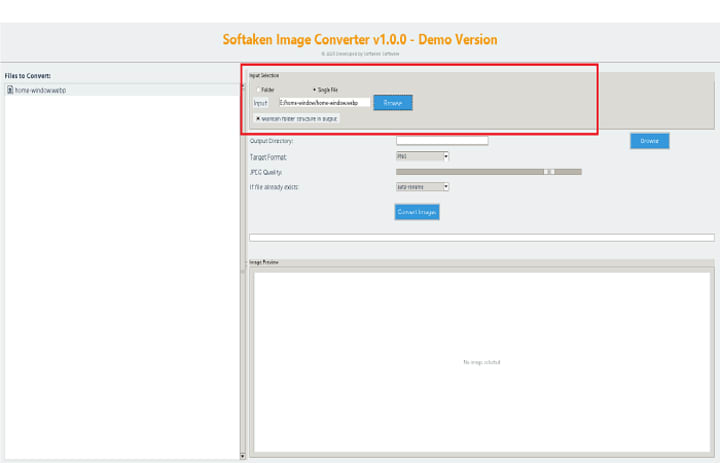
- Choose one folder or more than one file to work on.

- Choose the format you want (JPEG, PNG, etc.).

- If you need to, change the quality, size, or compression.
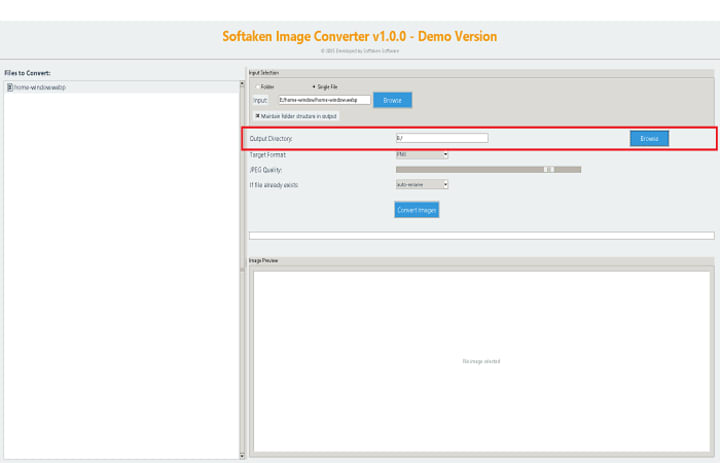
- Choose a place to save the files that were changed.
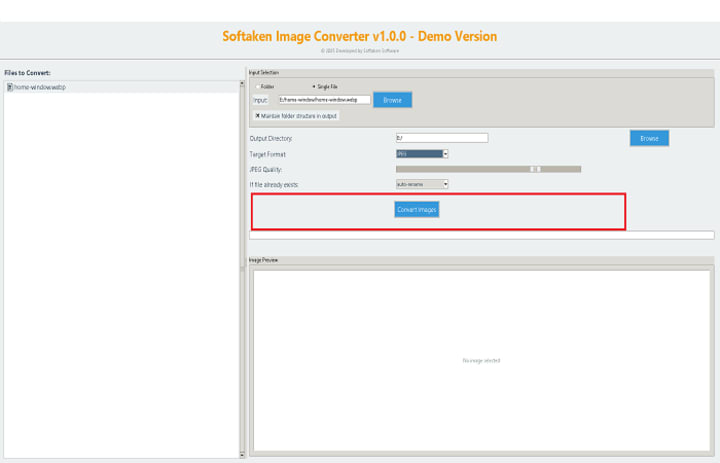
- Press the "convert" button and let the software do the rest.
The Best Ways to Automate Image Conversion
- Use Presets: Most tools allow you save your favorite settings so you can use them again quickly.
- Check the quality of the output. Before converting hundreds of files, try a small batch first.
- Organize Folders: Keep the original and transformed photos in different folders.
- Backup Originals: Always make a backup before overwriting source files.
Think about making your format future-proof by picking formats like WebP or PNG that will work with most things.
Conclusion
It's great to convert images by hand for little jobs, but for big jobs that happen all the time, automation is a game-changer. The correct tool can save you hours every week, whether you use Softaken Image Converter because it's easy to use, XnConvert because it's free and flexible, or ImageMagick because it gives you developer-level flexibility. Start automating today if you want to be more efficient. Your future self will thank you.
About the Creator
Keep reading
More stories from Robert Thoms and writers in Lifehack and other communities.
Best Free Video Converters for PC and Mac 2025
In 2025, digital content is more diverse and difficult than ever. If you want to edit YouTube videos, post clips to social media, or just play a file on your favorite device, you need a reliable video converter. But how can you pick the finest one when there are so many? This is especially true if you don't want to spend any money.
By Robert Thoms6 months ago in Lifehack
Five Books You Should Have In Your Prepper Library
Part of being a prepper is being prepared, and your preparation should start with your library. While there are a lot of books you could have in your library, there are some obvious ones that should be in every preppers’ library, but it’s easy to forget some important books. These books should make your life a little easier, as they’re chock full of good advice and good information; they can be valuable additions to any library. Keep them on hand, and you can deal with any situation.
By Jamais Jochima day ago in Lifehack
What Is DTF Printing? A Beginner's Guide to Direct to Film Technology
DTF printing is a digital printing method that transfers full-color designs onto fabric using a special film as an intermediate carrier. Unlike traditional screen printing or direct-to-garment methods, DTF (Direct to Film) allows you to print vibrant graphics on nearly any fabric type, making it increasingly popular among custom apparel creators.
By Adria Hargravea day ago in Lifehack



Comments
There are no comments for this story
Be the first to respond and start the conversation.