
Introduction
Computers and laptops have become a necessary element of everyday life. If you're a working professional or a student, your job is not complete without computers. But everyone encounters a significant issue when they work on them. That is the overheating issue!
We sometimes have the extremely frustrating problem of computers overheating. Heating issues might also arise when we resume our work on our CPU and give an additional load on it.
Furthermore, when we work, several components in our computer heat up, resulting in malfunctioning of the PC.
Methods To Fix
Warm air is trapped within the shell if the CPU vents are clogged with dust, causing your computer to overheat.
The system contains tiny fans to boost airflow and match the CPU's cooling requirements. Therefore, if your computer has a poor cooling system, it will definitely become hot.
Follow these precise techniques to prevent overheating so that your computer may operate freely, effectively, and without lag:
Check Thermal Paste Of Your System
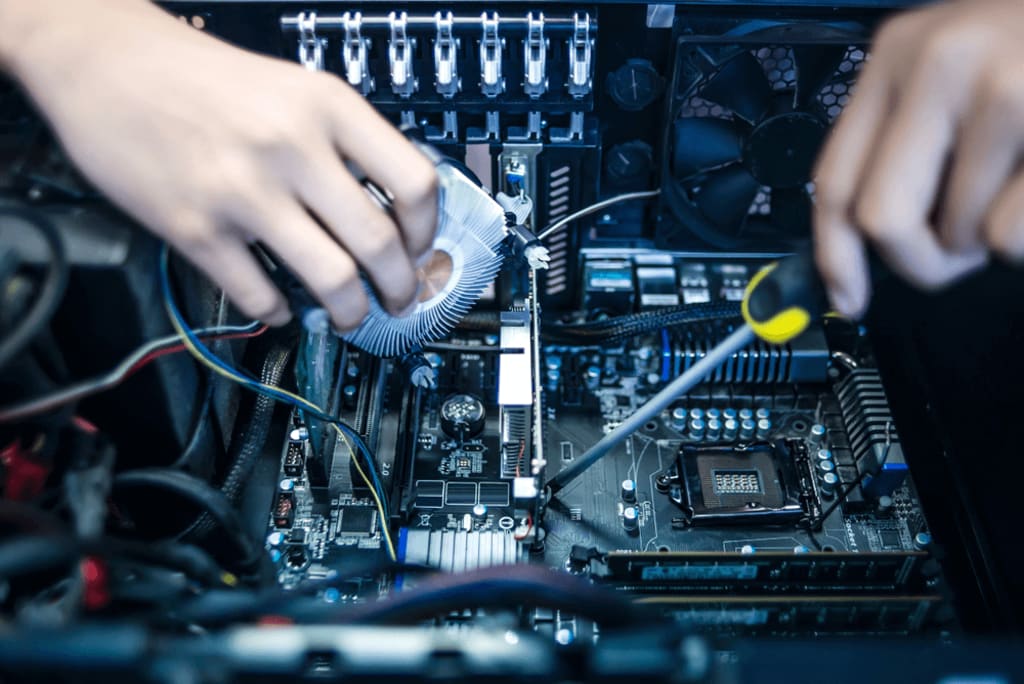
Not replacing the thermal paste on your CPU is the most fundamental cause of computer overheating. One of the causes of the overheating might be the old thermal paste losing its effectiveness. If the thermal paste dries out too much, it may not be able to transmit heat as efficiently. If this occurs, your computer's components could not get the necessary cooling. Because of this, it is conceivable that in these uncommon situations, a "poor" or very dry thermal paste would fail to siphon heat, leading to a buildup in the chips. Therefore, you should replace the thermal paste in order to prevent overheating problems.
Prevent Overclocking
By accelerating the CPU, overclocking allows you to make your computer operate more quickly. As a result, the CPU and GPU will run more rapidly, producing greater heat. Another typical error that causes overheating is this one.
Disk Cleanup From Third-Party Apps
Because Disk Cleanup won't delete files created by specific programs, the built-in Windows cleaning tools won't be able to eliminate almost all of the clutter concealed on your computer. Instead, you can clean a PC with software designed to clean out the files created by hundreds of different programs. Less processing is required when fewer files are on the computer, preventing overheating.
Cleaning The Dust
Cleaning the dust from the computer's fan is the fundamental rule for avoiding overheating. The CPU will overheat if there is too much dust in the casing or close to the fan. Clean the case's front and rear fans and the one near the power supply.
Also read: upcoming technology driven changes in accounting firms
Upgrade CPU Fan
This is a practical method for keeping your system from overheating. The upgraded CPU fan will help your computer run more efficiently while also extending the life of other PC parts.
Check The System’s Cooling Functionality
When used, computer components often produce heat. The heat created by the operating PC components is cooled using a cooling system.
If your computer is idle or not in use, the CPU will produce and circulate heat, increasing the temperature.
A further scenario is that you used the process of dust removal to keep your computer at a low temperature, but the problem of computer overheating persisted. The operation of a cooling system may then experience a problem.
Set A Reasonable Power Option
Try not to leave the CPU running continuously at maximum capacity. If not, the CPU's temperature will rise. Your PC may avoid overheating by using a suitable power management strategy. For example, setting the time for the display, hard drive, and system waits to switch off helps save both power consumption and system heat.
You may spend money on a new cooling system for your computer to solve the overheating problem.
Symptoms Of Overheating
Since it is impossible to monitor and keep an eye on the CPU temperature constantly, the following common overheating signs will aid in your diagnosis:
Fans are operating quickly and with much noise.
Basic programs are impossible to use and take an eternity to open.
The user encounters the dark screen mode.
Although the machine starts rebooting, it quickly shuts down on its own within a shorter period of time.
There are streaks and pixelated lines on every window, including the heating in the graphic card.
Also read: Technology Development: Technology Assessment
Conclusion
Computers have become increasingly widespread lately; everyone owns a computer. So, it is vital to grasp the fundamental working of a PC. The users should know what to do when their computer operates slowly or has any form of malfunction. If the PC user overlooks these concerns, the machine may have significant problems, resulting in extra complexities. To prevent such scenarios, keep the pc optimized and clean. Using all these strategies to reduce overheating would result in a smooth and efficiently-running PC.
About the Creator
Keep reading
More stories from Jameson lewis and writers in Lifehack and other communities.
Reasons to Invest In Mobile App Development - Latest Guide
With an increase in mobile users, mobile marketing is becoming more and more popular than traditional forms of marketing. In addition, technology has undergone significant changes due to the digital age. Because of this, innovative developments in mobile applications have emerged as one of the critical facets of life. So, developing a mobile marketing strategy is essential in scaling and growing companies.
By Jameson lewis4 years ago in Journal
How to Build a Home Gym You’ll Actually Use (Not One That Collects Dust)
Building a home gym sounds simple: buy some equipment, set it up, and train whenever you want. In reality, many home gyms end up unused after the initial excitement fades. The problem usually isn’t motivation or discipline—it’s design.
By Enrique Navarro7 days ago in Lifehack
If You’ve Always Done What You’ve Always Done
At the start of 2025, I started to post articles on my website under the category of ’52 Guiding Lights.' The goal was to share insights on sayings and idioms that aid daily life. I got up to number 16. The goal is to publish these as a management aid. However, we plan to release them in smaller batches, such as 12 at a time. That’s a year’s worth.
By Calvin London2 days ago in Lifehack
How, Too
Many people wonder how, too. You are not alone, and I am an expert. I will teach you how, too! First, you need to remit a small application fee and fill out an application describing the nature of your financial situation and how often payments will be made, as this will have great bearing on how well I teach you how, too.
By Harper Lewis3 days ago in Fiction



Comments