
A Comprehensive Guide: Formatting an External Hard Drive on the Mac or PC
Maximize Your External Hard Drives: Unlocking Their Full Potential

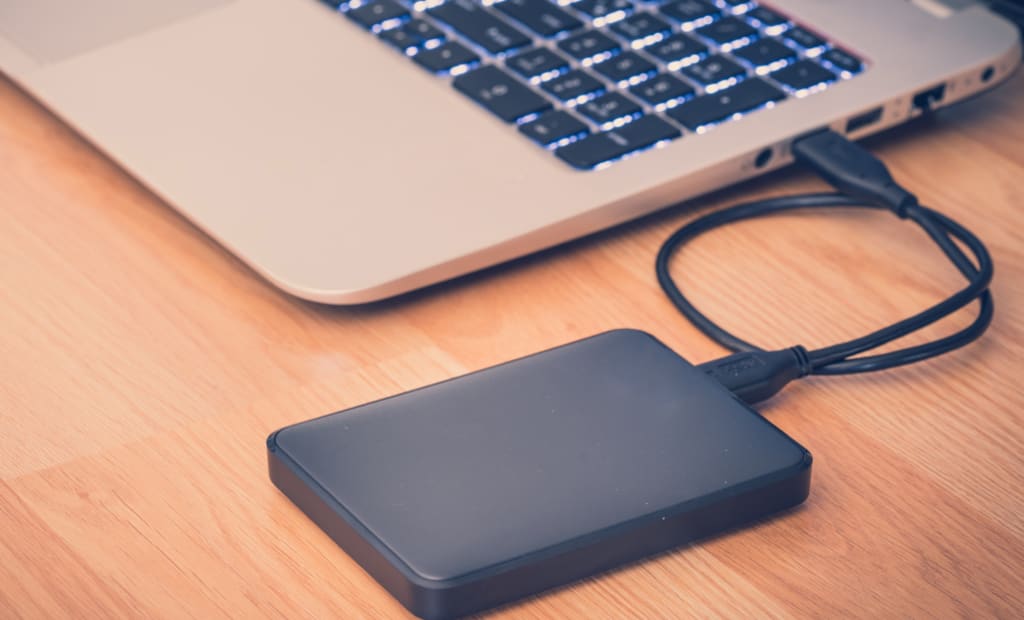
Part 1. Making an External Hard Drive Compatible with Mac and PC: A Non-Formatting Approach
Ensuring cross-platform compatibility for an external hard drive without the need for formatting can be achieved through a technical solution. Most external hard drive manufacturers utilize the NTFS (New Technology File System) format as the default due to Windows' ubiquity. However, this format poses challenges for users seeking to use the same drive on both Mac and Windows systems, as NTFS drives are read-only on Mac, restricting file modification.
To address this limitation, a professional NTFS driver for Mac, like iBoysoft NTFS for Mac, offers a solution. This driver enables seamless write access to NTFS drives on Mac, bypassing the read-only constraint. iBoysoft NTFS for Mac is compatible with macOS Ventura to High Sierra, and it supports Macs equipped with M1, M1 Pro, M1 Max, and M2 chips.
Instructions:
Step 1. Download and Install iBoysoft NTFS for Mac: Obtain the iBoysoft NTFS for Mac software and complete the installation process on your computer.
Step 2. Connect the NTFS External Drive to Mac: Connect your NTFS-formatted external hard drive to your Mac, and the iBoysoft NTFS for Mac utility will automatically mount the drive.
Step 3. Enable Read-Write Mode: Once the drive is mounted, iBoysoft NTFS for Mac will enable read-write mode for the NTFS external disk, granting you the ability to write and modify files directly from your Mac.
Part 2: Formatting an External Hard Drive (Instructions for Mac Users)
To format an external hard drive on your Mac for data storage, employ the integrated disk management tool, Disk Utility. Prior to proceeding, address any issues like the drive being greyed out or not detected in Disk Utility. Notably, the formatting process will irreversibly erase all data, necessitating a backup of important files on the external drive.
Follow these technical steps to format the external drive using Disk Utility:
1. Connect the External Hard Drive:
Establish a connection between the external hard drive and your Mac, prompting automatic mounting.
2. Launch Disk Utility:
Access Disk Utility through the Launchpad, navigating to the "Other" folder and selecting "Disk Utility."
3. Select the External Hard Drive:
Identify your target external hard drive or volume within Disk Utility, and utilize the "Erase" button at the top of the window.
4. Customize Disk Format and Scheme:
Modify the disk name and opt for the desired file format and scheme for the external hard drive.
5. File Format Selection:
For macOS 10.13 or later, prioritize APFS due to advanced features, superior performance, and efficient data management. However, bear in mind its sole compatibility with macOS.
For cross-platform compatibility with both Mac and PC, choose either FAT or exFAT as they are supported by both macOS and Windows. Other formats are exclusive to Mac usage.
Scheme Selection:
During formatting, choose from three schemes:
- GUID Partition Map: Compatible with Intel-based Mac computers, often preferred for broader compatibility.
- Master Boot Record: Utilized for Windows partitions formatted as MS-DOS (FAT) or exFAT.
- Apple Partition Map: Applied for compatibility with older PowerPC-based Mac computers.
6. Confirm the Formatting:
After specifying the partition parameters, confirm the formatting process by clicking the "Erase" button at the bottom of the window.
7. Completion and Exit:
Upon the successful completion of the formatting process, click "Done" to finalize the steps. You may now exit Disk Utility.
Part 3. How to Format an External Hard Drive (Instructions for Windows Users)
To format your external hard drive on a Windows PC, utilize the Disk Management utility, akin to formatting on Mac. Follow these concise technical steps:
1. Format the External Drive with Disk Management on Windows:
2. Locate the Target External Hard Drive in Disk Management:
Access Disk Management and identify the target external hard drive. Verify initialization; if not initialized, right-click the drive, choose the desired style (MBR or GPT), and right-click again, selecting "Format" from the contextual menu.
3. Set Disk Information in the Format Partition Screen:
In the Format Partition screen, configure disk details such as allocation unit size, volume label, and format. For cross-platform compatibility with macOS and Windows, select FAT or exFAT as the format.
4. Initiate the Formatting Process:
Click "OK" to initiate the formatting process.
Part 4. What File System Format is Most Suitable for My External Hard Drive?
Selecting the ideal file system for an external hard drive is critical, as it impacts data management and compatibility across various devices. Several file formats are available, each offering distinct advantages and disadvantages. Understanding these attributes is essential before formatting a hard drive for Mac and PC. Let's explore the key features of each file system:
Option 1. FAT32
Pros: Universal compatibility with all Mac, Windows, Linux machines, game devices, and devices supporting USB ports.
Cons: Limited to file sizes smaller than 4GB and drive partitions smaller than 32GB on Windows. Drive partitions larger than 2TB not supported on macOS. Lacks security features and prone to disk errors.
Option 2. exFAT
Pros: Supports large partitions and files larger than 4GB. Compatible with both Mac and Windows.
Cons: Incompatible with certain older operating systems. Not ideal for drives under 32GB due to suboptimal cluster size arrangement.
Option 3. NTFS
Pros: Offers improved performance, reliability, and data security through encryption, access permission control, and log file features.
Cons: Read-only on macOS, and unstable third-party write support. May require third-party tools for partition resizing on Windows.
Option 4. Mac OS Extended (HFS+)
Pros: Supported by all Mac OS X and macOS 10.12 versions. Includes journaling, compression, and encryption features.
Cons: Lacks access permission control and exhibits slow performance with large numbers of files. Data recovery can be challenging if the HFS+ drive becomes corrupted.
Option 5. Apple File System (APFS)
Pros: Provides full-disk encryption with single or multi-key encryption for enhanced security. Efficiently manages free storage space and protects against corruption from system crashes.
Cons: Incompatible with Time Machine backup due to no support for hard links to directories. Limited to macOS High Sierra and later versions.
For cross-platform usage between Mac and Windows, opt for either FAT32 or exFAT. If the external drive will be used primarily on one operating system, consider using APFS for Mac and NTFS for Windows to maximize their respective features. Note that third-party programs may be required to enable NTFS support on Mac or APFS support on Windows.
About the Creator
The 2026 Complete Guide to Legitimate Wi-Fi Password Recovery: Methods, Tools & Protection
Disclaimer: This article is for educational purposes and legitimate password recovery only. Always obtain proper authorization before accessing any network. Unauthorized network access violates laws in most jurisdictions.
By Alexander Hoffmann5 days ago in Lifehack
The Calm Within the Chaos: How Grounding Yourself Can Change Your Life
I know what it feels like to wake up already overwhelmed, as if the day is asking more from you than you have to give. Your phone lights up, your thoughts speed up, and your body tightens before anything has actually gone wrong.
By Anie Liban4 days ago in Lifehack


Comments
There are no comments for this story
Be the first to respond and start the conversation.