
What are Precautions While Converting OST to PST
Precautions while Converting Process From OST to PST
Introduction
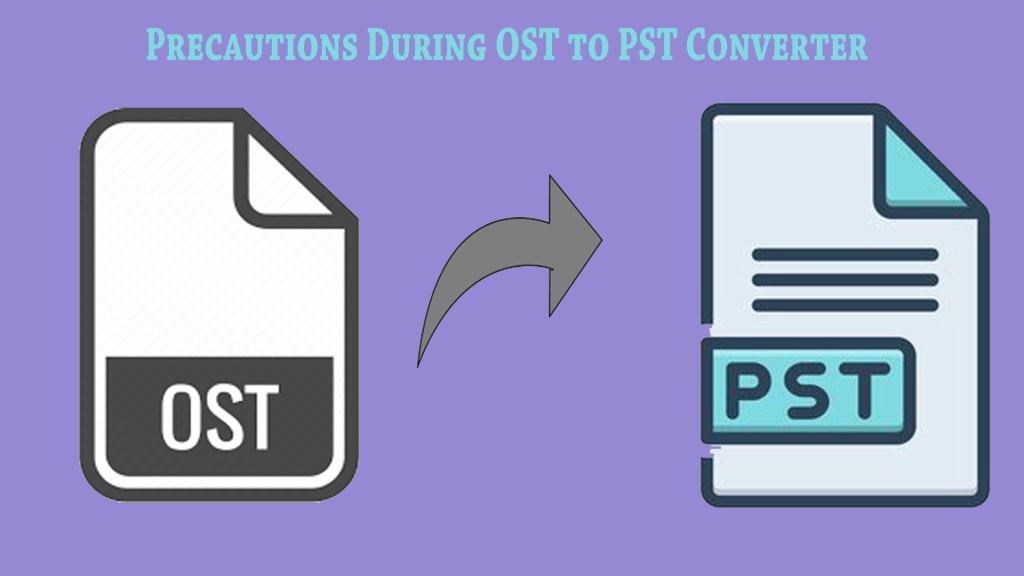
In the realm of email management, OST and PST are two crucial file formats utilized by Microsoft Outlook. OST, or Offline Storage Table, allows users to work in offline mode, syncing changes when reconnected to the internet. On the other hand, PST, Personal Storage Table, stores copies of messages, calendar events, and other items within Microsoft Outlook software.
The need to convert OST files to PST format arises when users want to migrate data or access OST file data on a different computer. However, this process can pose risks to the integrity and safety of your data if not handled correctly.
This article sheds light on important precautions while converting OST to PST, thus ensuring a smooth and safe conversion process. You'll learn about maintaining backups, verifying OST file integrity, securing sufficient storage for the converted PST file, and more. These precautions will help mitigate potential risks and ensure your data remains intact during this critical operation.
DOWNLOAD NOW
What are the OST and PST Files
OST (Offline Storage Table) and PST (Personal Storage Table) files are two critical components within the Microsoft Outlook ecosystem. To describe OST, it is an offline folder file in Microsoft Outlook. It is essentially a local copy of your mailbox data stored on a server. This allows access to emails, calendar entries, and other data even without internet connectivity.
On the other hand, to describe PST, it is a personal folder file in Microsoft Outlook. Unlike OST, it doesn't require connection with the mail server. All your emails, attachments, contacts, calendars, notes, journal entries etc., are stored within this file type which can be easily accessed and managed.
These files serve as lifelines for users who need to access their email data frequently. Therefore, understanding them is crucial before attempting any form of conversion.
Precautions During OST to PST Conversion Process
When undertaking the delicate task of converting OST to PST, it's important to follow certain precautions to safeguard your data and ensure a successful conversion process.
1. Backing up the Original OST File: Before starting the conversion, make a backup of your original OST file. This acts as a contingency plan, allowing you to recover data if anything goes wrong during the conversion process.
2. Verifying the Integrity of the OST File: Prior to conversion, it is crucial to verify that the OST file is not corrupted. You can use Outlook's inbuilt ScanOST.exe tool for this purpose. If corruption is found, repair the file before proceeding.
3. Ensuring Sufficient Storage Space for PST File: Double-check that your system has sufficient storage space to accommodate the new PST file. Lack of space could lead to incomplete conversion or corruption of the PST file.
4. Avoiding Interruption During Conversion: The conversion process requires an uninterrupted power supply and system operation. Any interruption could lead to a failed conversion or data loss.
By adhering to these steps, you can reduce risks associated with OST to PST conversion and ensure a smooth and successful process.
Manual Methods for Converting OST to PST
When it comes to converting OST to PST, manual methods are available and often require no additional software. However, it's essential to approach these methods with caution as they carry the risk of data loss if not performed correctly.
Method 1: Exporting OST Data to a New PST File
This technique involves creating a new PST file and exporting all the data from the existing OST file into it.
- Open Outlook on your system.
- Go to the 'File' menu, select 'Options', then 'Advanced'.
- Click on 'Export', which will lead you to an Import/Export wizard.
- In the wizard, select 'Export to a file', then click 'Next'.
- Choose 'Outlook Data File (.pst)', then click 'Next' again.
- Select the mailbox that you want to export, then click 'Next'.
Browse where you want to save the new PST file, choose the desired options, and click 'Finish'.
Remember, always ensure that Outlook is connected to the Exchange server during this process and there is adequate storage space for the new PST file.
Advantages: This method is free and does not require any third-party tools.
Limitations: There is a risk of data loss if not performed correctly, and certain items like metadata and attachments may not get exported.
Method 2: Using the 'Import and Export' Feature in Outlook
Another method of converting OST files into PST involves using Outlook's built-in 'Import and Export' feature.
- Launch MS Outlook on your computer.
- From the 'File' tab, choose 'Open & Export', then click on 'Import/Export'.
- In the new window, select 'Export to a file', then hit 'Next'.
- Choose 'Outlook Data File (.pst)', then proceed by clicking on 'Next'.
- Pick the mailbox or folders you wish to export from your OST file.
Determine where you'd like your new PST file saved, choose options as per need, then hit ‘Finish’.
Be aware that during this process, Outlook should remain connected with Exchange Server until completion.
Advantages: This method does not require any external tools and can be done freely.
Limitations: The process can be time-consuming for large OST files and there are chances of incomplete data transfer if interrupted.
While these manual methods can be useful, they come with limitations that could affect your data integrity or even lead to data loss if precautions are not taken into account. Next, we delve into professional tools that offer a safer alternative for converting OST to PST.
Professional Method for Converting OST to PST
When the manual methods seem complex or time-consuming, adopting a professional method can be a viable option. A popular approach in this context is using FixVare OST to PST converter tool.
These tools are designed with advanced algorithms that ensure quick and accurate conversion of OST files to PST.
Benefits of Using a Professional Tool
Using a professional tool for converting OST to PST offers several benefits:
They provide a simple and intuitive interface, making the process easier even for non-technical users.
- They maintain the integrity of data during conversion.
- Most tools offer selective conversion, allowing users to choose specific items from the OST file to convert.
- They support encrypted and password-protected OST files.
However, it's crucial not to overlook the precautions while opting for a third-party tool.
Precautions While Selecting a Tool
While selecting a professional tool for converting OST to PST, consider these points:
- Ensure the tool is from a trusted source.
- Check if it supports your version of Outlook.
- Look for reviews and ratings online before making a purchase.
- Always use the trial version first, if available.
These precautions help avoid complications during or after conversion, ensuring a smooth transition from OST files to PST. The subsequent section will wrap up this comprehensive guide on precautions while converting OST to PST.
Conclusion
The act of converting OST to PST necessitates certain precautions to ensure a smooth and successful process. These include:
- Backing up the original OST file
- Verifying the integrity of the OST file
- Ensuring sufficient storage space is available for the PST file
- Avoiding any interruption during the conversion process
- Selecting a reliable professional tool if opting for third-party assistance
These precautions are not merely suggestions, but crucial steps in safeguarding valuable data against loss or corruption. Remember, taking time to follow these precautionary measures can save much more time troubleshooting later on.
Whether you choose to convert manually or use a professional tool, understanding the implications and best practices of converting OST to PST is essential.
About the Creator
The Quiet Link Between Evening Light and Restless Sleep
For a long time, I believed my restless sleep was caused by what happened in my head. Too much thinking. Too much stress. Too many unfinished thoughts that followed me into the night. I tried calming routines, earlier bedtimes, and stricter boundaries around work. Some nights improved. Many did not.
By illumipure7 days ago in Journal



Comments
There are no comments for this story
Be the first to respond and start the conversation.