
How to Download Spotify Playlist to Windows PC
Available Tips
Spotify serves as one of the biggest popular music streaming platforms in the world. With millions of tracks stocked in its database, it does attract lots of users. The services that are provided by Spotify mainly include Free and Premium. If you choose the first one, you have to bear constant ads and online data consumption all the time. Otherwise, if you are a privileged Premium user, then you will have access to enjoying all the songs online, as well as downloading Spotify Music for offline playing.
However, if you had tried downloading Spotify playlist to PC local, you would find that what you have downloaded are cache files instead of plain formats like MP3 or WAV, etc. It's really annoying that these files could not be played on any devices other than Spotify app.
Is there any way to completely convert Spotify Music to MP3, so that we can directly play offline Spotify songs on PC via Windows Media Player or other apps?
Convert Spotify Music to MP3: TuneCable Spotify Music Downloader
TuneCable Spotify Music Downloader (Windows/Mac) is a powerful and user-friendly software that can help you stream Spotify playlists to the computer. As an old-renowned brand, TuneCable was and is critically acclaimed for its lossless audio quality keeping, complete ID3 tags retaining and 10X fast speed converting, etc. Most importantly, if you have any questions while using the program, free technical support and customer service are always available. Here are some real reviews from customers of TuneCable.
Steps to be followed:
Step 1: Install Spotify Downloader on Computer
First of all, please install TuneCable Spotify Downloader on your computer, then launch it.
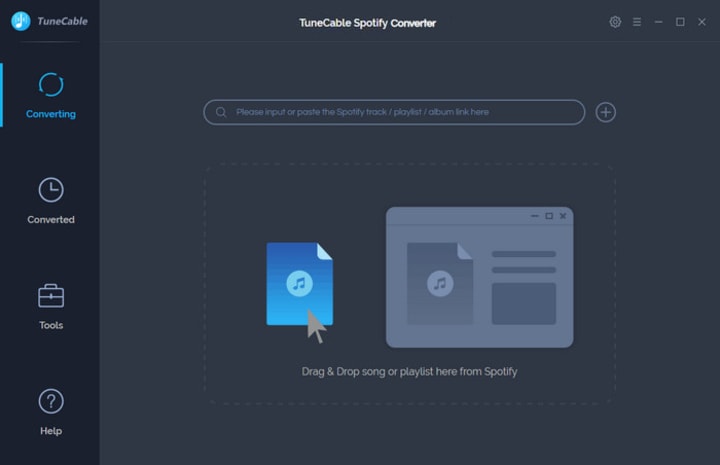
Step 2: Customize Output Parameters
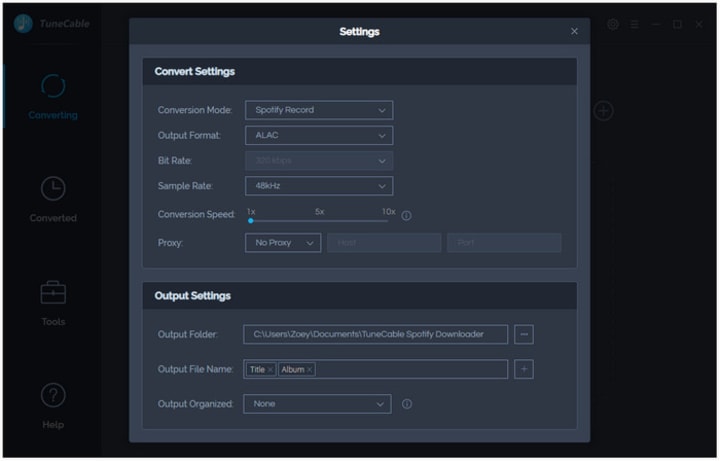
To freely play music on your computer, you need to save downloaded Spotify Music on PC. Click the set parameter(Setting) icon and choose the output format you want to download, then adjust the output quality, conversion mode, output folder, etc., to whatever you like. Close the window to apply your settings.
Convert Settings
Output Format: MP3, AAC, WAV, FLAC, AIFF, ALAC
Conversion Mode: Intelligent Mode, Spotify Record, YouTube Download
Output Quality: 128kbps, 192kbps, 256kbps, 320kbps
Output Settings
Output Folder: You can choose to change it or not
Output Name: {Track Number}, {Title}, {Artist}, {Album}, {Year}, {Playlist Index}
Output Organized: None, Artist, Album, Artist/Album, Album/Artist
TuneCable offers multiple settings matches to meet customers' disparate needs to the largest extent, so users are able to convert music with a set of preferred settings.
Step 3: Stream Spotify Tracks to Download
Now you can open the Spotify and then find your beloved playlist, artist or album. TuneCable supports two importing modes.
① Drag and drop playlist/tracks from Spotify to TuneCable
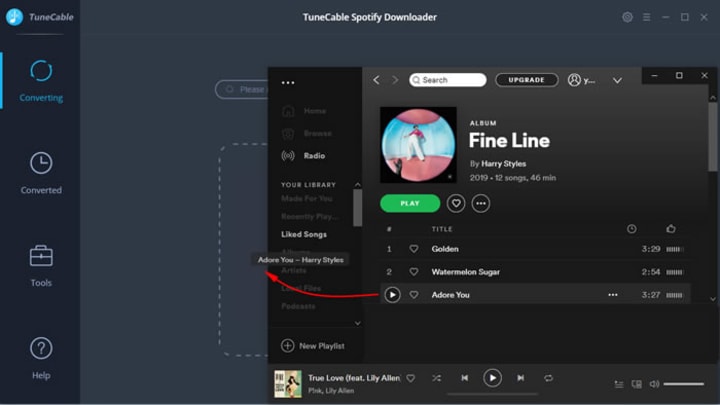
② Copy the link from Spotify (Right click on the tracks and choose 'Share' - 'Copy Link'/'Copy Spotify URL') then paste it to the input box in TuneCable.
Then click on 'Parse' for link analysis. Finally, click 'OK' to confirm your selection.
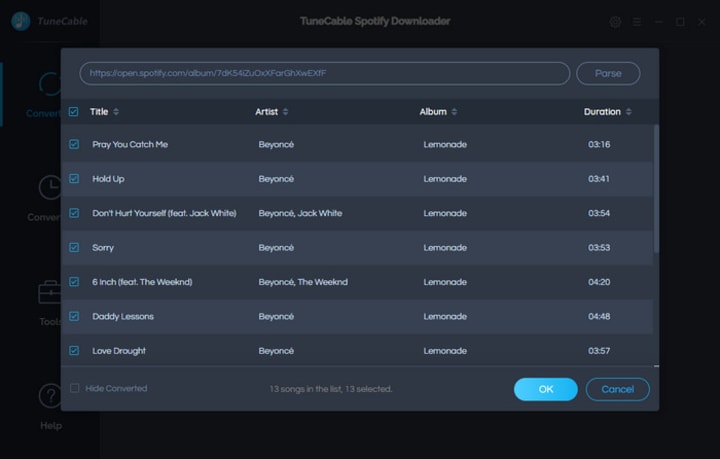
Step 4: Download Spotify Playlists to Windows
In this step, you can click 'Convert' to transfer Spotify Music to PC. Also, if you want to convert more playlists in one time, you can click the '+ Add' button. TuneCable supports converting batches of songs in one time.
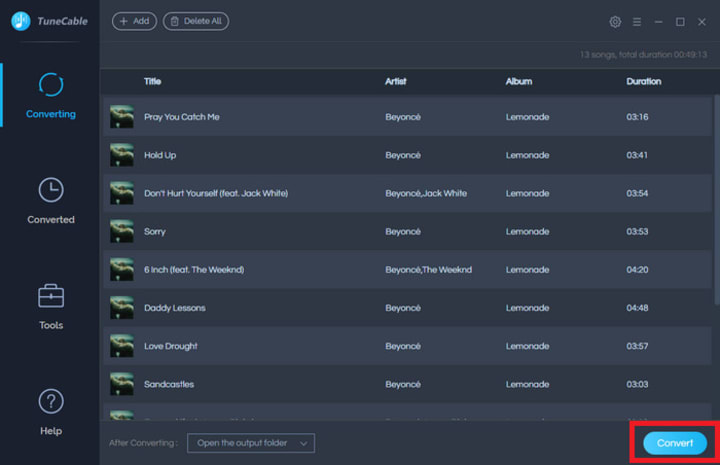
*Tips: Conversion process will be finished at a comparatively fast speed (the speed hinges on the amounts of files) since TuneCable achieves to downloading Spotify songs at 10X speed.
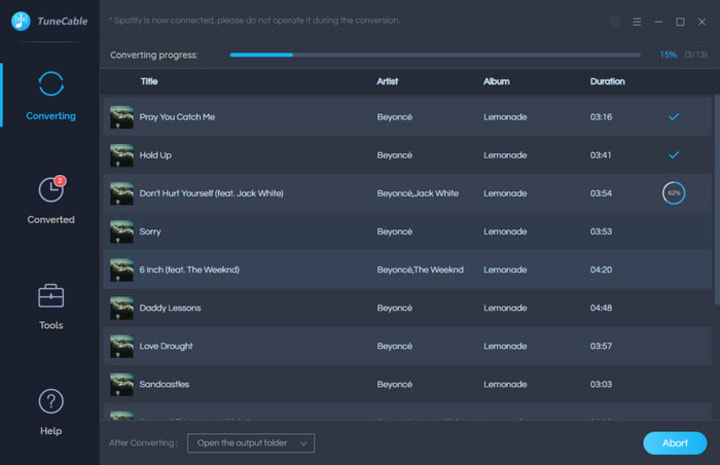
Step 5: Check Downloaded Spotify Songs on Local
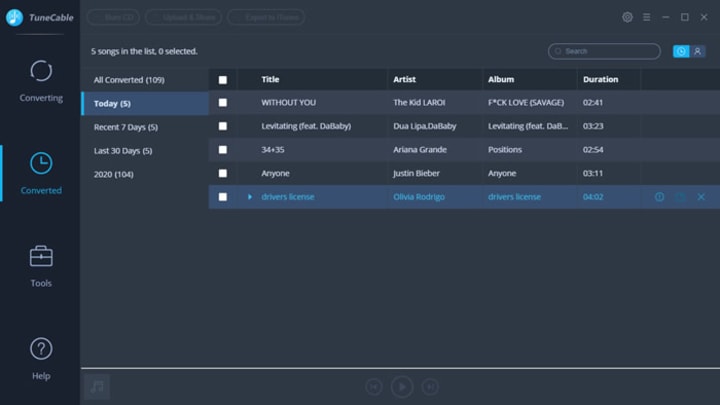
Navigate to 'Converted' module to check downloaded Spotify songs. You can check them by playing the files on TuneCable directly.
And also, you can open the output folder by clicking the open output foldericon of each song to view your music files on your computer. As of now, you've successfully downloaded Spotify playlists to PC local, and you can play them on any other electronic devices that supports playing music. Relax and enjoy it permanently!
Summary:
With a few easy steps on TuneCable Spotify Music Downloader, you can successfully and actually save downloaded Spotify songs on PC. Permanent music files in plain format now are in your hand, so you do not need to worry about anything like expiring Spotify account, data inflow consumption or nettlesome ads.
No matter you are a Free or Premium user of Spotify, once you have TuneCable Spotify Music Downloader, you will alwayed be unexpiredly priviledged.
About the Creator
Keep reading
More stories from Izzy Warren and writers in Journal and other communities.



Comments (1)