
How to Cancel Spotify Premium But Keep Spotify Music Playable
Simple Guide with Detailed Steps
If you want to keep Spotify music playable, but cancel Spotify Premium subscription, this article will definitely help you.
Spotify Premium service needs you to pay an amount at monthly or yearly basis in order to get those specially featured services that come under Spotify Premium Service. But there are music that Spotify allows its users to enjoy without any subscription. It’s their free service.
So if you currently have a Premium plan on Spotify and don’t want to continue with it anymore, you can always switch to the free plan. All it requires is some simple steps that you should follow to cancel your Spotify Premium plan and switch to the free plan. Then you can use the guideline from this article to keep Spotify downloads forever even after canceling your Premium subscription. Let’s see how you can do it, shall we?
Part 1: How to Cancel Spotify Subscription?
If you are a Premium user of Spotify, you can cancel your subscription any time. But if you cancel your Premium subscription of Spotify, you will no longer be able to listen to offline music, and you will start to see commercial ads between the streaming.
Spotify gives service to almost every platform like Windows computers, macOS computers, and even iOS and Android smartphones. Here we will discuss how to cancel the Premium subscription from all the platforms one by one.
But before starting, let us tell you that you cannot cancel the Premium subscription from the mobile apps. If you are having the service from your smartphone, you need to open the official website of Spotify and login to your Spotify account from the browser of your phone.
How to Cancel Spotify Subscription on Windows PC:
If you want to cancel your Spotify Premium subscription from the Windows computer, follow the below-mentioned steps.
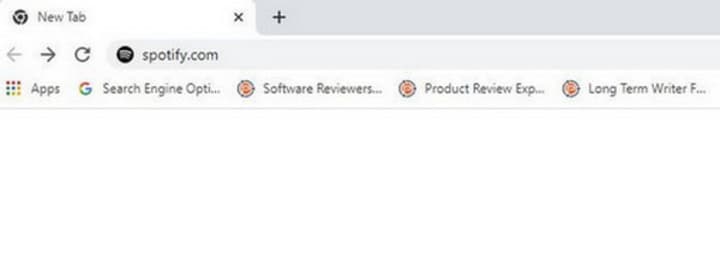
Step 1: Open the internet browser you use. Then you need to type in spotify.com in the address bar and hit Enter.
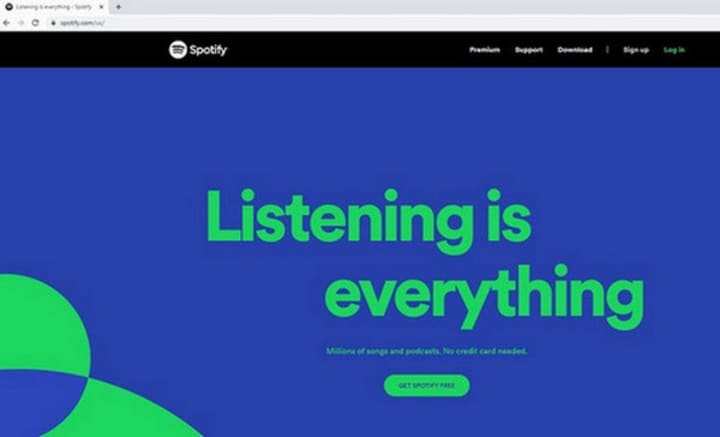
Step 2: When the official site of Spotify will open, click on Log In, which you will find at the top at the right corner of the page.
Step 3: After the successful log in, click on Profile which you will find in the top of the right corner. Now from the drop-down menu, you need to select Account.

Step 4: Now go to Your Plan.
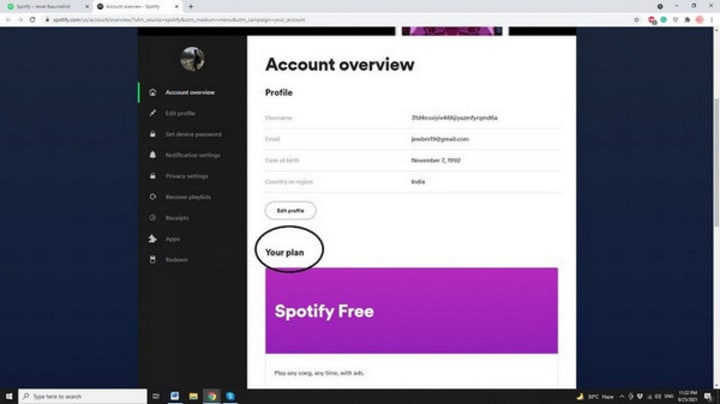
Step 5: Next you need to click on Change Plan. In the newly opened page, go to Spotify Free and click on Cancel Premium.

Step 6: Spotify will notify you what you are going to lose if you cancel the Premium subscription. Click on Continue to Cancel.
Step 7: Finally, to cancel your Premium subscription, click on Yes, Cancel on the page. You have now successfully cancelled your Spotify Premium subscription from your Windows PC.

How to Cancel Spotify Subscription on Mac OS?
The process is same as the process you use to cancel your Spotify subscription on Windows PC.
First, go to your Spotify Account by opening the official site of Spotify in your browser. Then go to Your Plan and click on Change Plan. After that, go to Spotify Free and click Cancel Premium > Continue to cancel > Yes, Cancel. Easy peasy, lemon sqeazy!

How to Cancel Spotify Subscription on iOS Phone?
If you used the Apple App Store while subscribing to the Premium service of Spotify, you can cancel the subscription via your Apple ID settings of your iPhone.
......
How to Cancel Spotify Subscription on Android Phone:
......
Part 2: What will happen after Cancelling Your Subscription?
The first thing we would like to inform that you can re-subscribe to your Premium service of Spotify anytime you want. But if you continue with the freemium plan of Spotify, you will face some sort of changes in the service.
First of all, you will start seeing commercial ads during the streaming. It can be a bit annoying to listen to ads which you do not want to listen to. But if you are using the freemium plan, you are bound to listen to those ads. There are no ways to skip them.
Secondly, you will lose the facility to listen to your favorite music being offline. With Spotify Premium subscription, you are allowed to listen to your favorite songs even on offline mode. But if you switch to the free account, you will no longer be able to listen to offline music.
You won’t be able to download any music if you choose freemium service of Spotify. Moreover, you will lose the access to all the downloaded music as soon as you cancel the Premium subscription.
If you cancel your subscription during an active period of your current Premium plan, it won’t get cancelled then and there. It will get cancelled only after the current billing period is over.
Part 3: How to Keep Spotify Music Playable Even If You Cancel Subscription?
Spotify music remains playable even after you cancel the Premium subscription. But some features get disabled once you switch to the free service of Spotify. But there are tools using which you can access at least some of the features of the Spotify Premium service.
As we know that Spotify restricts the users from accessing the downloaded music as soon as they cancel the Premium subscription, you will need a certain things to listen to the downloaded music.
As the easiest step, you can try to record Spotify music in the open music format. For that, you will need to install a particular software on your device.
One of the worldwide accepted software is TuneCable Spotify Music Downloader. It is a professional Spotify music downloader that records Spotify music and converts those songs into an open format as MP3, AAC, WAV, FLAC, AIFF or ALAC.
Not only that, it keeps almost 100% of the original quality of the music downloaded from Spotify. With the help of this software, you will be able to listen to Spotify music again, and that too without the Premium subscription.
How to Use TuneCable Spotify Music Downloader
Using TuneCable Spotify Music Downloader is a piece of cake. All you need is to install the software on your device, and it will be ready to use. Here are the steps to use the TuneCable Spotify Music Downloader to listen to Spotify music in the offline mode.
Step 1: Download and Register
First, install the software on your device and get registered. Click on the registration icon after downloading the program, and you will have to provide your Email ID and the code that you received upon subscribing to the program.
Step 2: Add Spotify Music to Program
Next, launch the TuneCable Spotify Downloader on your computer. Then, you need to add single tracks or entire playlists from Spotify to the Spotify Converter. Easily drag and place the playlist or tracks to the main interface. You can also copy-paste the playlists link and click on the “Parse” button.

Step 3: Customize Output Setting
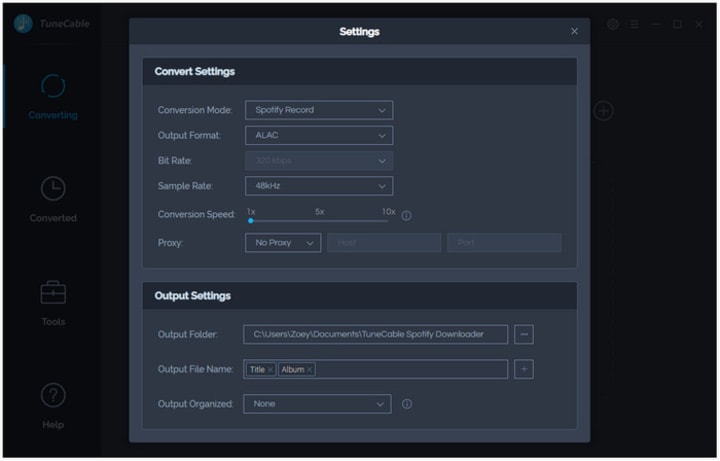
Now, you need to set your output settings for music conversion. TuneCable Spotify Music Converter can convert Spotify Music into MP3, WAV, FLAC, AAC, AIFF & ALAC formats. However, the highest audio quality will be 320kbps. Just click on the “Setting” button and you’ll get a pop up window where you can set the output format, output folder, file name, output quality, speed, etc.
Step 4: Convert Music
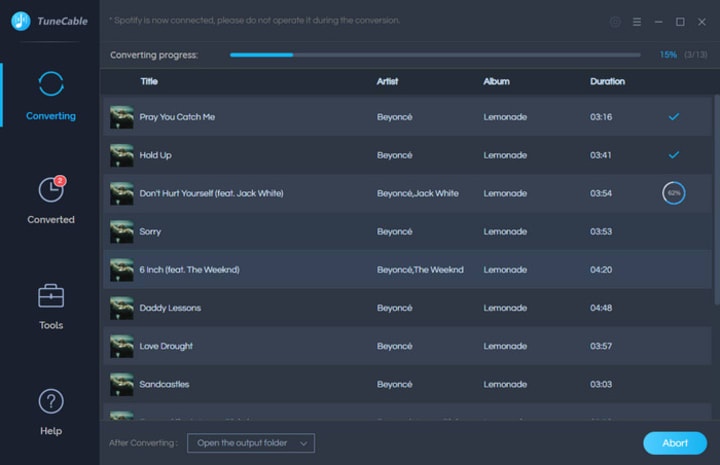
After you have customized the output settings, you can now convert the Spotify music files. Directly click on the “Convert” button to start the conversion.
Step 5: Check Downloaded Music
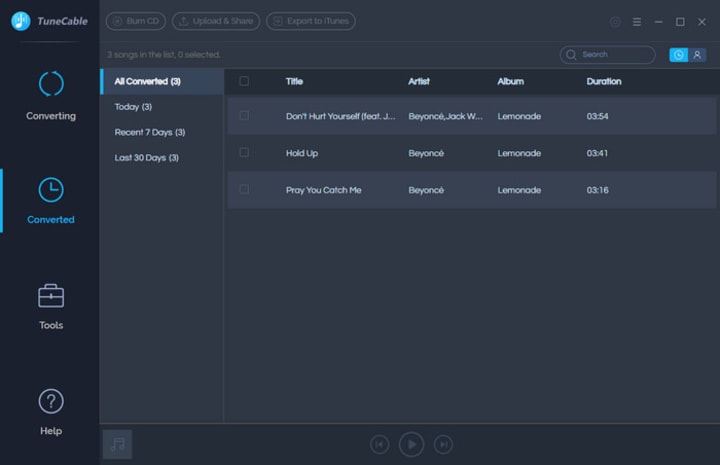
After the conversion process is complete, click on the "Converted" button to find your converted Spotify music file.
Conclusion:
Spotify music is one of the greatest and most loved music platforms of the world right now. Millions of users are satisfied by the service they provide. But sometimes, you might feel that the price of their Premium service is way too high.
In that case, you can always cancel the Premium service of Spotify at any time. We have given all the methods you can use to cancel this service in this article. But let us give you a friendly reminder too. That is, you will lose many features when you cancel the Premium subscription.
But the good news is, there are a lot of ways by which you can avail the features of Spotify Premium service. You can download and listen to the Spotify music offline even if you cancel your Premium subscription. For that, you need the program called TuneCable Spotify Music Downloader. We have given you all the details about this particular software in this article too. Hope this article will be helpful for you, and you will be able to use Spotify as per your wish. All the best!
About the Creator
Keep reading
More stories from Izzy Warren and writers in Journal and other communities.
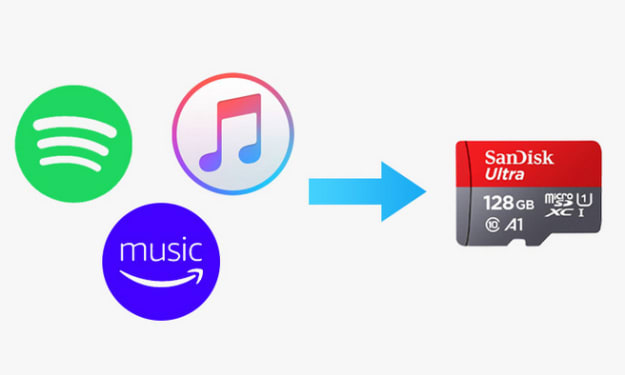
Save Spotify, Apple Music & Amazon Music to SD Card
Almost everyone in this world loves music, and today the best means to hear quality music is either Spotify, Apple Music, or Amazon Music. All of these platforms allow their users to enjoy music through online streaming.
By Izzy Warren3 years ago in Journal



Comments (1)