
Chromium vs. Chrome – What’s the Difference?
Unpacking the key distinctions between Google Chrome and its open-source foundation, Chromium

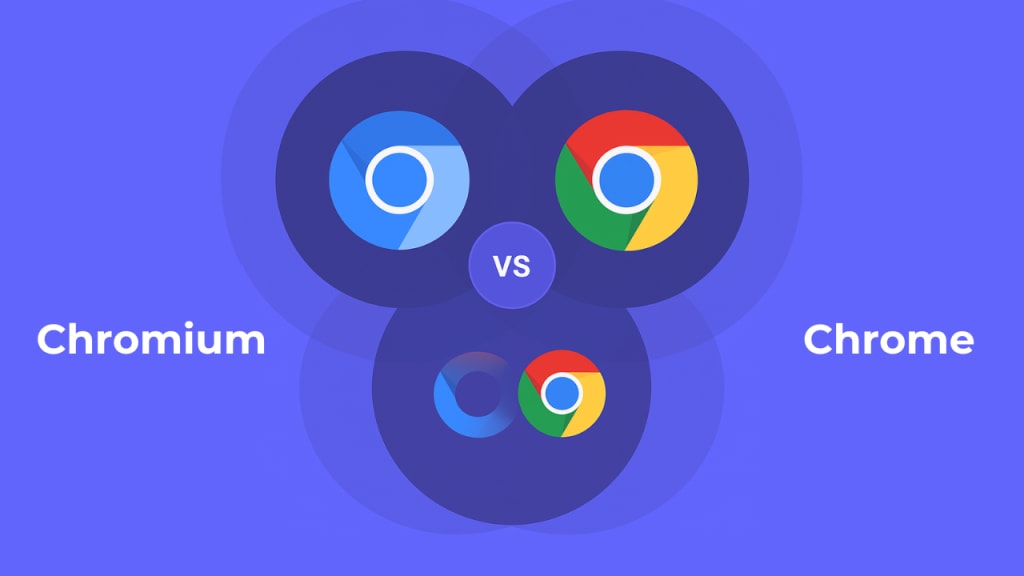
When choosing a browser, it’s easy to default to Google Chrome—it’s everywhere. Have you encountered Chromium and wondered how it differs from Chrome? Despite sharing a name and even much of the same codebase, these two browsers serve different purposes.
This article explores the key differences, advantages and limitations of each browser, and provides guidance on when to use one over the other, depending on your priorities around privacy, stability, performance, or customisation.
Why This Matters
Whether you're a casual user or a web developer, understanding the differences between Chrome and Chromium is important for informed decision-making. Chrome leads the browser market, with a market share exceeding 65%, according to Statcounter data from mid-2020 to mid-2021. That alone makes it the default for web compatibility testing.
Chromium also serves as the underlying engine for several popular browsers, including Microsoft Edge, Opera, and Brave, as well as tools used in modern development workflows.
So, while you may never intentionally download Chromium, you’re likely using software that’s based on it.
What Is Chromium?
Chromium is an open-source browser project developed by Google and maintained by the broader Chromium community. You can download it for free, view the source code, and even modify it if you have development skills.
Google released Chromium alongside Chrome back in 2008. Chrome is built using Chromium’s source code, but with extra layers of proprietary code on top.
Chromium provides the open-source foundation of Chrome, without Google's proprietary additions. The following outlines what Chromium includes and what it lacks compared to Chrome:
What You Get with Chromium
- A fast, minimalist browser built for developers and open-source enthusiasts
- No dependency on a Google account or baked-in telemetry
- Full control over privacy settings and browser data
- Freedom to install extensions from any source—not just the Chrome Web Store
- Frequent (often daily) updates directly from the Chromium Project
What You Miss Out On
- No automatic updates—you’ll need to manage versioning manually
- Limited media codec support (H.264, AAC, MP3 often excluded) unless compiled in manually
- No built-in Flash support (deprecated entirely by 2021 anyway)
- Lacks Chrome’s built-in PDF viewer and print preview capabilities
- Some security features, like sandboxing, may be disabled by default
- No official Chromium-branded sync features for bookmarks, history, or passwords
If you're using Linux, you might already have Chromium pre-installed. It's the default browser in many distributions and can easily be installed from the software repository.
How to Download Chromium
To try Chromium:
- Visit the official Chromium download page
- The page detects your OS and provides the right installer
- On Linux, you can find Chromium in the Software Center (e.g., Ubuntu Software Center > Search > Install)
If you want to test older versions, you can browse the Last Known Good Revision list on the download page.
What Is Chrome?
Google Chrome is a proprietary web browser developed and maintained by Google. It’s based on Chromium but comes with features that Chromium doesn’t include—primarily for usability, media support, and integration with Google’s ecosystem.
What You Get with Chrome
- Automatic updates that keep you secure and stable
- Inbuilt support for media codecs like MP3, H.264, and AAC—crucial for video and audio playback
- Flash Player and PDF viewer included
- Built-in syncing with your Google Account across devices
- Chrome Web Store access for extensions
- Sandboxing enabled by default for added security
- Supports Digital Rights Management (DRM), enabling secure playback on services such as Netflix
What You Should Know
- Chrome tracks browsing data and crash reports by default—this helps Google personalise ads
- You can reduce this tracking by using Incognito Mode, but it’s not a complete privacy solution
- You can’t edit Chrome’s source code or modify it to build your own browser
An introduction to the new Chrome for Testing
This short video from Test Evolve explains how to use the new Chrome for Testing browser variant in automated test workflows.
An introduction to the new Chrome for Testing - Test Evolve
How to Download Chrome
Getting Chrome is straightforward:
- Visit www.google.com/chrome
- The website automatically detects your operating system
- Click download and install—it takes just a few moments
Chrome is available across Windows, macOS, Linux, Android, and iOS.
Practical Considerations: When to Use Chrome vs. Chromium
Here’s how to decide between the two, depending on how you use your browser:
Choose Chromium If:
- You value privacy over convenience
- You’re a developer or advanced user who wants to customise your browser
- You prefer open-source software and want transparency
- You’re on Linux and need a lightweight browser that doesn’t tie into Google’s ecosystem
Choose Chrome If:
- You want a stable, easy-to-use browser with all features ready out of the box
- You stream content frequently on Netflix, YouTube, or similar services
- You prefer automatic updates and minimal setup
- You rely on Google services like Drive, Gmail, and Docs
A Closer Comparison: Chrome vs. Chromium
1. Privacy & Tracking
- Chrome: Tracks user data and crash reports to improve services; offers Incognito Mode for private sessions.
- Chromium: No user tracking built-in; better suited for privacy-conscious users.
2. Updates & Maintenance
- Chrome: Automatically updates in the background.
- Chromium: Requires manual updates; not ideal for casual users.
3. Media & Flash Support
- Chrome: Supports popular codecs (H.264, MP3, AAC) and has Flash support built-in.
- Chromium: Lacks media codec support by default and no Flash plugin; you must install codecs manually.
4. PDF & Print Features
- Chrome: Comes with an inbuilt PDF viewer and print preview.
- Chromium: These features are missing—you’ll need workarounds or plugins.
5. Extension Support
- Chrome: Supports only extensions from the official Chrome Web Store.
- Chromium: Allows broader extension support, including unofficial sources.
6. Performance & Stability
- Chrome: Generally more stable and resource-heavy due to extra features.
- Chromium: Lighter, but may be more prone to crashes.
7. Security
- Chrome: Sandboxing and security patches are managed and updated automatically.
- Chromium: Some Chromium builds, particularly those distributed via Linux package managers, may have sandboxing disabled or require manual configuration. Chrome, by contrast, includes it enabled by default.
Website Testing: Why This Difference Matters to Developers
If you’re developing or testing websites, Chrome is non-negotiable due to its dominant user base. Here are a few methods to ensure cross-version testing:
- Download older Chrome versions for manual testing—this works but is time-consuming.
- Platforms like BrowserStack, LambdaTest, or Test Evolve—which integrates with these providers—can simplify the process by providing access to multiple browser versions and environments.
- Simulators can be useful during early development but do not replicate real-world conditions such as network variability, memory consumption, or battery performance.
If you’re targeting Chrome users—and you likely are—you should test on both recent and legacy versions.
Which Browser Should You Use?
Your choice boils down to what you value most:
- Choose Chrome if you want a ready-to-go browser with stable updates, full media compatibility, and Google account integration.
- Choose Chromium if transparency, privacy, or alignment with open-source environments—such as Linux distributions—is a priority.
Both have their place—and now you have the context to choose the one that fits yours.
About the Creator
How to Spend 3 Days in Trincomalee
Trincomalee remains the understated anchor of Sri Lanka’s northeast coast. Unlike the well-trodden southern beaches, "Trinco" offers a raw collision of maritime history, Chola-dynasty ruins, and world-class marine biodiversity. This three-day guide balances the town’s spiritual heritage with its wild, deep-water adventures.
By Jeewanthi Armstronga day ago in Journal




Comments
There are no comments for this story
Be the first to respond and start the conversation.