
Bulk Export of Outlook Contacts to Multiple Formats: Is It Possible?
Export Outlook Contacts to Multiple Formats

Microsoft Outlook is one of the most popular email and calendar platforms in the world and is used by millions of businesses and individuals. One of the most important features that Outlook offers is its ability to manage contacts. Whether it's for personal use or as part of a business's customer relationship management system, having access to your Outlook contacts in different formats can be extremely useful.
Whether you need to migrate your contacts to a new platform, back them up, or easily use them in another application, converting your Outlook contacts to multiple file formats is something many users need to do.
But is it possible to export Outlook contacts in bulk to multiple formats simultaneously? In this blog post, we will explore the different methods of exporting Outlook contacts, the file formats supported, and what tools or workarounds are available to achieve a multiple-format export.
Why Export Outlook Contacts?
Before diving into how to bulk export contacts from Outlook, it’s helpful to understand the common reasons people need to do this:
- Transfer to New Email Services: When switching to a new email platform (for example, Gmail, Apple Mail, or another CRM system), exporting contacts from Outlook and importing them into the new platform can simplify the process.
- Format Compatibility: Sometimes, users need their contacts in specific formats, such as CSV for importing into Excel or vCard (.vcf) format for syncing with mobile phones or other devices.
- Third-Party Integration: Many third-party applications, like marketing automation tools or CRM systems, need contact data in specific formats for integration purposes.
Supported File Formats for Exporting Outlook Contacts
Outlook supports several file formats for exporting contact data. The most common formats include:
- CSV (Comma-Separated Values): This format is commonly used for transferring data between applications like Excel or Google Sheets, and it is supported by a wide range of programs and email platforms.
- A PST (Personal Storage Table) file is a backup file format used by Outlook. It contains contacts, emails, calendars, and other data from Microsoft Outlook. However, PST files are not easily compatible with other programs or platforms.
- vCard (.vcf): The vCard format is used for storing contact information such as name, address, phone number, and email. This format is widely supported by mobile devices and other contact management systems.
- HTML: An HTML file allows you to export your contacts into a webpage format. While not as commonly used for data transfer, it could be useful in certain scenarios where you need to display your contacts in a browser.
- PDF: Outlook does not support exporting contacts directly to PDF format. However, you could manually create a PDF from your contacts (for example, by printing the contacts to a PDF), but this wouldn't allow for easy importing into another program.
- MSG: The MSG file format is used for individual Outlook emails, not contacts. You can not export a contact file to MSG files directly.
- WAB: The WAB file format is associated with Windows Address Book (used in earlier versions of Outlook Express and Windows Mail), but it's not used by current versions of Outlook. Outlook contacts can be exported to CSV or PST, but not directly to WAB.
Methods to Export Contacts from Outlook
To understand how to bulk export Outlook contacts, let’s go over the process for exporting to the most commonly used file formats.
1. Exporting Contacts to CSV Format
The CSV format is probably the most versatile and widely accepted. Here's how to export contacts from Outlook to a CSV file:
#For Outlook Desktop:
- Start Outlook and click the File menu.
- Choose Open & Export, then click Import/Export.
- Next, tap Export to a file and press Next.
- Select Microsoft Excel or Comma Separated Values as the file type and click Next.
- Choose Contacts from your Outlook folders, and click Next.
- Choose a location to save the CSV file, give it a name, and click Finish.
You might need to map fields to ensure that the data is exported in the correct format.
#For Outlook.com (Web Version):
- Log in to your Outlook.com account.
- Click the Gear tab in the above-right corner and press View all Outlook settings.
- Go to General > Privacy and data > Export.
- Click Export contacts and choose whether to export all contacts or a specific group.
- The contacts will be exported as a CSV file, which you can download.
2. Exporting Contacts to vCard (.vcf) Format
The vCard format is ideal for sharing individual contacts or transferring contacts between devices, like smartphones. However, exporting all contacts as a vCard is a bit more cumbersome than exporting to CSV.
#For Outlook Desktop:
- Open Outlook and go to your contacts.
- Select the contacts you want to export.
- Right-click on one of the selected contacts, then click Forward Contact.
- Choose As a Business Card (vCard format).
- Save the data contacts or send it to yourself as an attachment.
#For Outlook.com (Web Version):
- Log in to Outlook.com.
- Press the People button in the lowest corner.
- Select the contacts you wish to export.
- Click Manage > Export.
- Choose Export to a vCard format.
3. Exporting Contacts to PST Format
The PST file format is basically used for backing up all Outlook data, including contacts, emails, calendar events, etc. This is best for archiving or migrating Outlook data but isn't as universally compatible as CSV or vCard.
For Outlook Desktop:
- Click File > Open & Export > Import/Export.
- Press Export to a file and hit Next.
- Press the Outlook Data File (.pst) and tick Next.
- Select the Contacts or any other folder you want to export.
- Choose the path where you need to save the PST file and hit Finish.
4. Exporting Contacts to Other Formats
HTML Format: This is not a common format for exporting contacts directly from Outlook, but users may create custom scripts or third-party tools to convert CSV or other contact files into HTML.
Bulk Export to Multiple Formats: Is It Possible?
By default, Outlook doesn't support exporting contacts to multiple formats at the same time. However, users can combine multiple approaches or use third-party tools to streamline the process.
Workarounds for Multiple Format Exports via Software
The simplest approach is to export contacts to each desired format separately. This means exporting once to CSV, once to vCard, and so on. This takes longer but is the easiest method.
There are the best third-party tool available that can simplify the process of exporting contacts in multiple formats simultaneously. like SysTools Outlook Contacts Export Tool, allow you to export contacts in various formats (including CSV, vCard, and PST, PDF, MSG, etc.) in bulk. These tools often offer additional features, such as batch exporting, mapping custom fields, and choosing different export options.
Just Few Steps to Export of Outlook Contacts to Multiple Formats
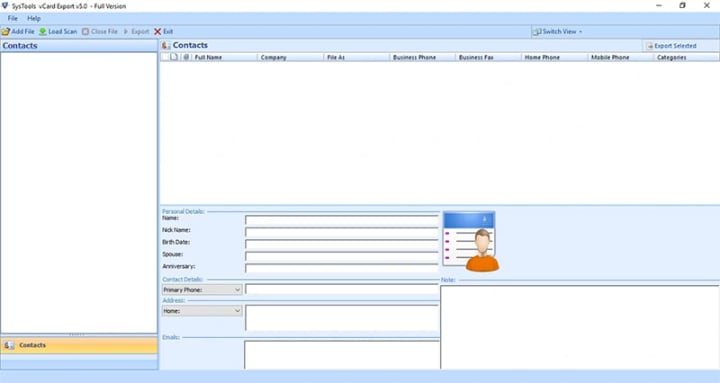
- First download the vCard Export software.
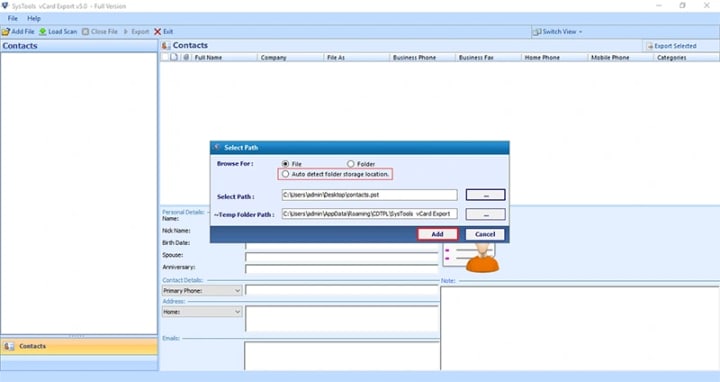
- Select the Add PST Contact File and then preview selected contacts.
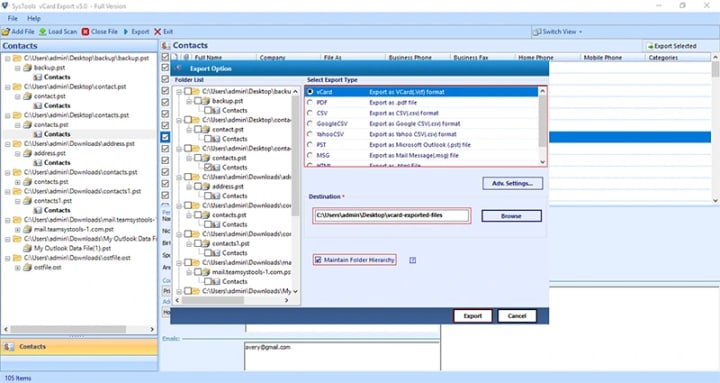
- Choose the desired export options.
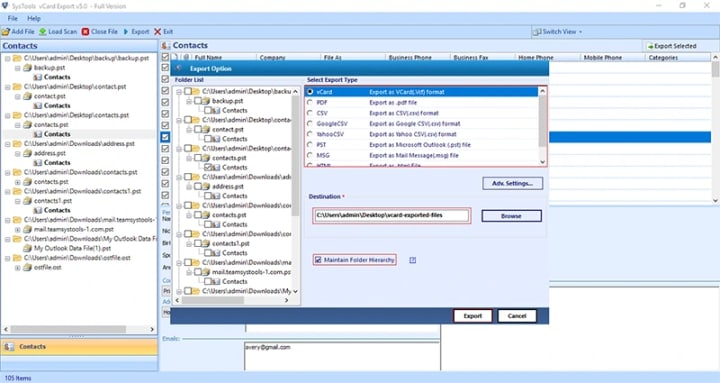
- Now, click on the export button to begin Outlook contacts conversion.
Conclusion
While Outlook doesn’t natively support exporting contacts to multiple formats simultaneously, there are several ways to achieve this goal using the tools and methods mentioned above. Exporting contacts in bulk is essential for managing large datasets, transferring information, or simply keeping backups. By using the right file formats and approaches, users can effectively export Outlook contacts to a variety of formats, making it easier to work with their contact data across different platforms and applications.
Whether you’re a casual user or an enterprise managing hundreds or thousands of contacts, having the ability to export your contacts in bulk and in the right format is an important skill.
About the Creator
Keep reading
More stories from Elle Stephen and writers in Journal and other communities.
How do I Recover Permanently Deleted Files from Hard Drive?
In today's digital age, files on your hard drive are more than just bits and bytes; they are often critical data that can represent years of hard work, memories, and essential information. Losing this data can feel devastating, especially when files are deleted permanently. However, all may not be lost. Understanding how to recover permanently deleted files from hard drive can help you reclaim that crucial data.
By Elle Stephenabout a year ago in Journal
LBMA Precious Metals Analyst Survey Sees Silver Well Above $100, Wide Range for Gold, New Highs for PGMs
The latest LBMA Precious Metals Analyst Survey has sent strong signals across global commodity markets, projecting an exceptionally bullish long-term outlook for silver, a wide and uncertain price band for gold, and fresh highs for platinum group metals (PGMs). Compiled from leading analysts, banks, traders, and industry experts, the survey reflects growing confidence that structural shifts in the global economy are redefining the role of precious metals beyond traditional safe-haven demand.
By Salaar Jamali5 days ago in Journal


Comments
There are no comments for this story
Be the first to respond and start the conversation.