
How do I Recover Permanently Deleted Files from Hard Drive?
RecoverDeleted Files from Hard Drive
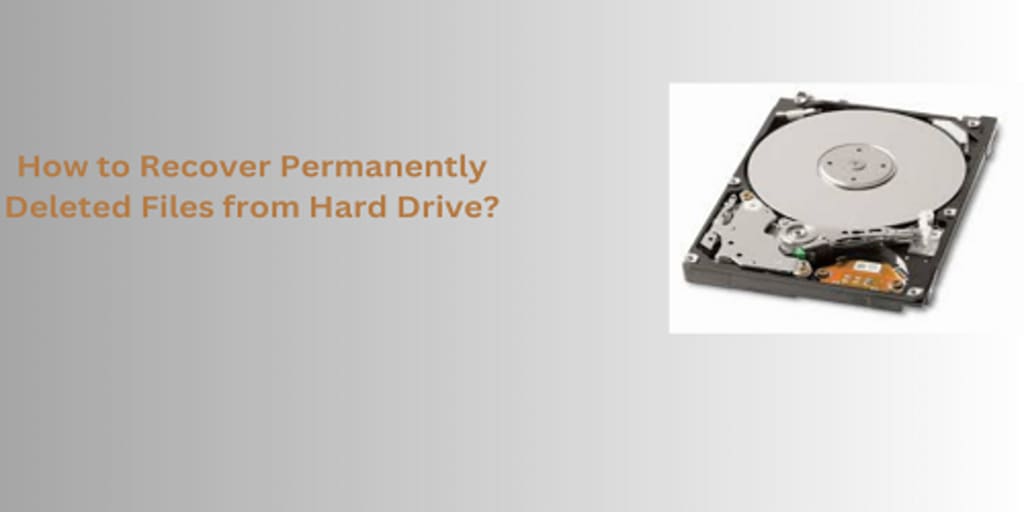
In today's digital age, files on your hard drive are more than just bits and bytes; they are often critical data that can represent years of hard work, memories, and essential information. Losing this data can feel devastating, especially when files are deleted permanently. However, all may not be lost. Understanding how to recover permanently deleted files from hard drive can help you reclaim that crucial data.
This article will provide a detailed guide on recovering permanently deleted data from your hard drive, exploring common reasons for file loss, the available recovery methods, and precautions you can take to avoid permanent data loss in the future.
Understanding File Deletion and Permanent Deletion
Before delving into recovery methods, it's important to understand what "permanently deleted" means. When you delete a file, it typically first moves to your recycle bin or trash, where it can be restored easily. However, when you empty the recycle bin or use certain commands to delete files, the data is removed from the system's index, and the file becomes "permanently deleted."
In reality, when files are deleted permanently, the data is not immediately erased. Instead, the space the files occupy is marked as available for reuse, meaning the data is still physically present on the drive until new data overwrites it. As long as the deleted data hasn't been overwritten, it may be recoverable through specific methods.
Common Reasons for File Deletion
Files can be deleted permanently for various reasons, including:
Accidental Deletion: Often, we delete files by mistake, thinking they are no longer needed. Sometimes, files are erased when cleaning up the drive or cleaning out old folders.
System Crashes: A crash can result in file corruption or make files disappear from your hard drive. This can lead to loss of access to files, even though they are still physically there.
Virus or Malware Attacks: Certain types of malware can corrupt or erase files, causing them to disappear or become inaccessible.
Hard Drive Failures: Mechanical or electrical failures in the hard drive can lead to data corruption, making files appear lost.
Unintentional Formatting: Reformatting the drive or performing a factory reset on a computer can cause files to be wiped from the system, but the data may still be recoverable for a while.
4 Manual Ways to Recover Permanently Deleted Files from Hard Drive
In this segment, we will discuss the step-by-step solutions to recover deleted or lost files. So, for this task , follow the below steps.
1. Stop Using the Drive Immediately
Once you realize that you've deleted files from your hard drive, it's essential to stop using the drive as soon as possible. The longer you use the drive after deletion, the greater the chance that new data will overwrite the space that the deleted files once occupied.
Do not download or install any new software on the drive. Avoid saving new files, as these actions could reduce your chances of a successful recovery.
2. Check your Recycle Bin
Before jumping to more complex solutions, always check your recycle bin or trash. This may seem obvious, but many people miss this simple step.
If you’ve recently deleted the files, they may still be sitting there, waiting to be restored.
To restore files from the recycle bin:
- Open the recycle.
- Right-click on the deleted file(s).
- Tap the Restore function to restore files to their original path or location.
- If the files are not in the recycle bin, you will need to proceed with other methods.
3. Recover Lost Files from Hard Drive: Use Command Prompt (Windows)
For those familiar with command-line tools, the Windows Command Prompt can be another method to recover deleted files from a hard drive. Use the attrib command; you can try to unhide and recover deleted files.
Steps for using Command Prompt:
- Enter the button Win + X, and choose Command Prompt (Admin).
- Type or Enter chkdsk X: /f (changed X with the letter of your hard disk) to scan and solve the disk.
- Use the attrib command to recover hidden files. The syntax is:
attrib -h -r -s /s /d X:\*.*
- Replace X with your drive letter. This command attempts to make hidden files visible.
- While this method may not recover all files, it can sometimes help find deleted files that are still on the drive but hidden.
4. Recover from Backup
If you have a backup system in place, restoring from backup is the easiest and most reliable option. Backup solutions like Windows File History, Time Machine (Mac), or cloud services (Google Drive, Dropbox, OneDrive) can store copies of your files.
If you use backup service
- Go to your backup software or cloud service.
- Find the data files or folder you wish to retrieve.
- Restore the files to their original location.
5. Use Data Recovery Software to Recover Permanently Deleted Files from Hard Drive
One of the most reliable methods for recovering permanently deleted files from a hard drive is using SysTools Hard Disk Recovery Wizard. Many of these tools are user-friendly and can help even those with minimal technical knowledge recover deleted files from hard drives.
How to Use Data Recovery Software? Quick Steps
- Download the Hard Drive Recovery Tool.
- Press hard disk or partition where the deleted or lost files were stored.
- Choose the Scan or Formatted Scan Options to locate any recoverable files.
- Once the scanning process is finished, the utility will show you a list of recoverable your files.
- Save the recovered data files to a location.
Precautions to Prevent Future Data Loss
While it is possible to recover lost files from hard drives, it is always better to prevent data loss in the first place. Here are a few best practices to help protect your data:
1. Backup Regularly: Use backup software or cloud services to back up your data regularly. Consider using the 3-2-1 rule: 3 copies of your data, 2 different types of media, and 1 copy stored offsite or in the cloud.
2. Use a File Versioning System: Cloud services like Dropbox and OneDrive offer file versioning, allowing you to revert to an earlier version of a file, even if it’s been deleted.
3. Enable File History or Time Machine: Windows File History and macOS Time Machine are powerful tools that automatically back up your files and allow you to restore previous versions of them.
5. Perform Regular Disk Maintenance: Disk errors and corrupt files can make it harder to recover data. Use tools like CHKDSK (Windows) or Disk Utility (Mac) to maintain your hard drive’s health.
Conclusion
Losing important files from a hard drive can be a stressful experience, but it is often possible to recover permanently deleted files using the right tools and methods. Whether you're using data recovery software, seeking professional help, or restoring from a backup, the sooner you act, the higher the chances of recovery.
Remember, the best way to protect your data is to back it up regularly and maintain good data hygiene practices. By taking these steps, you can ensure that your precious files are safe, even if the unexpected happens.
About the Creator
Keep reading
More stories from Elle Stephen and writers in Journal and other communities.
How to Convert VCF File to Excel? A Step-by-Step Guide
VCF or vCard files are used to store contact details such as name, phone number, email ID, etc. While VCF files are widely used on mobile phones and email programs, they are not easily readable or editable in spreadsheet applications like Excel. If you need to convert VCF file to Excel for better organization, analysis, or sharing, this blog will guide you through the process in simple steps.
By Elle Stephenabout a year ago in Journal
When Software Stopped Failing Me and What Automation Testing Taught Me
I still remember the day a tiny bug brought an entire release to a halt. The feature worked perfectly on my machine, the demo looked flawless, and yet users were reporting failures within minutes. That moment changed how I looked at software quality forever. It was no longer just about writing code. It was about building confidence, for the team and for the people using the product.
By Anthony Rodgers3 days ago in Journal




Comments
There are no comments for this story
Be the first to respond and start the conversation.