
How to use Balancer with Ledger to swap Crypto or Provide liquidity
How to use Balancer with Ledger to swap Crypto or Provide liquidity
How to use Balancer with Ledger to swap Crypto or Provide liquidity
Before you start
Connect your Ledger device to Metamask
Swapping your asset with Balancer
Providing liquidity via Balancer
Balancer is a decentralized application (dApp) that allows its users to swap, earn, and stack yields, all on one decentralized, community-driven platform.
By connecting your Ledger to Metamask and your Ledger Metamask account to Balancer, you can easily swap assets or provide liquidity.
This article guide contains information on how to use Balancer with Ledger to swap Crypto or Provide liquidity.
To fix this
Please download the last update of Ledger Live Application:
● Update your Ledger device to the latest firmware.
● Update Ledger Live to the latest version.
● Make sure the Ethereum app is installed on your Ledger device.
● Also add an Ethereum account.
Connect your Ledger device to Metamask
● Go to Metamask.io and click on Install MetaMask for your browser.
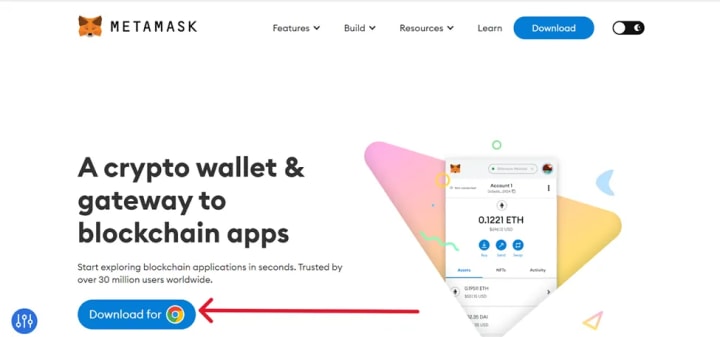
● Add the MetaMask extension to your browser
● Wait for the extension to be added to your browser. (we recommend Google Chrome)
● Select Create a new wallet.
Once you have created a new wallet. Click on your profile icon and select Connect Hardware Wallet.
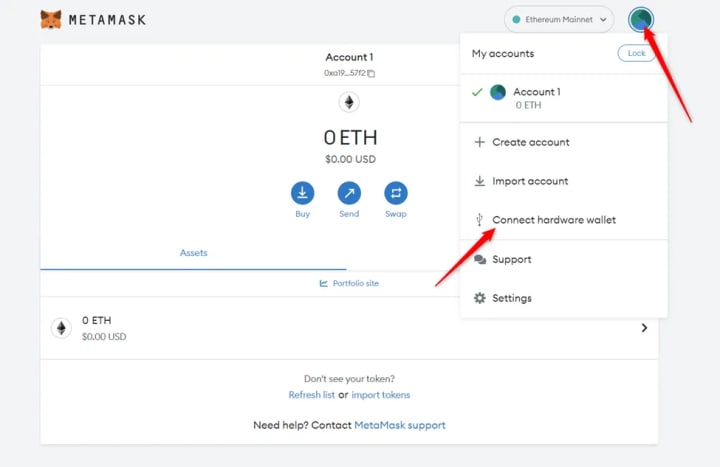
● Follow the instructions on the screen to connect your Ledger device. To do this: Plug your Ledger device into your computer and open the Ethereum (ETH) app on your Ledger device by navigating to the Ethereum icon and pressing both buttons simultaneously. Wait for your Ledger device to display: Application is ready.
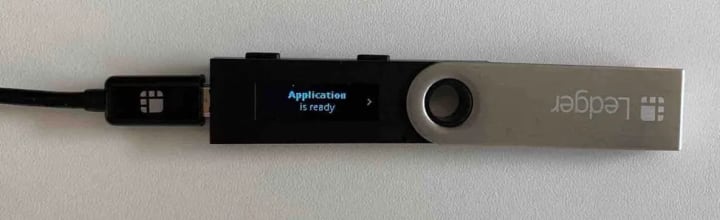
● Select Ledger.
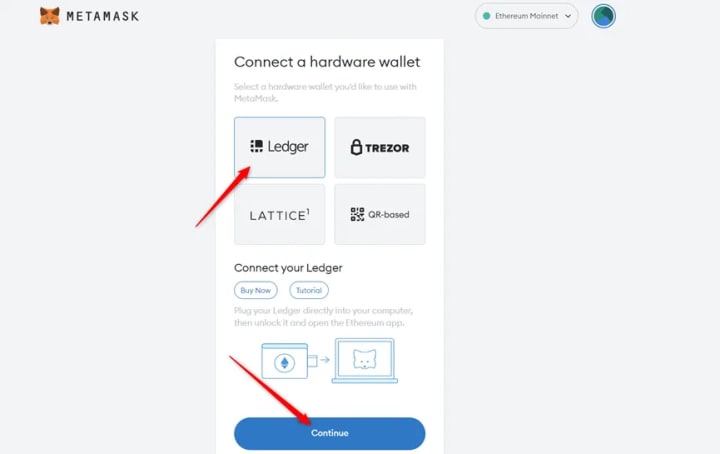
● Wait for MetaMask to recognize your Ledger device, and click on Continue.
● A list of accounts appears. These are your Ledger Ethereum accounts.
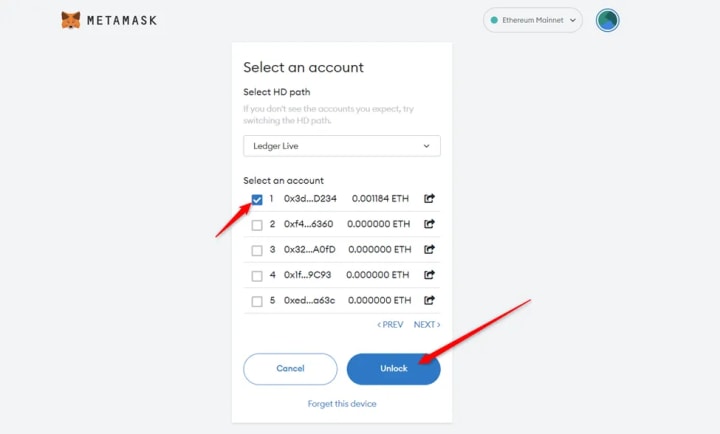
● Select an account by ticking the box then click Unlock.
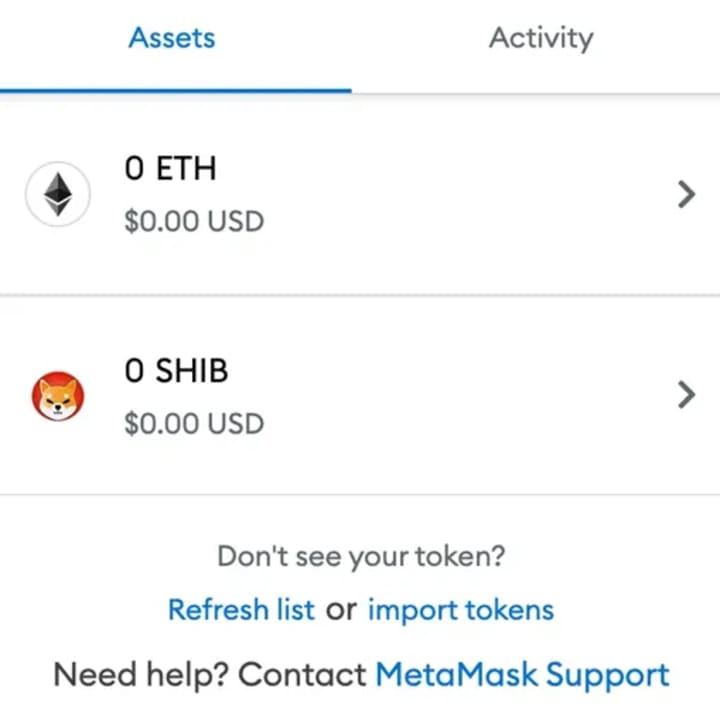
● All done! Your Ledger Ethereum account balance will appear in MetaMask.
Swapping your asset with Balancer
Before beginning this tutorial, make sure that the tokens you want to swap are stored in your Ledger Metamask account.
● Go to app.balancer.fi/
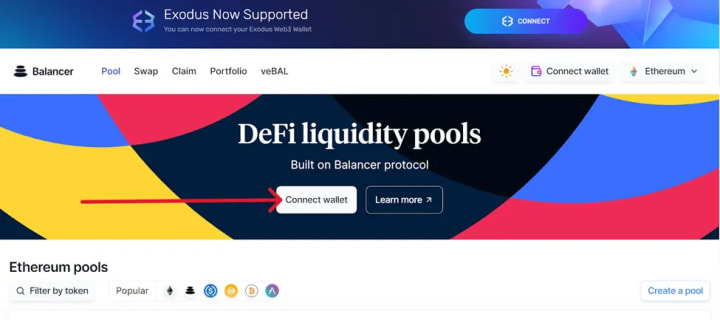
● Click on Connect wallet and select Metamask.
● Wait for MetaMask to pop up asking you to approve the connection to Balancer. Approve the connection.
● Go to Swap.
● Choose the asset you want to swap and enter the value. Choose the asset you want to receive in return for your swapped coins and click on Swap.
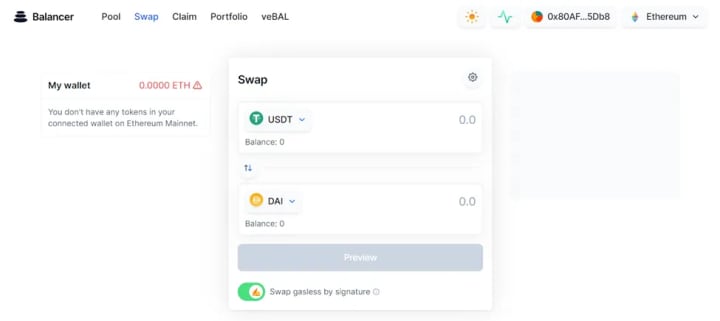
● Click on Preview to review the transaction.
● If everything looks good, click on Swap.
● MetaMask will pop up asking you to authorize the process. Approve it on MetaMask.
● Check your Ledger device and verify the transaction. If everything looks good, Accept the transaction.
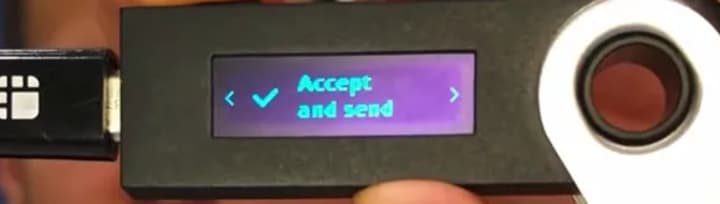
● Now you have successfully swapped coins on your Ledger device on Balancer.
Providing liquidity via Balancer
In order to provide liquidity via Balancer with Ledger, you’ll need to connect your Ledger device to Metamask and use your Ledger Metamask account to connect to Balancer.
● Head to app.balancer.fi/
● Make sure your Ledger Metamask wallet is still connected to Balancer (also, make sure you have some Ethereum to cover gas fees!)
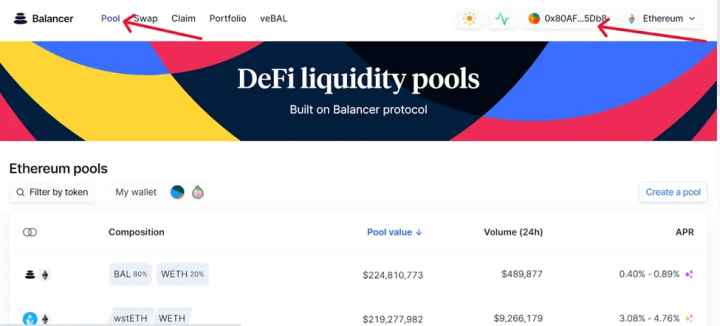
● Scroll down on the pool list and choose a pool by clicking on it.
● Select Add Liquidity.
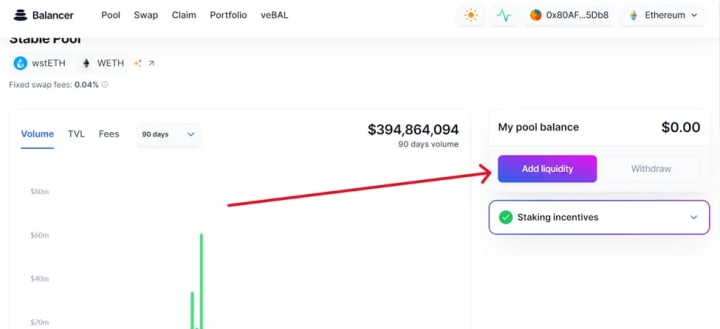
● Click the Liquidity tab and then hit Add, which will bring you to the screen above. Then, simply enter the amount of token you want to liquidate.
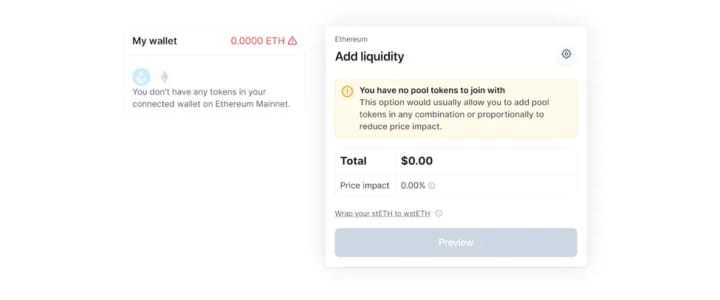
● Click on Preview to review the transaction.
● If everything looks good, click on Invest.
● Wait for Metamask to pop up. Review and approve the transaction if everything looks good.
● Now you’ve successfully added liquidity via Balancer.
Remove Liquidity
You can remove liquidity from Balancer from the pool page, then click on “Withdraw” and choose how much you would like to withdraw as a percentage of the total and confirm the process via your Ledger Metamask account.
About the Creator
Keep reading
More stories from Brad Belick and writers in Geeks and other communities.
30 Years of 'Pokemon': A Look Back At The Most Memorable/Iconic Pokemon Of The Kanto Region
2026 marks the 30th anniversary of the original Pokemon games, Pokemon Red, Pokemon Blue, and Pokemon Green (a Japanese exclusive) in Japan. An unexpected success arriving late in the lifespan of the original Game Boy, the first batch of Pokemon games, now referred to as Generation 1 or Gen 1, are RPGs taking place in the Kanto region, following a young boy embarking on the journey to become a Pokemon Trainer (later games, and Gen 1 remakes FireRed and LeafGreen, give the option of a female Player Character). This journey involves collecting eight Gym Badges to earn the right to battle Kanto's Elite Four, and being drawn into a battle against the evil Team Rocket.
By Kristy Anderson6 days ago in Geeks




Comments
There are no comments for this story
Be the first to respond and start the conversation.