
How to Import Mac OLM to Zoho Mail | Minute Guide
In this guide, we walk-through the best methods to import Mac OLM to Zoho Mail Account securely

You’re not alone — thousands of users are making the same move every year, especially as Zoho continues to grow into one of the best productivity suites for professionals and small businesses.
Outlook for Mac stores everything, your emails, contacts, and calendar entries inside a single OLM file, while Zoho Mail doesn’t recognize that format directly.
When I first tried importing my OLM file into the Zoho Mail Account, I hit a dead end. Zoho just wouldn’t open it. But after a bit of trial and error (and a few mistakes I don’t recommend repeating). So, after wasting and spending lots of time, I found the best method that actually works..
So, if you’re ready to import Mac OLM to Zoho Mail, this short, easy-to-follow guide will save you hours of frustration. But, before we start, let's take an overview of OLM files.
What Exactly Is an OLM File?
If you’ve ever used Outlook for Mac (2021, 2019, 2016 & 2011), you’ve already worked with an OLM file, even if you didn’t realise it.
The OLM file is an archive file of Outlook for Mac that is used to store everything locally:
- Emails
- Attachments
- Contacts
- Calendars
- Notes, etc
But here’s the catch: Zoho Mail can’t open OLM files directly.
It’s like trying to play an iPhone video on an old DVD player.
Why Users Are Switching to Zoho Workplace
Before jumping into the steps, let’s quickly talk about why so many users are moving from macOS Outlook to Zoho Workplace.
After using Outlook for Mac 2019 for years, I started noticing it getting heavier, slower, and more cluttered.
Zoho Mail, on the other hand, offered:
- A cleaner, modern inbox
- Access anywhere (desktop, mobile, web)
- Built-in collaboration tools like Zoho Docs and CRM
- And it’s much more affordable than Microsoft 365
For freelancers, startups, and businesses, switching to Zoho Mail just makes sense. It’s fast, reliable, and doesn’t lock you into Microsoft’s ecosystem.
Step-by-Step: Import from Microsoft Outlook OLM files to Zoho Mail
Here are some methods that help you move your Outlook for Mac OLM file into a Zoho Mail Account.
Export Your OLM File from Outlook for Mac
If you already have your OLM file, great. Otherwise, here’s how to get one:
- Open Outlook for Mac.
- Go to the Tools tab and click Export.
- Choose what to export — Emails, Contacts, Calendars, or all.
- Select Save as. Open OLM and choose a folder.
- Click Finish once it’s done.
You now have your OLM file — it’s your complete backup from Outlook for Mac 2021, 2019, 2016, or even 2011.
Method 1: Import OLM file to Zoho Mail Workspace| Using IMAP Synchronisation
If you want to import your Outlook for Mac data to Zoho Mail manually, here’s a short step-by-step method using IMAP sync.
Step 1: Enable IMAP in Zoho Mail
- Log in to Zoho Mail on your browser.
- Go to Settings → Mail Accounts → IMAP Access and turn it ON.
Step 2: Add a Zoho Mail Account in Outlook for Mac
- Open Outlook for Mac → Tools → Accounts → + New Account.
- Enter your Zoho Mail ID and password.
- If asked, use these settings:
IMAP Server: imap.zoho.com (Port 993, SSL ON)
SMTP Server: smtp.zoho.com (Port 465 or 587, SSL ON)
Step 3: Copy Emails to Zoho Mail
- In Outlook, select the OLM mailbox or emails you want to move.
- Drag and drop them into your Zoho Mail folders (Inbox, Sent, etc.).
- Wait for the sync to finish — it may take time based on file size.
Step 4: Verify in Zoho Mail
- Log back into your Zoho Mail account.
- Check your folders — your Outlook for Mac emails should now appear there.
Method 2: Import Mac Outlook OLM to Zoho Mail | Directly
Now, you understand how the manual method works and also know that it requires lots of IMAP synchronization, which makes the process tricky and may result in loss.
To import a Mac OLM file in Zoho Mail directly and securely, I recommend using a trusted tool like Softaken OLM to IMAP Migration Tool. The software is specially built for direct OLM to Zoho Mail or any IMAP-supported email clients migration. Only need to complete a few quick steps, and you can directly open OLM files in your Zoho Mail Account.
Steps to Import OLM to Zoho Mail Account
- Download & Install the OLM to IMAP Migration Tool
- Browse and Add OLM files of Mac Outlook 2021, 2019, 2016 & 2011
- Take a preview of the uploaded OLM file
- Choose (IMAP) Option & Authenticate Zoho Mail Account
- After Completing Authentication, click the start button
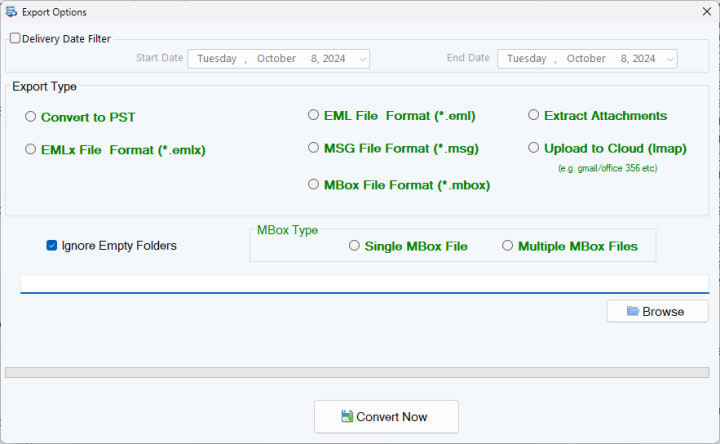
Now, wait a few minutes to complete the process.
Example: Real-Life Migration Story
When my team moved from Outlook for Mac 2016 to Zoho Workplace, we had lots of separate OLM files to deal with.
- At first, we tried a few online converters — big mistake.
- One corrupted half the emails, and another just stopped after 50 MB.
That’s when we switched to a dedicated tool — it handled all files in one go. Once uploaded to Zoho Mail, every message synced perfectly across our accounts.
Conclusion
Migrating from Outlook for Mac to Zoho Workplace might sound technical, but it’s actually a straightforward process when you do it correctly. Above, I mentioned the best methods that help you make OLM to Zoho Mail Migration effortless. If you value speed, accuracy, and data privacy, many professionals and users recommend trying a dedicated tool to simplify the importing process. Now, it all depends on you which method works and suits your needs.
About the Creator
Biography of Danielle Renae
Danielle Renae is a name that stands for drive, creativity, and quiet strength. Her story is not built on overnight fame or sudden luck. It is shaped by years of steady effort, personal growth, and a clear sense of purpose. Whether through her work, her presence online, or the way she connects with people, Danielle has created a path that reflects both ambition and authenticity.
By Dena Falken Esq6 days ago in Geeks


Comments
There are no comments for this story
Be the first to respond and start the conversation.